The 'Boards' interface shows all project-pertinent change orders in which you are involved. The project managers of general contractors and subcontractors can perform the following actions from this interface.
General Contractor | Subcontractor |
Generate COs | Generate COs, provide their estimates and submit to GCs |
Add their estimates | Respond to bid requests from GCs |
Request bids from the subcontractors | |
Review and accept bids | |
Close and obtain Owner's Approval | |
Add the CO to the master schedule and assign jobs to the subcontractor(s) |
Boards View
- Ensure that you are on the change order module of the project. If not:
- Click the main menu at the top-left
- Click 'Change orders' under 'Financials & Controls'
- Click 'Boards' on the left
The screen shows the project's change orders under various stages.
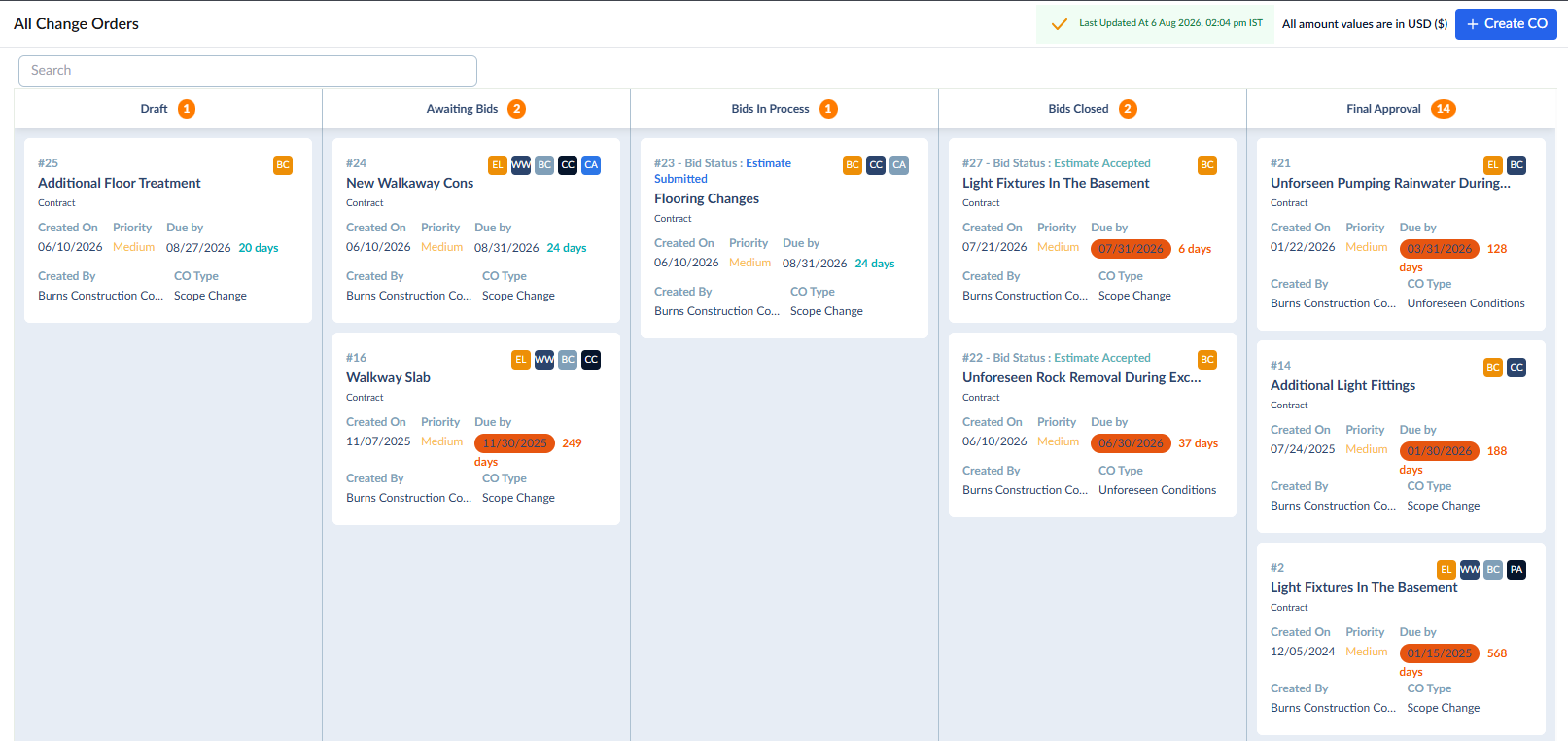
The 'Boards' view shows the COs as cards under different stages.
- Draft - The change orders created by you and yet to be routed.
- Awaiting Bids - Change orders for which you have invited bids from the subcontractors and awaiting their responses.
- Bids in Process - Change orders for which the subcontractors have submitted their responses and awaiting your review.
- Bids Closed - Change orders for which you have finalized the bids and awaiting owner approval
- Final Approval - Change orders that were approved and closed. These are available to add to the project schedule and commence the work.
Search options:
- Use the search box at the top right to search for any change order using any of the value as search criteria.
Each card shows the at-a-glance details of the change order:

1 | - | The serial number of the Change Order. |
2 | - | The title of the CO. |
3 | - | Kind of the CO, whether it is 'Contract' or 'Commitment.' |
4 | - | The initiation date of the CO. |
5 | - | The criticality of the RFI. The priority is also indicated with color codes:
|
6 | - | The contractor company that raised this CO. |
7 | - | The type of the CO, based on its reason. |
8 | - | The date within which the CO has to be closed. For COs that are due shortly and overdue, the due date is highlighted to indicate the criticality.
|
9 | - | The number of days remaining before the due date. For overdue COs, it shows the number of days past the due date.
|
10 | - | The trades involved in the change work. The tiles indicate the contractors from whom the bids are invited. |
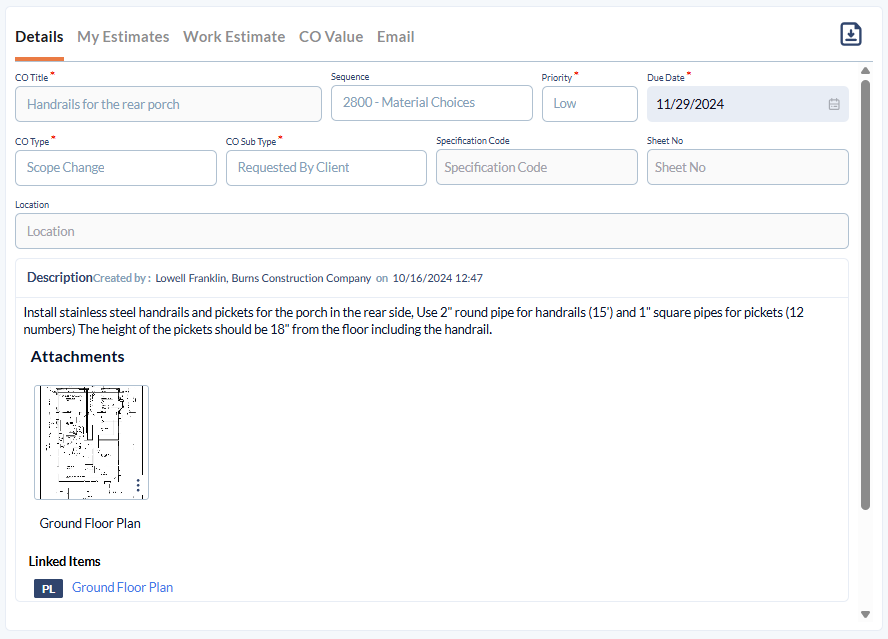
- Click a card to view its details and/or respond to:
List View
- Click the main menu at the top-left
- Click 'Change orders' under 'Financials & Controls'
- Click 'Logs' on the left
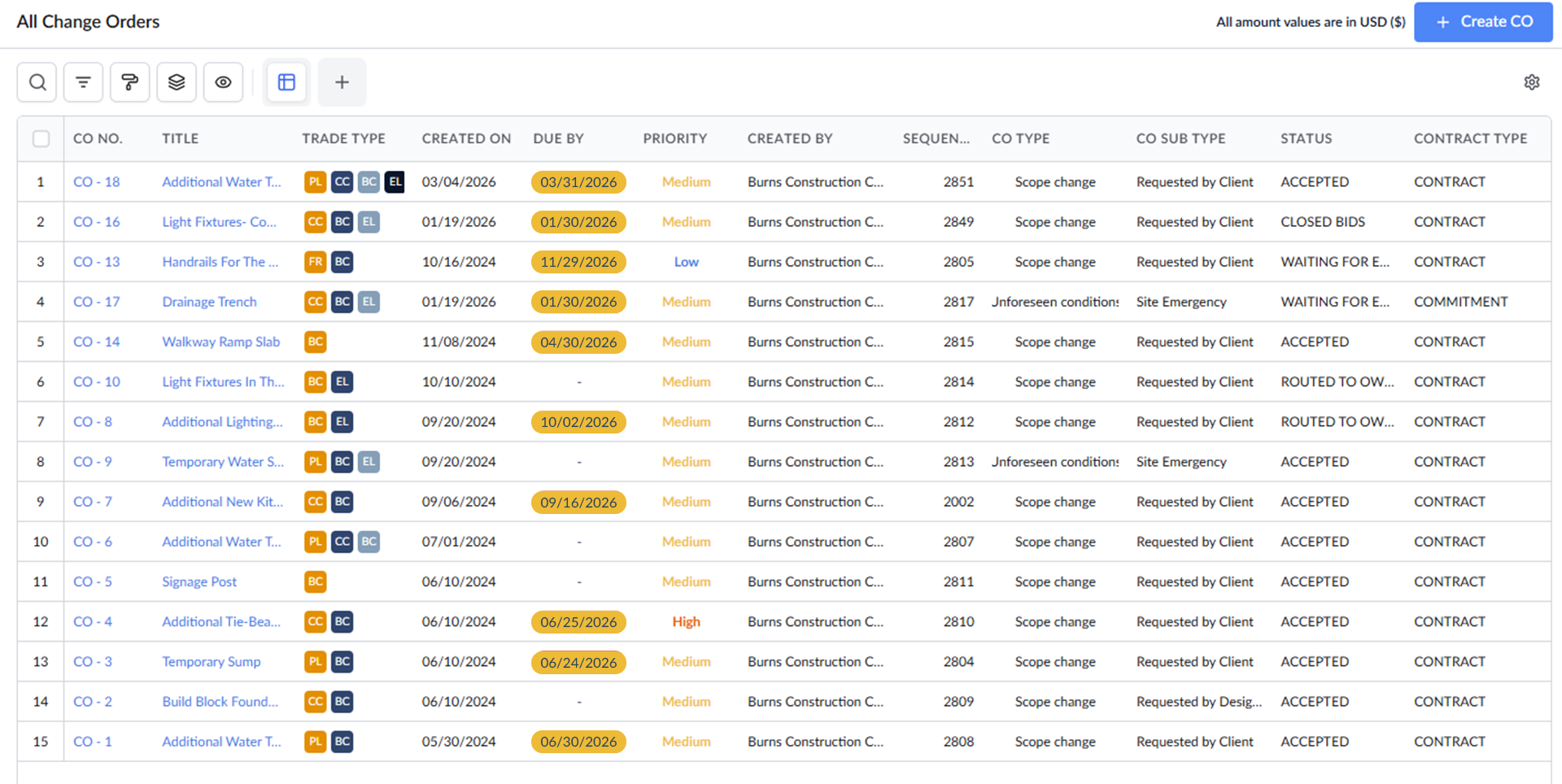
The list view shows the active change orders as a list with their details:
Column Descriptions:
- CO No. - The serial number of the change order
- Title - The subject of the change order. Click the name to open the CO.
- Trade Type- The contractors involved in the change work
- Created On - Date at which the CO was generated
- Due By- The deadline date of the CO, before which it has to be closed. The date is shown with a color background for the COs that are overdue or the due date is imminent.
- Yellow - Due within this week
- Red - Overdue. The due date has passed.
- Priority- The criticality of the CO. The priority level is also indicated by color codes:
- Red - High
- Orange - Medium
- Blue - Low
- Created By - The contractor company that created the CO.
- Sequence - The serial number of the change order based on the classification as per your company practices.
- CO subtype - The sub-classification of the CO based on its type.
- Specification code - The section in the project spec book related to the tasks and deliverables involved in the change work.
- Sheet code - The plan sheet reference to the change work
- Status - The current progress level of the CO, as per its workflow
- Contract type - Whether the change order is on the contract or commitment
Search, Filter, and Sorting Options
- Click the magnifier icon and use the 'Search' box located at the top left to find an entry using any value from the table as search criteria
- Click any column header to sort the rows in ascending or descending order based on that column's data.
- Click the cog wheel icon at the top right to adjust the display density and customize the display and order of the columns. See Customize Columns in List Views.
- The options at the top left allow you to filter the entries, create nested groups of entries, highlight cells and manage personalized and customized views of the table. Use the links below to learn more:
Read the following sections to know more about:
- Change Order - Workflow
- Change Order Dashboard
- View Change Orders
- Create a Contract Change Order
- Create a Commitment Change Order
- Request work estimates from subcontractors and vendors
- Respond to estimate requests
- Process change order estimates
- Submit Estimate Revisions
- Close a Change Order
- Approve a change order on behalf of the owner
- Get Owner Approval for a Change Order
- View and Download Completed COs
Was this article helpful?
That’s Great!
Thank you for your feedback
Sorry! We couldn't be helpful
Thank you for your feedback
Feedback sent
We appreciate your effort and will try to fix the article