The list views on various modules like the RFI, Submittals, Change Orders, Punch list, etc., allow you to configure rule-based custom filters and sets of filters to display only the relevant entries in the table. Filters can be nested, with each successive filter applied sequentially, enabling you to drill down to the specific entries you want to view. The 'Filter' option allows you to add your filtering rules. Each rule contains three components: the column, the search criteria, and the relation.
For instance, if you need to view RFIs created by the contractor(s) of a specific trade type and marked as 'High' priority, you can start by applying a filter to display only the RFIs of the trade type. Afterward, add another filter to narrow the results further by priority level, focusing only on 'High' priority items. You can continue layering filters to progressively refine your results based on multiple criteria.
You can also use the filters to create custom views of the table to show only the items classified and organized based on specific criteria. See Manage Custom List Views to learn more.
The process of applying filters works consistently across all table views. In this article, we use the T&M logs as an example, but the same method can be applied to any table, allowing you to filter data based on your specific criteria in any context.
To add filter rules and rule sets
- Click the filter icon
 at the top left of the table
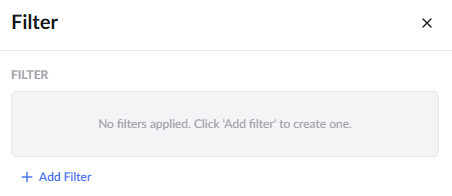
Click the
 button
Select the desired column to add it as the criteria of the filterChoose the condition. The conditions available depend on the selected column
The filter is saved automatically and the system displays the filtered result
Note: By default all the additional filter conditions are applied using 'AND' logic
- Click thebutton and repeat the process to add more rules to the filter set with 'AND' logic
Alternatively, to add more filter rules with 'OR' logic
- Click
 button at the bottom
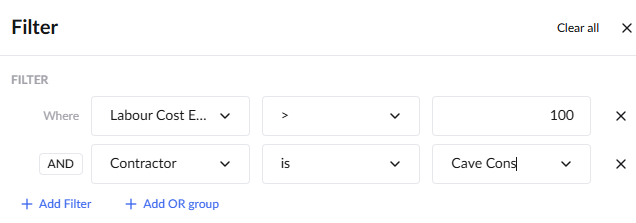
In the example above, the rules are added to show the T&M tickets with specific contractor and estimated labor cost
The grid now shows only the rows that satisfy the rules applied sequentially. You can save the filter by creating a custom view for the table with this filter applied.
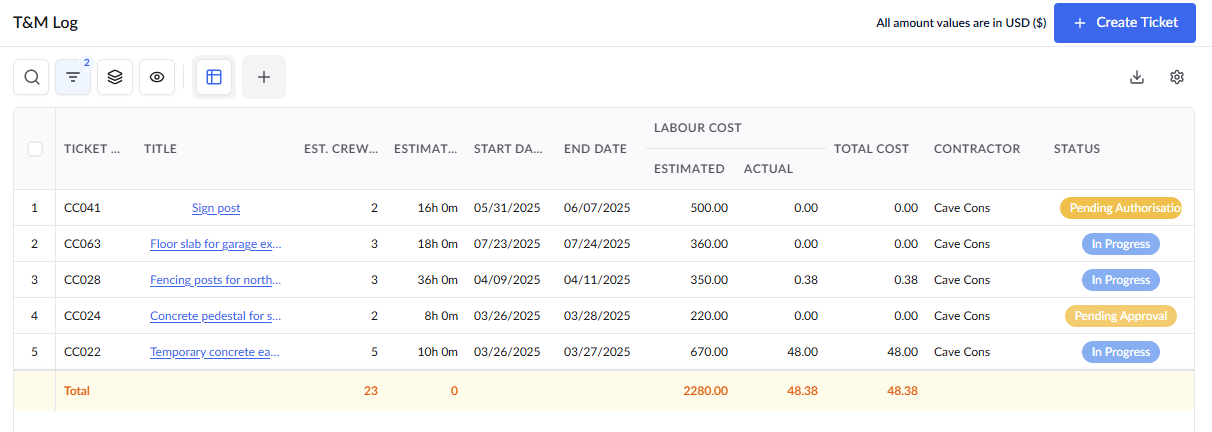
- Click 'X' mark to remove individual filters/filter sets
- Click 'Clear all' at the top left to remove all filters/filter sets at once
Was this article helpful?
That’s Great!
Thank you for your feedback
Sorry! We couldn't be helpful
Thank you for your feedback
Feedback sent
We appreciate your effort and will try to fix the article