The System Drive serves as a secure, automated repository for successfully closed project records, ensuring data integrity by prohibiting manual folder modifications. This structured environment provides a definitive archive for all published project documentation and field reports.
- Automatically generates folders such as Submittals, RFIs, Change Orders, and Daily Reports to house the PDF versions with all associated attachments of the respective types of documents.
- Auto-saves PDF versions of Daily Field Reports (SC/GC) and Daily Jobsite Reports (GC) whenever a download is manually generated, ensuring a permanent record of site activities.
- Restricts file access automatically to participants of the original response or approval workflows, while allowing authorized users to view, download, and retrieve data from any device.
- Facilitates continued collaboration through integrated annotation tools for PDF markups and a shared commenting system visible to all users with file access.
This structured and secure approach ensures efficient document management and enhances project recordkeeping.
The 'System Drive' screen
- Ensure that you are in the 'Cloud Drive' module of the project. If not,
- Click the main menu at the top-left
- Click 'Cloud Drive' under 'Documents' in the menu drop-down
- Select 'System' on the left
By default, the company drive opens in the list view. You can switch between the list view and tile view at any time.
List View
The drive opens in the list view by default.
- To return to the list view from the tile view, click the
 button on the top-right.
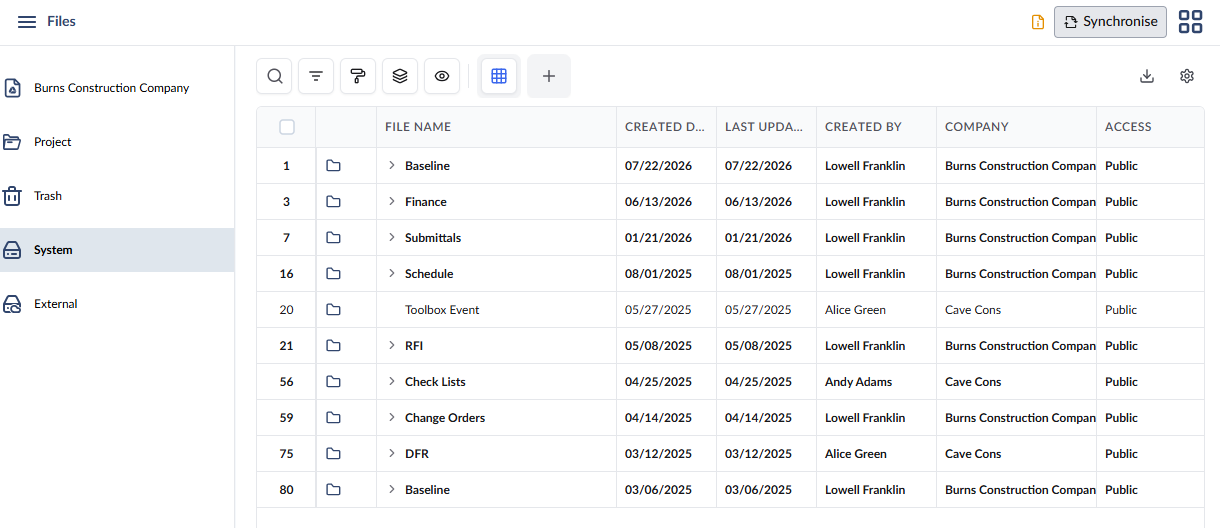
The table shows the hierarchical list of folders and files in the project's system drive.
- File Name- The label of the folder, subfolder, or file
 - Folder or subfolder - Click the right arrow at the left of a folder or subfolder to expand it and access the contents in it. Right-click on the folder name for folder options.
 - File - Right-click any file name to view, download, share, or delete. For PDF documents, additional annotation tools are available.
- Created Date - The date on which the folder or file was added to the drive
- Last Updated - The date on which the recent change was made to the item, like renaming the item.
- Created By - The name of the user who created the first item of that type, so that the system created the folder
- Company - The company to which the user belongs.
- Access- The permission level of the folder/file. The possible values are:
- Restricted - The folder or the file is accessible only by the team members from selected organizations who participated in the item's workflow
- Public - Available to members belonging to all organizations. Applies only to RFI's closed as 'Public' and daily reports.
- Parent Folder - The parent folder of the item. Applies only to subfolders and files
- Click the 'Synchornise' button on the top right to sync all your files in from your Linarc file repository to your integrated external drive
Tile View
- Click the 'Tile View'
 button to switch to the thumbnail view of the files and folders.
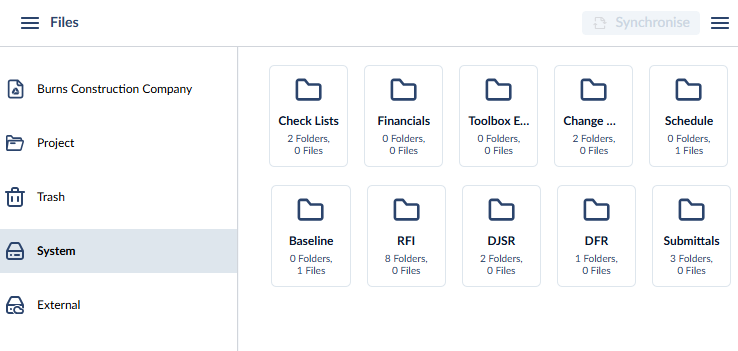
Note: You can only view and download files from the system drive. You cannot upload, rename or delete files and folders from the system drive.
See the following section to learn more about:
Was this article helpful?
That’s Great!
Thank you for your feedback
Sorry! We couldn't be helpful
Thank you for your feedback
Feedback sent
We appreciate your effort and will try to fix the article