Folders and files deleted from any drive type are moved to the Trash bin, where they are retained until permanently removed. You can view and manage the contents of the Trash bin at any time. Items that are no longer needed can be permanently deleted to free up storage and maintain better file organization.
Note: File preview is available only for formats supported by your browser, typically image files and PDFs.
To open the trash bin
- Ensure you are in the project management console. If not.
- Click the main menu at the top left
- Select 'Cloud Drive' under 'Documentation' menu
- Select 'Trash' under the drive type options on the left
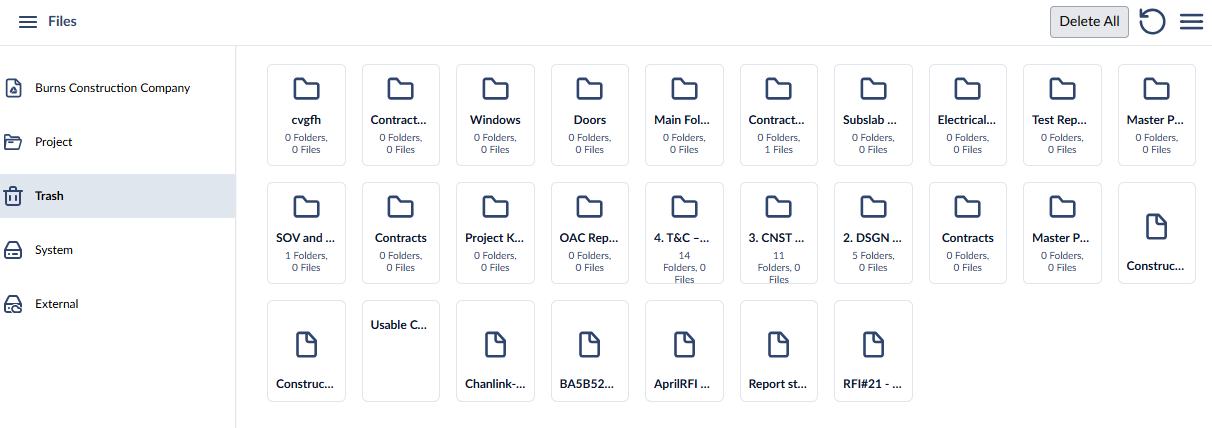
By default, the screen opens on the list view. You can switch between the list view and tile view at any time.
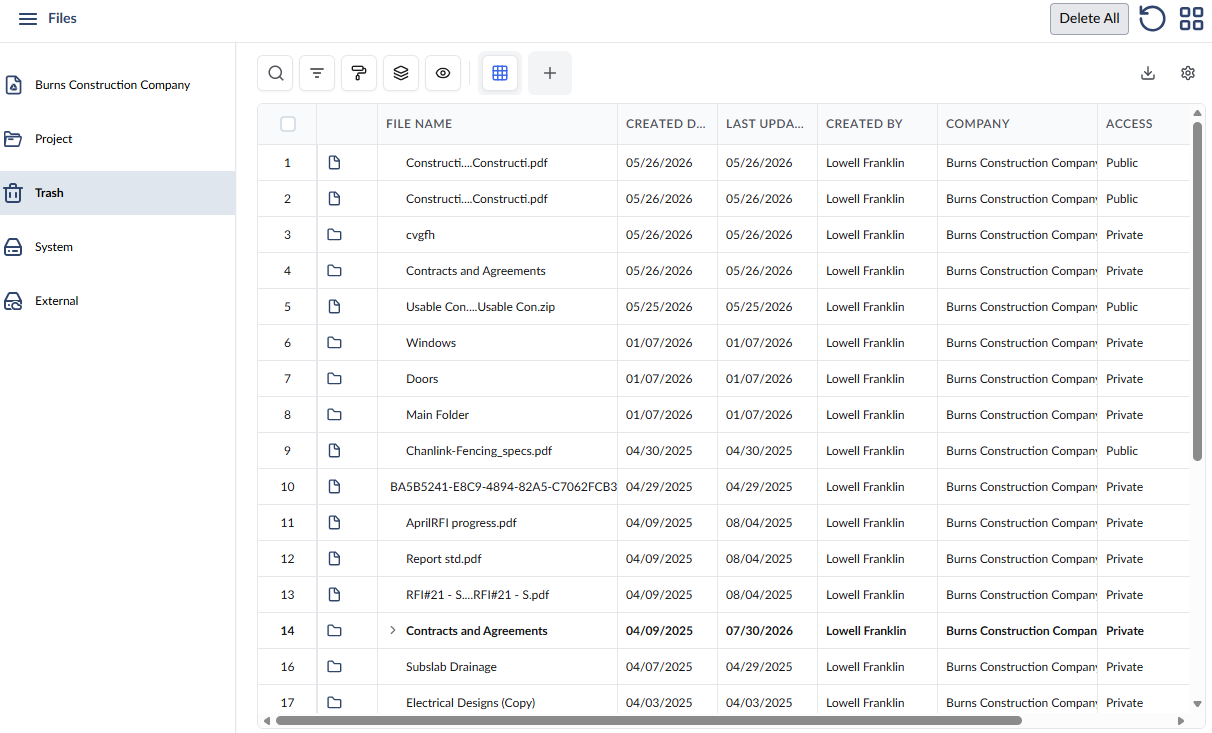
The table shows the hierarchical list of folders and files in the project's trash bin. The 'Default View' shows all columns in the table. You can remove the columns you do not want to see from the table and save it as your custom view. See Customize Columns in List Views and Manage Custom List Views to learn more.
- File Name- The label of the folder, subfolder, or file
 - Folder or subfolder - Click the right arrow at the left of a folder or subfolder to expand it and access the contents in it. Right click on the folder name for folder options.
 - File - Right-click any file name to view, download, share, or delete. For PDF documents, additional annotation tools are available.
- Created Date - The date on which the folder or file was added to the drive
- Last Updated - The date on which the recent change was made to the item, like renaming the item.
- Created By - The name of the user who created the first item of that type, so that the system created the folder
- Company - The company to which the user belongs.
- Access- The permission level of the folder/file.
- Parent Folder - The parent folder of the item. Applies only to subfolders and files
Search, Filter, and Sorting Options
- Click the magnifier icon and use the 'Search' box located at the top left to find an entry using any value from the table as search criteria
- Click any column header to sort the rows in ascending or descending order based on that column's data.
- Click the cog wheel icon at the top right to adjust the display density and customize the display and order of the columns. See Customize Columns in List Views.
- The options at the top left allow you to filter the entries, create nested groups of entries, highlight cells and manage personalized and customized views of the table. Use the links below to learn more:
- Click the 'Tile View'
 button to switch to a thumbnail view of the files and folders.
Restor Files and Folders from the Trash bin
- Ensure you are in the 'Trash' drive
- Click 'Trash' on the left if you are in any other drive
- Navigate to the folder containing the items you want to restore
- Click the
 button on the top left to restore all the items in trash
- Alternatively, right-click on the item and choose 'Restore'
- Confirm the number of files or folders you want to restore by entering the same on the confirmation pop-up that appears
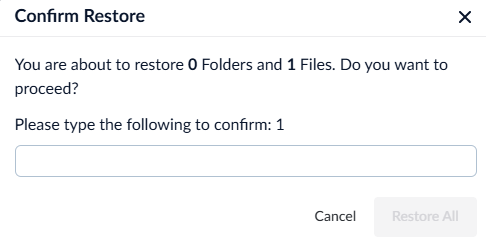
The files and folders are restored to the respective drives from which they are deleted.
Permanently Delete Files and Folders
You can delete files and folders permanently from Linarc's cloud-based repository.
- Ensure you are in the 'Trash' drive
- Click the file/folder you want to delete
- If you are in the list view, click on the S. No. of the file or folder to select
- Click the
 button
 - Confirm the number of files or folders you want to permanently delete by entering the same on the confirmation popup that appears
Your files/folders are permanently deleted from Linarc's database.
Permanently Delete All Files and Folders
You can permanently delete files and folders from the Trash to remove them entirely from Linarc’s cloud-based repository.
- Ensure you are in the 'Trash' drive
- Click the 'Delete All' button on the top right
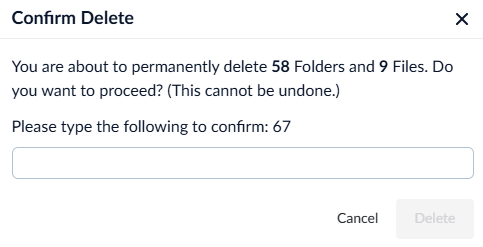
- Confirm the number of files or folders you want to permanently delete by entering the same on the confirmation pop-up that appears:
- Click the 'Delete' button to confirm your action
Your files/folders are permanently deleted from Linarc's database.
Was this article helpful?
That’s Great!
Thank you for your feedback
Sorry! We couldn't be helpful
Thank you for your feedback
Feedback sent
We appreciate your effort and will try to fix the article