This screen gives you a consolidated view of all tasks published and pushed to the field through the Look Ahead Schedule, helping you understand progress, timelines, and any deviations from the plan.
Review task timelines by comparing completed task’s planned start date with its actual start date to understand schedule alignment.
View predicted end dates for the tasks that are currently in progress.
Identify schedule delays recorded for both completed and ongoing tasks, enabling quick action and improved project oversight.
To view field tasks
- Ensure you are in the 'Field' module of the project management console. If not,
- Click the main menu at the top left
- Click 'Jobsite' under the 'Field' menu then choose 'Task' on the left
The Field Task screen displays a comprehensive list of tasks and activities pushed to the field through an active Look Ahead schedule.
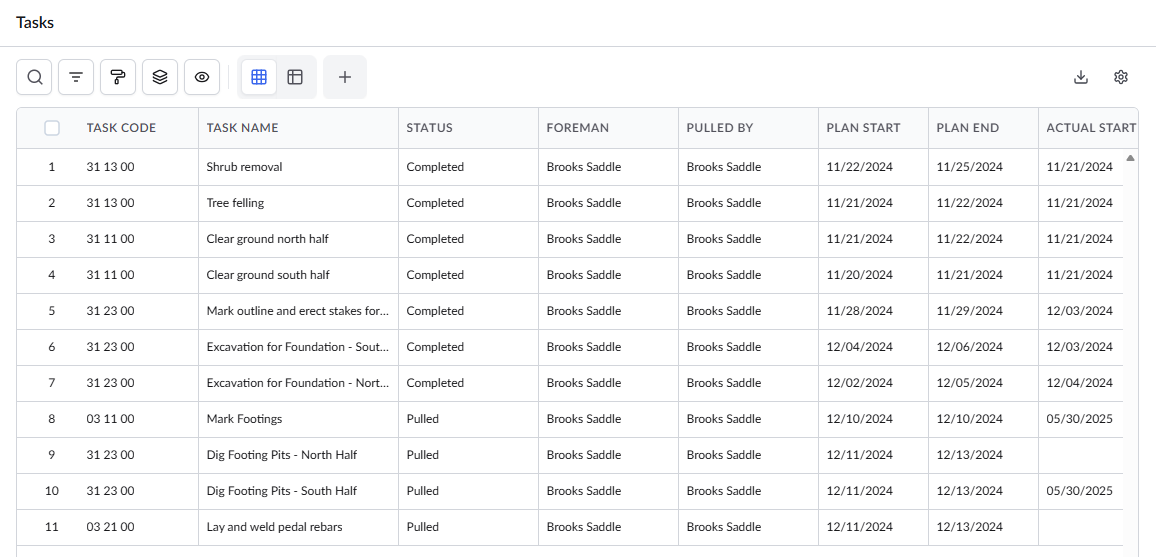
Standard Columns:
- Task code - The task code assigned to the item. This code also serves as the cost code, helping you track the budget and expenses associated with the item.
- Task Name - The label of the task/activity
- Status - The current state of the task, such as Pulled, In Progress, or Completed.
- Foreman - The foreman responsible for the shift in which the task was executed
- Pulled By - The staff member who oversees the task and is responsible for updating its progress.
- Plan Start - The commencement date of the task.
- Plan End - Auto-computed from the start date and duration values.
- Actual Start - The real commencement date of the task on the field
- Actual End - The real completion date of the task on the field
- Predicted End - The anticipated end date calculated from the planned start date and the current progress
- Predicted Start - The anticipated start date calculated from the planned start date and the current progress
- Start Delay - The difference between the planned start date and the actual or predicted start date, indicating how late the task began or is expected to begin.
- End Delay -The difference between the planned end date and the actual or predicted end date, showing how late the task finished or is expected to finish.
Search, Filter, and Sorting Options
- Click the magnifier icon and use the 'Search' box located at the top left to find an entry using any value from the table as search criteria
- Click any column header to sort the rows in ascending or descending order based on that column's data.
- Click the cog wheel icon at the top right to adjust the display density and customize the display and order of the columns. See Customize Columns in List Views.
- The options at the top left allow you to filter the entries, create nested groups of entries, highlight cells and manage personalized and customized views of the table. Use the links below to learn more:
Was this article helpful?
That’s Great!
Thank you for your feedback
Sorry! We couldn't be helpful
Thank you for your feedback
Feedback sent
We appreciate your effort and will try to fix the article