Linarc facilitates seamless project planning by allowing you to import schedules directly from popular external software. Whether starting a new project or migrating an active one, you can transition your plans to Linarc without losing critical task data, progress percentages, or timeline logic.
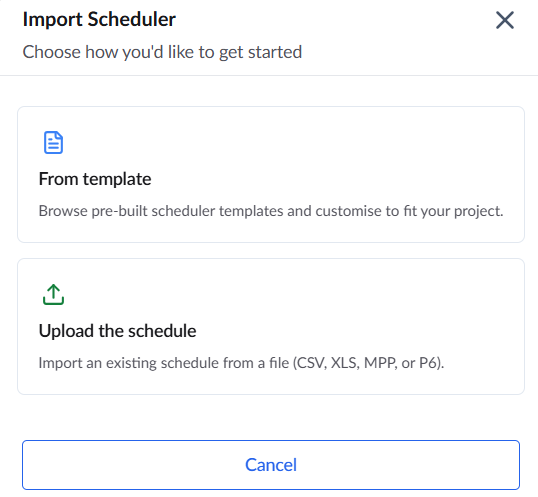
Additionally, Linarc allows you to choose how you'd like to get started when building your master schedule. You can choose from schedule template to browse saved templates and customize them to fit your project, or upload the schedule to import an existing schedule from a file (CSV, XLS, MPP, or P6). See for more details.
- Import schedules from external applications while maintaining the full integrity of your project structure.
- Preserve existing task progress and original timelines when migrating ongoing projects.
- Automatically apply weekly working days and holiday configurations directly from the source file.
- Identify and correct data mismatches, such as unassigned contractors, before finalizing the import.
New Projects: Easily import schedules for projects that have not yet begun. This option is ideal when no tasks have progressed, allowing you to start with a clean schedule. Once uploaded and saved, you have the option to edit the schedule, like adding new parent-level tasks, adding subtasks, specifying/changing the start/end dates and dependencies, assigning subcontractors, and more from the Linarc scheduler.
Ongoing Projects: Import schedules for projects already in progress and managed with other software. This functionality transfers all critical data, including task progress percentages and key data points like Early Start (ES), Early Finish (EF), Late Start (LS), Late Finish (LF), and slack, as calculated by the source application. This facilitates a smooth migration of live schedules into Linarc’s more intuitive environment and ensures accurate project tracking and planning.
Note:
You can import schedules from external sources only into projects that do not contain any pre-existing schedule items, whether created in Linarc or previously imported.
You can upload your schedule file directly from your local storage. The currently supported applications and file formats are:
Oracle Primavera | - | XER |
Microsoft Project | - | MPP |
Microsoft Excel | - | XLSX |
To import a schedule
- Ensure that you are in the Schedule > 'Grid' view screen. If not
- Click 'Schedule' under 'Scheduler' menu
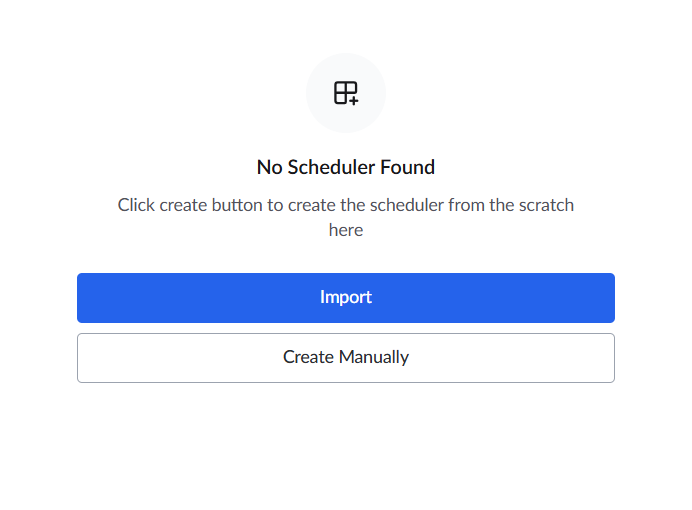
- Select 'Grid' on the left to open the master schedule of the project or click the 'Import'
- Click 'Upload the schedule' in the 'Import Scheduler' pop up to upload your schedule file
- Choose the format of the schedule file to upload
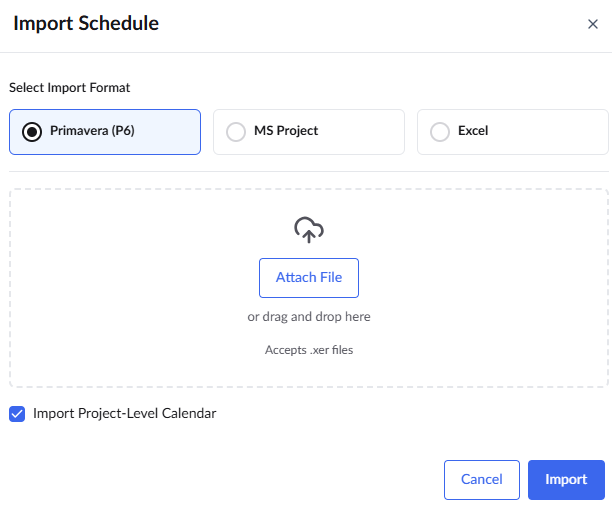
The available options are:
- Primavera - .xer file
- Microsoft - .mpp file
- Custom - .xlsx file
- Select the 'Import Project-Level Calendar' checkbox to inherit holidays and weekly working days directly from the source file.
Note: Ensure you select your project calendar preference before uploading. Selecting or dropping the source file automatically triggers the import and closes this window.
- Click 'Attach File' and navigate to the file to upload to your local/network drive
- Alternatively, drag and drop the file into the 'Attach File' box
Note:
Linarc automatically inherits and applies all task dependencies from the uploaded file. Review the imported dependencies to ensure they are accurate and aligned with your project plan.
Once the file upload begins, the time required will depend on the number of lines in the schedule and the overall file size. The system then validates the file, scanning for discrepancies, missing entries, and inconsistencies
- If discrepancies are found, the scheduler highlights the affected items, allowing you to review and reconcile them before saving the schedule. See Reconcile Errors and Save Imported Schedule for more details.
- If no discrepancies are detected, the schedule is saved automatically, and you can proceed to edit it as needed.
Import Project-Level Calendar
When uploading a schedule file, you must define how Linarc processes the working days. Select the 'Import Project-Level Calendar' checkbox to inherit holidays and weekly working days directly from the source file.
Note: In the context of scheduling software like Microsoft Project or Primavera, a "defined project calendar" means that the source contains an explicitly configured schedule of working days, non-working days, and specific project holidays.
| Source File Status | Import Project-Level Calendar Checkbox | Resulting Project Calendar |
| Contains a defined project calendar | Checked | The calendar from the imported file source is considered as the default. |
| Does not contain a defined project calendar | Checked | A standard Monday through Friday schedule is set as the default. |
| Contains a defined project calendar | Unchecked | Linarc's default calendar settings overwrite the imported source file's project calendar. |
| Does not contain a defined project calendar | Unchecked | Linarc's default calendar settings take over. |
Linarc Project Calendar
When the calendar import option is selected, the system overwrites any existing holiday and work-week configurations in Linarc with the settings from your source file.
To confirm that the calendar data was applied correctly
- Hover your mouse over the main menu at the top-left
- Click 'Information' under 'Project' menu and click 'Calendar' on the left
- Review the 'Site Working Days' pane at the top to confirm the weekly schedule.
- Check the 'Custom Holidays' tab within the 'Holiday List' pane to view the specific dates imported from the source file.
Import Master Schedule from Schedule Templates
Generate your master schedule by importing a pre-built template from your library. This allows you to standardize your workflows and reuse successful project structures to save time.
Note: To import master schedule from a schedule template you must have previously saved an existing schedule as a template. See here for more details.
Open the scheduler as mentioned above
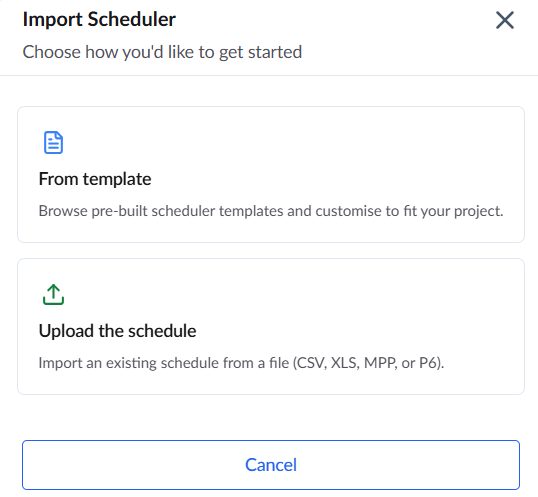
Click 'Import' and select 'From Template'
Select a template from your library in the 'Saved Templates' pop-up
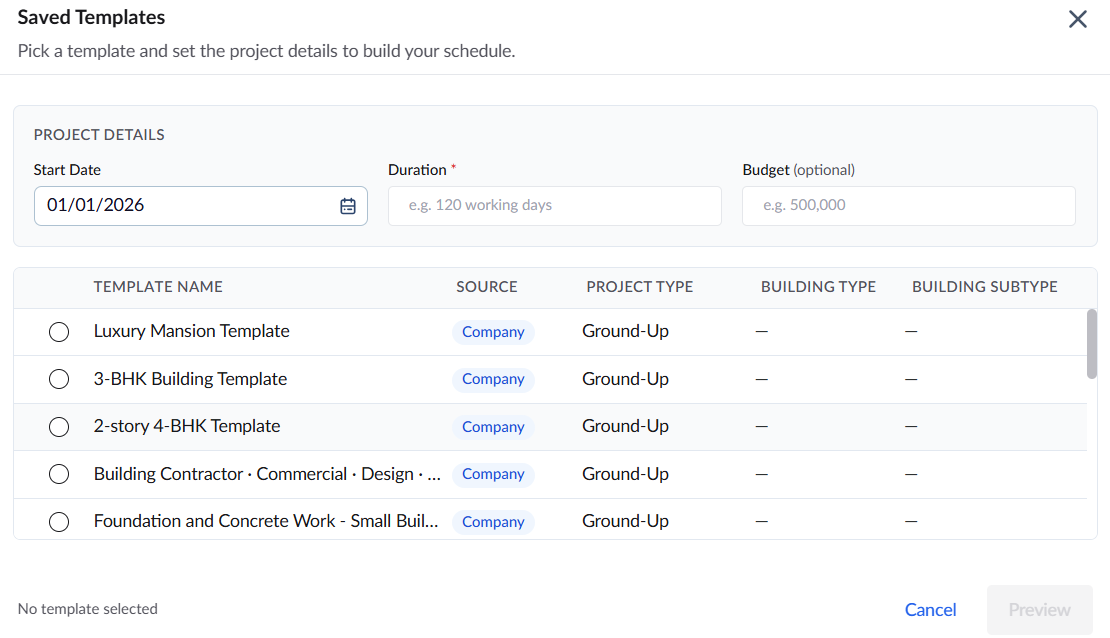
Set your project start date and duration to generate your foundation schedule
Click 'Preview'
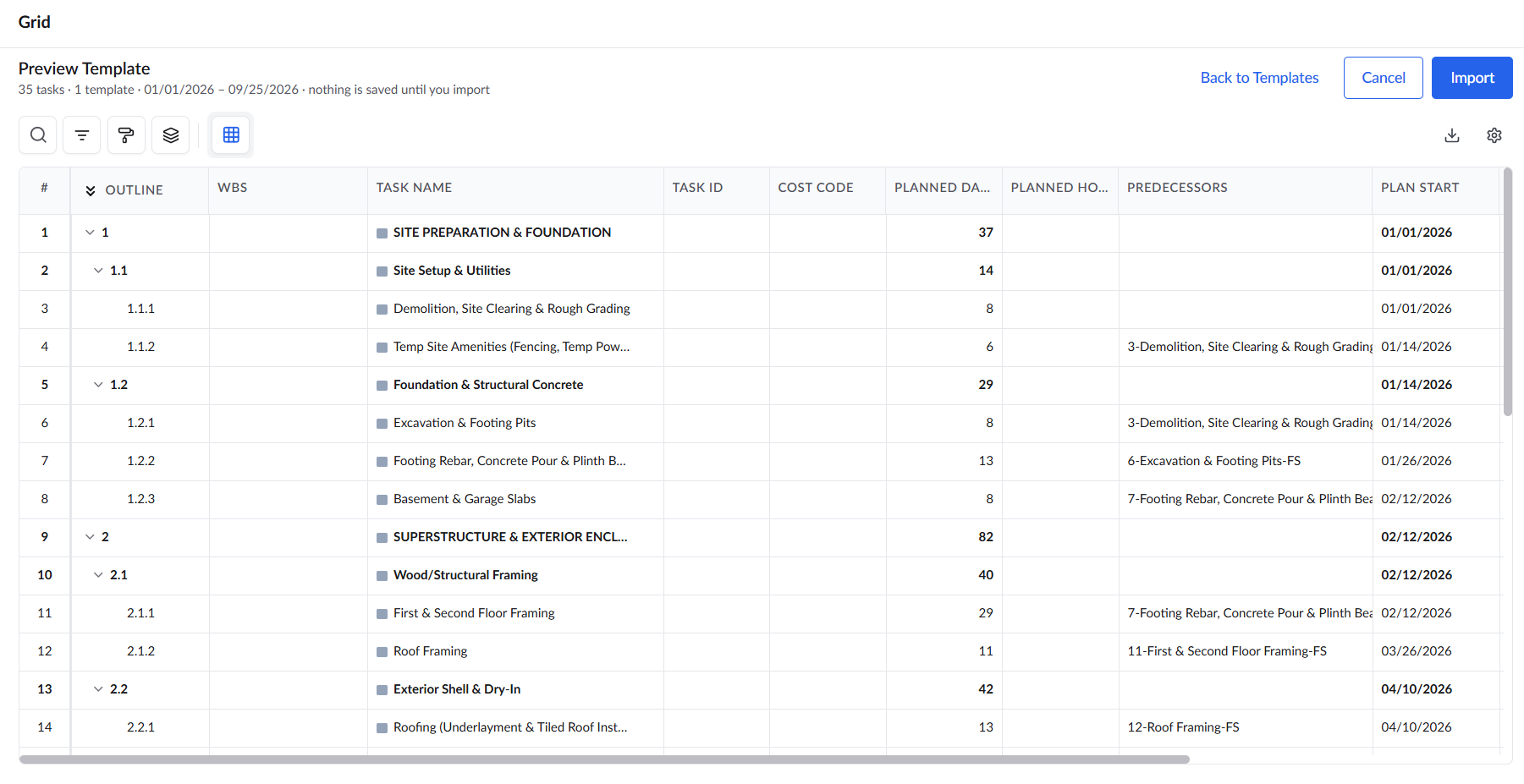
Review the preview screen, scroll down, and make changes if necessary
Click 'Import' to finalize the master schedule
Once imported, you can easily adapt the schedule to fit the new job. You can change the start date for the first leaf-level task, add new tasks or subtasks, adjust timelines, and refine dependencies to build a comprehensive, job-ready project delivery plan.
See the following sections to know more:
Was this article helpful?
That’s Great!
Thank you for your feedback
Sorry! We couldn't be helpful
Thank you for your feedback
Feedback sent
We appreciate your effort and will try to fix the article