As a Subcontractor, your project schedule automatically incorporates the work packages, deliverables, planned timelines, and task dependencies if assigned to you by the General Contractor (GC) from their master schedule.
Linarc also includes an automated feature that allows you to transform your locked budget line items into draft schedule items. When generated, these imported budget items append directly to your GC-assigned tasks, creating a unified schedule grid.
Subcontractors typically import a budget-based draft schedule under two key scenarios:
- Independent Schedule Management: You operate with full autonomy to plan and execute your scope without direct GC task governance or schedule enforcement.
- Self-Initiated Task & Scope Expansion: You need a granular operational schedule to build out self-initiated task items for which budget line items were defined, in addition to your GC-assigned tasks.
By appending budget line items alongside your GC-assigned work, you get a convenient head start in building out self-initiated and self-performed tasks while ensuring all planned field activities remain strictly anchored to your approved contract funds.
Note: This auto-generated draft schedule can only be imported from the locked budget if the project's billing method is set to Schedule Progress-Based, in accordance with your governing contract. If a different billing method applies to your project (such as Budget-Based or SOV-Based), budget-to-schedule generation will not be available, as those billing workflows operate independently of the project schedule.
Using this draft schedule as a foundation alongside your GC-assigned deliverables, you can build a complete operational timeline by:
- Adding Self-Initiated Work Items: Insert additional operational tasks, daily field activities, or internal milestones not explicitly detailed in the GC's master schedule.
- Breaking Down Deliverables: Subdivide high-level assigned work packages into granular sub-tasks and daily activities matching your trade's Work Breakdown Structure (WBS)—enabling you to push tasks directly to field teams and track daily execution.
- Refining Timelines & Schedules: Set precise start and end dates for your internal tasks to align field execution with the GC's master milestone targets.
- Establishing Internal Dependencies: Create logical links between your trade activities (such as Finish-to-Start relationships) to build a realistic field workflow.
- Allocating Funds for Progress Billing: Map funds from your budget line items directly to self-performed tasks and internal deliverables—enabling you to track progress and claim completed work in your monthly payment applications.
- Reconciling Duplicate Items: Review and reconcile your schedule grid after importing budget items to eliminate redundancies, remove duplicate tasks, and ensure no work packages are accidentally repeated.
Prerequisite: A foundational budget must be set up and locked as the project baseline.
To import the project schedule from the budget
- Click the main menu icon at the top-left of your screen.
- Select 'Contract' under the 'Finance & Controls' section in the drop-down menu pane.
Tip: Press and hold the 'Cmd' (Mac) or 'Ctrl' (Windows) key on your keyboard while clicking to open the module in a new browser tab.
- Select 'Budget' on the left

- Click 'Generate Schedule' on the top-right
Reminder - The 'Generate Schedule' feature becomes visible only after the project budget has been locked.
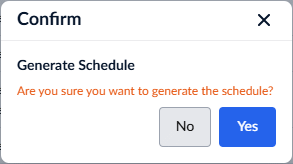
- Confirm your choice by clicking 'Yes.'
The draft schedule is created instantly.
To access the auto-generated schedule
- Open the 'Schedule' module by selecting 'Schedule' from the App Launcher
The scheduler opens in the grid view by default.
- Click 'Planner' at the top and select 'Grid' on the left if you are on a diffrent screen in the 'Schedule' module.
The scheduler grid shows all budget line items as auto-populated schedule line items :

From this screen, you can:
Add subtasks
Right-click on a task item, then choose 'Add' > 'Subtask' to insert a child task under it.
Repeat this process to build out successive levels of the WBS hierarchy. See Add subtasks for more details.
Define details for lowest-level items
For work packages or deliverables at the lowest level, specify:
- Task dependencies and relationships
- Duration (planned days)
- Labor or manhours
- Planned quantity of work
- Planned start date
Once dependencies and predecessors are set, the start dates of dependent tasks are auto-populated. You can override them manually if required.
- The end date is auto-calculated.
- See Add WBS Elements and Task Items for more details.
Parent-level task roll-up - Duration, manhours, and start/end dates of parent tasks are automatically calculated from their child items.
Critical path - The scheduler dynamically recalculates the critical path as you add tasks and define dependencies.
Add events
- To insert a milestone, inspection, or checkpoint event, right-click on the relevant item, hover over Add, and select the desired event type.
Once you you have added the schedule items publish them to record them and push to the field.
See the following sections to know more:
- Specify Constraints For Scheduled Tasks
- Apply Formatting to Rows and Cells
- Apply Gantt Chart Color
- Add subtasks
- Add a checkpoint
- Add an inspection event
- Add a milestone
- Add dependencies
- Remove a task
- Publish a task
- Update task progress
To read about the schedule management in Linarc, see the 'Scheduler' section of this knowledge base.
Was this article helpful?
That’s Great!
Thank you for your feedback
Sorry! We couldn't be helpful
Thank you for your feedback
Feedback sent
We appreciate your effort and will try to fix the article