The cloud-based scheduler continuously tracks project progress and updates progress statistics in real time across various dashboards and reports within the project management console.
Typically:
- The scheduler automatically fetches actual start dates and daily progress updates from the mobile app, based on inputs entered by the foreman or from the lookahead schedule based on the inputs given by the project managers.
- The progress of parent-level tasks in the contractor schedule is dynamically calculated from the aggregated progress of their child tasks.
- Subcontractor Project Managers can manually update progress as needed—for example, if a foreman missed an update or entered incorrect data.
Once satisfied with the accuracy of the task progress, the SC PM can report progress to the General Contractor (GC) for review and approval.
Actual Start Date
For field-level tasks, the Actual Start Date is established when the first progress update occurs. This happens when:
- A foreman reports initial progress from the field; or
- A project manager manually enters progress and specifies the start date from the office either from the contractor schedule or from the Look Ahead screen.
This date rolls up through the WBS hierarchy: each parent-level task inherits its start date from the earliest active child task. This propagation continues up to the root work item assigned by the General Contractor, ensuring the Master Schedule is automatically updated with the precise start date from the field.
This article explains how the SC PM can manually update and report progress from the web console.
- Manually Update progress for a task
- Update Progress from Gantt View
- Report the progress of an assigned item to the GC
Update Progress for a Task
You can manually update progress only for the last tier items of the branches in the WBS tree structure. The progress of the parent tasks is auto-calculated from those of the children at successive levels progressively.
- Navigate to your schedule interface
- Click on the 'Progress' column of the task item for which you want to update the progress.
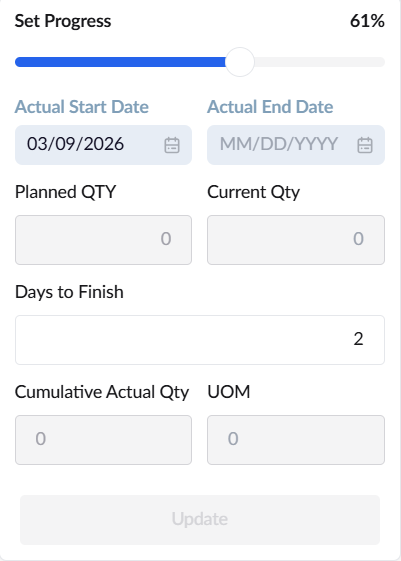
- Progress - Update the task progress using the slider or the percentage text field. Please note that for the tasks with a defined Planned Quantity, you must enter the Achieved Quantity. The system will automatically calculate the completion percentage and adjust the slider based on this value.
- Use the slider to correct/enter the current progress percentage of the task. You can also use the text field under the slider to enter the progress percentage. For the items specified with the planned quantity, you can specify the progress or work done only by the achieved quantity, the completion percentage and the slider updates automatically.
- Actual Start Date - This date is automatically set when progress is reported for the first time, whether by a Foreman in the field or a Project Manager in the office. When manually entering initial progress, ensure you input the specific date that work began on-site.
- Actual End Date - Reflects the date the task reached 100% completion. This field is automatically populated when completion is reported from the field. When manually updating progress to 100% from the office, you must specify the completion date.
- Days to Finish - Enter the estimated duration required to complete the task. This applies when you are reporting the progress to a value less than 100%. (Optional)
- Planned Quantity - Shows the total target output (e.g., volume, count, or weight) specified for this task, activity, or deliverable in the schedule.
- Actual Quantity - Applies only to items with a defined Planned Quantity. Enter the Achieved Quantity in this progress update instance to reflect the current work done.
- Actual Unit of Work Update - Automatically calculates and displays the cumulative work completed or deliverables achieved to date. Based on this total, the system updates the item's completion percentage and adjusts the progress slider accordingly.
- Click 'Update'
The progress details of the task are updated in the schedule table.
- Repeat the process for relevant tasks and subtasks, so the overall progress of the parent items is auto-populated.
- Subcontractors can share the completion percentage of the task at the highest level, that is, the tasks assigned by the general contractor, with the GC.
Update Progress from Gantt View
You can also manually update progress for the last tier items of the branches in the WBS tree structure from the 'Gantt' view or 'Grid and Gantt' view.
- Navigate to your schedule interface and open the schedule in 'Gantt view' or 'Grid and Gantt view'
Locate the task item for which you want to update the progress.
Hover over the end of the existing progress bar until the double-headed arrow cursor appears.
Click, hold, and drag the arrow to extend the progress bar as needed; the progress percentage will be displayed at the end of the bar.
Release the mouse button once the desired progress percentage is set.
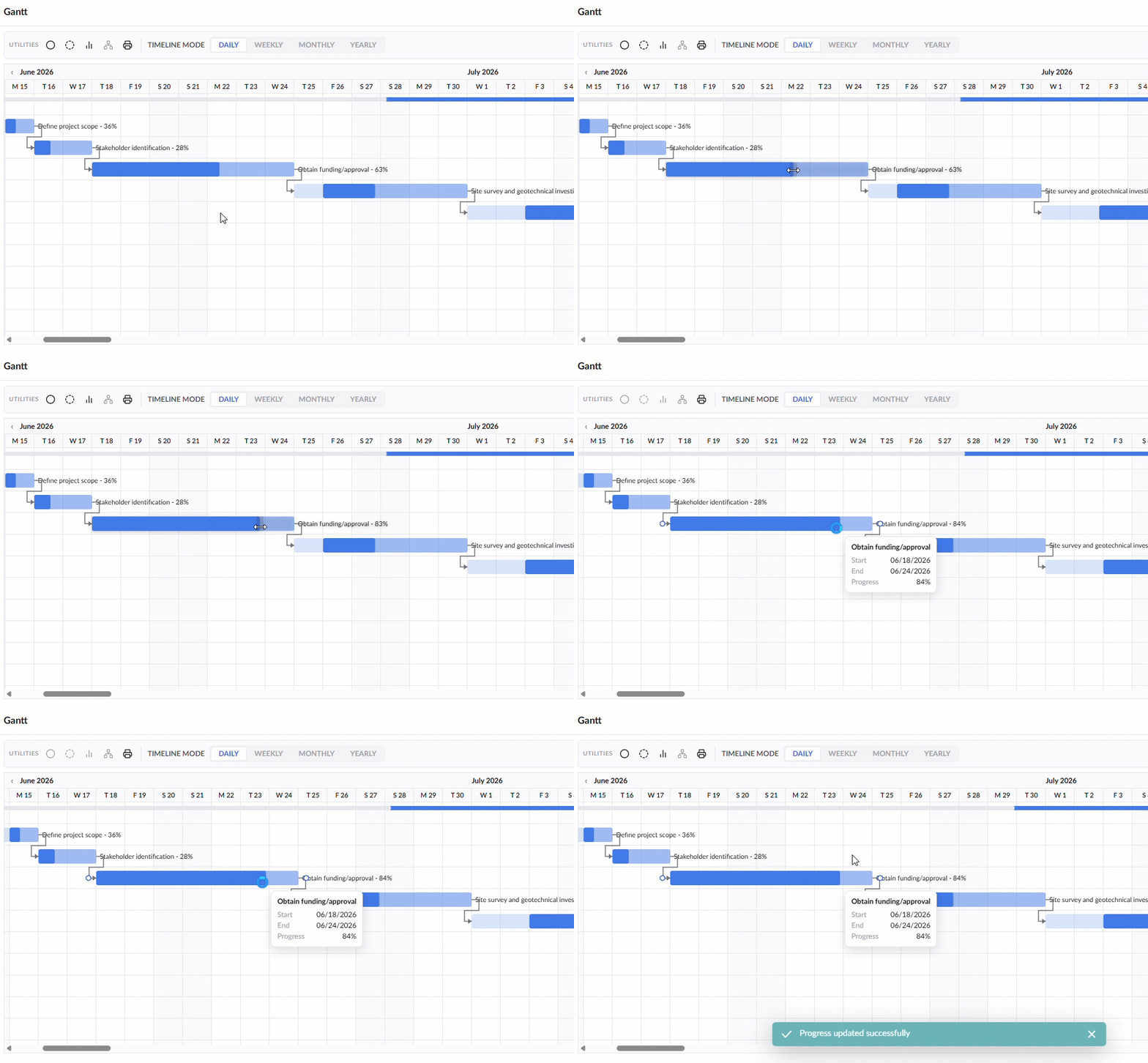
Note- Any progress updates made in the Gantt View are automatically reflected in the Grid View. Task progress can only be increased, not decreased, in any of the schedule views once it has been updated.
Share the progress with the GC
- Ensure that you are in the Grid view
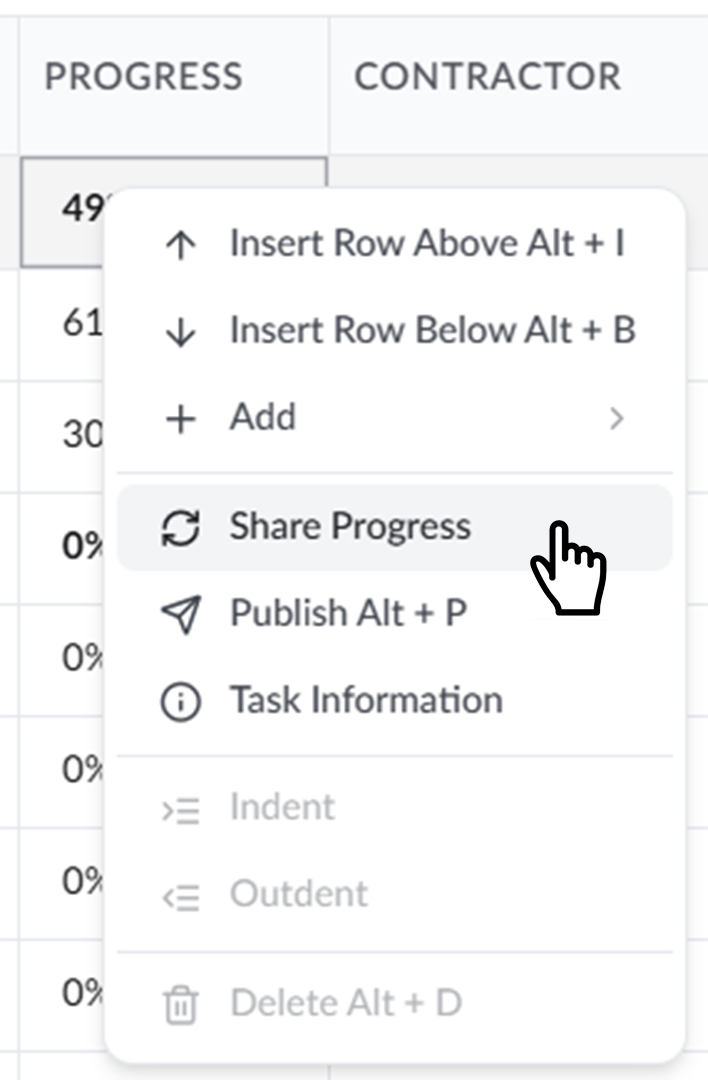
- Right-click on the work item assigned by the GC to notify its progress
- Choose 'Share Progress' from the options
A confirmation appears:
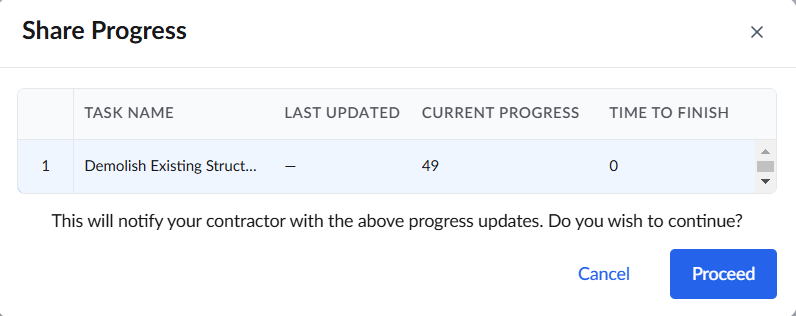
- Click 'Proceed' to share your progress with your GC
General contractors can enter their progress for the tasks assigned to their company. The process is similar to that for subcontractors, as explained above.
Was this article helpful?
That’s Great!
Thank you for your feedback
Sorry! We couldn't be helpful
Thank you for your feedback
Feedback sent
We appreciate your effort and will try to fix the article