The Finance module allows you to progressively allocate funds to your subcontractors at any time, whether you are incrementally building your budget or have already locked it. Once you commit a budget line to a subcontractor, that specific line item becomes available to include in their formal commitment contract.
You can also assign and commit additional budget lines to a subcontractor even after an initial commitment contract has been established and accepted. When new lines are added to an already accepted contract, the commitment contract automatically reverts to the Revision state, requiring review and acceptance from the subcontractor before you can publish the revised contract.
To assign and commit budget lines to contrators
- Ensure you are in the master budget screen. If not,
- Click the main menu icon at the top-left of your screen.
- Select 'Owner Contract' under the 'Finance & Controls' section in the drop-down menu.
Tip: Press and hold the 'Cmd' (Mac) or 'Ctrl' (Windows) key on your keyboard while clicking to open the module in a new browser tab.
- Select 'Budget' on the left
- Ensure that the budget line item you want to commit to the respective contractor is assigned to them in the 'Assigned to' column. If not:
- For self-performed work: Choose your own company as the 'Assigned To' party.
- For subcontractor work: Choose the respective subcontractor company depending on the 'Trade'
Note: The system enforces strict alignment between these fields. If the Trade corresponds to your role, you cannot assign the item to an external subcontractor, and vice versa.
The following example displays a locked budget, indicated by the Padlock icon in the top-left corner. However, you can also commit individual budget lines progressively while constructing and finalizing your draft.
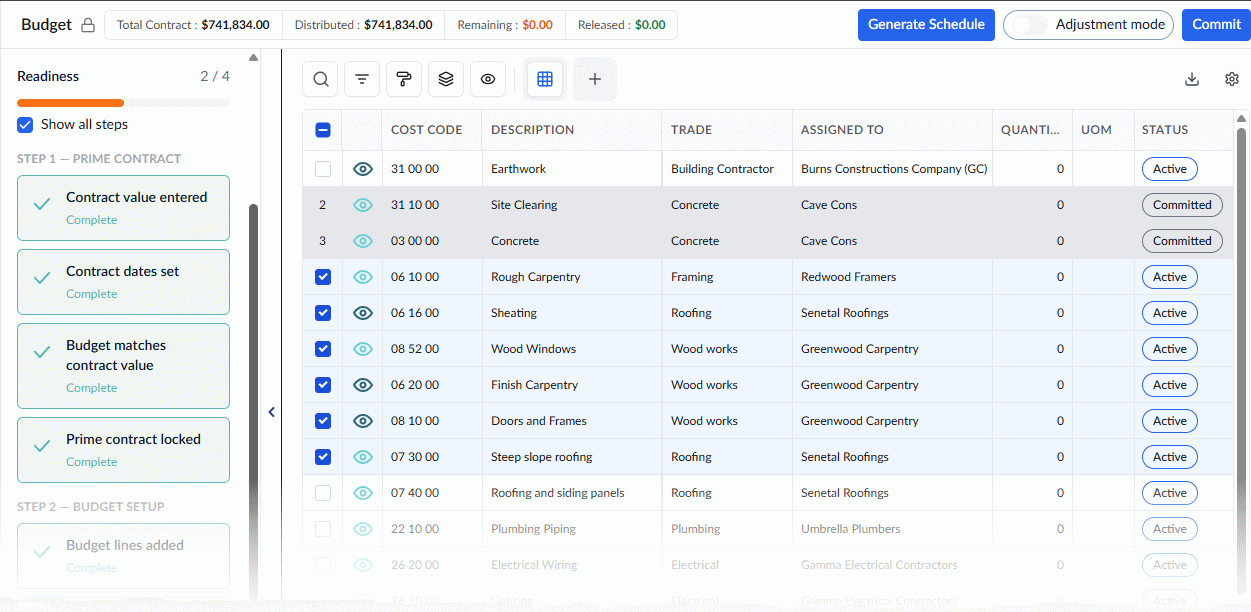
- Select the budget line items you want to commit (these must be in 'Active' status) by clicking their corresponding serial numbers.
- Click the Commit button located at the top-right of the screen.
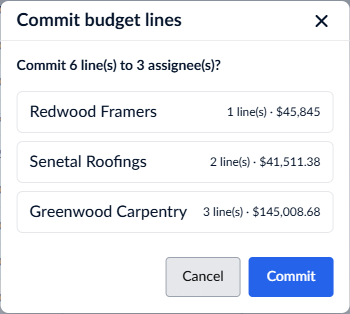
Review the confirmation pop-up. This screen displays a summary of your selection, including the list of contractors and the consolidated amounts being committed to them.
- Click 'Commit' to confirm
The status of the selected lines will change to Committed. These funds are now officially ring-fenced and ready to be added to the respective subcontractor's commitment contract.
Next Steps in the Financial Workflow:
Now that the budget lines are committed, the subsequent workflow proceeds as follows:
- Create the Commitment Contract: Set up the formal contract for the subcontractors using these committed lines and forward to them for their acceptance.
- Subcontractor Review: The subcontractor reviews the terms, requests revisions if necessary, and accepts the contract.
- Lock the Contract: Once accepted, you (the General Contractor) will officially lock the commitment contract to prevent unintended changes.
- Subcontractor Financial Setup: Using the locked commitment contract as their definitive baseline, the subcontractor can now build out their own detailed budget and Schedule of Values (SOV) for the work assigned to them.
Was this article helpful?
That’s Great!
Thank you for your feedback
Sorry! We couldn't be helpful
Thank you for your feedback
Feedback sent
We appreciate your effort and will try to fix the article