After you have published a commitment contract and the subcontractor has officially accepted the terms and cost breakdown, the final administrative step is to lock the agreement. Locking the commitment contract secures your project's financial baseline and prevents any accidental or unauthorized changes to the agreement moving forward.
Prerequisite: You can only lock a subcontractor's commitment contract after it has been published by you and officially Accepted by the respective subcontractor.
Once a subcontractor has accepted your published commitment contract, you will be notified for locking it.
To lock a subcontractor commitment contract
- Click the main menu at the top-left and select 'Subcontracts' under the 'Finance' section.
- Select 'Commitment Contract' from the left-hand menu.
- Locate the subcontractor whose contract you want to finalize and ensure the 'Status' shows 'Accepted'
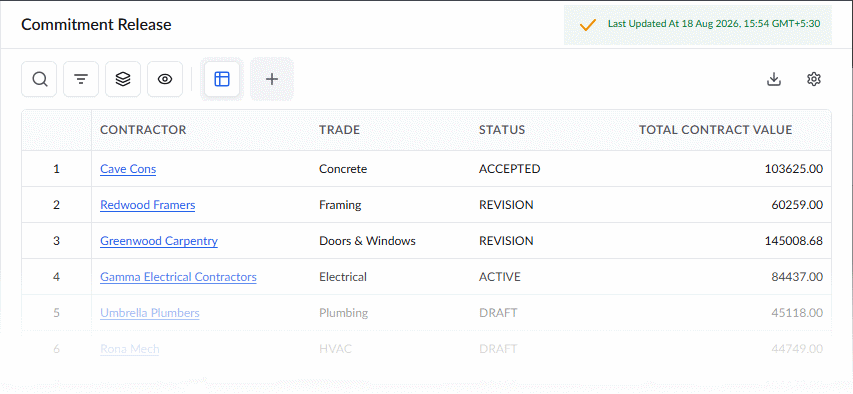
- Click the subcontractor's name to open their specific commitment contract.
- Use the drop-down at the top to select the version you want to view.
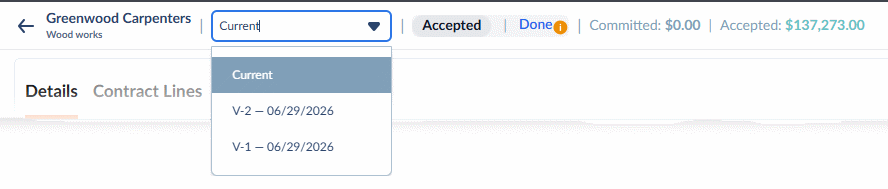
- Review the details at the top of the screen one final time to verify the total commitment value and the accepted amount.
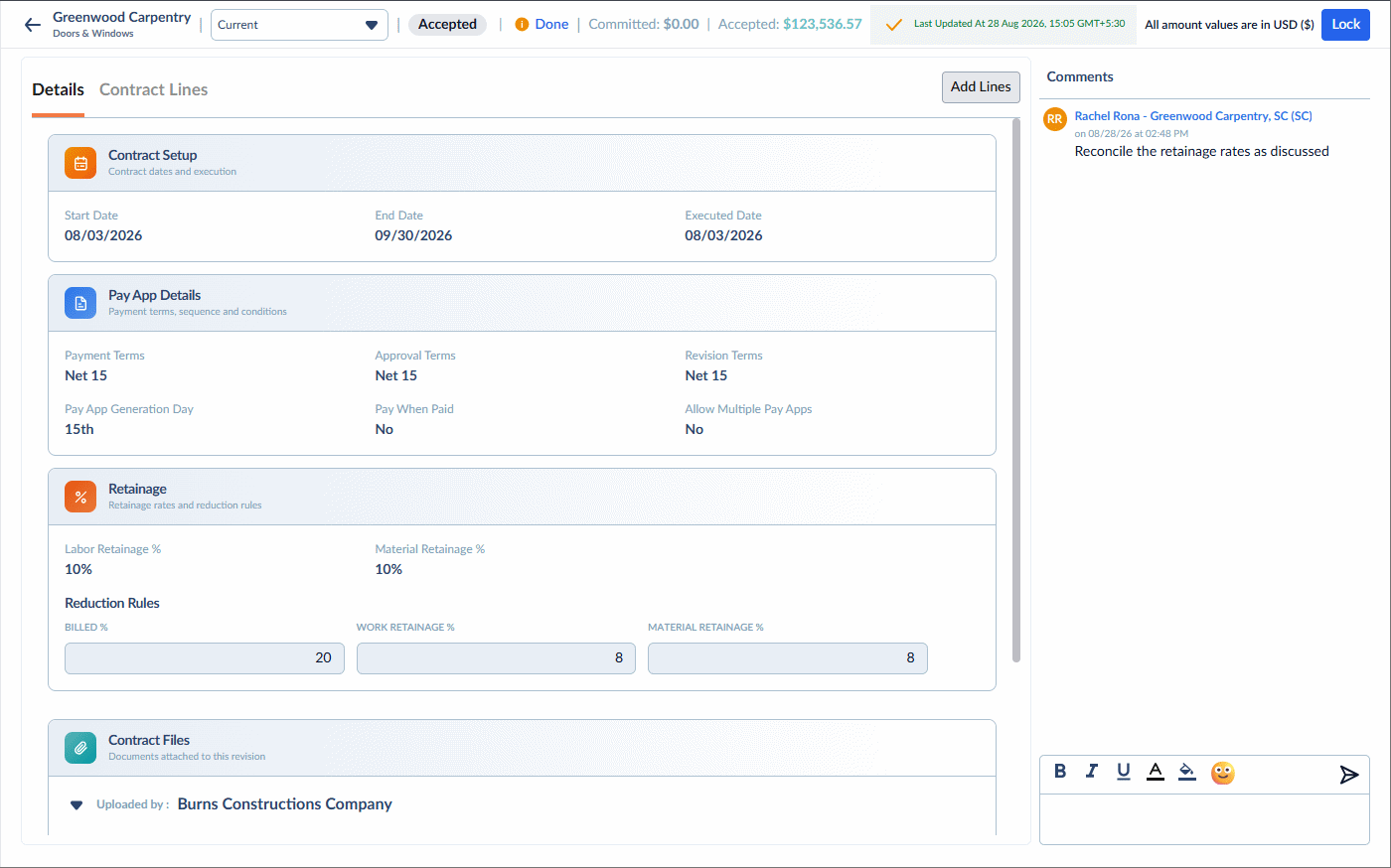
You can still revise the contract and send it to the subcontractor for their consent and acceptance.
- To revise the contract click 'Add Lines.' See Reconcile Subcontractor Commitments - General Contractor for guidance.
- Click the 'Lock' button located at the top of the screen to finalize the contract.
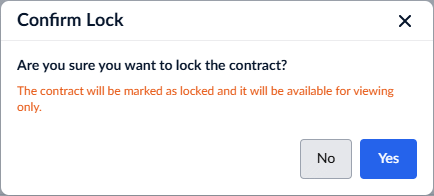
- Click 'Yes' in the confirmation dialog to verify your action.
The status of the commitment contract will change to Locked. The overarching financial baseline for this subcontractor is now officially secured within your master budget.
Next Steps & Change Management
- Commitment Contact Schedule of Values (SOV): With the commitment contract locked, the subcontractor is now cleared to finalize their own detailed budget and submit their Schedule of Values (SOV) to you for approval.
- Change Orders: From this point forward, the locked commitment contract cannot be edited directly. Any further amendments, financial revisions, or additions to the scope of work must be executed exclusively through officially approved Change Orders.
Was this article helpful?
That’s Great!
Thank you for your feedback
Sorry! We couldn't be helpful
Thank you for your feedback
Feedback sent
We appreciate your effort and will try to fix the article