When you publish a commitment contract, the subcontractor may request a revision rather than accepting it immediately. When this happens, the 'Ball in Court' shifts back to you, the General Contractor, so you can reconcile their requests, adjust the terms or financials, and republish the agreement.
When a subcontractor requests a revision, you will receive a notification, and the contract's status will reflect that an update is needed.
To access the commitment contract
- Click the main menu at the top-left and select 'Subcontracts' under the 'Finance' section.
- Select 'Commitment Contract' from the left menu.
- Locate the specific subcontractor and click their name to open the contract.
- Check the 'Comments' pane on the right side of the screen. The subcontractor should have logged their specific notes, adjustment requests, or questions here.
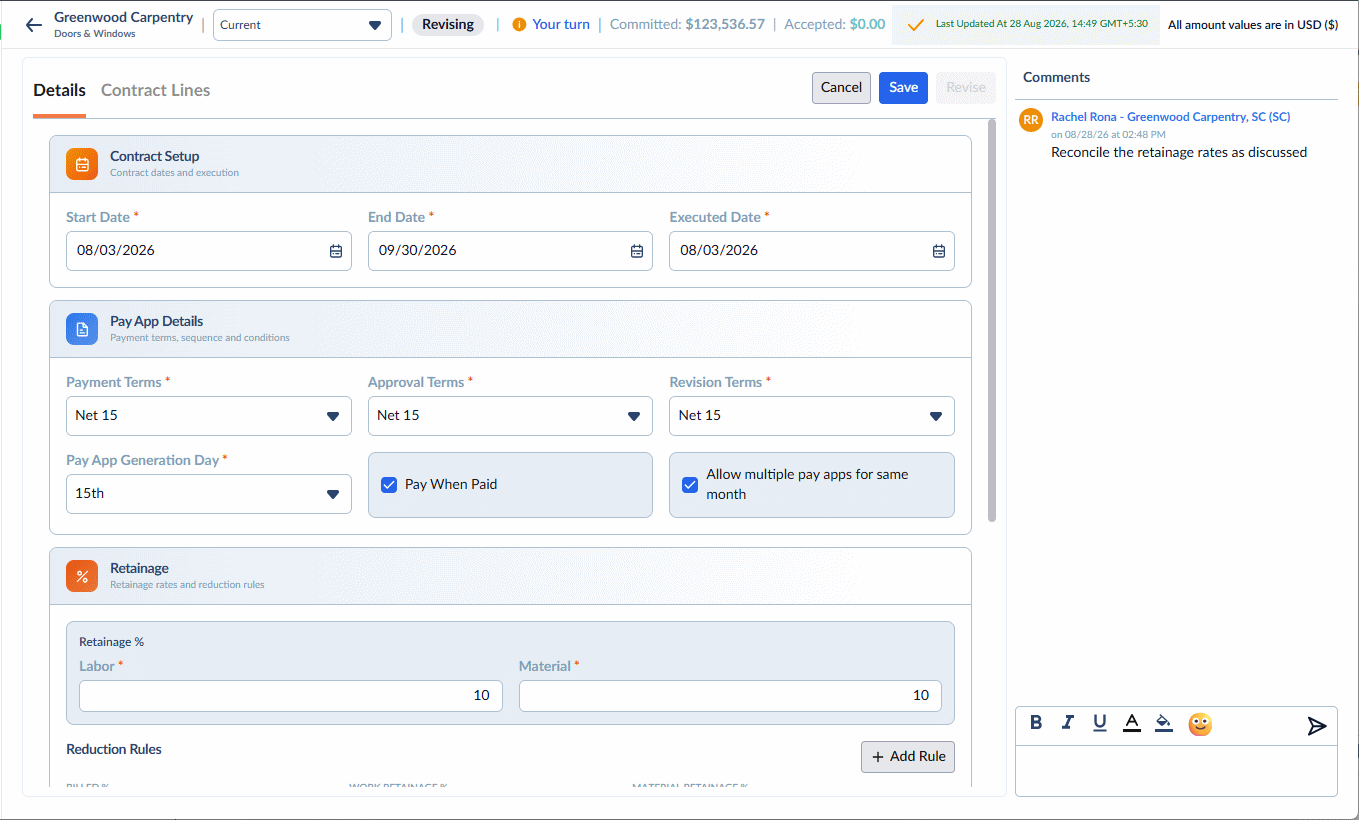
Based on the subcontractor's feedback in the Comments pane, you can adjust either the overarching contract terms or the specific financial breakdown.
To adjust timelines or payment terms
- Stay on the main contract screen.
- Modify the Contract Setup fields (Start Date, End Date) or the Payment Details (Retainage, Payment Terms, etc.) as agreed upon.
- Click 'Save' to confirm these updates.
To adjust the budget allocation
- Open the 'Contract Lines' tab.
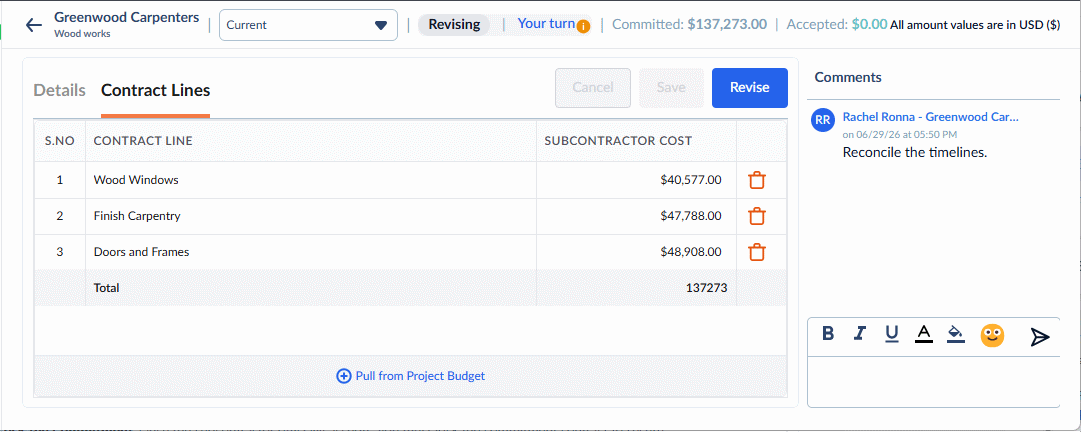
- To remove specific scope items, click the trashcan in the respective rows.
- To add more scope items click 'Pull from Project Budget.' See Set Up Subcontractor Commitments for guidance on this.
- Click 'Save' to confirm your new cost breakdown.
Once you have successfully reconciled the subcontractor's requests and updated the contract:
- Reply in the 'Comments' pane to let the subcontractor know the changes have been made.
- Click the 'Revise' button at the top of the screen to forward the revised commitment back to the subcontractor.
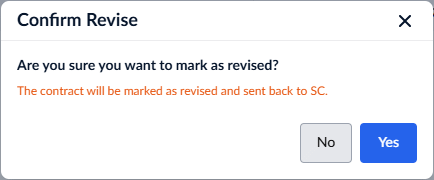
- Click 'Yes' to confirm.
The 'Ball in Court' is now back with the subcontractor. They will receive a notification to review the newly published version of the contract.
Next Steps:
- Subcontractor Acceptance: The subcontractor will review the revised contract and accept it.
- Lock the Commitment: Once the subcontractor officially accepts, you must lock the commitment contract to secure the financial baseline and finalize the agreement.
Was this article helpful?
That’s Great!
Thank you for your feedback
Sorry! We couldn't be helpful
Thank you for your feedback
Feedback sent
We appreciate your effort and will try to fix the article