When reviewing plan sheets, having immediate access to supporting project documentation ensures that critical context is always within reach. Linking a document item—such as an RFI or Submittal—directly to a plan markup allows team members to quickly reference detailed specifications, responses, or submittal logs without navigating away from the plan viewer.
This feature enables you to attach an existing RFI or Submittal directly to a new or existing markup on a plan sheet.
- Quick On-Sheet Reference: Access attached project documents directly from the relevant markup while reviewing a drawing sheet.
- Tracked in Related Items: Any markup linked via this process will automatically appear under the 'Related Items' section in the corresponding RFI or Submittal document record.
In addition to linking existing document items, you can also create a new document item (such as an RFI) directly from a new or existing markup. This article covers only the process of linking existing items. For guidance on creating new items, see Create RFI from a Plan Drawing.
Note: You can also attach new or existing plan markups while drafting descriptions or messages within the RFI or Submittal modules. However, linking a markup from within a document item will not display extra visual indicators or badges on the markup itself, keeping your plan sheet clean. These linked markups can be referenced and accessed anytime from the Sheet Usage screen in the Plans module.
To link a document item
Important: Ensure you have the correct plan sheet open. If you are linking to an existing markup, make sure it is displayed on the sheet (use the 'Load Markups' drop-down if it is not currently displayed).
- Click on the markup element on your plan sheet (this can be a newly created markup or an existing one).
- Click the Link icon from the options menu that appears.
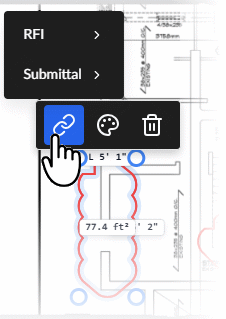
- Hover your mouse over the document type (e.g., RFI).
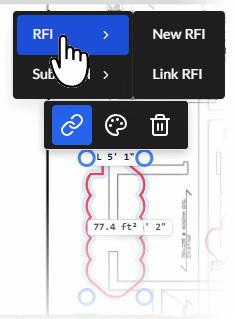
- Click the 'Link' option. A pop-up window will appear displaying a list of project documents for that selected type, along with their current workflow stage.
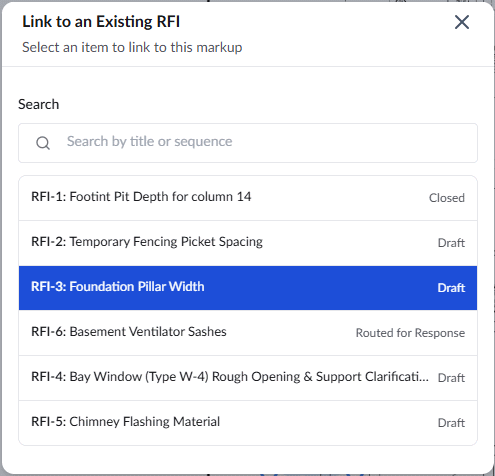
- Select the specific document you want to connect from the list.
The document is now successfully linked, and a corresponding document tag will be attached to the markup on your plan sheet.
Interact with Linked Items
Once a document is linked to a markup, you can interact with it at any time directly from the plan viewer:
- Activation for New Markups: If you linked a document to a newly created markup, please note that the link and its tag will only become active after the markup is saved.
- View a Preview: Hover your cursor over the tag to view a quick summary of the item.
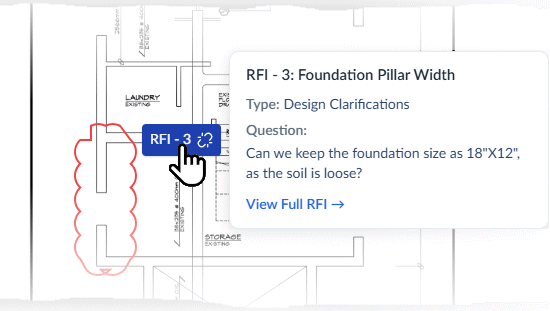
- Open in the Side Pane: Click the tag to open the full item details in the right slider pane. If the item is pending your action (e.g., review, response, or approval), you can respond to it directly from this pane without leaving the plan sheet.
- Open in the Module: Click the link provided inside the hover preview to open the item fully in its respective Linarc module.
- See Access Linked Documents from Plan Markups for more details.
Was this article helpful?
That’s Great!
Thank you for your feedback
Sorry! We couldn't be helpful
Thank you for your feedback
Feedback sent
We appreciate your effort and will try to fix the article