The plan viewer allows you to seamlessly access markups created directly on a drawing sheet as well as those tied to active project workflows. If a markup is linked to an RFI or Submittal item, you can review its full context without leaving the plan viewer.
From the viewer, you can view the complete details of the connected document, advance it to the next step in its workflow if it requires your attention, or unlink it from the markup if the reference is no longer needed.
- In-Context Visibility: View complete RFI or Submittal details directly within the plan viewer.
- Workflow Execution: Advance linked documents through their workflow stages without navigating away from the sheet.
- Easy Unlinking: Disconnect document items from markups whenever references need to be updated or removed.
Use the links below to jump to the section you need help with:
- Open and Manage a Linked Document Item from a Plan Markup
- Take Action
- Remove the Linked Item from the Markup
Open and Manage a Linked Document Item from a Plan Markup
Ensure you have the correct plan sheet open with the required markup displayed on it. Else,
- Click the Main Menu icon in the top-left corner of your screen, and select Plan Sheets under the Documentation section.
Tip: Hold Cmd (Mac) or Ctrl (Windows) while clicking to open the Plan Sheets screen in a new browser tab.
- Click the thumbnail of the specific plan sheet you want to open.
- Display the required markup by selecting it from the 'Load Markups' drop-down menu at the top-right of the plan viewer. See View Markups if you need guidance on this.
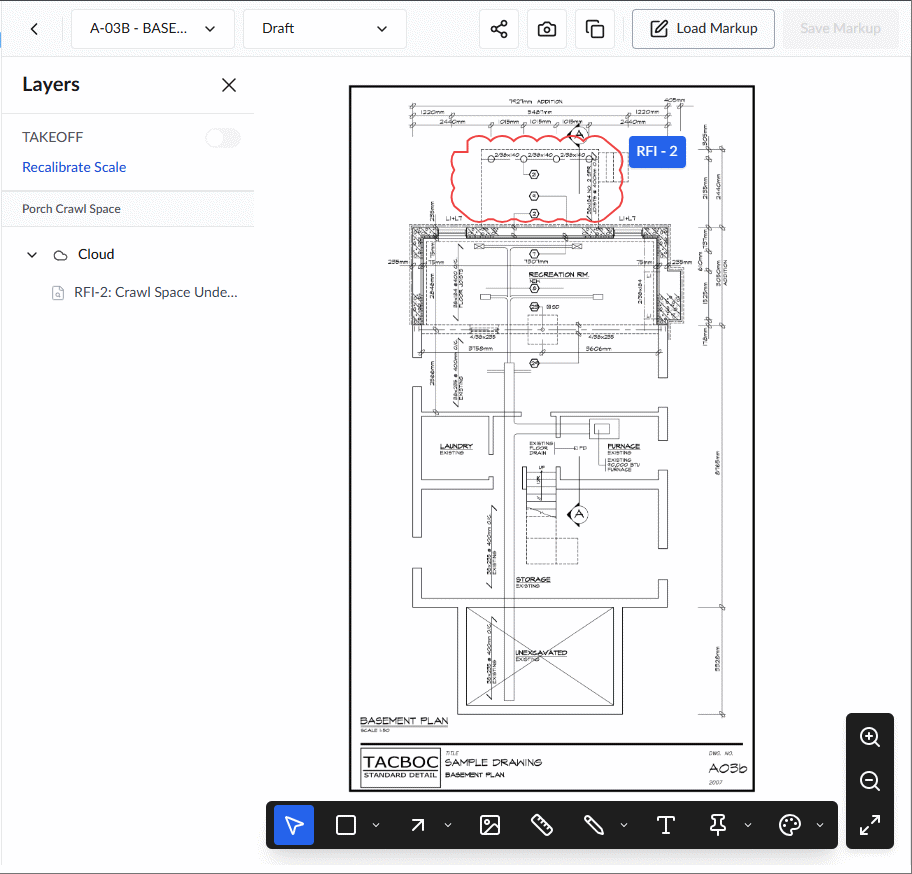
You can access the document item in two ways:
Method 1: Directly from the Markup
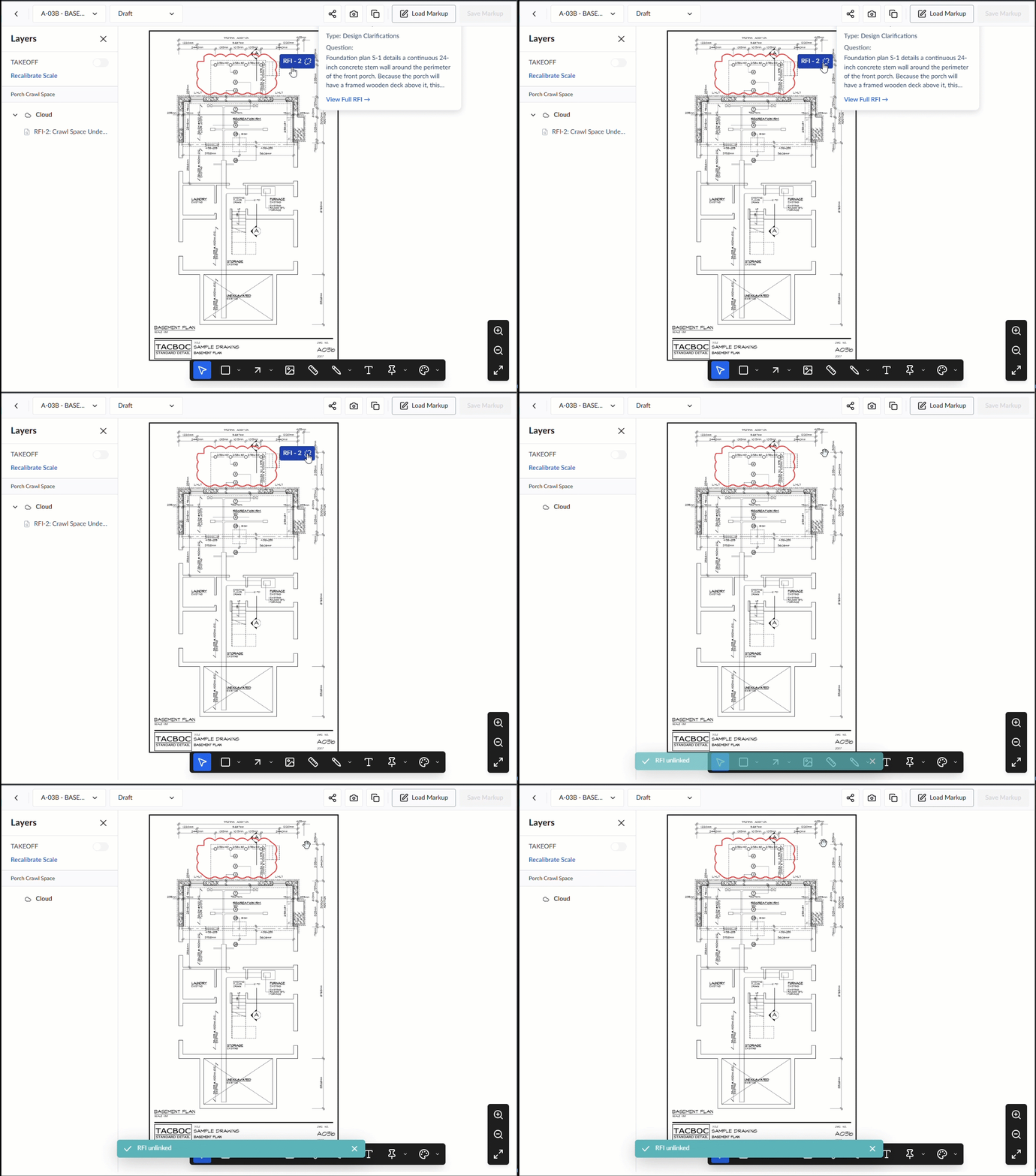
- Hover your mouse on the tag to view the summary details
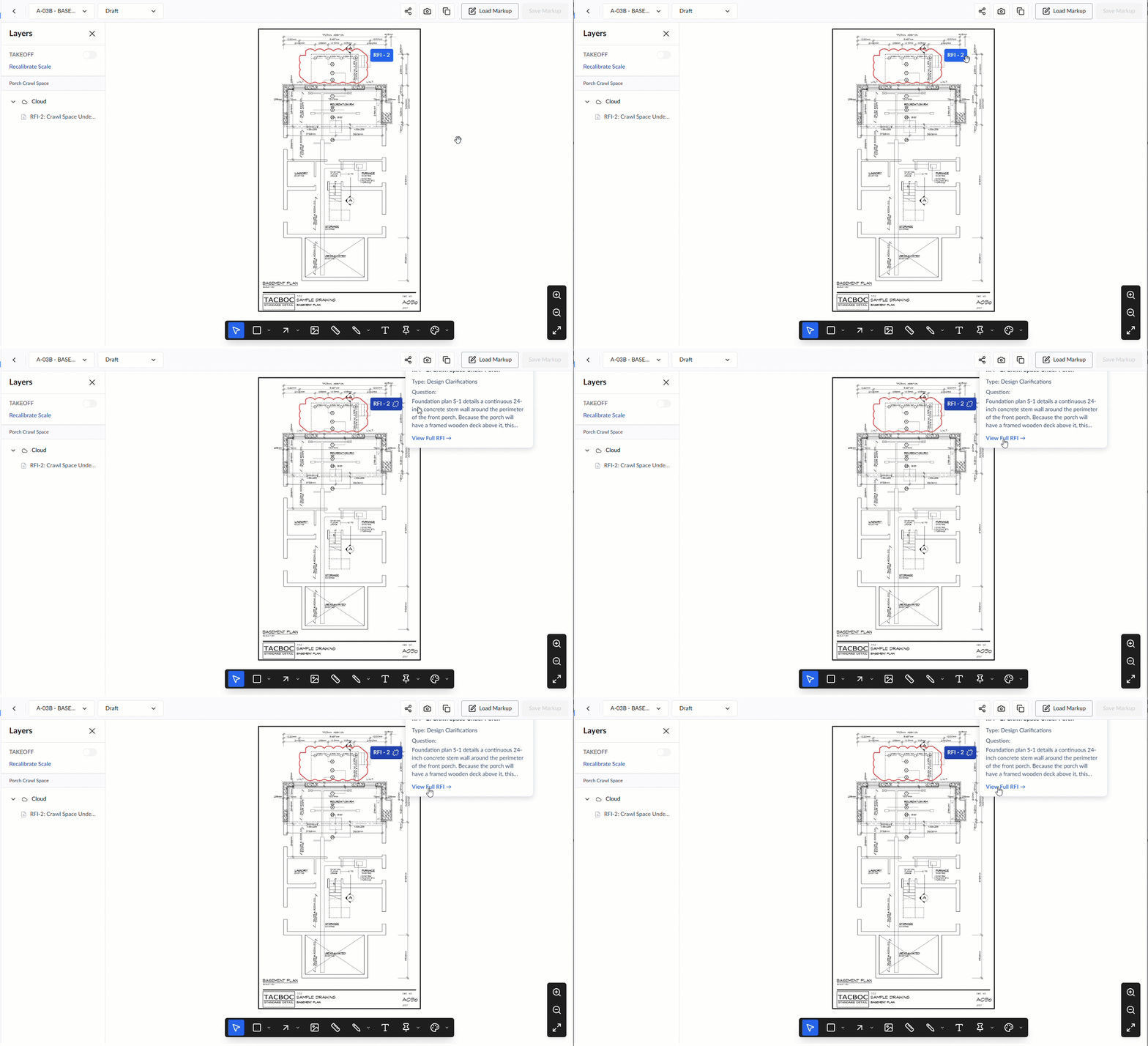
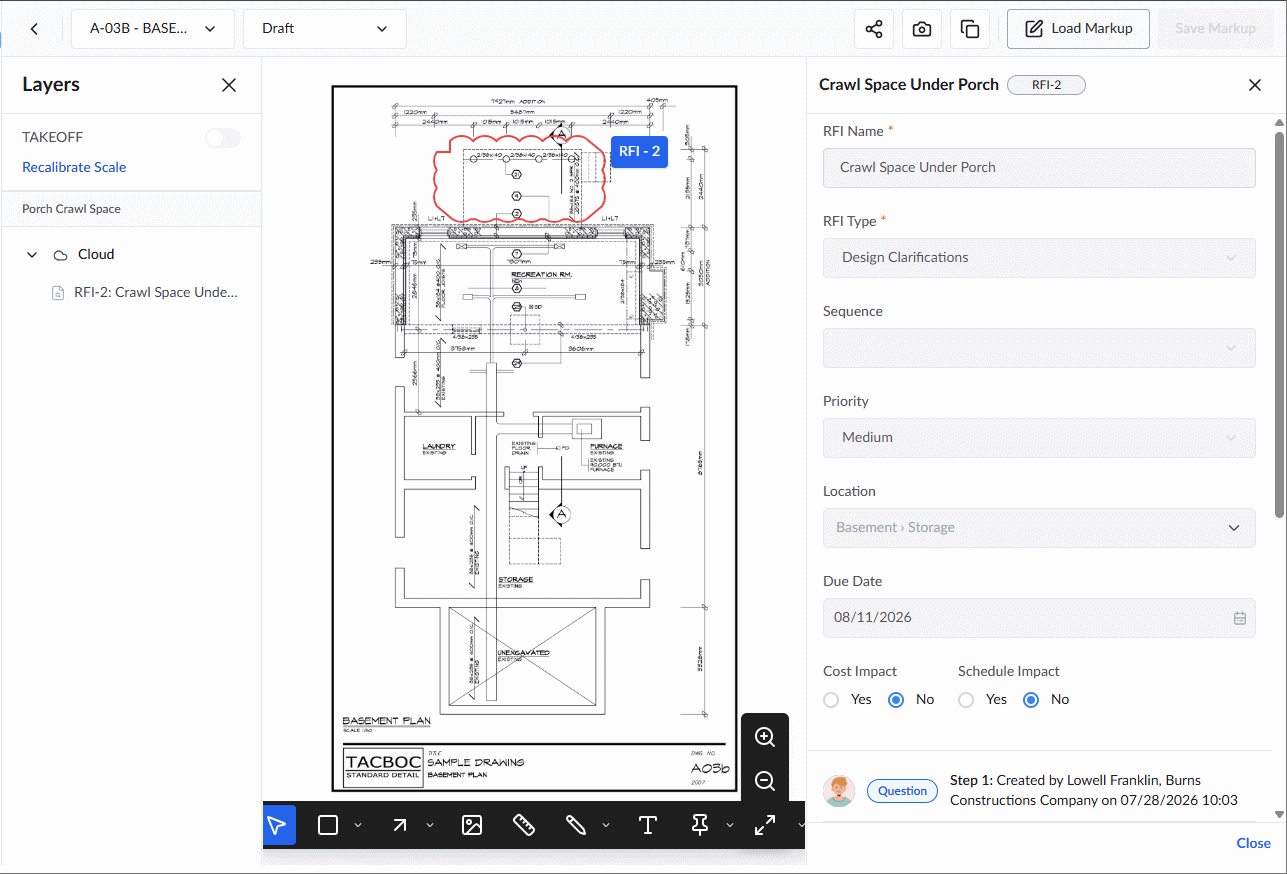
- Click on the tag to open a right slider pane, that shows the complete details of the item and see its current status in the workflow.
- Click the link at the bottom of the tooltip to open th item in the respective Linarc module.
Method 2: From the Layer Editor
The Layer Editor pane on the left displays the name of the markup, with the label of the linked item directly underneath it.
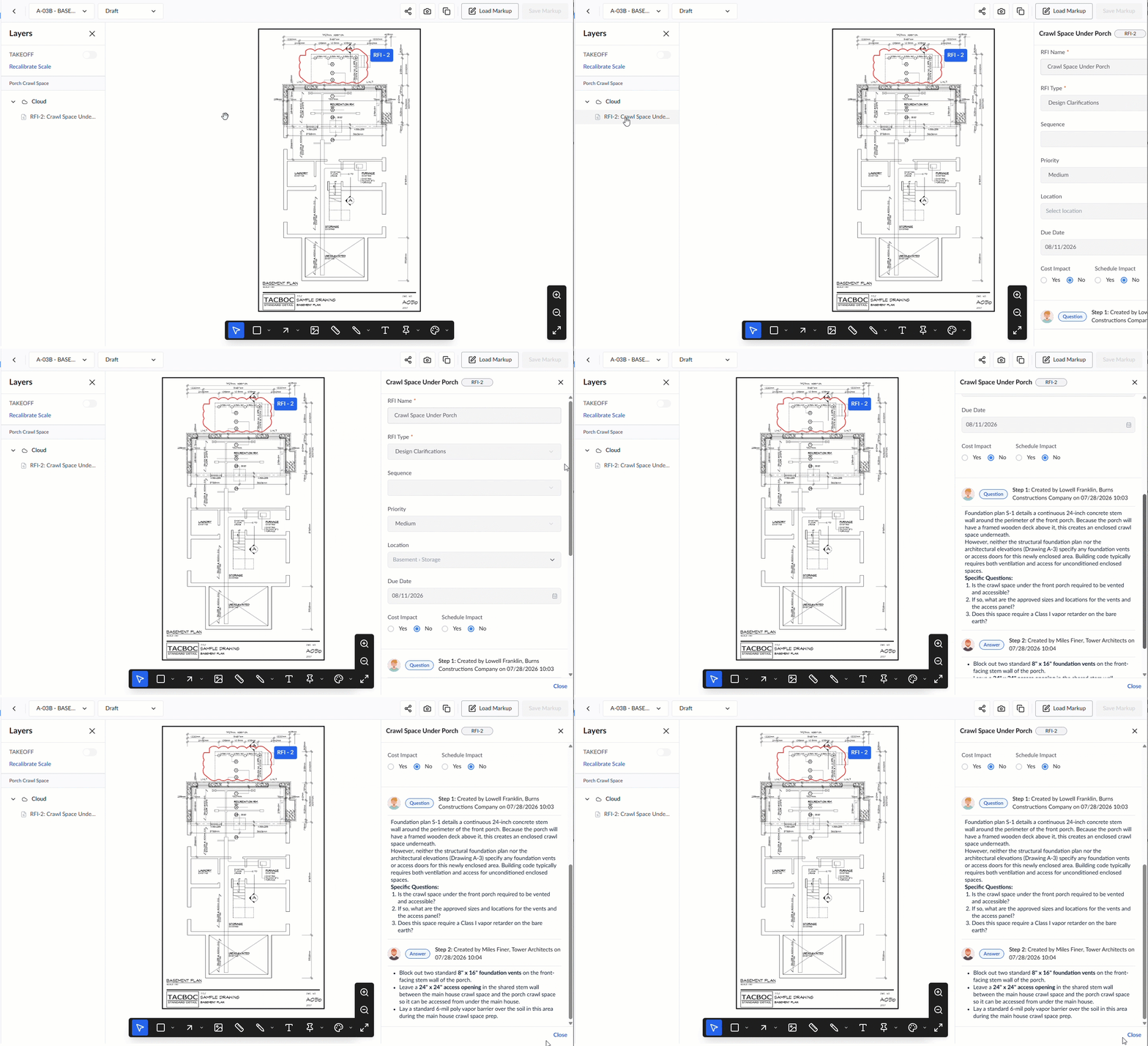
- Click the linked item to open it in the right slider pane. Here, you can view the complete details of the item and see its current status in the workflow.
Take Action
Once the right slider pane is open, you can view how the item has evolved up to its current stage. If the item requires your attention, or approval, you can provide your response directly within this pane and route the item to the next step in its workflow.
Remove the Linked Item from the Markup
- Locate the item tag displayed beside the markup on the plan sheet.
- Click the Delink icon on the tag to instantly break the connection between the markup and the item.
Was this article helpful?
That’s Great!
Thank you for your feedback
Sorry! We couldn't be helpful
Thank you for your feedback
Feedback sent
We appreciate your effort and will try to fix the article