Opening a plan drawing from the 'Plan Sheets' screen displays its latest version in a dedicated viewer. This screen provides you with several tools to interact with the drawing, allowing you to:
- View, create, and edit markups
- Compare plan sheets and revisions
- Download plan sheets with markups as image
- View previous versions of the drawing
- Navigate to a different plan sheet
If you do not have your desired plan drawing open, you can access it from the 'Plan Sheets' screen:
To access a plan drawing
- Ensure that you are in the 'Plan Sheets' screen. If not
- Click the app launcher icon in the top-right, then select 'Documents.'
- Click 'Plans' at the top and choose 'Plan Sheets' on the left.
The Plan Sheets screen opens in Grid View by default. You can switch between Grid and List views using the buttons at the top right
- Grid View - Click the thumbnail of the desired sheet
- List View - Click the sheet number or the sheet name
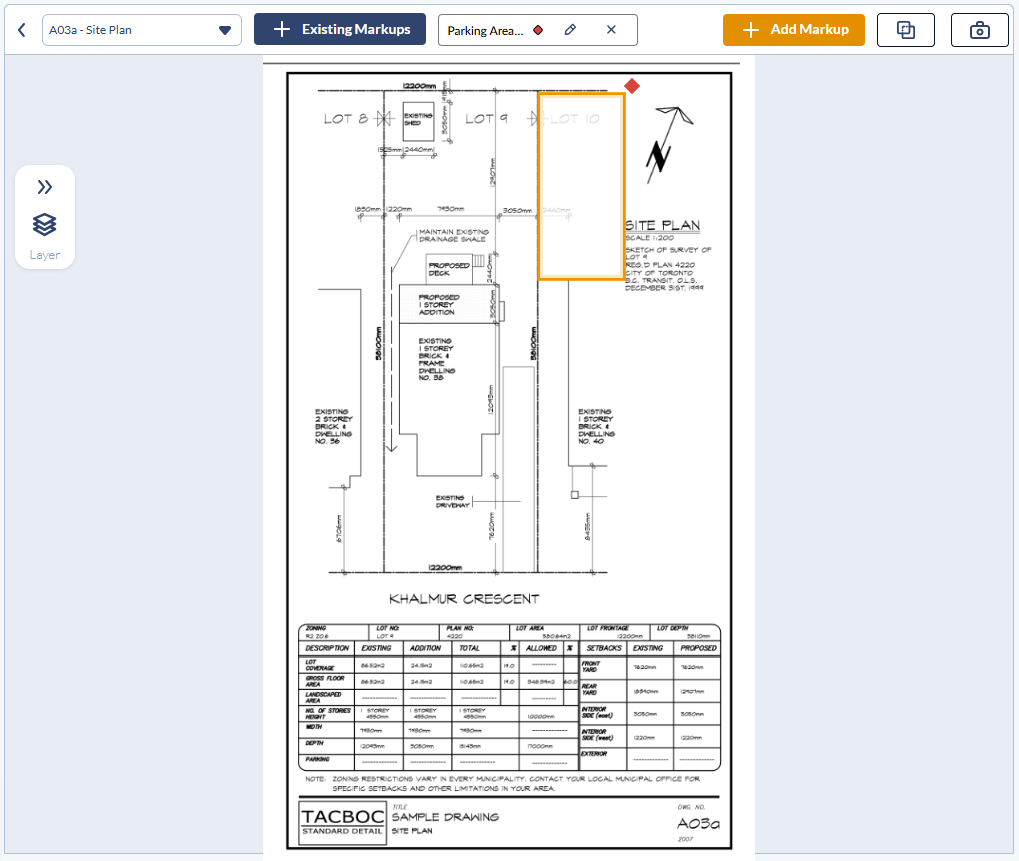
The drawing opens to the latest version, displaying the most recent markups. From this view, you can:
- View Markups: Click
 to view all annotations on the sheet. See View Plan Markups to learn more
 - Edit Plan Markups :
- Click the pencil icon next to the markup name to begin editing. See Edit Markups to learn more
- Click the X icon to hide the markup and view the original plan sheet.

- Annotate: Click
 at the top-right to create new annotations. See Create and manage new markups to learn more.
 - Compare: Click
 to select a sheet and view an overlay comparison. See Compare Plan Sheets and Revisions to learn more
 - Download Sheet with Selected Markups - Click
 to save a local copy of the plan sheet with the currently viewed markups as an image or PDF file. See Download Plan Sheet Markups to learn more.
 - Navigate: Use the top-left dropdown to switch sheets instantly without returning to the main list.
Switch to a Different Plan Sheet
The drop-down at the top-left allows you to choose a different sheet to open, without going back to the boards screen.
- Choose the sheet you want to open

The latest version of the chosen sheet opens with the latest markup, if any.
View Different Versions of a Drawing
The Layer Editor, located on the left, shows each markup as an expandable/collapsible tree structure, listing all elements within that markup. Each markup has a color code, and on the plan sheet, each element is highlighted in its corresponding color to indicate which markup it belongs to.
- Click the
 button on the left to open the layer editor of the markups on that sheet
 - Click the drop-down arrow beside 'Versions'
- Choose the version you want to view from the drop-down

Click the element label in the Layer Editor to instantly highlight the markup on the plan sheet, along with its associated measurements.
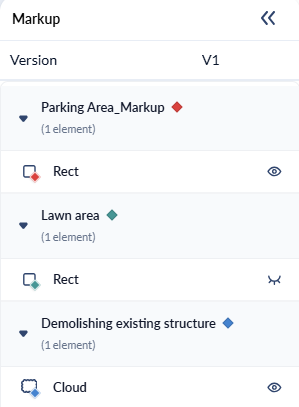
- Use the
 icon to show or hide the layer
Was this article helpful?
That’s Great!
Thank you for your feedback
Sorry! We couldn't be helpful
Thank you for your feedback
Feedback sent
We appreciate your effort and will try to fix the article