The plan module allows you to download local copies of plan sheets in PDF or image formats, with selected markups. This ensures that critical annotations remain accessible and portable, facilitating seamless communication even when working outside the Linarc platform.
- Easily attach marked-up drawings to external emails, reports, or other document items to keep your broader team informed.
- Share specific sheet versions and their associated markups through any preferred online or offline communication channel for quick field reference.
- Create a permanent record of plan iterations and markups to maintain a comprehensive historical archive for future audits or reference.
To download a plan sheet with markups
Ensure you have the plan sheet open with the required markups. If not:
- Click the Main Menu icon at the top-left of your screen.
- Select 'Plan Sheets' under the 'Documentation' section of the drop-down menu
The Plan Sheets screen opens in grid view by default.
- Choose 'Plan Sets' on the left if you are already in a different screen in the plans module.
- Click the thumbnail of the drawing to open it
- Use the second drop-down in the plan viewer to open the plan sheet with the required markup to open
- Alternatively, use the 'Load Markups' drop-down at the top-left to select the markups to be shown on the plan sheet. See View Markups if you need guidance on selecting the markups you want to view on the plan sheet
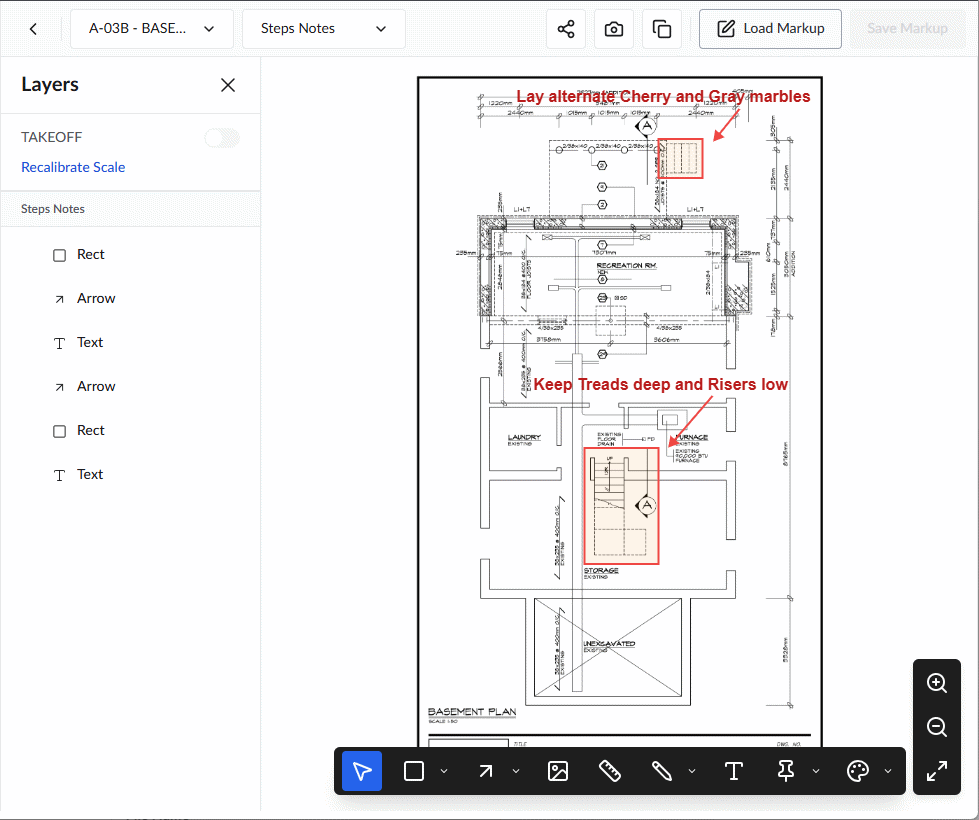
- Click the
 button at the top-right
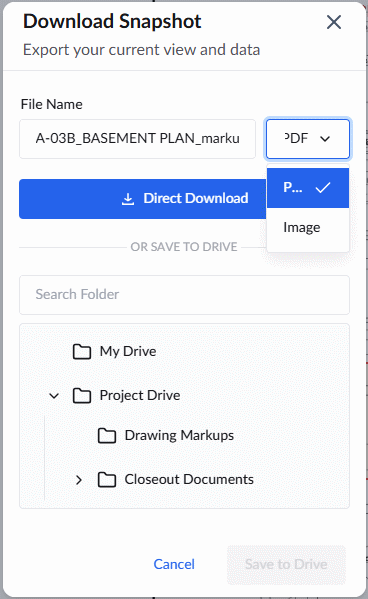
- File Name - The filename is automatically set to the plan sheet name. Enter your preferred name in the text box to override the default.
- Select the file type (PDF or Image) from the drop-down in which you want to download the markup.
- Click the 'Direct Download' button to save the file directly to your device.
You can also save the file on Linarc's cloud-based project file repository. This allows you to share it with other team members. The folder's access permissions determine which team members can view or edit the file.
- Company Drive - Share with the project team members from your organization:
- Select the folder that corresponds to your company name
- Navigate to the desired folder and click 'Save to Drive.'
- Project Drive - Share with the construction team members from any stakeholder organization:
- Select 'Project Drive'.
- Navigate to the appropriate folder and click 'Save to Drive.'
Was this article helpful?
That’s Great!
Thank you for your feedback
Sorry! We couldn't be helpful
Thank you for your feedback
Feedback sent
We appreciate your effort and will try to fix the article