When a payment authority requests changes to a submitted Payment Application (Pay App), Linarc makes it simple to modify and resubmit your claims while keeping your records balanced.
The Ripple Effect: Updating Subsequent Pay Apps
Construction billing is cumulative. If an approval-pending Pay App is revised, all pending Pay Apps from subsequent billing cycles must also be sequentially revised. This ensures your subsequent months reconcile perfectly with your newly updated financial data.
How Revisions Work Based on Your Role
- General Contractors: When the Project Owner requests adjustments, reopen the Pay App, make your corrections, sequentially update any subsequent pending Pay Apps, and resubmit.
- Subcontractors: The General Contractor requests a revision and notifies you through any out-band-communication method. Reopen the flagged Pay App, adjust your work progress or materials, update subsequent pending claims, and resubmit to the GC.
- Stand-alone Contractors: Upon receiving out-of-band feedback from your client, reopen the pending Pay App in Linarc to apply corrections. Update any subsequent pending Pay Apps, then email or export the newly revised PDFs back to your client.
Streamlined Revision Management
- Automated Math: Simply adjust your progress or stored materials; Linarc instantly recalculates all net payable amounts.
- Centralized Tracking: Manage your original submissions and revised drafts from a single screen to easily review and submit corrected documents.
To revise pay apps
Ensure you are on the 'My Progress' screen within the Finance module. If you need to navigate there, follow these steps:
- Click the Main Menu icon at the top-left of your screen.
- Under the 'Finance & Controls' section of the drop-down menu, select the appropriate billing type:
- General Contractors: Select 'Owner Billing.'
- Subcontractors & Stand-alone Contractors: Select 'Monthly Billing.'
- Select 'Pay Apps' from the left-hand menu.
Tip: Press and hold the Cmd (Mac) or Ctrl (Windows) key on your keyboard while clicking any menu item to open the module in a new browser tab.
The example below shows the 'Pay Apps' screen from a subcontractor's workspace. The interface looks very similar for General Contractors and Stand-alone Contractors, highlighting all documents. The screen shows the list of all pay apps in different statues.
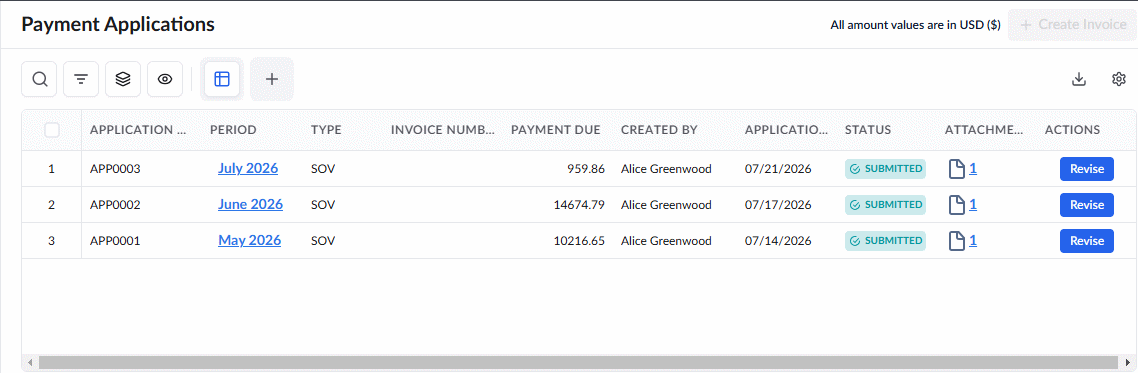
Column Descriptions:
- Application Number: The unique identification or serial number assigned to the Pay App.
- Period: The specific billing month or cycle that the Pay App covers.
- Type: Identifies whether the pay app is based on SOV or Budget.
- Invoice Number: The unique serial number of the corresponding invoice. (Note: This field only populates after the Pay App is approved and the invoice has been generated).
- Payment Due: The total monetary amount requested in the Pay App.
- Created By: The name of the team member who generated and submitted the document.
- Application Date: The exact date the Pay App was officially submitted.
- Status: The current workflow state of the Pay App (e.g., Submitted, Approved, or Revision Requested).
- Attachments: Click to download the signed PDF version of the Pay App and view any supporting documents.
- Actions: Contains task-specific buttons to move the document forward, such as 'Submit' or 'Revise,' depending on the Pay App's current status.
Search, Filter, and Sorting Options
- Click the magnifier icon and use the 'Search' box located at the top left to find an entry using any value from the table as search criteria
- Click any column header to sort the rows in ascending or descending order based on that column's data.
- Click the cog wheel icon at the top right to adjust the display density and customize the display and order of the columns
- The options at the top left allow you to filter the entries, create nested groups of entries, highlight cells and manage personalized and customized views of the table. Use the links below to learn more:
- Click 'Revise' in the row of any submitted pay app to reopen it when a revision is required.
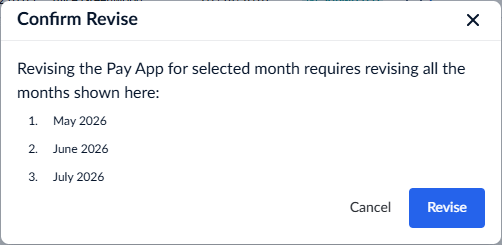
The system will identify all subsequent months that require reconciliation to maintain an accurate financial history.
- Click the 'Revise' button to confirm your action
The 'Revision' screen displays all billable work items and their current completion percentages from your selected period through your most recent submission, helping you reconcile the pay app under revision.
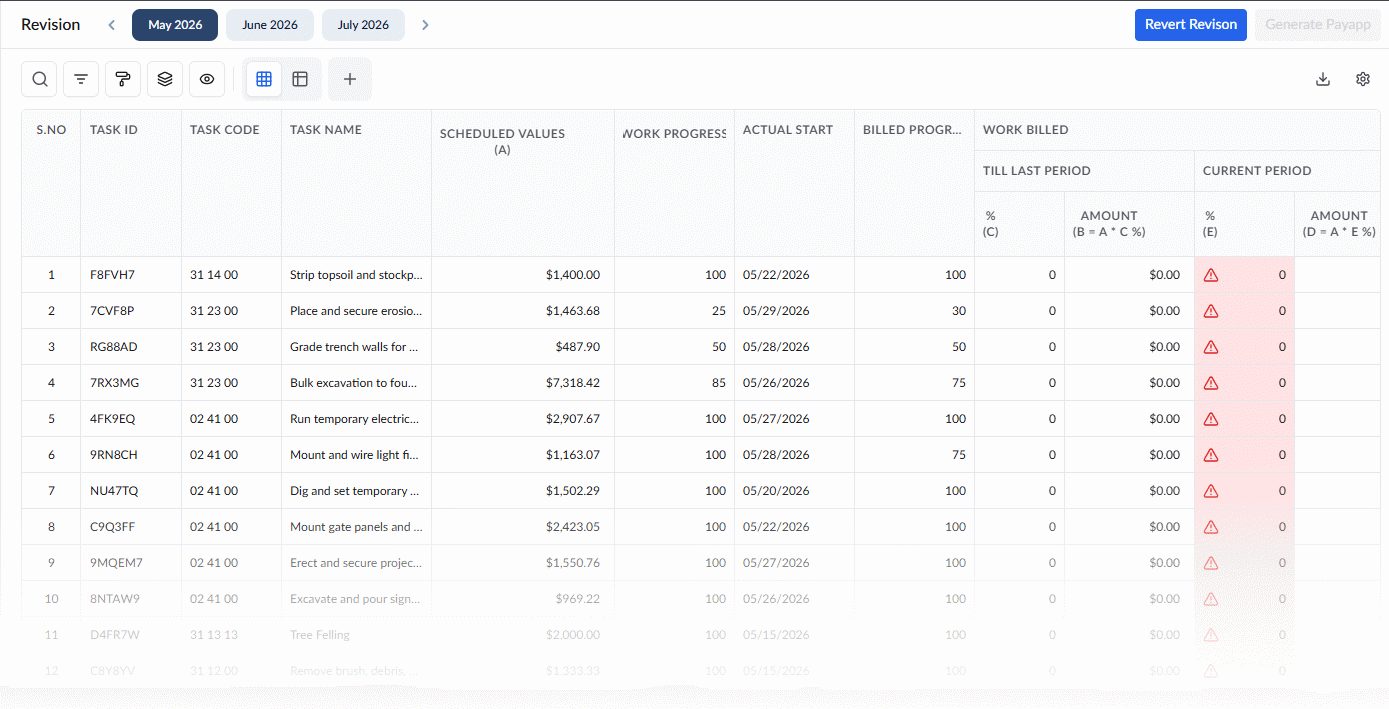
- Click inside the 'Current Period %' cell and enter the work percentage to be billed for that specific cycle.
- Click within the 'Stored Materials' column for the specific item to input the cost of unused materials in stock during that period.
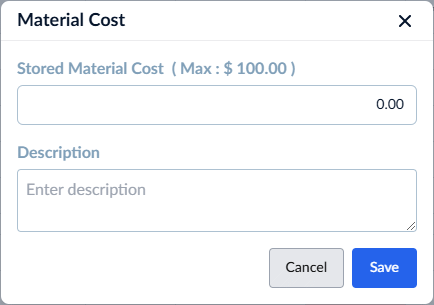
Enter the monetary value of the materials that you want to include in the bill of that month. The value of the materials is factored depending on your billing configuration.
Enter your notes or comments about the remaining materials in the 'Description' field and Click 'Save'
Repeat the process for all applicable task items
The system automatically recalculates the values based on the budget allocation for that pay app under revision.
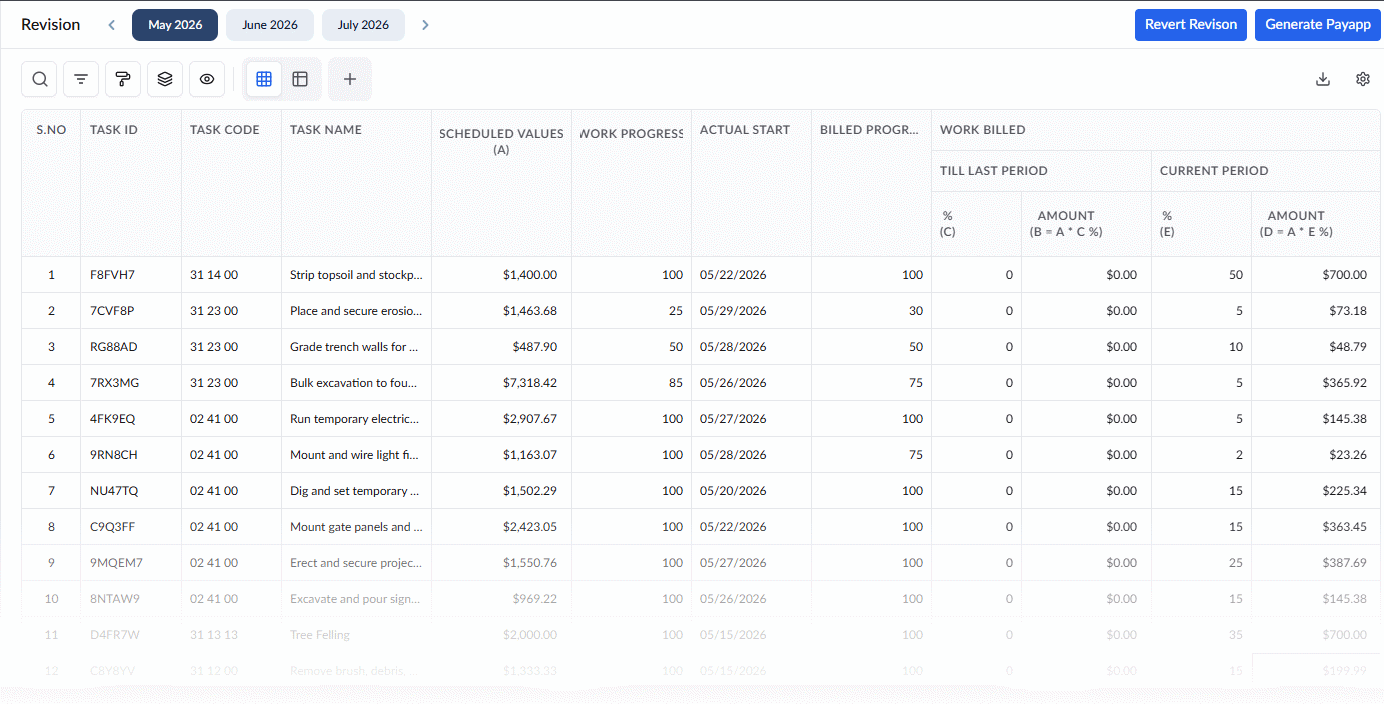
- Click the 'Generate Payapp' button on the top right to record the changes and finalize the pay app
Or,
- Click 'Repeat revision' to start the revision again.
- Repeat the process for the subsequent months if any, to ensure accurate billing.
Note:
While you can temporarily postpone reconciling subsequent pay apps, you cannot create a new Pay App for the current month until all pending revisions are reconciled and submitted.
Resume Revision
You can resume the revision process for the subsequent pay apps at any time from any screen in the Billing menu.
- Click the main menu button on the top-left, select the 'Owner Billing' or 'Monthly Billing' menu and then choose 'Pay Apps' on the left
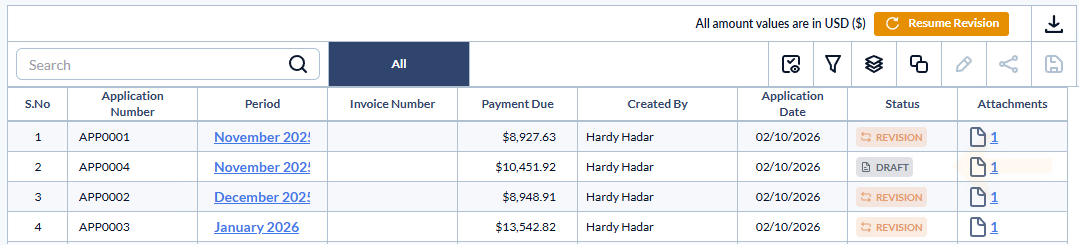
- Click
 button on the top right
This takes you to the revision screen where you can revise the next pay app. Revise the line items for the subsequent pay apps as mentioned above. Once completed click the  button on the top right of the latest pay app.
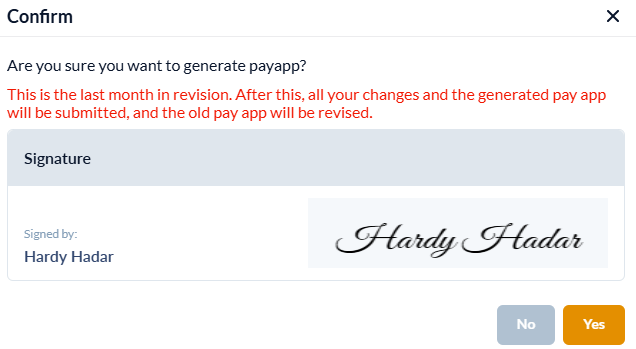
- Click 'Yes' to confirm your action.
Once the revision is complete, the 'Pay Apps' screen lists both your original and revised drafts, and automatically submits all pay apps with revisions at once.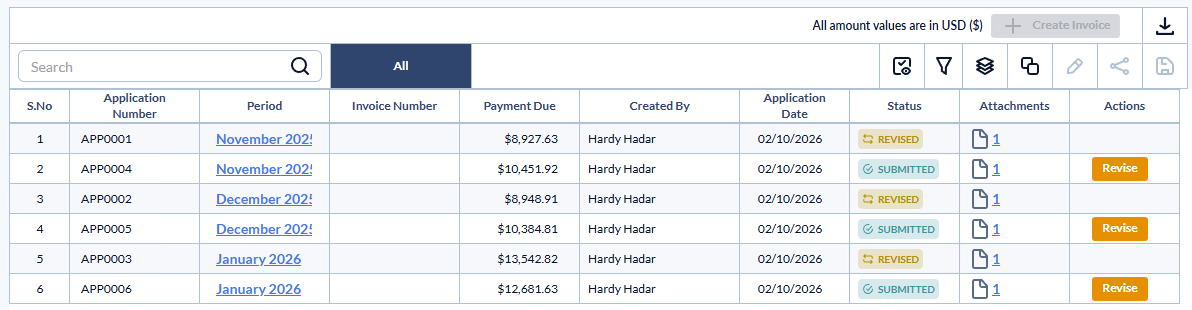
The original pay apps are retained in the list with the status 'Revised.'
Once the submitted new pay apps are approved, you can mark them as approved and proceed to generate the invoice. See Generate and Submit Invoice for Payment for guidance.
Was this article helpful?
That’s Great!
Thank you for your feedback
Sorry! We couldn't be helpful
Thank you for your feedback
Feedback sent
We appreciate your effort and will try to fix the article