Linarc streamlines your entire Payment Application (Pay App) submission and routing workflow directly within the platform. While you have the flexibility to generate multiple progressive Pay Apps throughout the month if permitted, these can only be submitted on or after your project's designated monthly submission day. Once this date arrives, you can submit and publish the document, moving it forward for the paying party's review.
When you are ready to submit, you can seamlessly:
- Batch Submit Pending Claims: If you have accumulated multiple progressive Pay Apps throughout the month, selecting the final application will automatically bundle it with all previously pending Pay Apps, submitting them together as a single batch, complete with your digital signatures.
- Effortless Forwarding: Send your finalized Pay Apps to your client with just one click. General Contractors and Subcontractors route documents internally through the Linarc platform, while Stand-alone Contractors utilize Linarc's built-in email engine to deliver the PDF straight to the client's inbox.
- Manage Revisions: If the paying party requests changes, you can easily reopen a submitted Pay App, make the necessary modifications, and resubmit it.
Routing and Approval Workflows by Contractor Type
Once you click 'Submit,' Linarc handles the document routing based on your specific contractor role. Here is exactly what happens for each type of user:
General Contractors:
- In-App Routing: If the Project Owner is included in the project directory, the Pay App routes directly to them within Linarc for review.
- Out-of-Network Routing: If the Owner is not in the directory, you must forward the Pay App externally. Once you receive their approval out-of-band (e.g., via email or phone), you will manually mark the Pay App as "Approved" within Linarc.
Subcontractors:
- In-App Routing: Your Pay App is automatically routed to the General Contractor directly within the Linarc platform.
Wait for the GC to review and approve the claim within the system. Once approved, you can proceed to generate your invoice.
Stand-alone Contractors:
- Automated Email Delivery: Linarc can automatically email the final version of the Pay App to the client listed in your project's billing configuration.
- Manual Export (Optional): If required or preferred, you can download the signed Pay App as a PDF and forward it to your client through your own email or preferred communication method.
Once your client reviews and approves the submission, you can manually mark the claim as "Approved" in Linarc and proceed with generating your invoice.
To submit the pay app
Ensure you are on the 'My Progress' screen within the Finance module. If you need to navigate there, follow these steps:
- Click the Main Menu icon at the top-left of your screen.
- Under the 'Finance & Controls' section of the drop-down menu, select the appropriate billing type:
- General Contractors: Select 'Owner Billing.'
- Subcontractors & Stand-alone Contractors: Select 'Monthly Billing.'
- Select 'Pay Apps' from the left-hand menu.
Tip: Press and hold the Cmd (Mac) or Ctrl (Windows) key on your keyboard while clicking any menu item to open the module in a new browser tab.
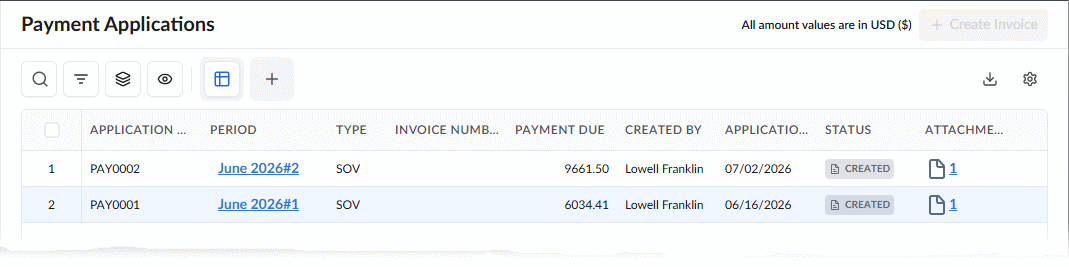
The example below shows the 'Pay Apps' screen from a General Contractor's workspace. The interface looks very similar for Subcontractors and Stand-alone Contractors, highlighting all documents.
- Select the Pay App you wish to open based on how you want to submit:
- To submit ALL pending Pay Apps: Click the most recent (latest) Pay App in the list. This will automatically bundle all pending applications together.
- To submit a partial batch: Click on a specific, earlier Pay App. This will submit that selected application along with any others that were pending before it.
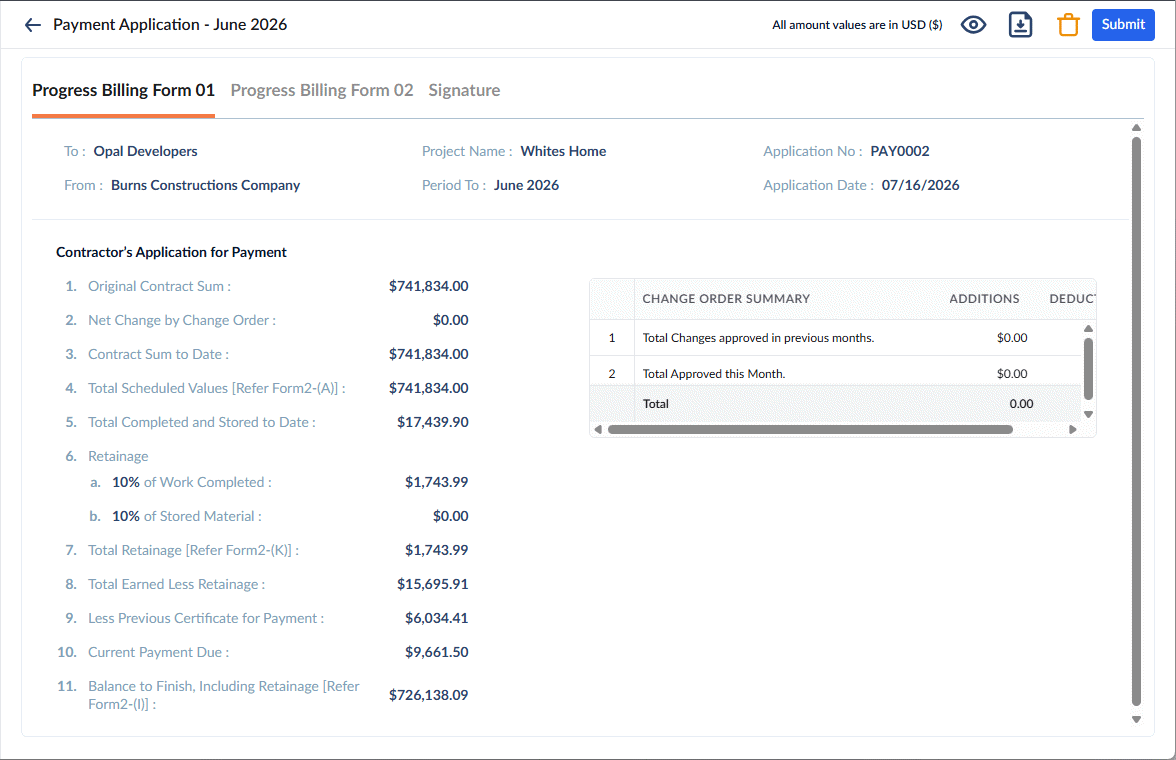
- Review the details and click 'Submit'
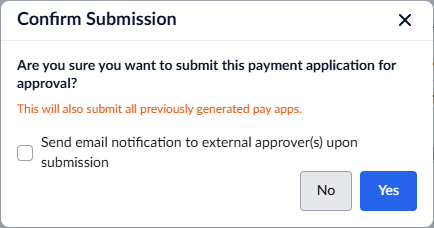
Review your submission options:
- Send email notification to external approver(s) upon submission: (Note: This option is only visible to Stand-alone Contractors).
- If checked: Linarc instantly emails the attached PDF to the client address listed in your billing configuration for their review and approval.
- If unchecked: The system will not email the client. You must manually download the signed PDF and send it to your client outside of Linarc.
- Click Yes to confirm. This officially changes the document's status to "Submitted" and completes the process.
Download the PDF
- Click the
 button on the top right to download the PDF version of the pay app
Alternatively, to download the PDF from the project's file repository:
- Click the Main Menu icon at the top-left of your screen.
- Select 'Cloud Drive' under the 'Documents' section of the drop-down menu
- Navigate to 'System' > 'Finance' > 'Payment Applications'.
- Right-click the specific Pay App file and select 'Download' to save it to your local device.
Next Steps: Approvals, Revisions, and Invoicing
After your Payment Application is submitted, it enters the review phase. Here is how approvals, revisions, and invoicing work based on your role:
General Contractors
- In-System Owner: If the Project Owner is in the project directory, they will review the Pay App directly in Linarc. Once they approve it, you will receive a notification, the status will automatically change to 'Approved,' and you can proceed to generate your invoice.
- Out-of-System Owner: If the Owner is not in the system, wait to receive their approval externally (e.g., via email or phone). Once received, manually mark the Pay App as "Approved" in Linarc and proceed with invoicing. See Generate and Submit Invoice for Payment for guidance.
Subcontractors
- Approval Workflow: The General Contractor will review your Pay App directly within Linarc. Once they approve it, you will receive a notification, the status will automatically update to "Approved," and you can proceed to generate your invoice. See Generate and Submit Invoice for Payment for guidance.
Stand-alone Contractors
- Approval Workflow: Wait for your client to review the Pay App and grant approval via your external communication method. Once they approve, manually mark the claim as 'Approved' in Linarc and proceed with generating your invoice. See Generate and Submit Invoice for Payment for guidance.
Handling Revisions
Regardless of your contractor type, the paying party always has the option to request changes. If a revision is requested, you can easily modify the Pay App within Linarc and resubmit it for their review. See Revise Payment Application for more details.
Was this article helpful?
That’s Great!
Thank you for your feedback
Sorry! We couldn't be helpful
Thank you for your feedback
Feedback sent
We appreciate your effort and will try to fix the article