As a General Contractor, Linarc simplifies your review process by automatically routing Subcontractor Payment Applications (Pay Apps) directly to your workspace. From here, you can easily review the submitted billing data, verify completion percentages, and either approve the claim or request revisions—all directly within the platform.
You will receive a notification whenever a subcontractor submits a new or revised monthly Pay App.
To access the pay apps submitted by the subcontractors
- Click the Main Menu icon at the top-left of your screen.
- Select 'Subs Billing' under the 'Finance & Controls' section of the drop-down menu. (Alternative - If you are already in another finance module, simply click Subs Billing on the top navigation bar.)
- Select 'Pay App' from the left-hand menu.
Tip: Press and hold the Cmd (Mac) or Ctrl (Windows) key on your keyboard while clicking any menu item to open the module in a new browser tab.
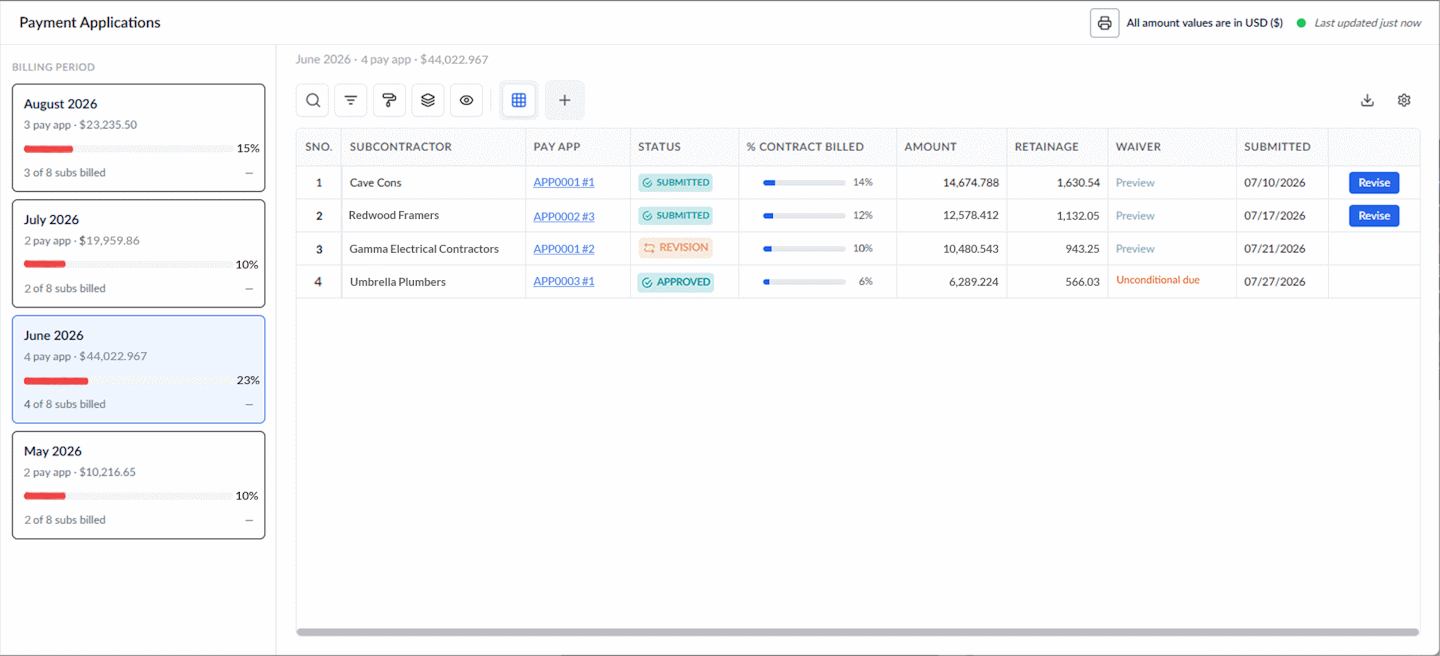
The 'Payment Applications' screen features a two-pane layout to help you organize and review incoming billing:
Left Navigation Pane: Lists all billing periods where subcontractors have submitted pay apps.
- Select a month to filter the applications in the main view.
Right Details Pane: Displays all pay apps submitted during the selected billing period, along with their status and financial summaries.
Column Descriptions:
Contractor: The name of the subcontractor company.
Pay App: The unique serial number for the payment application. Click to open the pay app document.
Status: The current review stage (Submitted, Approved, Revision Requested, or Revised)
% Contract Billed: The percentage of the total contract value claimed in this application.
Amount: The total monetary value claimed for the period.
Retainage: The dollar amount withheld as retainage.
Waiver: Lien waiver status and documentation, if applicable.
Submitted: The date the application was submitted.
Search, Filter, and Sorting Options
- Click the magnifier icon and use the 'Search' box located at the top left to find an entry using any value from the table as search criteria
- Click any column header to sort the rows in ascending or descending order based on that column's data.
- Click the cog wheel icon at the top right to adjust the display density and customize the display and order of the columns
- The options at the top left allow you to filter the entries, create nested groups of entries, highlight cells and manage personalized and customized views of the table. Use the links below to learn more:
To review a pay app
- In the 'Pay Applications' screen, select the billing period from the left-hand pane to view submitted applications.
- Click the Pay App number for the specific contractor to open the details view.
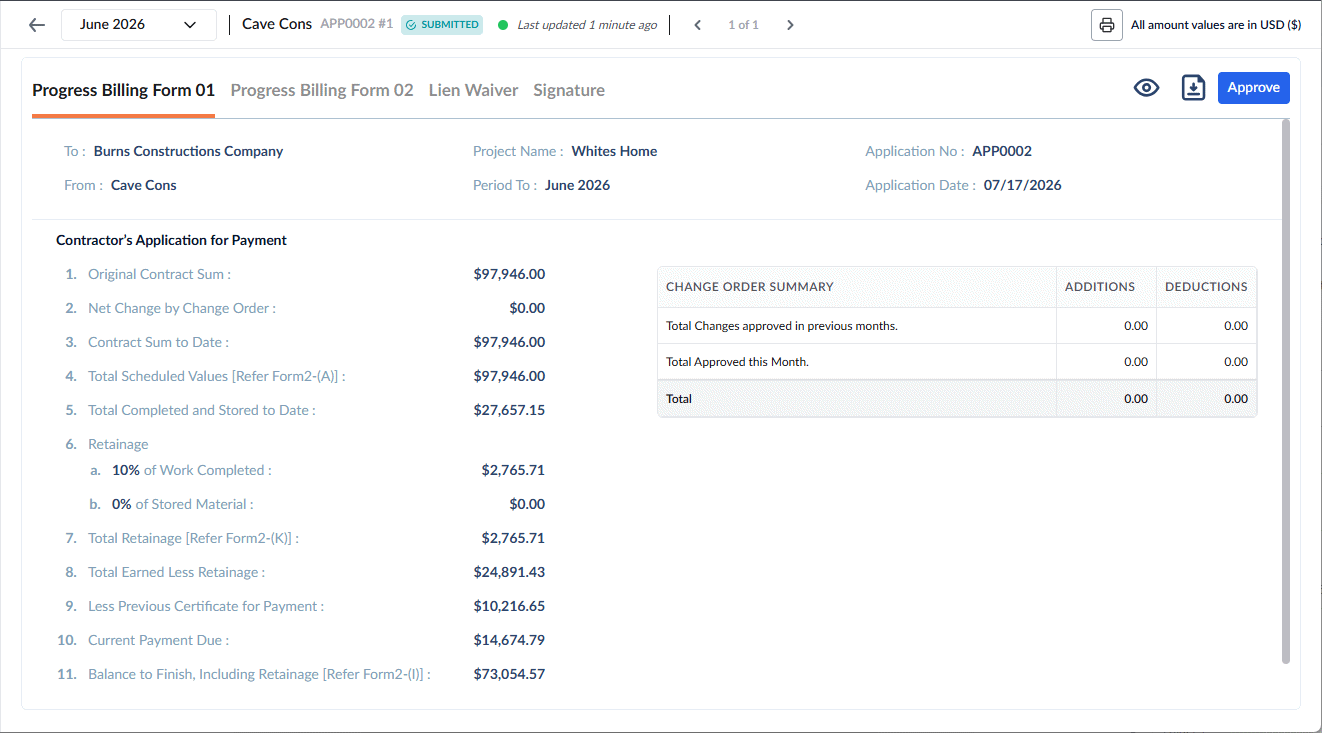
- Review the summary in Form 1 and the submitted line items, work completion progress, and billing amounts in Form 2.
- Use the tabs at the top of the page to inspect supplemental documentation:
- Lien Waiver: Inspect required waiver documentation.
- Signature: View or affix required digital signatures.
- (Optional) Use the 'Period' dropdown at the top left to access prior or subsequent pay applications for the same subcontractor.
To approve the Pay App
- Click 'Mark As Approved' at the top-right.
The subcontractor will receive an automated notification and can now generate an invoice against this pay application.
Request for a Revision - If you identify discrepancies, you can send the application back to the subcontractor for corrections.
Important Note on Out-of-Order Revisions: Payment applications are cumulative, with each billing period building upon the totals of the previous one. Requesting a revision for an earlier pay app automatically triggers a revision requirement for all subsequent submissions from that subcontractor. This ensures cumulative progress, retainage, and billing totals remain accurate across every period. The subcontractor must correct and resubmit each affected application in chronological order.
To request a revision
- Click the 'Back' arrow at the top left to return to the pay application list.
- Locate the pay application row and click 'Revise' on the far right.
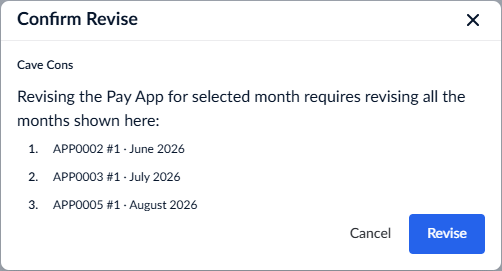
A confirmation dialog will display listing all affected pay applications for that contractor.
- Click 'Revise' to confirm the request.
The subcontractor will be notified automatically to make the necessary corrections and resubmit.
Was this article helpful?
That’s Great!
Thank you for your feedback
Sorry! We couldn't be helpful
Thank you for your feedback
Feedback sent
We appreciate your effort and will try to fix the article