Linarc empowers authorized office team members, such as Project Managers, to review and intervene on crew timesheets that are still awaiting foreman approval. By allowing office-level oversight, teams can prevent administrative bottlenecks and ensure labor records are finalized promptly.
Reviewing and approving these timesheets directly allows you to:
- Expedite Payroll Processing: Directly validate time cards to ensure crew wages are calculated and processed on schedule, avoiding delays caused by pending field approvals.
- Track Labor Costs: Instantly attribute labor hours to specific tasks, ensuring that project spend and budget tracking remain up-to-date.
- Enhance Financial Analytics: Feed accurate, approved data into your project’s financial reports to improve forecasting and performance analysis.
To view the unapproved crew logs
- Click the main menu at the top left
- Click 'Field Crew' under 'Field' menu and click 'Unapproved Logs' on the left
The 'Unapproved Logs' screen lists all logs pending approval from the field team:
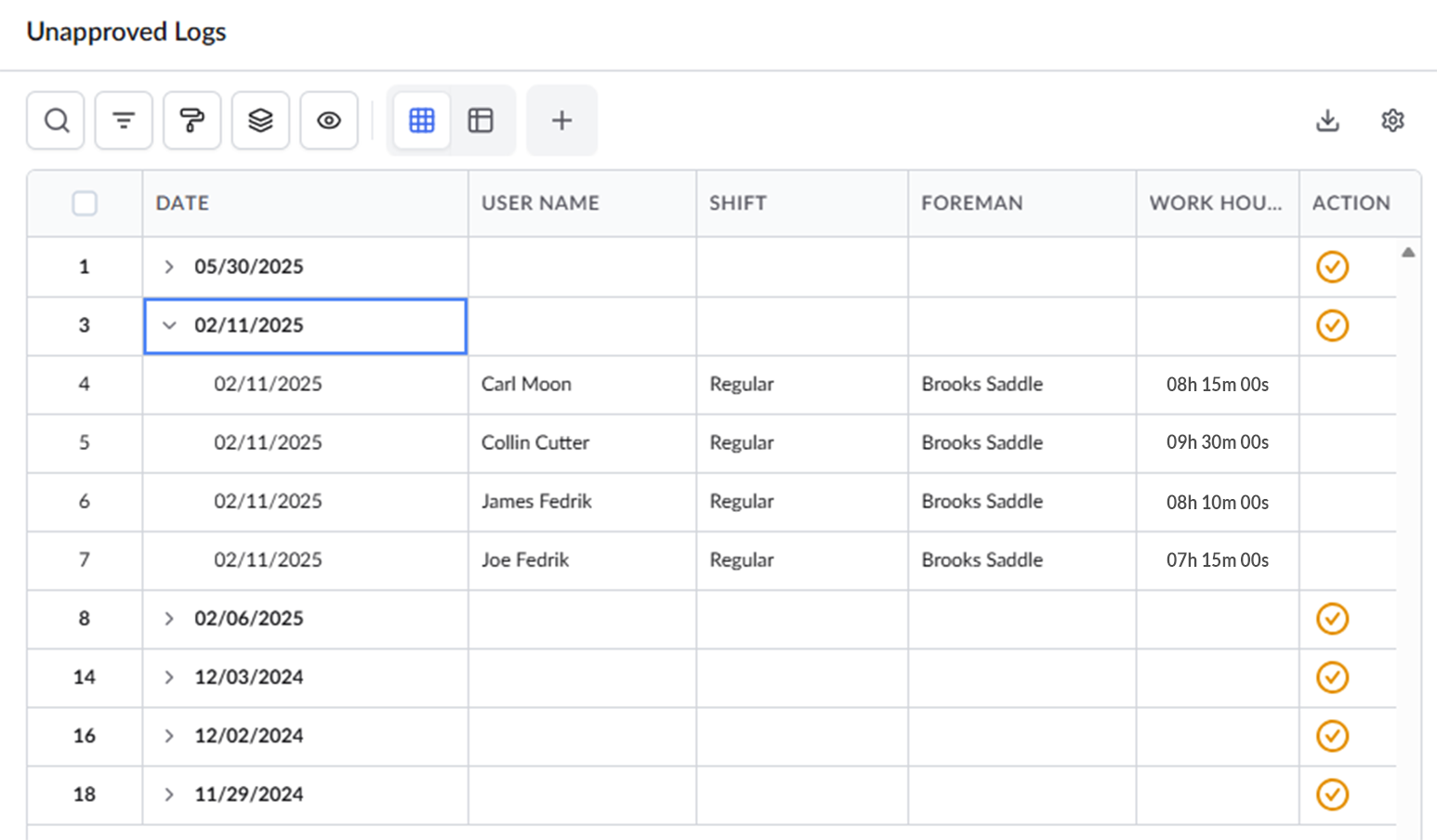
- Date – Expand a date to view timesheets pending approval for that day.
- User Name – The crew member associated with the timecard.
- Shift – The work shift associated with the timecard.
- Foreman – The foreman responsible for the shift.
- Work Hours – The total duration the crew member spent on various tasks on that date
- Action - Click the
 icon to approve all the logs of the crew members on that date
Search, Filter, and Sorting Options
- Click the magnifier icon and use the 'Search' box located at the top left to find an entry using any value from the table as search criteria
- Click any column header to sort the rows in ascending or descending order based on that column's data.
- Click the cog wheel icon at the top right to adjust the display density and customize the display and order of the columns. See Customize Columns in List Views.
- The options at the top left allow you to filter the entries, create nested groups of entries, highlight cells and manage personalized and customized views of the table. Use the links below to learn more:
To Approve the crew logs
- Click
 to expand a date and view a list of approval-pending timesheet log entries of differnet crew members associated with that date.
 - Click the serial number of a specific log entry to open the detailed view for that crew member on the right pane.
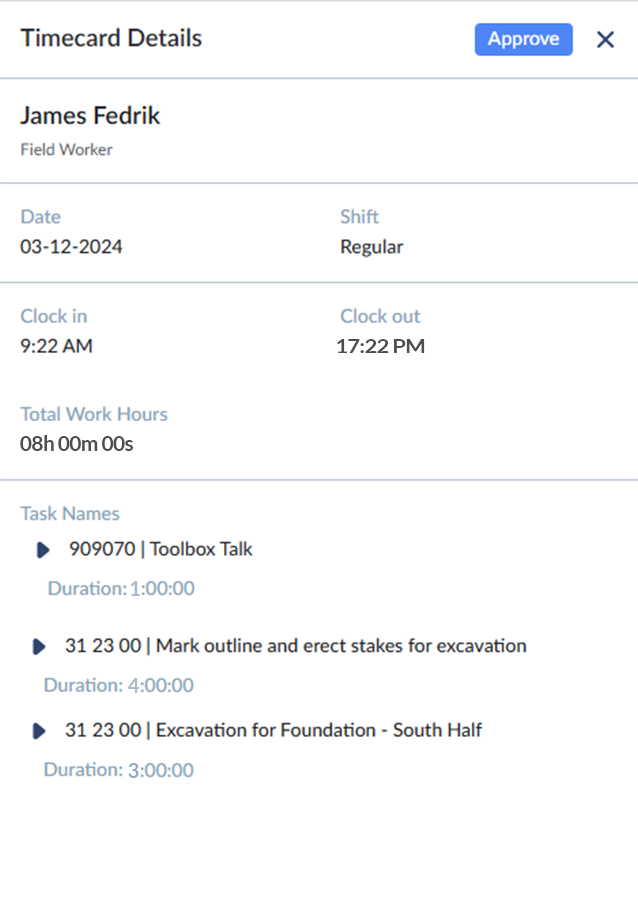
Once you review the details of the crew's timecard, you can approve the log
- Click the 'Approve' button on the right
Alternatively,
- Click theicon on the 'Actions' column of the table to approve all the logs on that date
Once approved, you can see all the accepted logs on the 'Approved Logs' screen. See View Approved Crew Timesheets for more details.
Was this article helpful?
That’s Great!
Thank you for your feedback
Sorry! We couldn't be helpful
Thank you for your feedback
Feedback sent
We appreciate your effort and will try to fix the article