View approved crew timesheets to gain clear visibility into finalized labor records. These sheets act as the primary data source for payroll processing, accurate labor costing, and key project metrics. You can:
View a consolidated summary of total hours and labor costs for any selected month to track against your overall budget.
Review the finalized wage calculations for each individual crew member on specific dates.
Identify all overtime hours and their associated costs to monitor and manage labor overruns.
Access task-level cost breakdown records for audit purposes or to verify information for billing.
To view approved crew timesheets
- Ensure you're on the 'Approved Logs' screen. If not:
- Click 'Field Crew' under 'Field' menu and click 'Approved' on the left
By default, the approved logs of the current month are displayed.
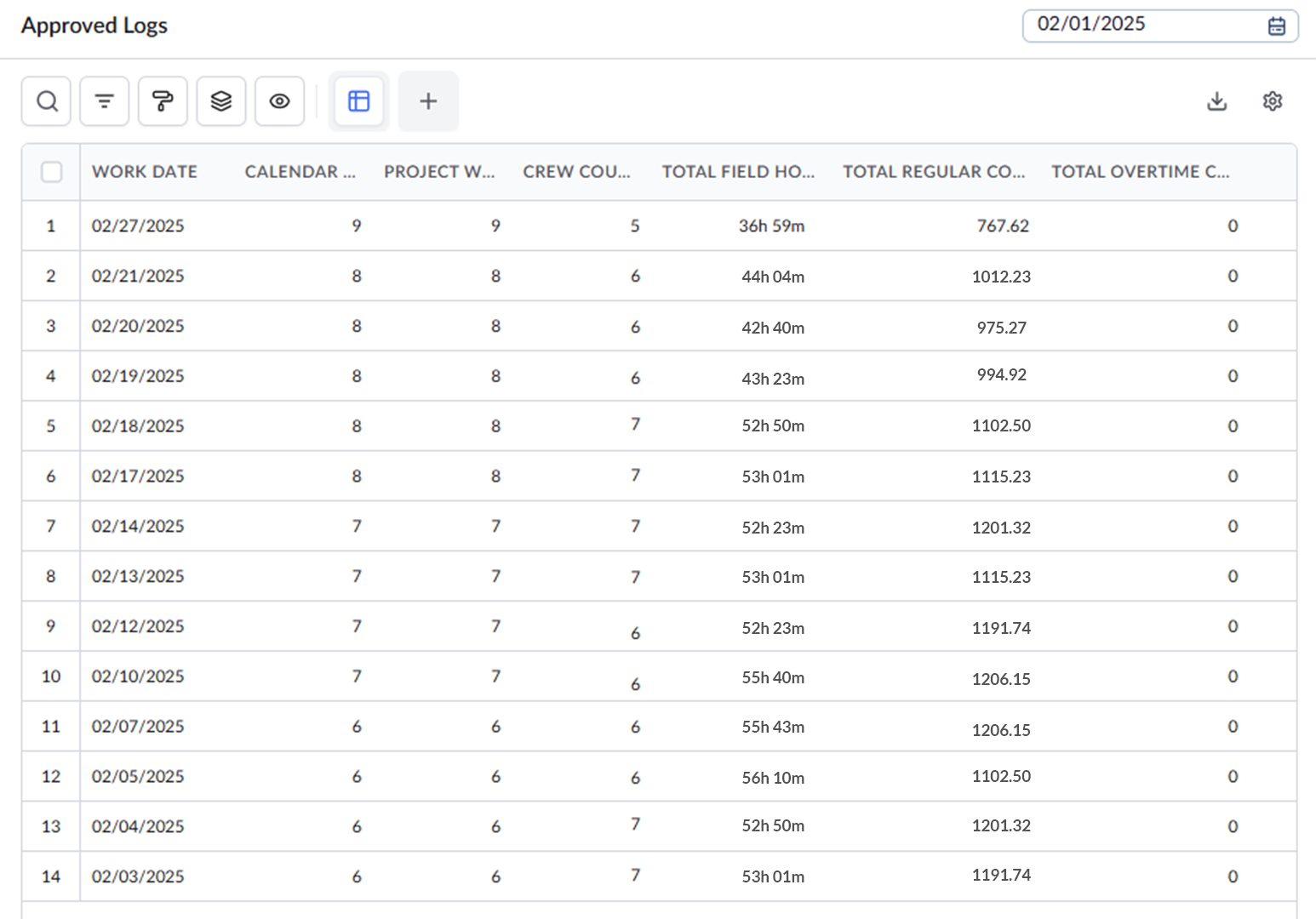
- Use the date selector at the top right to view approved crew logs for the desired month.
Search, Filter, and Sorting Options
- Click the magnifier icon and use the 'Search' box located at the top left to find an entry using any value from the table as search criteria
- Click any column header to sort the rows in ascending or descending order based on that column's data.
- Click the cog wheel icon at the top right to adjust the display density and customize the display and order of the columns. See Customize Columns in List Views.
- The options at the top left allow you to filter the entries, create nested groups of entries, highlight cells and manage personalized and customized views of the table. Use the links below to learn more:
- Work Date – The date of the timecard log
- Calendar Week - The sequential week number (1–52) of the calendar year.
- Project Week - The specific week number within the project timeline, calculated from the project start date. .
- Crew Count - The total number of general and specialty crew members working onsite that day. .
- Total Field Hours - The total number of hours logged by all crew members on the specified date across all field tasks.
- Total Regular Cost - The day's total labor cost calculated for regular (non-overtime) work hours based on the crew members’ hourly pay rates.
- Total Overtime Cost - The day's total labor cost calculated for overtime work hours based on the crew members’ overtime pay rates.
- Work Hours - The total duration the crew member spent on various tasks on that date
The right pane displays a consolidated summary of total hours and labor costs for the selected month at the top, and a detailed breakdown of crew members and their task-level cost breakdown for the selected date at the bottom.
Monthly Summary
Total Hours - The cumulative number of work hours logged by all crew members during the selected month.
Total Cost - The cumulative labor cost incurred during the selected month, including both regular and overtime costs.
- Click the serial number of an entry to see the complete details of crew members and their time card entries on the right pane
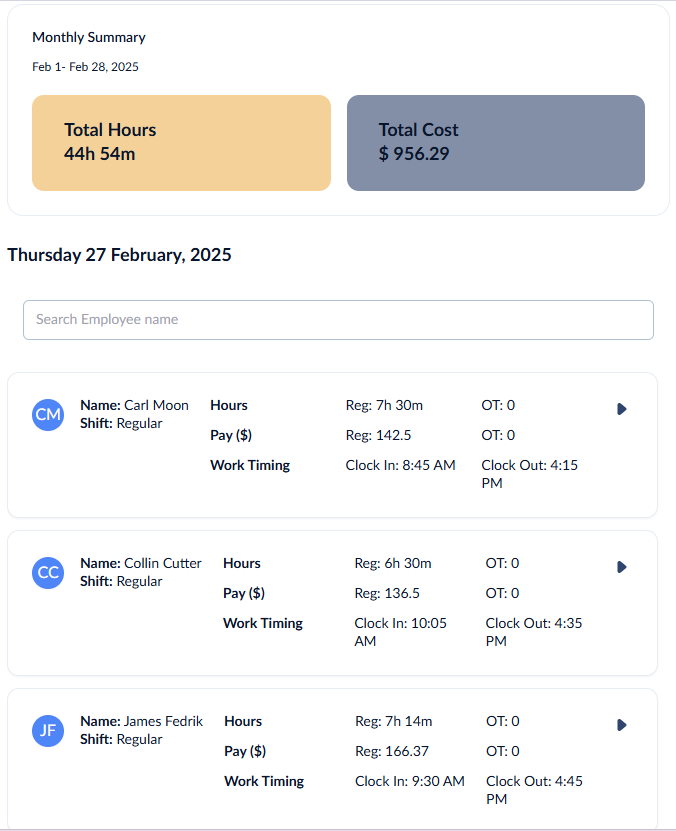
Use the 'Search' box located at the top left to find the desired employee and their task-level cost breakdown details
- Click
 to view the details of tasks worked by the crew member and their cost breakdown
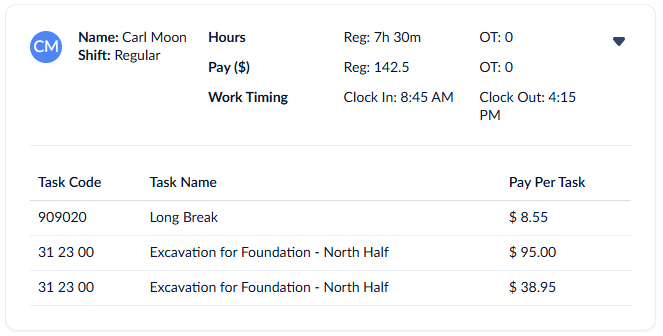
- Name - The crew member associated with the timecard entry
- Shift - The work shift during which the timecard entry was made
- Hours
Regular – The total duration the crew member spent on various tasks during regular working hours on the selected date.
OT – The total duration the crew member spent on tasks during overtime hours on the selected date.
- Pay ($)
- Regular – The total pay calculated for regular working hours based on the crew member’s hourly rate.
- OT – The total pay calculated for overtime hours based on the crew member’s overtime rate.
- Work Timing
- Clock In - The time at which the crew member started working on the site
- Clock Out - The time at which the crew member ended the time card entry on the site
- Cost Code - The cost code assigned to the task item for which the payment was made.
- Task Name - The work done or activity performed by the crew member.
- Pay Per Task - The cost incurred for each individual task as per the crew member's hourly rate.
Was this article helpful?
That’s Great!
Thank you for your feedback
Sorry! We couldn't be helpful
Thank you for your feedback
Feedback sent
We appreciate your effort and will try to fix the article