Linarc streamlines the process of transforming your project contract into a structured, activity-aligned budget. This seamless integration establishes a strong financial baseline, enhancing your ability to control costs, track progress, and forecast accurately.
Every contract line item automatically generates a single corresponding budget line to start with. From there, you have the flexibility to build a highly granular budget:
Split a single contract item into multiple budget lines to distribute values across different building levels, zones, or phases for precise tracking.
Customize each budget line by assigning specific cost codes, tagging locations, and breaking down the total value into cost types like material, labor, and equipment.
The system to automatically calculates overhead based on your billing settings, instantly designating any unallocated funds as profit for that specific line.
Note: Linarc will automatically generate a draft budget from your contract only if the Allow Budget creation on lock setting was enabled during contract setup. If this option was not selected, you must upload the budget manually. See Upload a Budget Manually for guidance.
Use the following links to jump to the required sections:
- Set up the Project Budget
- Retain Fund for Budget Adjustments
- Edit / Remove Budget Line Items
- Lock the Budget
Set up the Project Budget
- Ensure that you're in the Project 'Budget Allocation' screen. If not:
- Click the app launcher
 and select 'Finance' from the project management console
 - Click 'Contract' on top, then select 'Budget' on the left
- Click the app launcher
The commitment contract line items appear. You can set up a budget for each line item below.
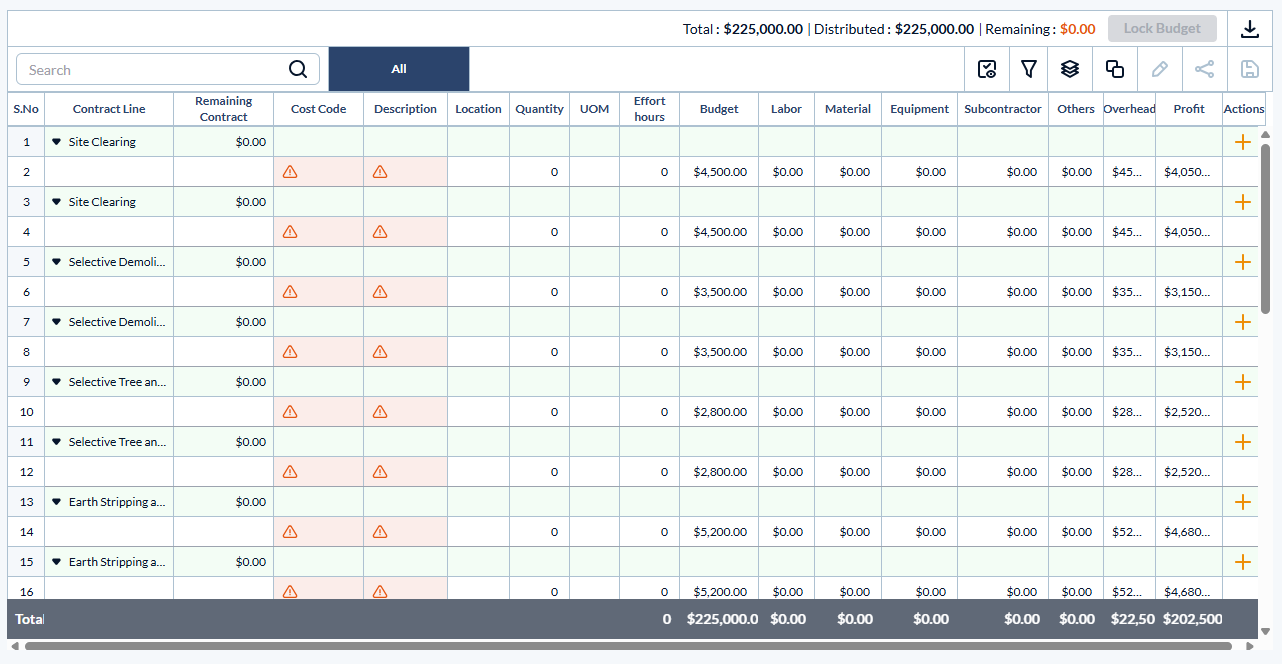
Contract Line - The specific scope item or work category defined within the contract.
Remaining Contract - The unallocated balance of the contract amount. By default, the system assigns the full contract value to the first budget line item. As you adjust this value and start assigning funds across multiple budget lines, the remaining balance automatically updates. Any leftover funds can be allocated to new or existing budget lines at any time using Budget Adjustments.
By default, the system automatically creates a single budget line item covering the full amount of each contract line. You can add more budget lines under any contract line to split the total amount across multiple rows. To add a new budget row, do one of the following:
- Click the
 button in the 'Actions' column.
 - Right-click the contract line item and select 'Add new Row' from the menu.
Enter the following values for each budget line:
General Item Details
- Cost Code: The standard alphanumeric code for the task or deliverable, pulled directly from your company's master list.
- Click inside the cell to open the pop-up and search by code number or item name. Once selected, the description will auto-populate.
- Description: The name or label of the budget item. This auto-populates based on the selected cost code, but you can edit it as needed.
- Location (Optional): The specific project area, level, or zone associated with this budget line. (Note: Ensure your project’s location hierarchy is already set up. See Manage Locations - Overview for details.)
- Click the cell to select a location from the drop-down list.
- Quantity: The total amount of work or deliverables required for this line item.
- Unit of Measurement (UOM): The standard unit used to measure the quantity (e.g., SF, CY, LF).
- Click the cell to select a unit from the drop-down menu.
- Effort Hours: The estimated total time required to complete the task, measured in man-hours.
- Budget: The total financial allocation for this specific budget line.
Cost Type Breakdown
- Labor: The estimated cost of your internal workforce required to complete this task.
- Material: The projected cost of all raw materials, supplies, and consumables needed for the work.
- Equipment: The anticipated cost for renting, operating, or utilizing the machinery and tools required for the job.
- Subcontractor: The budgeted cost for any portions of the work outsourced to external specialty contractors or vendors.
- Others: Any miscellaneous project expenses (such as permits, fees, or special services) that do not fit into the standard labor, material, equipment, or subcontractor categories.
- Overhead: The indirect operational costs applied to this task. The system auto-calculates this based on your established payment terms, though you can manually override the field if necessary.
- Profit: The anticipated financial margin for this specific work item. The system automatically calculates this by subtracting the sum of your allocated costs (Labor, Material, Equipment, etc.) from the total Budget amount.
Management
- Actions: Use this column to delete or remove a budget line if it was added inadvertently.
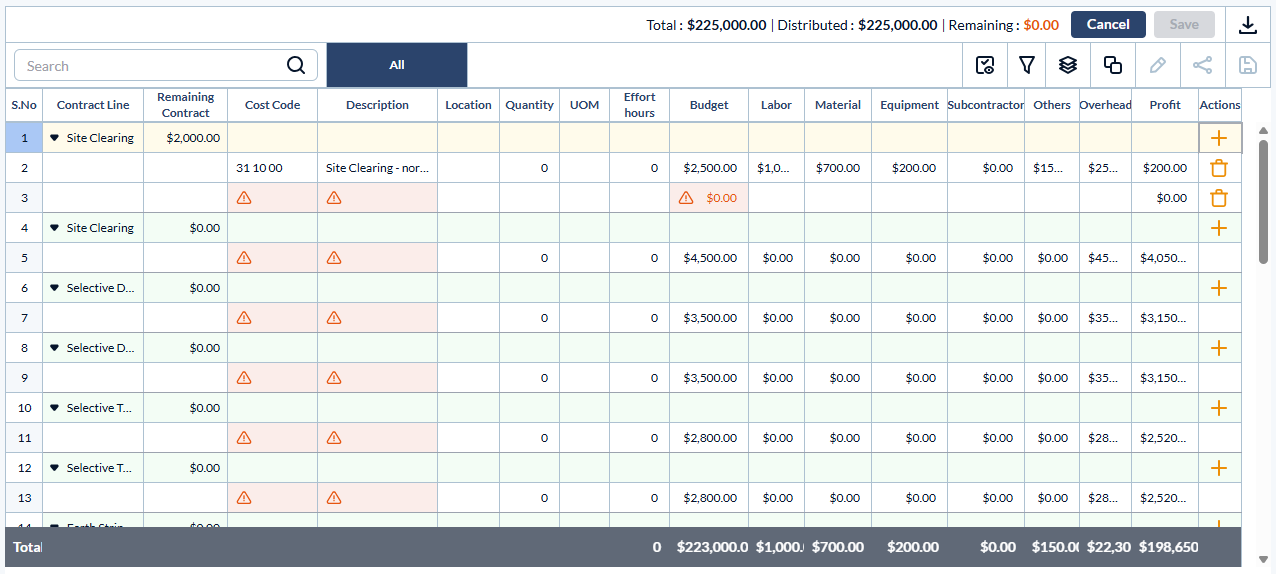
- Repeat this process of adding budget lines until the total amount for the contract line item is fully allocated. You can also reserve funds for future use by creating a dedicated "Unallocated" budget line under the applicable contract items. See below for more details.
- Repeat the process untill all contract line items are associated with respective budget lines.
- Click the
 button at the top right to save the budget line items for each contract line
Retain Funds for Budget Adjustments
As a best practice, you can set aside a portion of your allotted contract as an unallocated cost—a flexible reserve to cover unforeseen project expenses. Each contract line can have one dedicated 'Unallocated' budget line item.
To create an unallocated reserve:
- Locate the contract line item where you want to set funds aside.
- Click the
 button to add a new budget row. Alternatively, right-click the contract line item and select Add new Row.
 - Apply cost code 99-999 to designate this row as your reserve for future expenses and add the total fund value.

You can use these funds to top up any budget line item within the same contract at any time. See Re-Allocate your Budget for more details.
Edit / Remove Budget Line Items
Linarc allows unlimited reallocation of budget line items as long as the total remains within the contracted amount. You can,
- Edit and redistribute costs across all budget line items under each contract line.
Edit cost categories, such as material, labor, equipment, and others, can be adjusted for any budget line item.
Reallocation is allowed for all saved budget line items under every contract line until the budget is locked.
To edit a budget line item
- Click inside the cell you want to edit and enter the desired value
- Click the 'Delete' button to remove the row.
- Click the 'Add new row' button at the bottom to add a new budget line item
Alternatively,
- Click the button in the Actions column of a contract line item to add a new budget row under that contract.
- Click the 'Save' button at the top to save the changes.
Lock the Budget
- Click the button on the top right to confirm the budget allocated
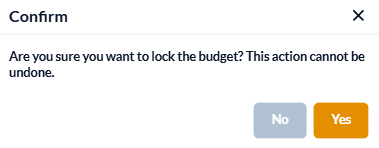
- Click 'Yes' to confirm your action
Once your budget is finalized, any internal reallocations must be handled via Budget Adjustments, while contract-level amendments require an approved Change Order.
Next Steps:
- Create a Project Schedule: Linarc can automatically generate a foundational schedule directly from your budget line items, giving you a great starting point for building out your comprehensive project schedule. Alternatively, you can build your schedule from scratch or import it from another software. See Create Project Schedule from Budget for guidance.
- Allocate Your Funds: Once your schedule is set, you can distribute your budget across specific scheduled tasks. See Allot Budget to Scheduled Work Items for more details.
Was this article helpful?
That’s Great!
Thank you for your feedback
Sorry! We couldn't be helpful
Thank you for your feedback
Feedback sent
We appreciate your effort and will try to fix the article