The Budget Adjustment feature gives you the crucial flexibility to rebalance your finances even after a project budget is locked. If a specific area requires additional funding as work progresses, you can seamlessly shift surplus money from other parts of the budget, adjust internal costs, or even create entirely new line items—all while keeping your total original budget intact.
When modifying your budget, you have several ways to redistribute your finances:
- Standard Budget Lines: Shift surplus money from existing budget line items, provided no funds from that line have been allotted to scheduled work items yet.
- Reserve Funds: Distribute money from your project-wide reserve line (e.g., Unallocated, 99-999) to any line item across the entire budget.
- Internal Cost Redistribution: Reallocate the amounts set for specific cost types (like material, labor, or equipment) and adjust your profit entirely within a single budget line.
- New Line Items: Create brand new budget lines to accommodate evolving work, funding them directly from your eligible existing lines or reserves.
Impact on Your Schedule of Values (SOV)
Your project's SOV is built directly from your budget line items. Because of this direct link, budget adjustments automatically impact your SOV:
- Automatic Updates: When you move funds between budget items tied to different SOV lines, the system automatically updates the total amounts for those respective SOV lines.
- Pay App Syncing: These updated SOV totals will automatically reflect the next time you generate a Pay App.
- Handling New Budget Lines: If your adjustment requires creating a brand-new budget row, you have the flexibility to map it to an existing SOV line or create a completely new, dedicated SOV line item for it.
Background Note on SOV and Budget line item groups:
Typically your SOV is mapped one-to-one with your budget lines. However, the system gives you the flexibility to customize this by grouping multiple budget items under a single SOV line. See Configure Project SOV with Budget Line Item Groups for more details.
Important Restrictions
Please note that to maintain accurate billing, you cannot transfer funds to or from certain locked areas. Budget adjustments are disabled for:
- Allocated Funds: Any line items that already have funds allocated to scheduled work items (whether partially or fully).
- GC Only: Any line item in the master budget that has been committed (assigned and saved) to a subcontractor or individually locked.
Any required adjustments or financial amendments to these restricted items can be implemented through a Change Order.
To make a budget adjustment
Ensure you are in the master budget screen. If not,
- Click the main menu icon at the top-left of your screen.
- Select 'Owner Contract' or 'Contract' under the 'Finance & Controls' section in the drop-down menu.
Tip: Press and hold the 'Cmd' (Mac) or 'Ctrl' (Windows) key on your keyboard while clicking to open the module in a new browser tab.
- Select 'Budget' on the left
- Turn the budget into adjustment mode, using the toggle switch at the top right
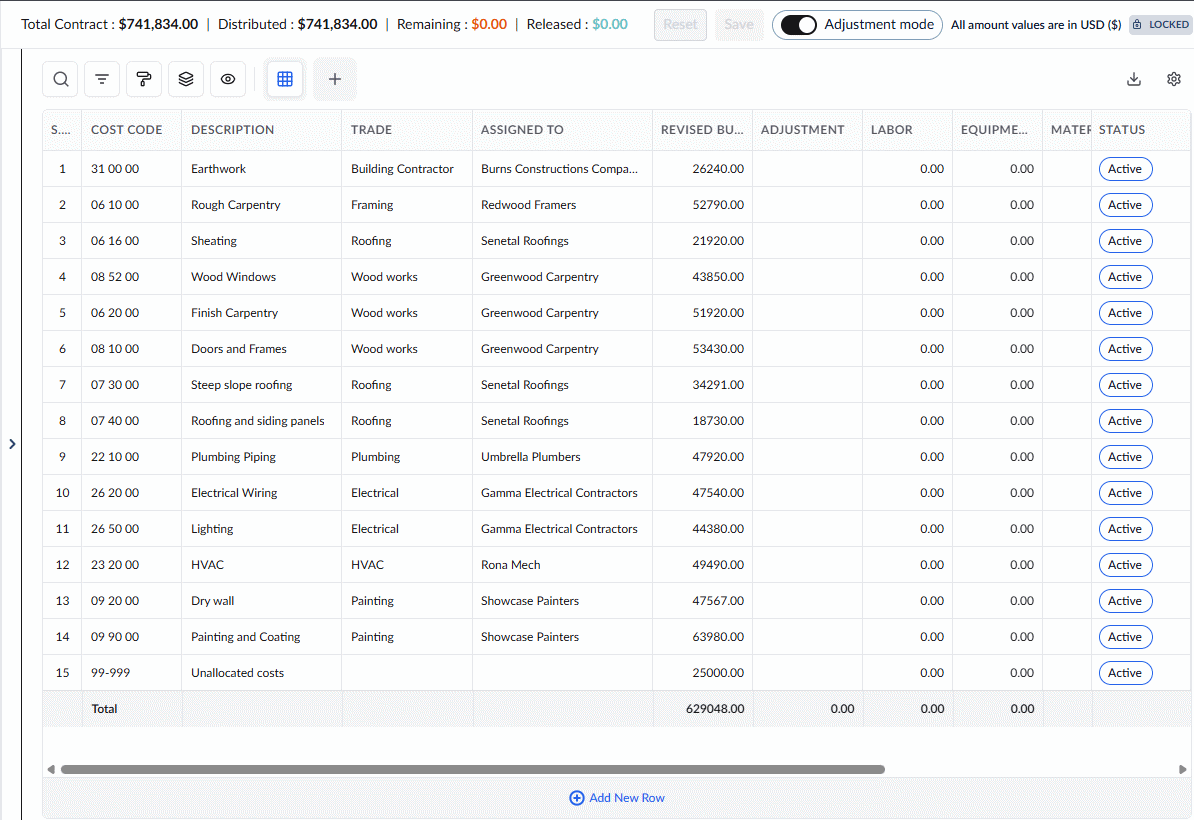
When you enter Adjustment Mode, the 'Budget' screen automatically filters to show only the line items available for financial rebalancing. From this view, you can freely transfer surplus money from your standard budget lines or your 'Unallocated' pool to any other eligible item.
Why are some items hidden?
To protect your financial baseline, items that are no longer eligible for adjustment will not appear on this screen. This includes:
- Allocated Funds: Any budget items already funding scheduled tasks.
- General Contractors Only: Any line items that have already been committed to a subcontractor.
Use the links below for guidance on type of budget adjustment you need help with:
- Transfer Budgets Across Line Items
- Add a New Budget Line
- Redistribute Funds Across Cost Types Within a Single Line Item
- View the Log of Budget Adjustments
- Handling New Budget Lines on Project SOV
Transfer Budgets Across Line Items
- Ensure the source line (a standard line item or the reserve 'Unallocated' line item) item has a sufficient surplus amount shown in the 'Revised Budget' column.
- Click inside the cell in the 'Adjustment' column and enter the total value to be deducted as a negative value. (With a minus sign)
- Click inside the cell in the 'Adjustment' column of the target line item and enter the value to add as a positive value.
- Alternatively, you can distribute the amount to more than one line item by entering the values in the respective 'Adjustment' cells
Tip: You can also add a new budget line item and move funds into it. See below for guidance.
As you make adjustments, the system updates your screen in real time:
Deducting Funds: The amount is deducted from your source line (highlighted in red), and its cost types (like Material, Labor, and Equipment) are proportionally decreased.
Tracking Available Funds: The 'Adjustment Value' at the top of the screen tracks your pulled funds, showing exactly how much is currently available to distribute.
Adding Funds: When you assign this amount to your target line(s) (highlighted in green), the total amount updates. The system automatically distributes the new funds across the cost types in their original proportions, but you can easily adjust these manually if needed.
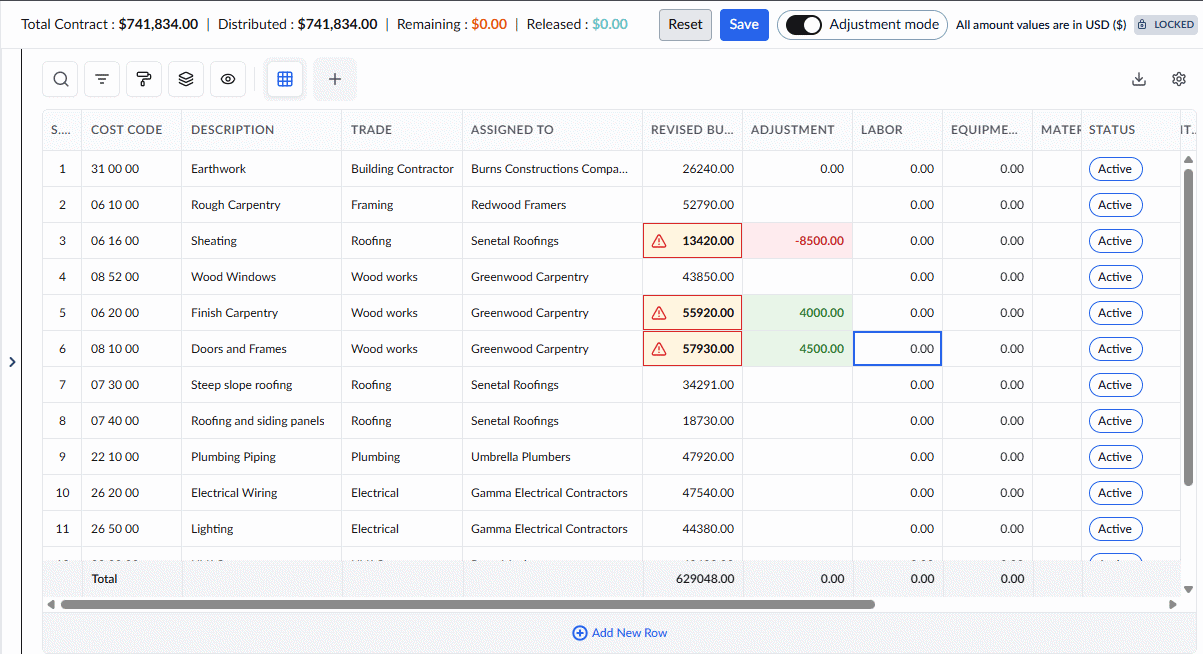
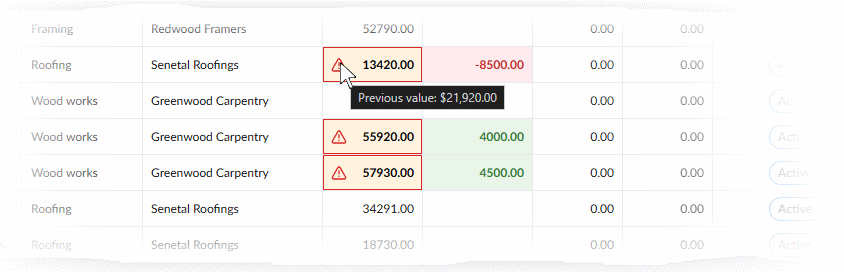
- Hover your mouse over the red triangle in a cell to view the original amount before the change.
- Click 'Save'
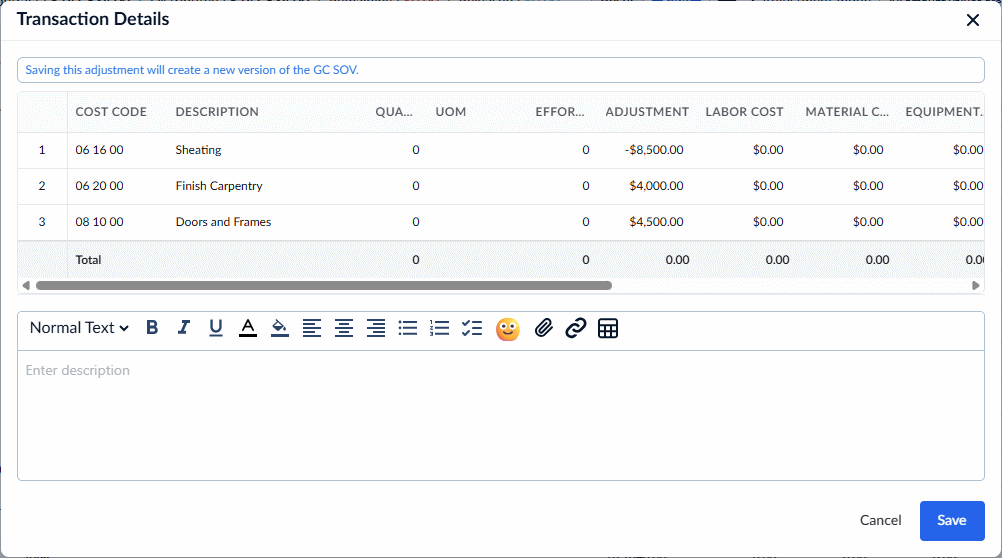
The 'Transaction Details' pane shows the budget lines affected by the current set of changes and adjustments.
- Review the changes and enter a description for the changes made in the text box.
- Click 'Save' to confirm
Your changes will take effect immediately.
Add a New Budget Line
When your project scope evolves and requires a completely new budget line item to track costs, you can easily create one and fund it using surplus money from existing items—all without altering your overall contract structure. As soon as you add this new budget item, the system automatically unlocks your project's Schedule of Values (SOV), allowing you to seamlessly restructure your SOV to incorporate the new addition.
To add a new budget line
- Right-click on an existing budget line item and select 'Add New Row.'
- Alternatively, click 'Add New Row' at the bottom
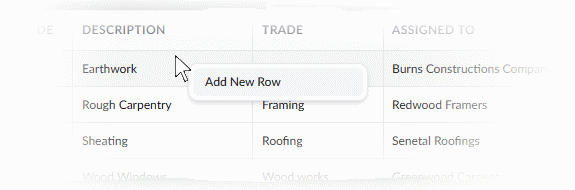
A blank row will immediately appear at the bottom of your list.
- Click inside the relevant cells to enter the 'Cost Code' and 'Description' for your new scope.
- GCs Only - Select the 'Trade' and assign to the respective contractor. For self performed work, assign the line-item to yourself.
- Transfer available funds from your existing budget lines or "Unallocated" reserve to this new row, just as you would for a standard adjustment.
The transferred funds will initially accumulate entirely in the 'Others' cost type.
- Funds Manually distribute these funds across the appropriate cost types (like Material, Labor, etc.) as required for your new item as explained above.
- GCs only - For the line items assigned to a different contractor, specify their contract amount in the 'Subcontractor' column.
- Click 'Save' to record your new item.
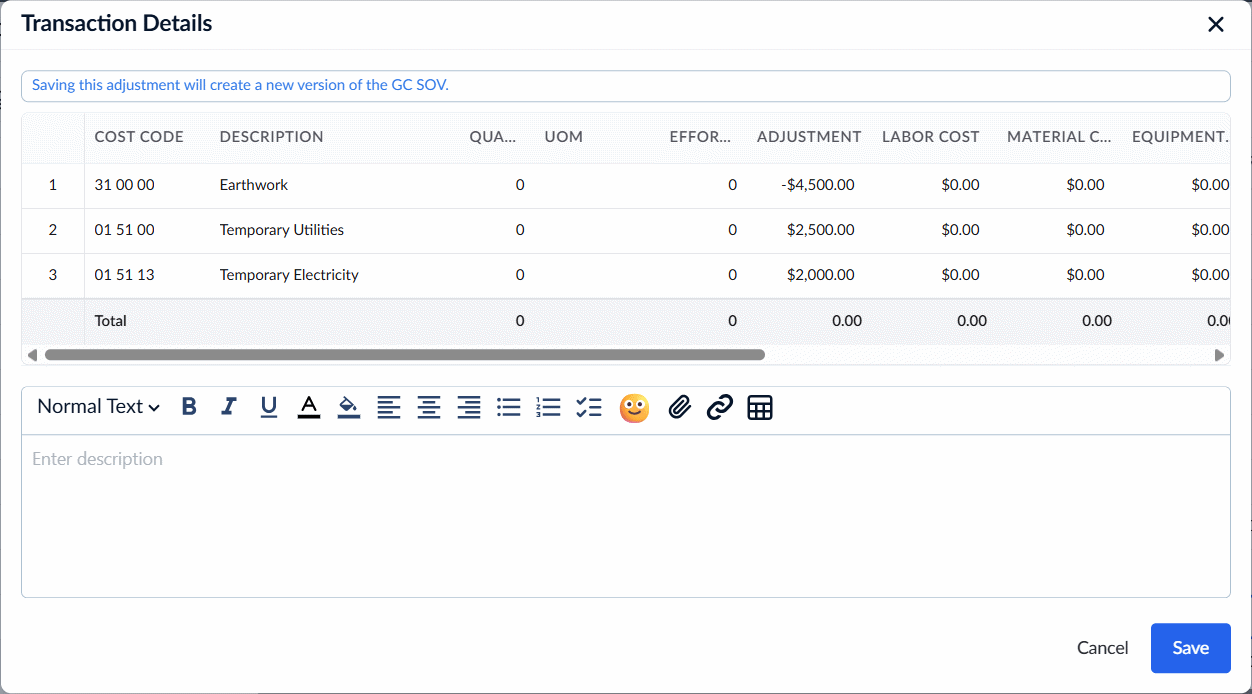
The 'Transaction Details' pane shows the new budget line and those affected by the current set of changes and adjustments.
- Review the changes and enter a description for the changes made in the text box.
- Click 'Save' to confirm
Once saved, your new budget line is ready and available for allotting funds to relevant scheduled tasks.
Redistribute Funds Across Cost Types Within a Single Line Item
Construction costs often fluctuate as a project progresses. If a specific cost type (like materials) suddenly requires more funding than originally estimated, Budget Adjustment Mode lets you pull surplus amounts from another cost type (like labor) to cover the difference. Because this redistribution happens entirely within the same budget line item, your overall line total remains perfectly intact, saving you from the hassle of a complex change order.
The system manages these internal transfers by using the line item's Profit component as a temporary holding pool. When you reduce the value of a surplus cost type (like labor), the deducted funds automatically shift into this Profit pool. You can then increase the value of your target cost type (like materials), which instantly pulls those waiting funds out of the Profit pool to keep the line item balanced.
To redistribute costs within a line item
- Locate the budget line item you want to adjust.
- Click into the source cost type cell (e.g., Labor) that currently holds the surplus funds.
- Enter the new, reduced amount (the current value minus the funds you want to pull). You will see the deducted amount automatically added to the line's Profit component.
- Click into the target cost type cell (e.g., Material) that requires additional funding.
- Enter the new, increased amount (the current value plus the funds you are transferring). The system will automatically deduct this amount from the Profit pool to fund the target cost.
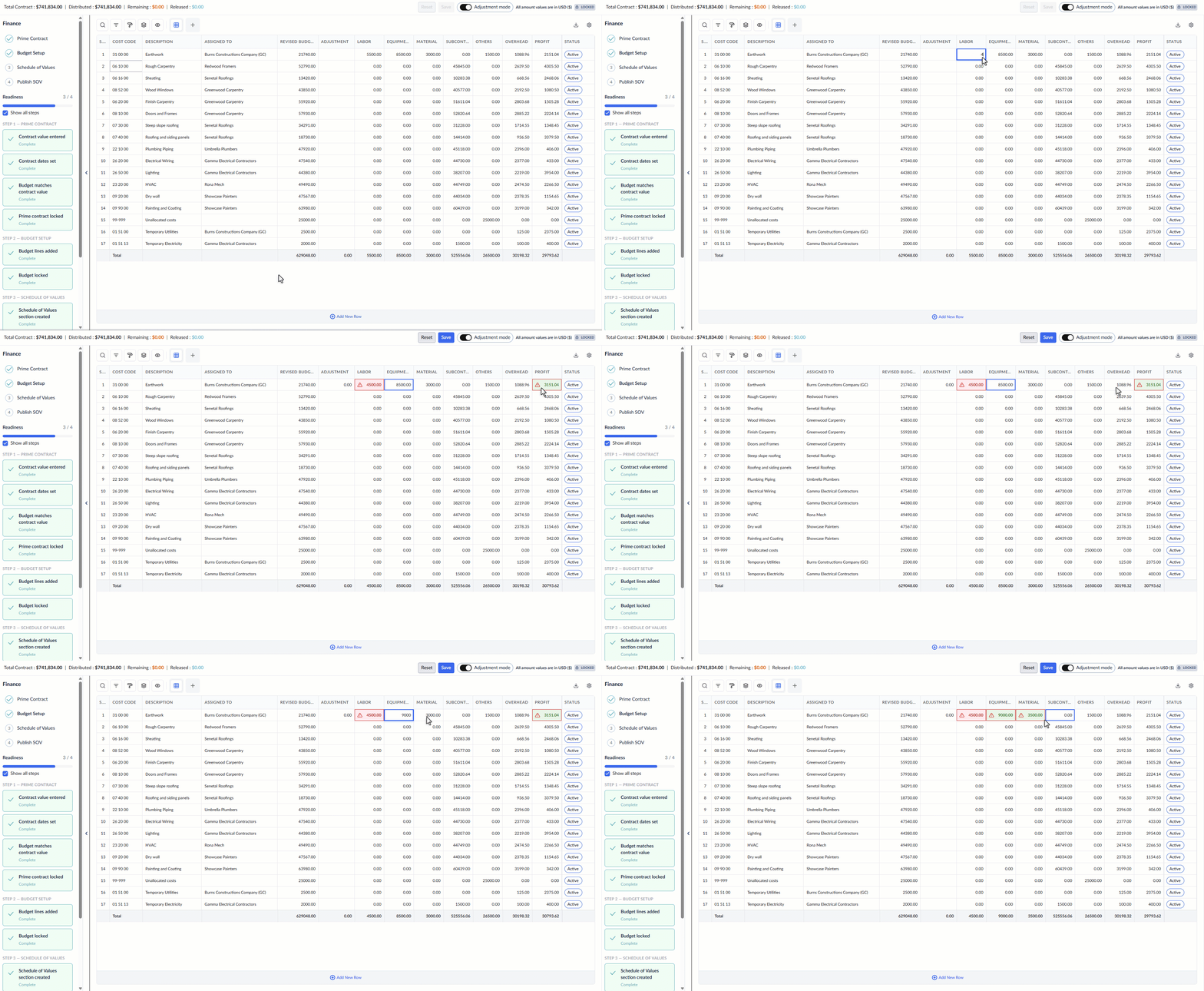
- Click 'Save' at eth top-right
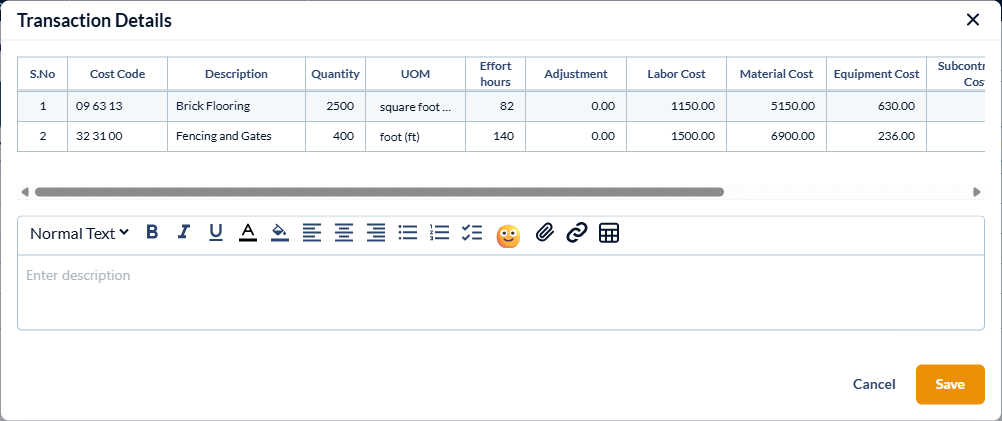
The 'Transaction Details' pane shows the budget lines affected by the current set of changes.
- Review the changes and enter a description for the changes made in the text box.
- Click 'Save' for your changes to take effect immediately.
View the Log of Budget Adjustments
You can view and assess the budget adjustment history for the entire module or for individual line items at anytime. See View Budget Adjustment History for detailed guidance.
Handling New Budget Lines on Project SOV
If you created new budget lines during the adjustment, you must configure them on the SOV. You can do this by mapping them to an existing SOV item or by grouping them into a new SOV item. For detailed instructions, see Update a Locked SOV with New Budget Items.
Was this article helpful?
That’s Great!
Thank you for your feedback
Sorry! We couldn't be helpful
Thank you for your feedback
Feedback sent
We appreciate your effort and will try to fix the article