The Linarc plan viewer provides a centralized way to visualize markups from across your project. Whether an annotation was created as a direct site note or added to illustrate an RFI, submittal, or punch list item, you can access all of these details directly on the plan sheet.
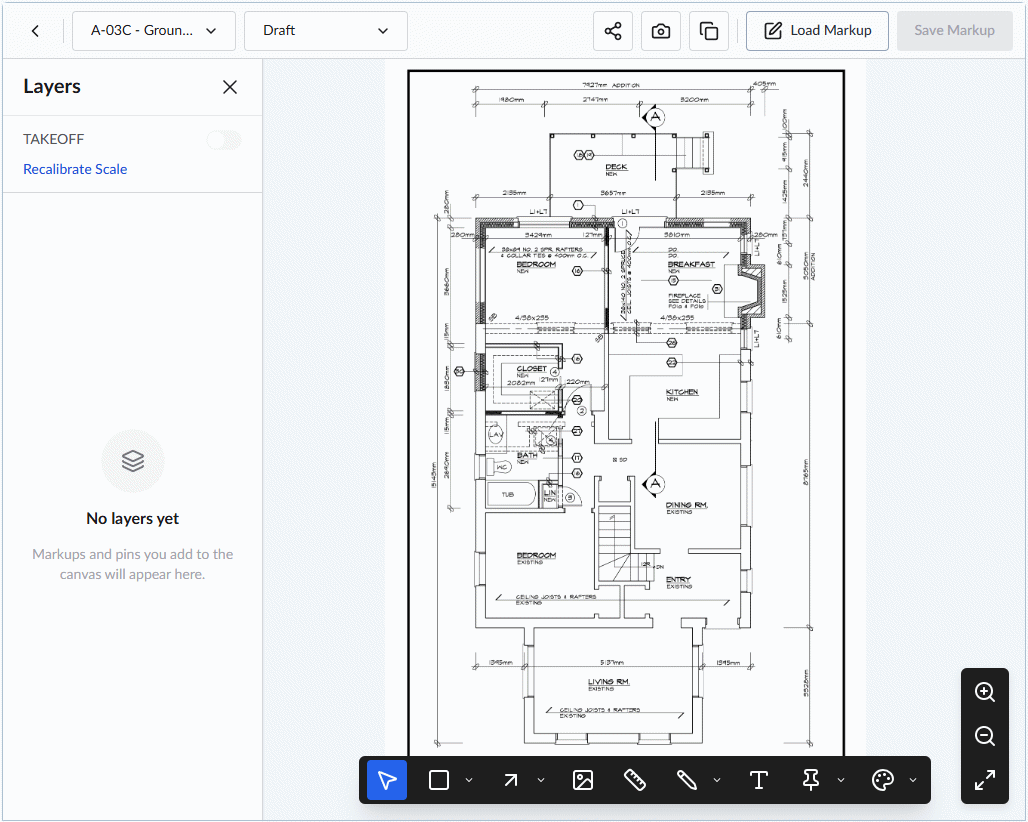
By default, opening a plan sheet displays the clean drawing without any markups. This article explains how to load, view, and interact with markups through the plan sheet view. (If you want to view, edit, or remove markups using the master list, see Manage Plan Markups).
When viewing a plan sheet, you can:
- View all annotations: Access markups created directly on the sheet, as well as those attached as supporting illustrations to RFIs, submittals, and punch lists.
- Compare changes: Display multiple previous markups simultaneously to compare site notes and track progress over time.
- Edit your markups: Modify or update any markups for which you are the owner (creator) See Edit Markups for guidance.
Depending on your needs, you can choose to view markups in two ways:
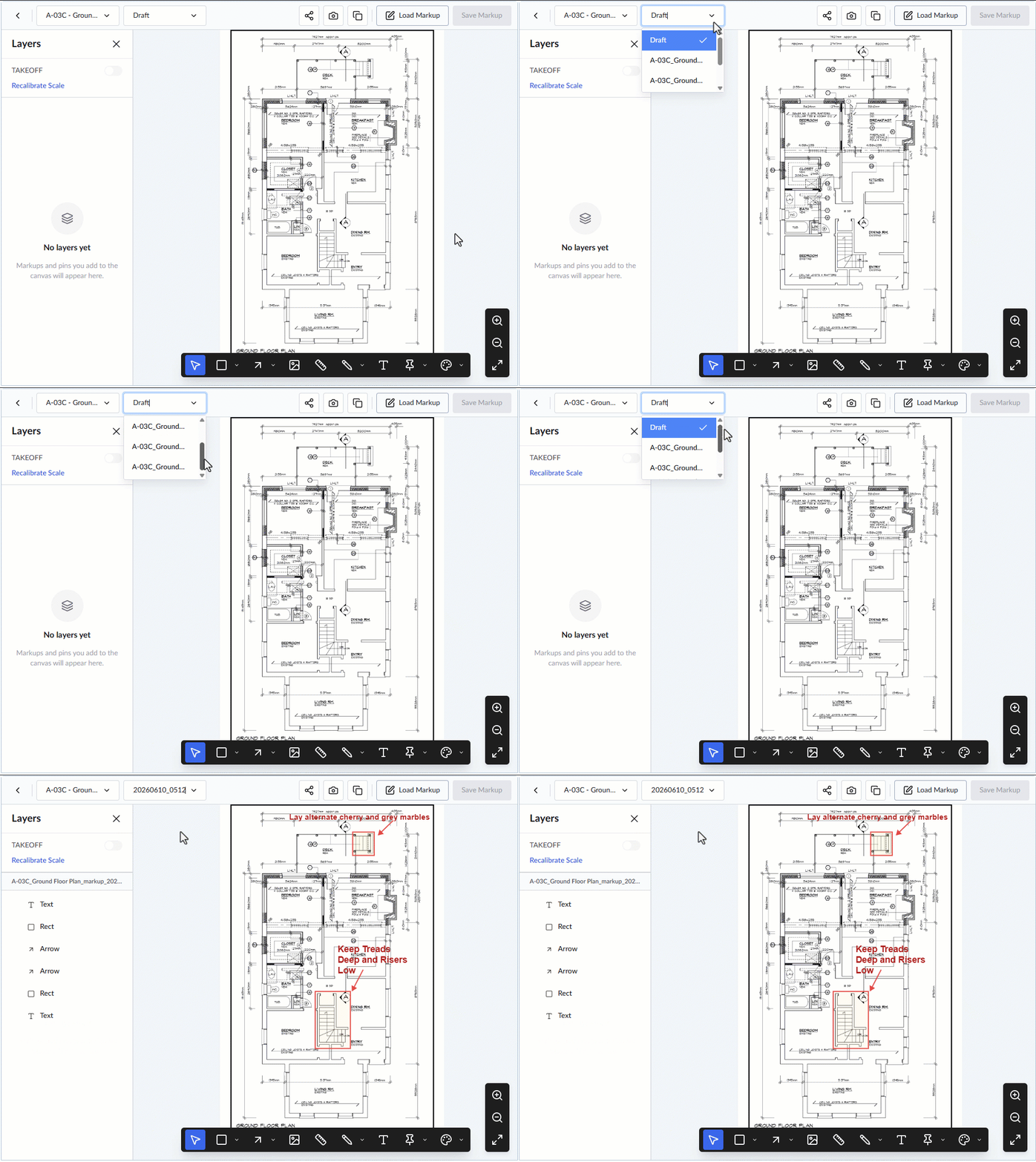
- View a specific markup: Select a specific version of the sheet to open and view one markup at a time.
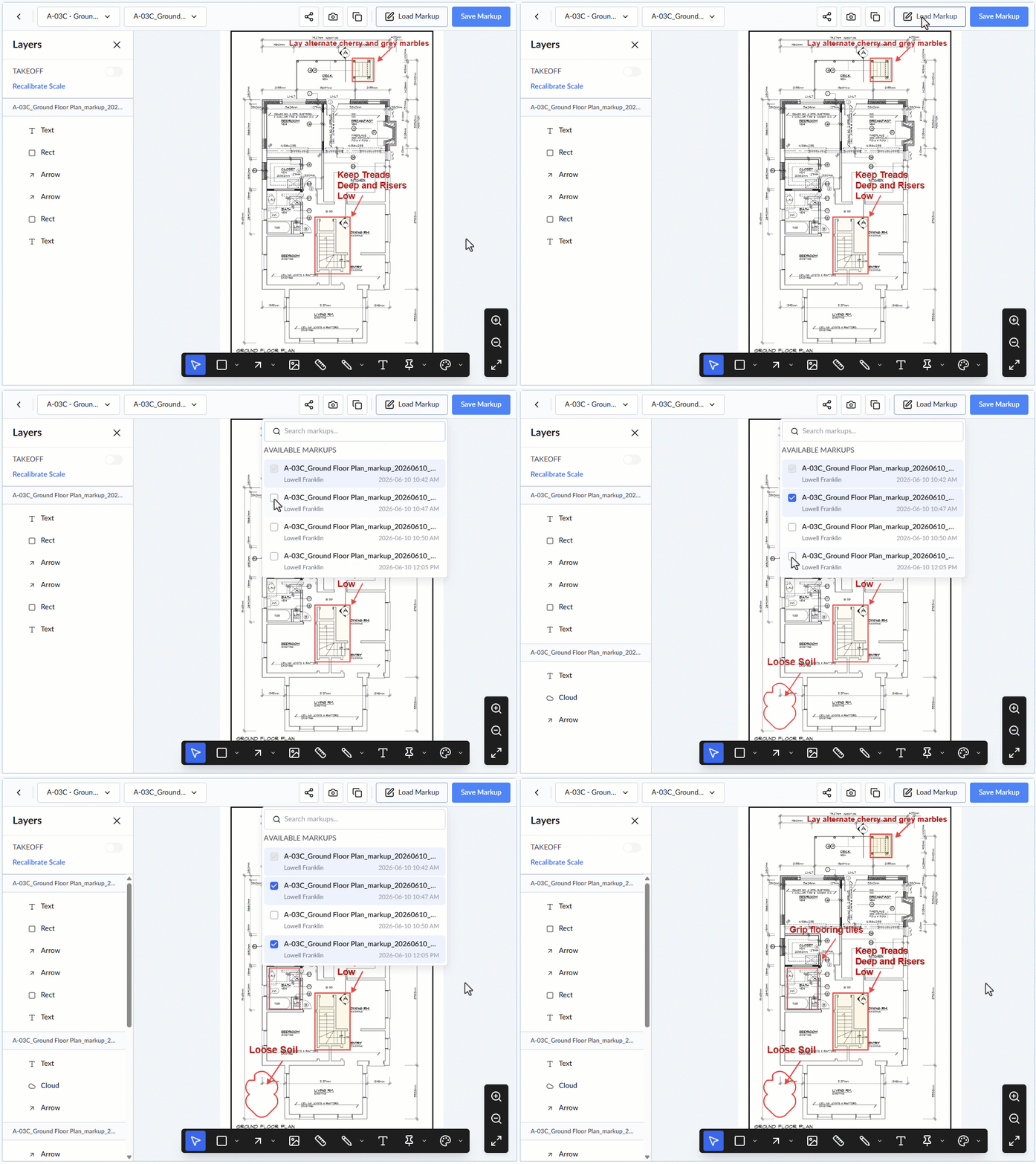
- Overlay multiple markups: Select multiple previous markups to display them simultaneously over the current drawing. You can even combine these overlapping markups—along with new elements you add—and save the combination as a brand-new markup group.
To view and manage markups on a plan drawing
- Ensure you have the correct plan sheet open. If you are not already on the plan sheet:
- Click the main menu in the top-left corner and select 'Plan Sheets' under 'Documentation.'
Tip: Hold down the Cmd (Mac) or Ctrl (Windows) key while clicking to open the plan sheets screen in a new browser tab.
- Click the thumbnail of the plan sheet you want to open.
The clean plan drawing will open. You will notice that the second drop-down menu in the top-left corner displays 'Draft,' indicating that no saved markups are currently loaded.
View a Specific Markup Version
To open and view a single markup version at a time
- Click the second drop-down menu in the top-left corner.
- Select the specific markup version you want to view from the list.
Overlay Multiple Markups
To view several markups at the same time
- Click 'Load Markups' in the top-right corner.
- Check the boxes next to the markups you want to view together from the drop-down menu.
The selected markups will automatically overlay on the drawing.
Combine and Save as a New Markup
If you want to save this overlapping view (along with any new notes) as a brand-new markup group:
- Add any new markup elements to the sheet as needed.
- Click 'Save Markup' in the top-right corner to finalize the combination
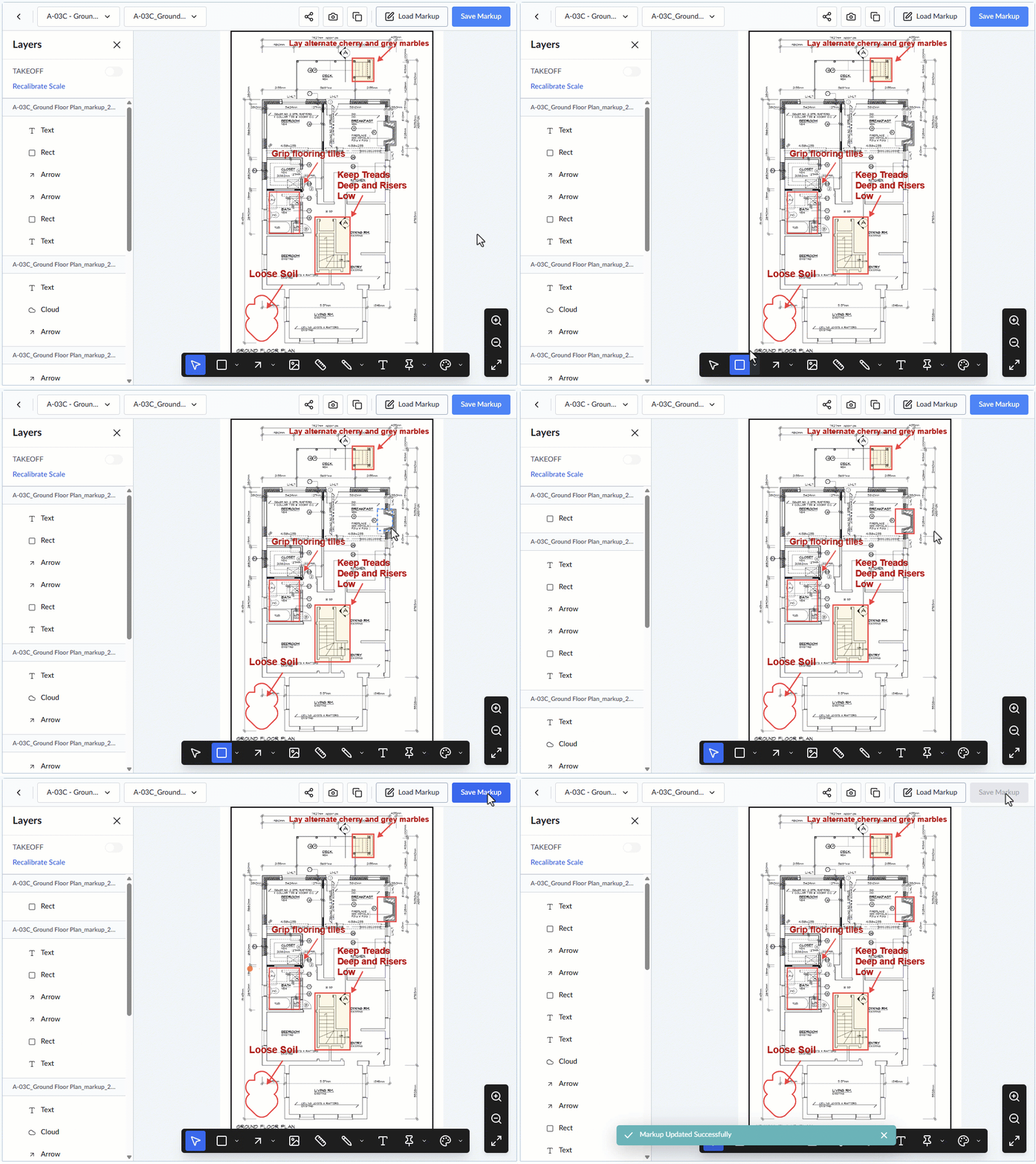
From this screen, you can:
Edit Existing Markup Elements– Update details in your markup when plans change, or corrections are needed
Add New Elements – Include new annotations, shapes, or measurements as work progresses
Clone and Re-use Existing Elements –Duplicate commonly used annotations to maintain consistency and save time when marking similar elements
Create a Consolidated Markup – Combine multiple markups into a single layer for a unified view, making it easier to review, edit, or share all related information
Was this article helpful?
That’s Great!
Thank you for your feedback
Sorry! We couldn't be helpful
Thank you for your feedback
Feedback sent
We appreciate your effort and will try to fix the article