The Gantt chart interface helps you manage your project schedule visually alongside the grid view. It gives you the flexibility to set up tasks, build hierarchies with subtasks, make corrections, and keep your project plan up to date. All changes are auto-saved and instantly reflected in the grid view of your schedule for accuracy and continuity. From the Gantt view, you can:
- Create new tasks at the parent or independent level
- Add subtasks in successive layers to structure the schedule
- Remove tasks to refine the schedule or correct mistakes
- Remove tasks to refine the schedule or correct mistakes
- Revise timelines of unpublished tasks to match project updates
- Update task progress so project schedules reflect real-time status
To create a new task
- Navigate to the scheduler 'Gantt' screen. To do so:
- Open the management console for the project
- Click the app launcher
 and select 'Schedule'
 - The scheduler opens in the grid view by default.
- Choose 'Grid+Gantt' or 'Gantt' from the drop-down.
- Scroll the chart right to the task, above which you need to add a new task.
- Right-click on the task and choose 'Insert Above' from the options
- Enter the name of the task and click

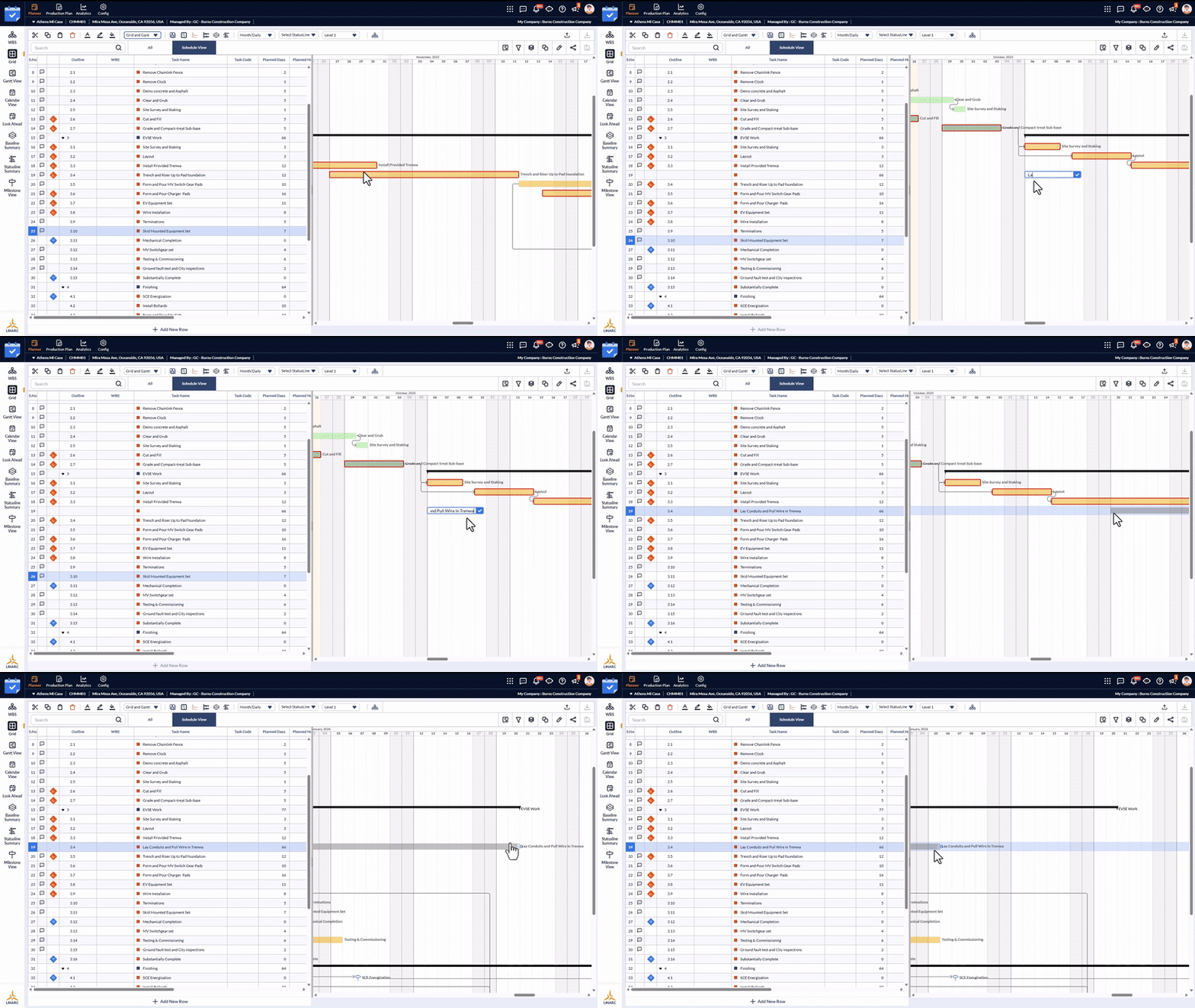
- Drag and adjust the start and end points of the new task to define the task timeline
By default, the newly added task is represented in gray color. You can add a different color for better distinction and organization. See Apply Gantt Chart Color for more details. See Add Dependencies from Gantt View to set relationships with other tasks in the schedule.
To add subtasks
- Open the Gantt view as mentioned above
- Right-click on the task to which you need to add a subtask
- Choose 'Add >Subtasks' from the options
- Enter the name of the task and click
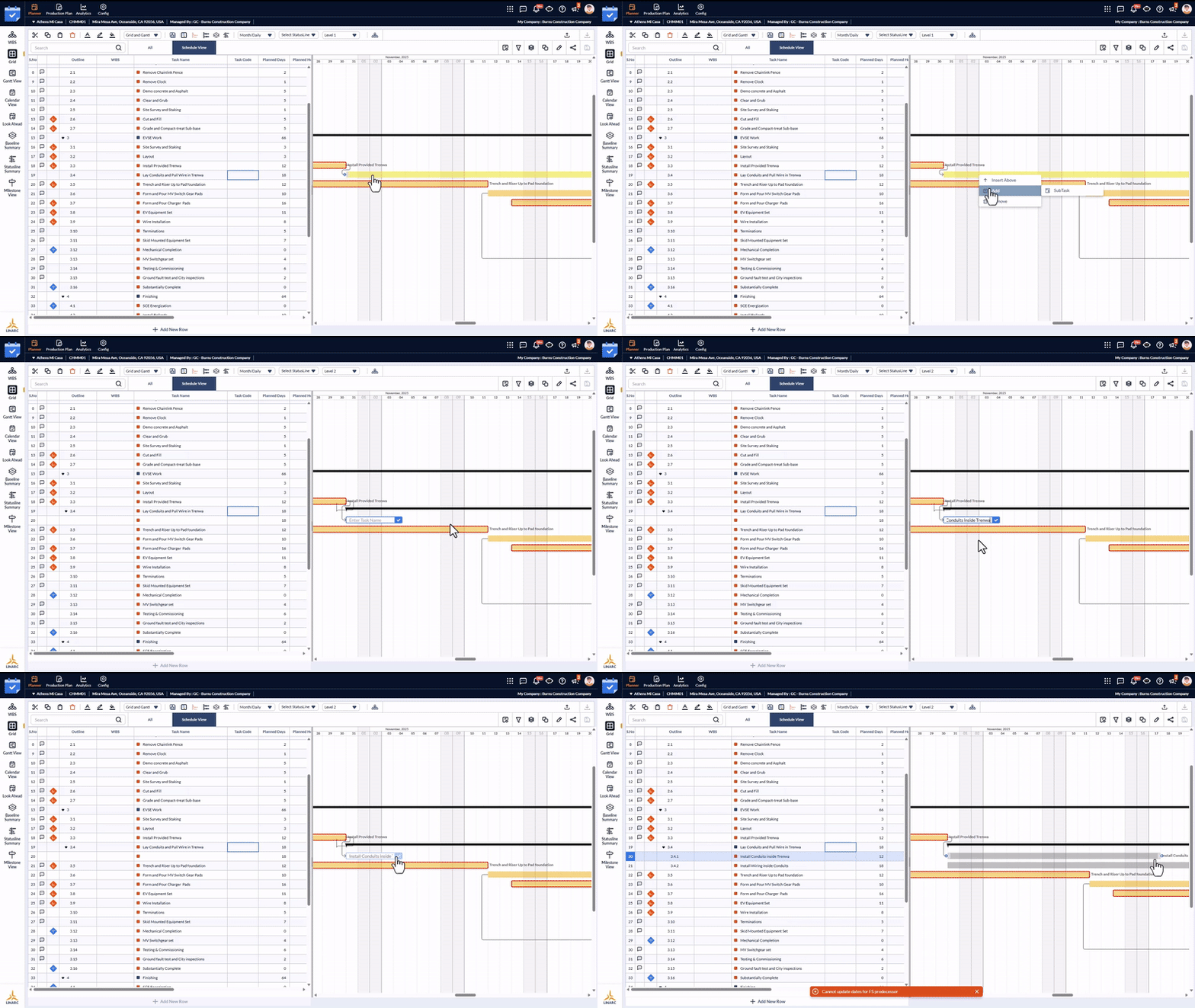
- Drag the ends to set up the timeline
- Repeat the process to add more subtasks
See Apply Gantt Chart Color to add different colors to the new subtask. See Add Dependencies from Gantt View to set relationships with other tasks in the schedule.
To rename a task
- Open the Gantt view as mentioned above
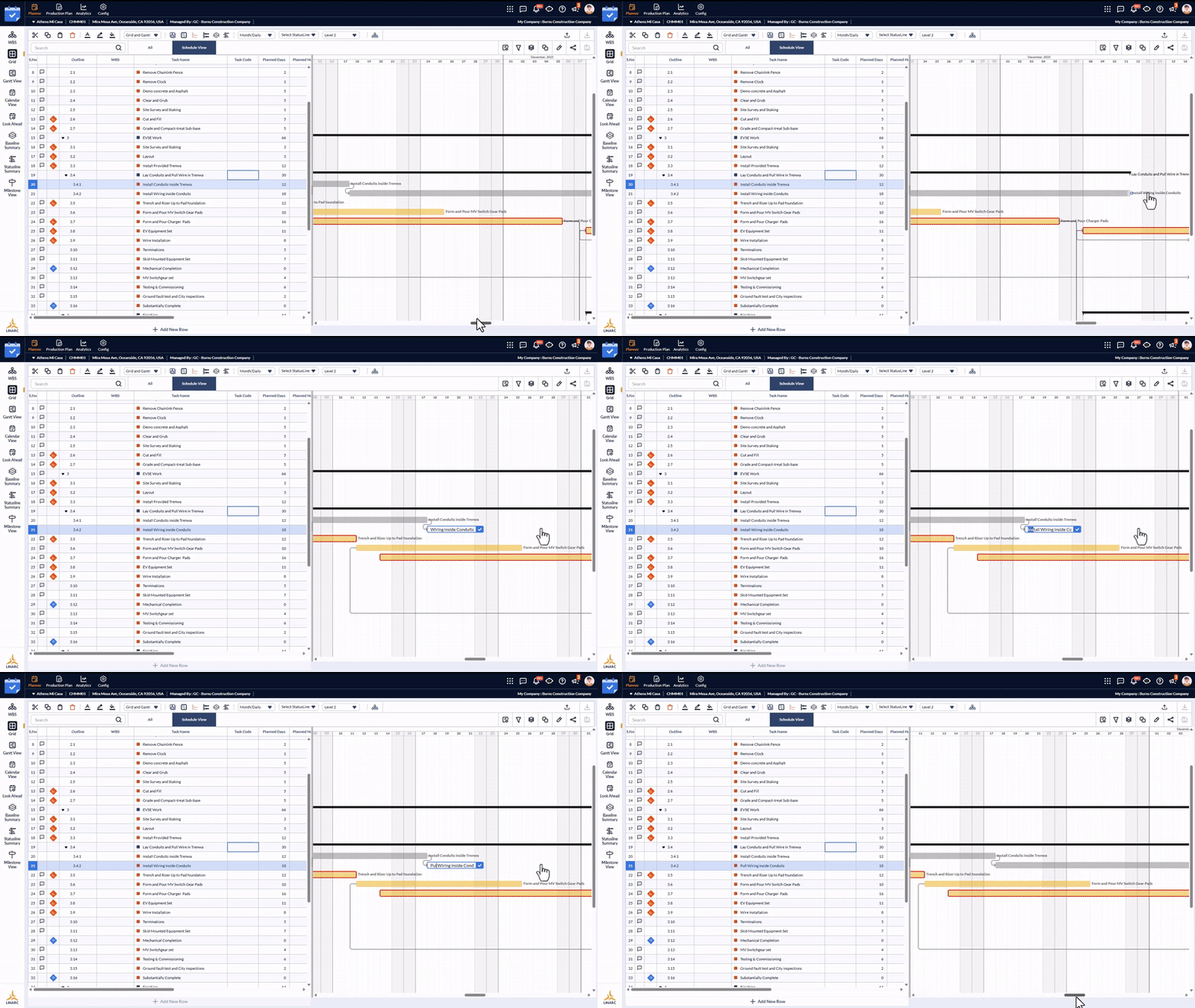
- Double-click the task you want to rename, and type the new name.
- Click for the changes to take effect
To remove a task
- Open the Gantt view as mentioned above
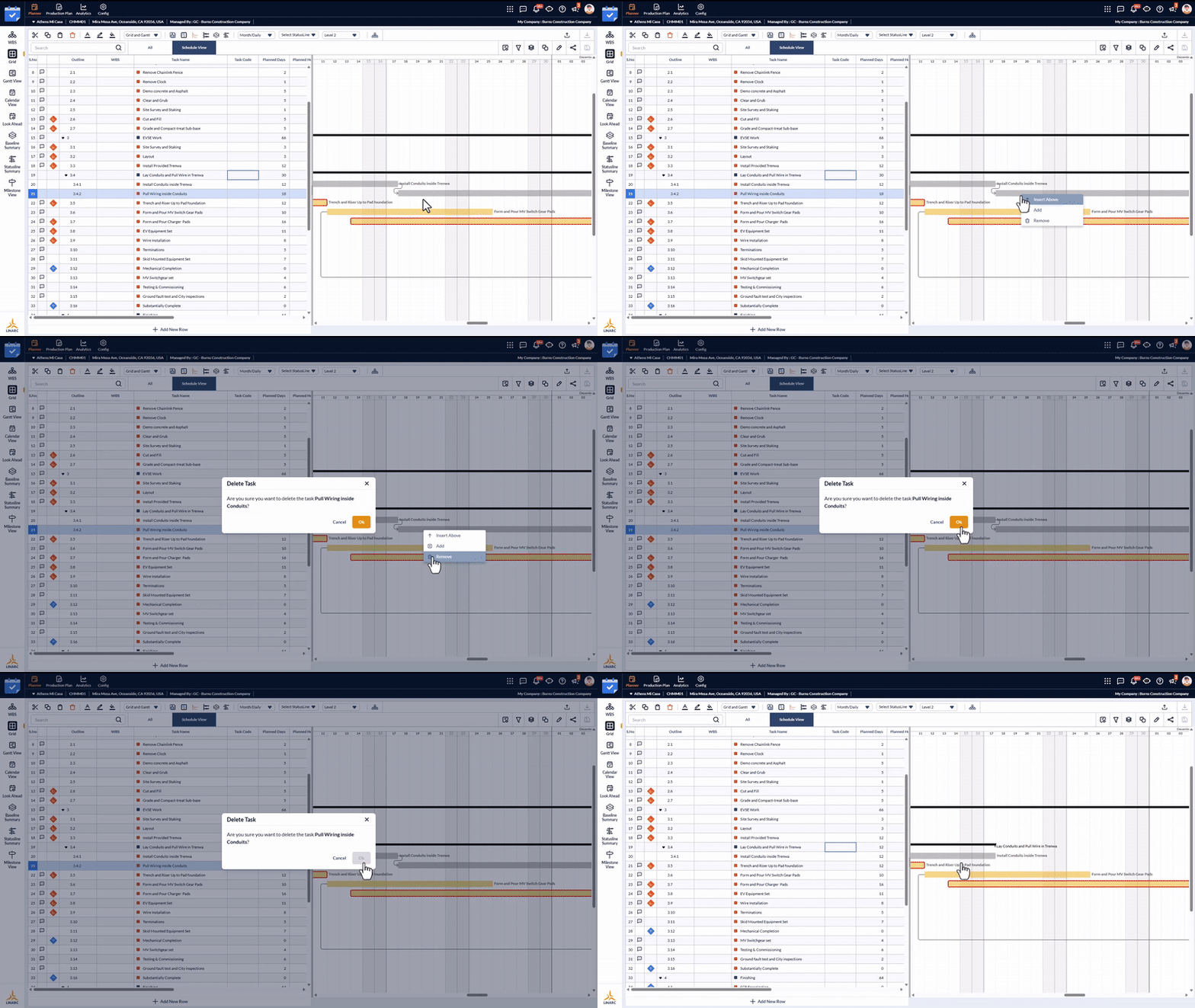
- Right-click on the task that you need to remove
- Choose 'Remove' from the options
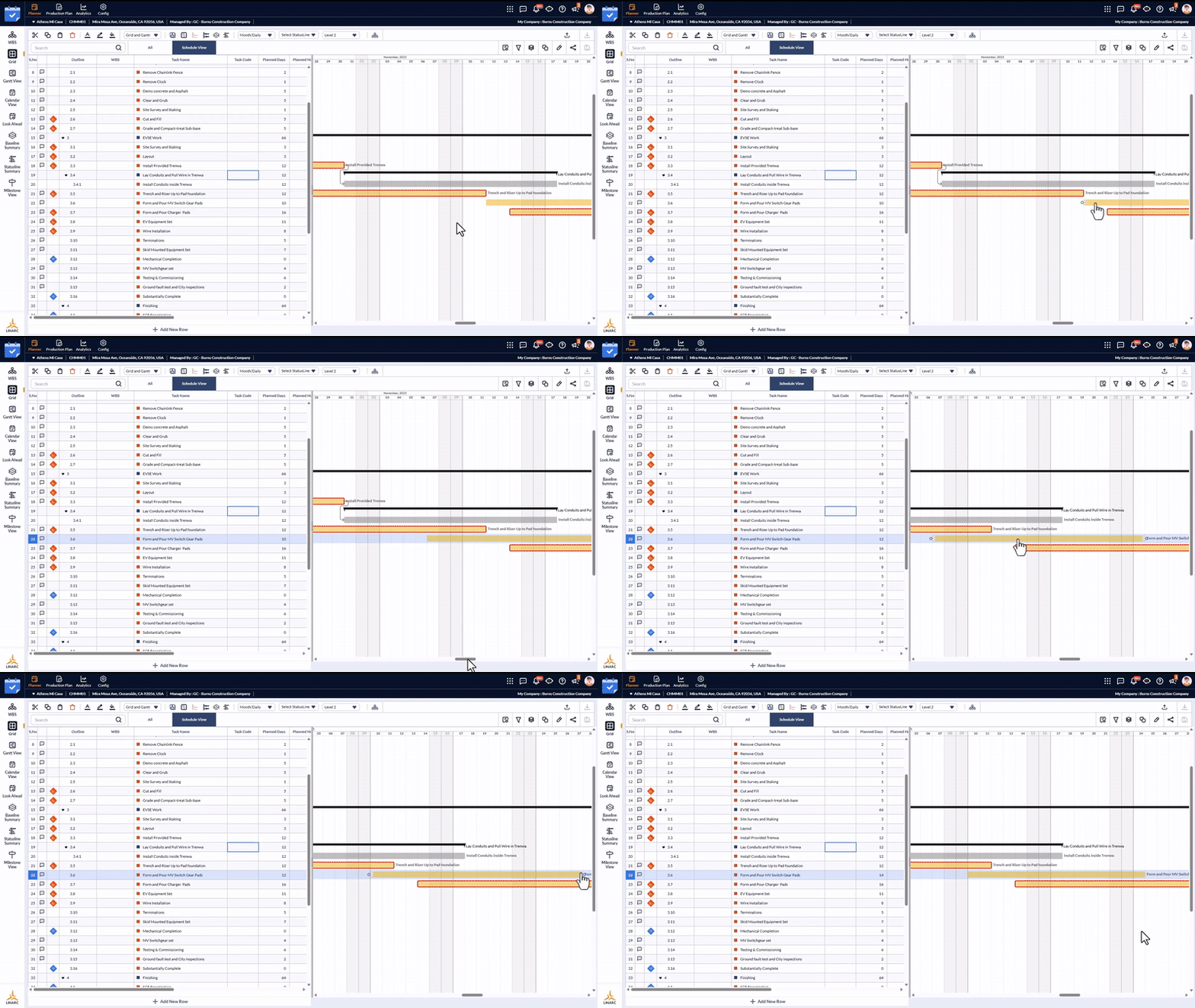
To revise the timeline of a task
- Open the Gantt view as mentioned above
- Drag the start and end dates of the task bar to adjust the timeline
To update task progress
- Open the Gantt view as mentioned above
- Locate the task item for which you want to update the progress.
- Hover over the end of the existing progress bar until the double-headed arrow cursor appears.
- Click, hold, and drag the arrow to extend the progress bar as needed; the progress percentage will be displayed at the end of the bar.
- Release the mouse button once the desired progress percentage is set
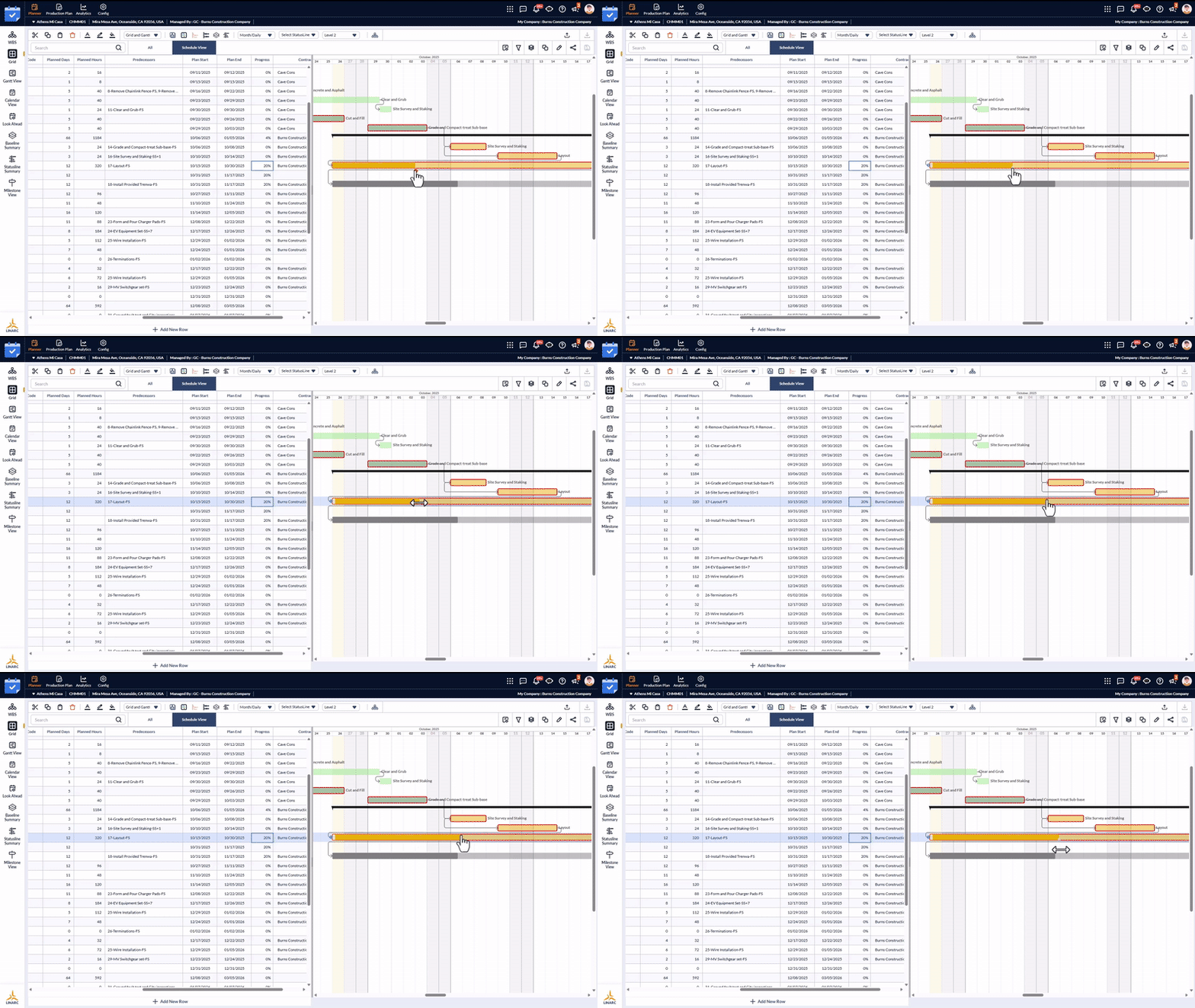
- Repeat the process to update the progress for other tasks
See the following links for more details:
Was this article helpful?
That’s Great!
Thank you for your feedback
Sorry! We couldn't be helpful
Thank you for your feedback
Feedback sent
We appreciate your effort and will try to fix the article