The Gantt view shows the scheduled items as a Gantt chart comprising the horizontal bars for each task item, shown on their timelines. You can also view the dependencies and progress percentages for each item.
To view the schedule in the Gantt view
- Ensure that you are on the project schedule module. If not done already:
- Click the main menu at the top left
- Click 'Schedule' under 'Scheduler' and click 'Gantt' on the left. Or,
An example is shown below:
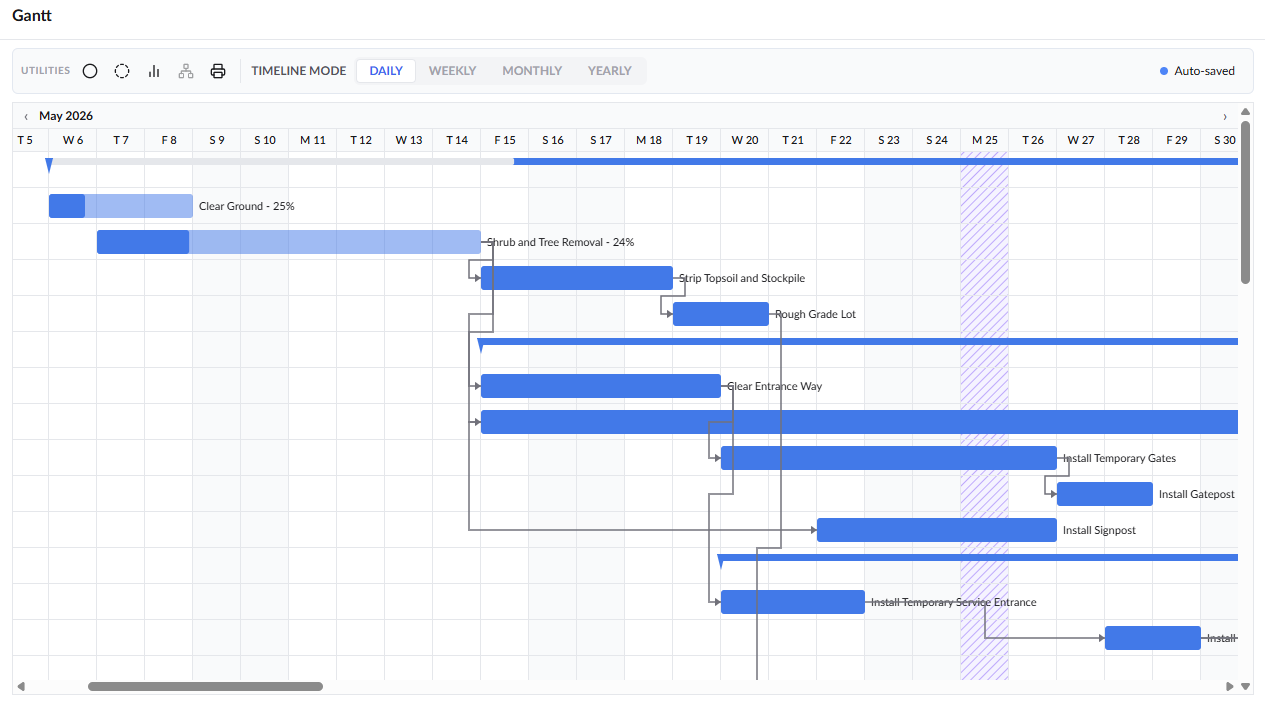
- Use the filter at the top to choose among Month/Daily, Month/Week, Qtr/Month, Year/Month:
- Daily: Displays months along the top and breaks them down into individual days for detailed scheduling.
- Weekly: Shows each month divided into weeks, helping you track progress on a weekly basis.
- Monthly: Groups the timeline by months for a broader planning view.
- Yearly: Organizes the schedule by year, with each year broken down into months for a high-level overview.
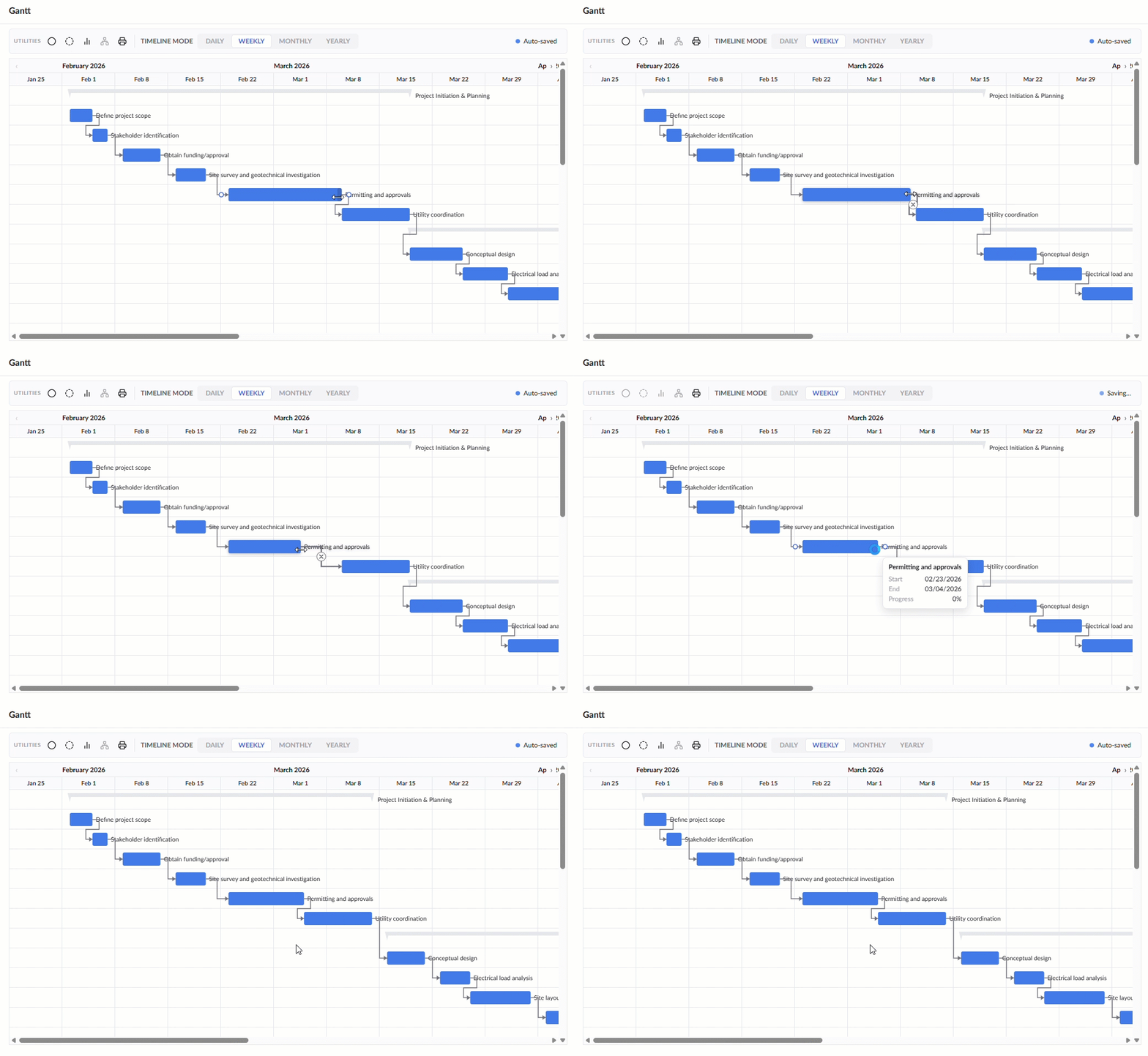
The Gantt view also allows you to set and modify the start and end dates of the items by simple drag-and-drop actions.
- You can also set the start and end dates for tasks in the Gantt view. Just drag and drop the bar representing an item near the required date range and drag the left and right edges of the bar to particular dates as required.
- You can directly modify the dates only for last-level child tasks, that is, the items that do not have any children. The dates for the parent tasks adjust automatically, depending on the change in the child tasks.
- The start and end dates are shifted for the dependent tasks based on changes in the predecessor tasks and their dependency relationship.
- You cannot modify dates for published tasks. See Reschedule Specific Tasks for more details.
To set or change the start and end dates for a task
- Drag and drop the bar representing a task item to the required start date
- Drag the left and right edges of the bar to particular start and end dates as required
Was this article helpful?
That’s Great!
Thank you for your feedback
Sorry! We couldn't be helpful
Thank you for your feedback
Feedback sent
We appreciate your effort and will try to fix the article