You can quickly create a new template by cloning an existing system template or a user-generated template.
This approach is especially useful when you want to implement an inactive system template for your project documents. Instead of building from scratch, simply clone the template, adjust it to fit your requirements, and then save and activate it.
Cloning saves time while giving you full control over design and content—such as updating logos, headers, footers, and formatting. Once activated, the cloned template is applied across all relevant project documents.
Note:
- Manually generated PDFs (on-demand, during or after a document’s lifecycle) always use the template of the company the user belongs to.
- System-generated PDFs (auto-created for archival at workflow closure) use the template of the company responsible for closing the document.
Clone and Create a New PDF template
- Ensure you are in the 'PDF Configuration' screen. If not,
- Click the main menu at the top-left
- Click 'Project' under 'Portfolio' and click 'Configure' at the top
The PDF configuration screen opens with the list of system-generated templates and user-generated templates:
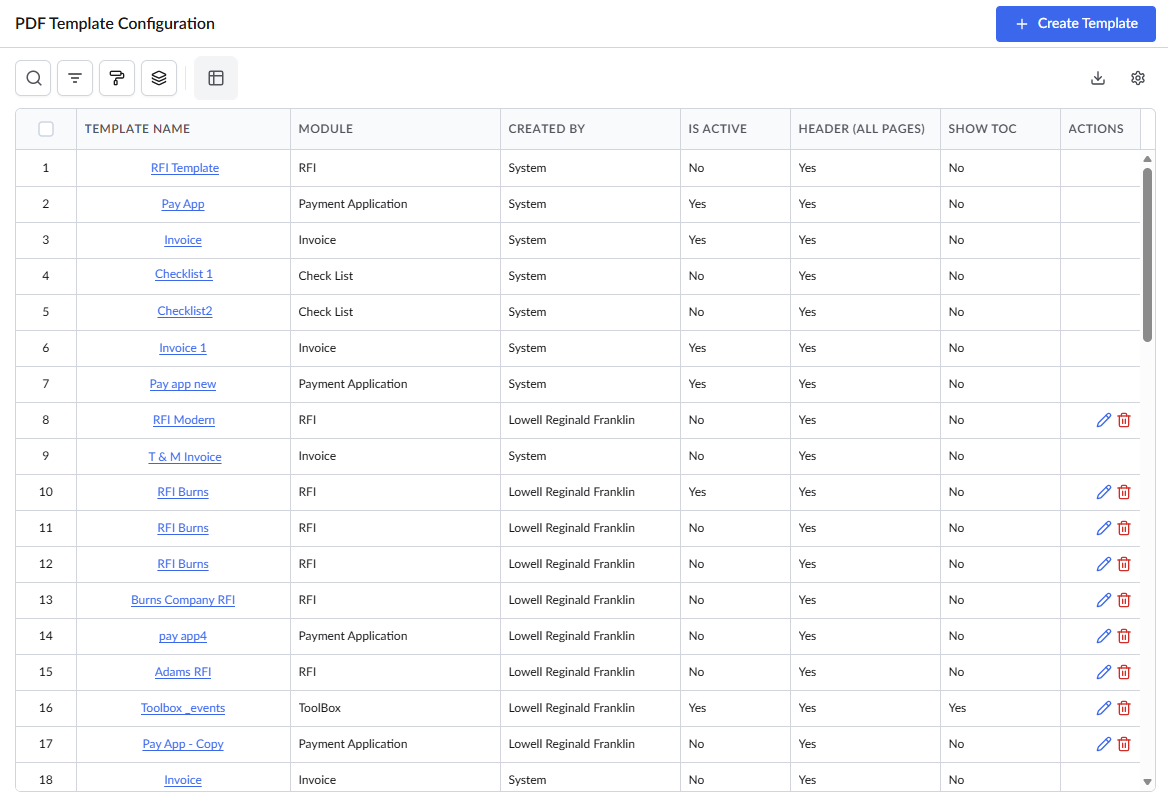
The templates provided by Linarc are marked as 'System' in the 'Created By' column.
- Click the name of the template to open it.
- System templates - You can view the template, clone it, and save it as a user-generated template
- User-generated templates - You can view the template, update it, and activate or deactivate it
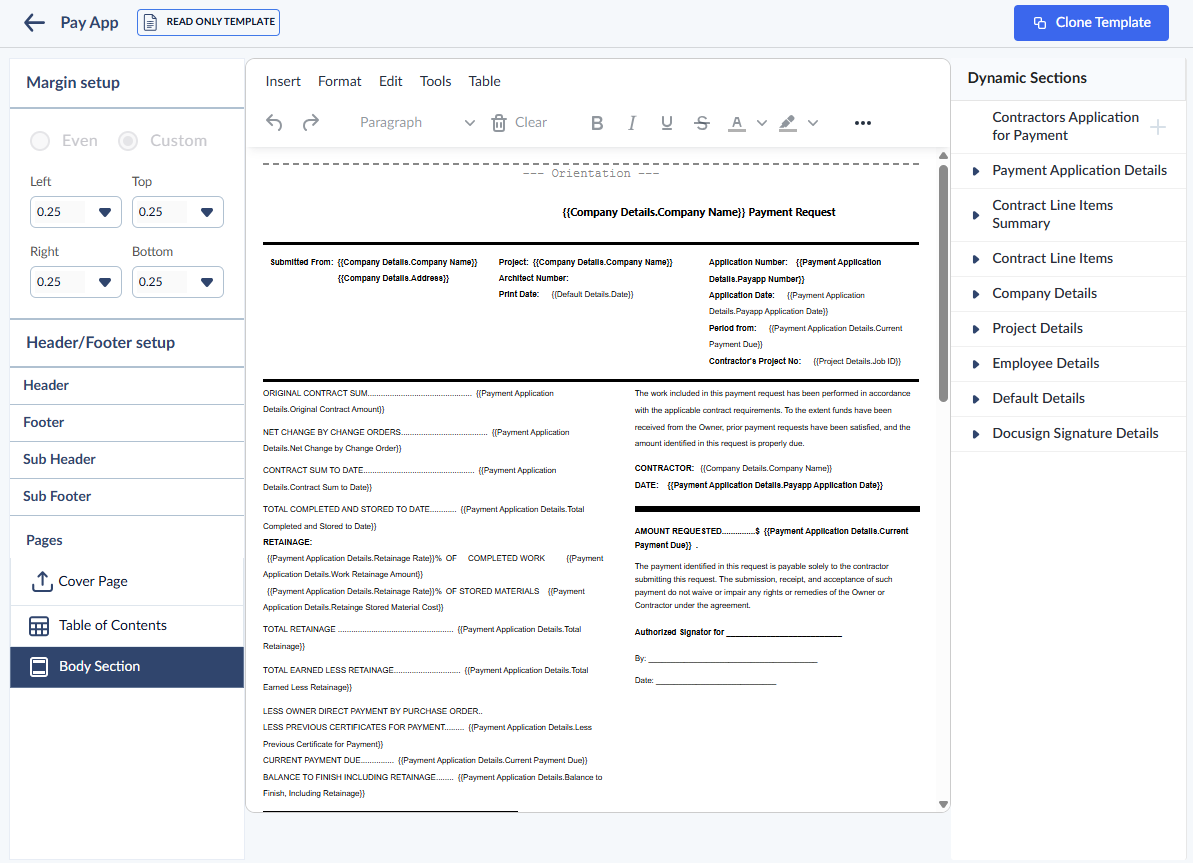
- Click the 'Clone Template' button at the top right
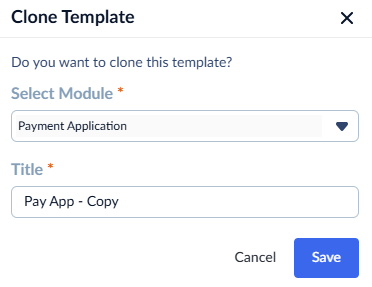
- Change the label of the template if necessary. By default, Linarc provides the same name of the template with a suffix '-Copy'
- Click the 'Save' button to start editing the copy of the template.
The template editor is divided into three sections for easy customization:
1. Left pane - Manage the page layout, with headers, footers, body section, etc.
2. Right pane - Select the content in the included sections by placing the document-specific and generic elements as dynamic variables
3. Center pane - Configure the sections by entering the text and placing the dynamic variables.
The page layout, images, and body content will be in place in the new template, as inherited from the source template.
You can edit, delete, or add new elements as needed. Editing a template works the same way as adding elements to a new one.
Search, Filter, and Sorting Options
- Click the magnifier icon and use the 'Search' box located at the top left to find an entry using any value from the table as search criteria
- Click any column header to sort the rows in ascending or descending order based on that column's data.
- Click the cog wheel icon at the top right to adjust the display density and customize the display and order of the columns. See Customize Columns in List Views.
- The options at the top left allow you to filter the entries, create nested groups of entries, highlight cells and manage personalized and customized views of the table. Use the links below to learn more:
See Build a PDF Template from Scratch to learn more.
Was this article helpful?
That’s Great!
Thank you for your feedback
Sorry! We couldn't be helpful
Thank you for your feedback
Feedback sent
We appreciate your effort and will try to fix the article