The Incident Logs screen provides a comprehensive, chronological record of all safety incidents and accidents reported on-site since the project's initiation. It offers a centralized location for easy access to detailed information regarding each event.
- Detailed Incident Information: View essential details such as the cause of the incident, personnel involved, injuries sustained, treatments administered, and more.
- Incident Analysis & Trend Insights: Analyze the frequency, patterns, and types of incidents to identify trends, helping to pinpoint recurring safety concerns.
- Proactive Safety Measures: Based on your analysis, devise and implement effective safety protocols and preventive measures to mitigate risks and enhance overall site safety.
To view the safety incident logs
- Click the main menu at the top-left
- Click 'Safety' under 'Field' menu, then select 'Incident Logs' from the left
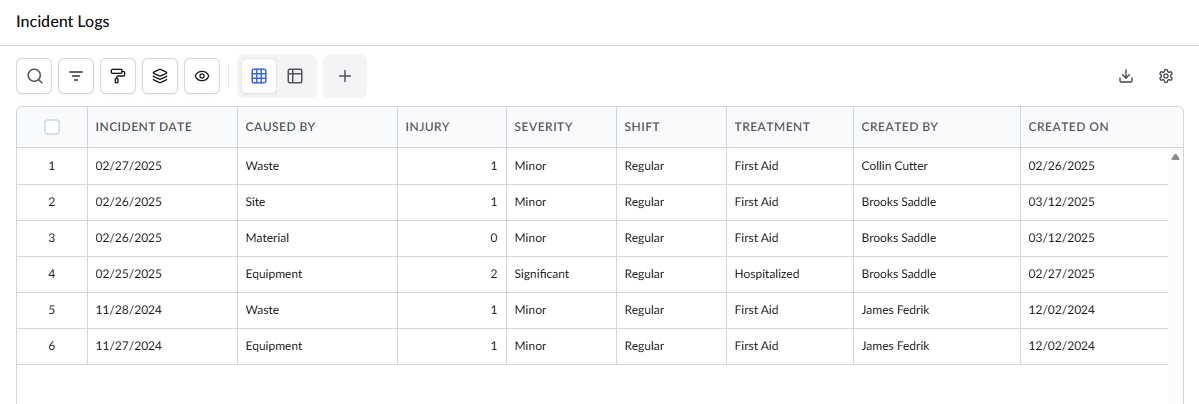
Standard Columns:
- Incident Date – The date when the incident occurred.
- Caused By– The primary factor responsible for the incident. Possible causes include:
- Material – Resulting from hazardous substances.
- People – Due to human error or negligence.
- Site – Stemming from site conditions, weather, or natural calamities.
- Equipment – Caused by equipment, tool, or machinery failure, breakdown, or malfunction.
- Waste – Resulting from garbage, debris, scrap, or other refuse.
- Injury – The number of individuals injured as a result of the incident.
- Severity – The level of criticality of the injuries or damages sustained.
- Shift – The work shift during which the incident took place.
- Treatment – The type of medical attention provided, whether first aid was sufficient or hospitalization was required.
- Created By – The user who reported the incident.
- Created On – The date the incident report was filed.
View Details of an Incident
- Select an entry to view its details, by clicking on its serial number:
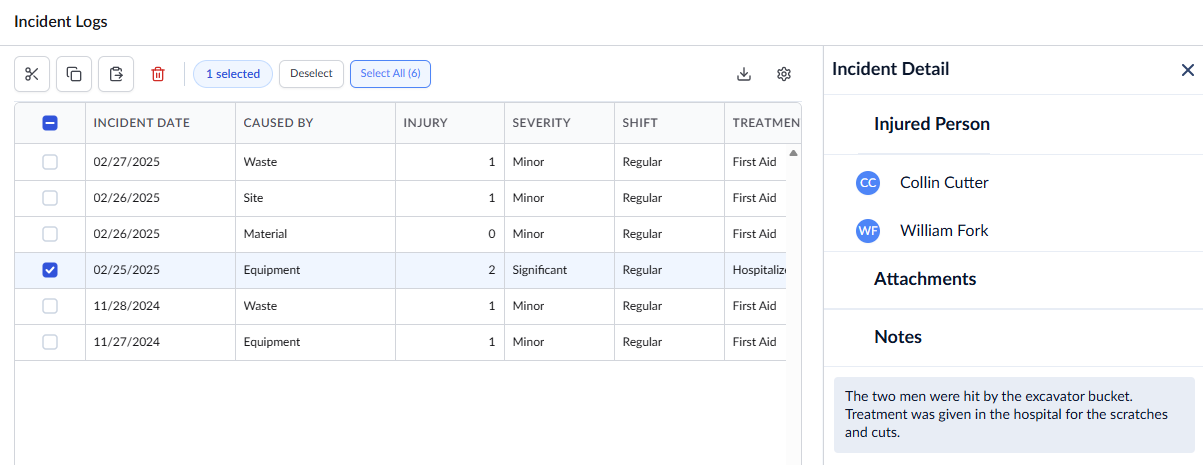
The Details pane opens on the right and displays the following information:
- Injured Person – The individuals who sustained injuries as a result of the incident or accident.
- Attachments – Any photos, PDFs, or other supporting files uploaded by the reporter.
- Notes – A brief description of the incident, as provided by the reporter.
To expand or collapse a section, click the arrow to the left of the section title.
Search, Filter, and Sorting Options
- Click the magnifier icon and use the 'Search' box located at the top left to find an entry using any value from the table as search criteria
- Click any column header to sort the rows in ascending or descending order based on that column's data.
- Click the cog wheel icon at the top right to adjust the display density and customize the display and order of the columns. See Customize Columns in List Views.
- The options at the top left allow you to filter the entries, create nested groups of entries, highlight cells and manage personalized and customized views of the table. Use the links below to learn more:
Was this article helpful?
That’s Great!
Thank you for your feedback
Sorry! We couldn't be helpful
Thank you for your feedback
Feedback sent
We appreciate your effort and will try to fix the article