The 'Company Drive' in the files repository serves to securely store and share mission-critical and sensitive files, including proprietary plans, contracts, and other confidential documents. Access is limited to your company level so that the files can only be shared among the project team members within your organization.
- The drive allows users to build custom folder hierarchies (including root, branch, and subfolders) manually or by importing a standardized structure from the company-level master list.
- The drive is available in list view and tile view, similar to Google Drive and other popular online storage.
- The folder and subfolders can be set up with access restrictions to allow only selected project team members from your company.
- Any user with access to a file can add comments about it. The comments are visible to all users with whom the file is shared.
- Users can leverage the built-in annotation tool to add comments, notes, and markups directly to PDF files. This streamlines collaboration by providing essential context within the document itself.
Note:
- The system accepts file uploads from the local drive. To upload a file stored in a cloud service such as Google Drive, SharePoint etc., download it to your local drive before uploading.
- Company drive accepts files of any format up to 50 MB in size. File preview is available only for formats supported by your browser, typically image files and PDFs.
The 'Company Drive' Screen
- Ensure that you are in the 'Cloud Drive' module of the project. If not,
- Click the main menu at the top-left
- Click 'Cloud Drive' under 'Documents' menu
By default, the company drive opens on the list view. You can switch between the list view and tile view at any time.
List View
The drive opens in the list view by default.
- To return to the list view from the tile view, click the
 button on the top-right.
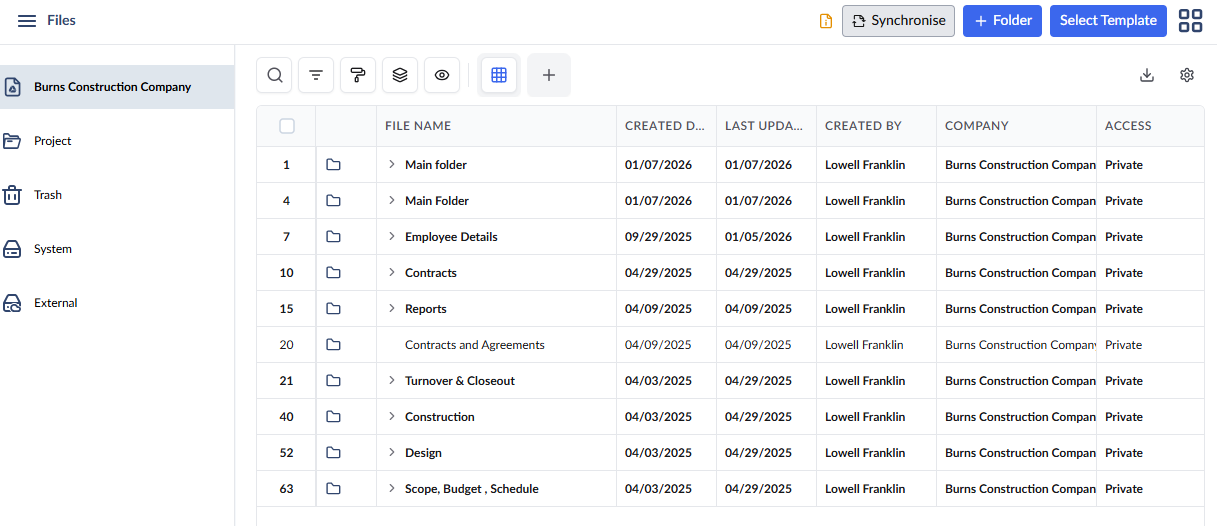
The table shows the hierarchical list of folders in your company drive.
- File Name- The label of the folder, subfolder, or file. The icon on the left indicates the type of item.
 - Folder or subfolder - Click the right arrow at the left of a folder or subfolder to expand it and access the contents in it. Right-click on the folder name for folder options.
 - Right-click any file name to view, download, share, or delete. For PDF documents, additional annotation tools are available.
- Created Date - The date on which the folder or file was added to the drive
- Last Updated - The date on which the recent change was made to the item, like renaming the item.
- Created By - The name of the user who created the folder or uploaded the files
- Company - The company to which the user belongs. By default, your organization
- Access - The permission level of the folder/file. By default, 'Private' - meaning the item can only be shared among team members belonging to your organization
- Parent Folder - The parent folder of the item. Applies only to subfolders and files
- Click the 'Synchronise' button on the top right to sync all your files in from your Linarc file repository to your integrated external drive
Tile View
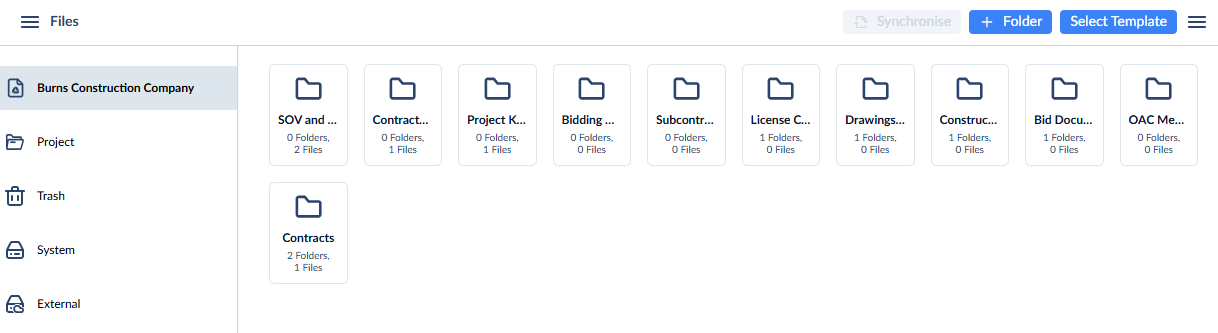
- Click the 'Tile View'
 button at the top-right to switch to the thumbnail view of the files and folders.
Import Folder Template for the Company Drive
The company drive features efficient file organization by categorizing and structuring files based on context, category, type, and source. This is achieved through predefined folder trees tailored to the specific project's requirements, the company’s operational needs, or other unique parameters.
- Multiple drive templates are maintained at the company-level master list. Each template contains a predefined folder tree structure with a specific combination of labeled blank folders.
- Select and implement the most suitable template at the project level to automatically generate the entire folder structure within the project drive.
- Eliminate manual setup with empty folders that populate instantly based on the predefined template's hierarchical tree.
- Retain the ability to add or remove folders at any time to adapt the structure to evolving project requirements.
To import a folder template
- Select the drive with your company name as the label to open the 'Company Drive.'
- Click 'Select Template' at the top right
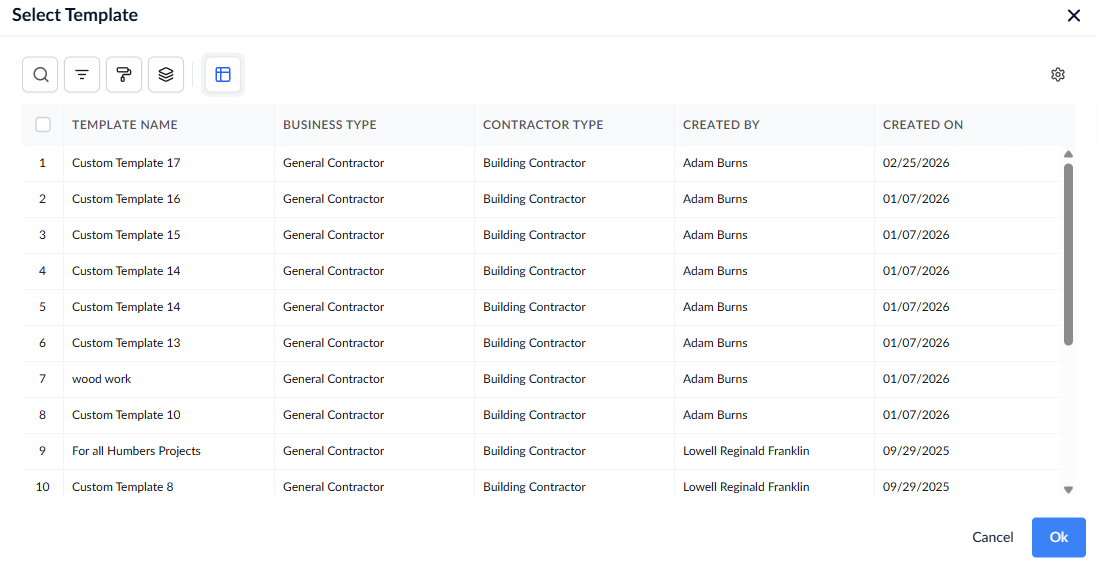
All folder templates present in the company-level master list and available for selection are shown as a list.
- Select the template to import the folders from by clicking its serial number
- Click OK for the template to take effect
You can seamlessly select and import additional templates into the company drive at any time to expand or refine the folder structure. If a folder from the newly imported template shares the same label as an existing folder, the system automatically differentiates it by appending "(Copy)" to the folder name, ensuring clear identification and avoiding conflicts.
See the following section to learn more about:
Was this article helpful?
That’s Great!
Thank you for your feedback
Sorry! We couldn't be helpful
Thank you for your feedback
Feedback sent
We appreciate your effort and will try to fix the article