The task management screen allows you to add notes, remarks, and comments on a task at any stage. They serve as a quick reference for anyone reviewing the task, helping ensure that all relevant information—such as material usage, safety considerations, or coordination points with other trades—is documented in one place. Task notes provide valuable context for tracking task performance and maintaining continuity between shifts or team members.
- Task Notes- Used to record general information or updates related to a specific task. These notes can include work progress details, observations from the field, important reminders, or instructions.
- Delay Notes- Used to capture details about any delay that occurs during the task execution. These notes can include the reason for the delay, the duration or expected impact, and any corrective actions planned to minimize disruption.
- Crew Notes- Facilitate communication between the foreman and the crew members. The foreman can use these notes to share specific instructions, safety reminders, or work updates.
Click the links below to quickly move to the respective section:
Add Task Notes
- Open the Field Task module of the desired project
- Tap the task for which you need to add task notes
Tip:
You can use the 'Search ' box at the top to search for the task you want to manage.
- Slide down the task details screen and tap the 'Task Notes' button
- Type your comment in the text box and click the
 button to save your notes
Your comment is added with the date stamp.
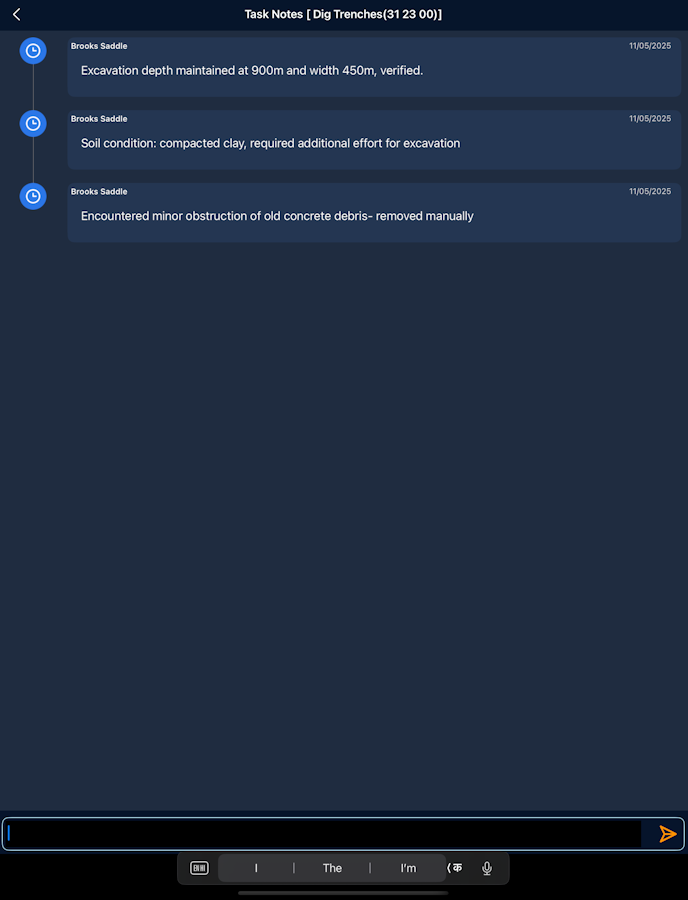
- Repeat the process to add more notes.
- Tap the '<' button at the top left to return to the task management screen
You can add notes to the task at any time, following the same process.
Add Delay Notes
- Open the Field Task module of the desired project
- Tap the task for which you need to add task notes
Tip:
You can use the 'Search ' box at the top to search for the task you want to manage.
- Slide down the task details screen and tap the 'Task Notes' button
- Tap the
 button and tap the predefined text denoting the number of days the task is delayed to add it as a delay note
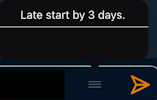
Alternatively,
- Type your comment in the text box and click thebutton to save your notes
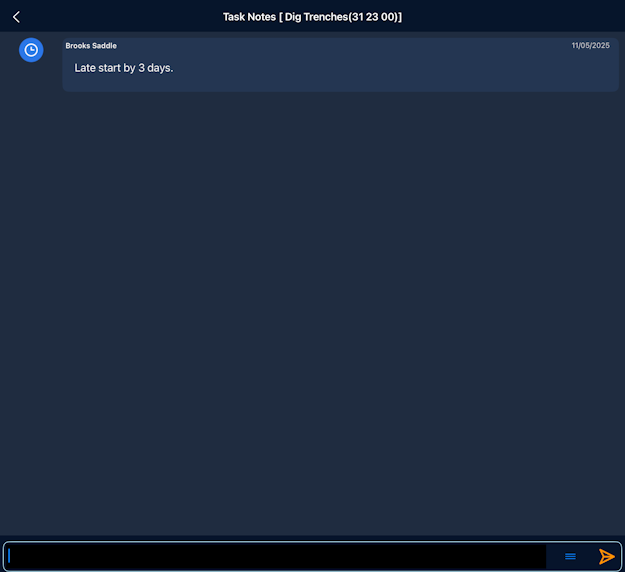
Your comment is added with the date stamp.
- Repeat the process to add more notes.
- Tap the '<' button at the top left to return to the task management screen
You can add notes to the task at any time, following the same process.
Add Crew Notes
- Open the Field Task module of the desired project
- Tap the task for which you need to add task notes
- Slide down the task details screen and tap the 'Task Notes' button
- Type your comment in the text box and click thebutton to save your notes
Your comment is added with the date stamp.
- Repeat the process to add more notes.
- Tap the '<' button at the top left to return to the task management screen
You can add notes to the task at any time, following the same process.
Was this article helpful?
That’s Great!
Thank you for your feedback
Sorry! We couldn't be helpful
Thank you for your feedback
Feedback sent
We appreciate your effort and will try to fix the article