Company administrators can restore the connection between Linarc and Acumatica at any time. Linarc keeps your account configuration, record mappings, and sync rules, so reconnecting is quick. Reconnecting renews the authorization that lets Linarc access your Acumatica tenant.
What to expect when you reconnect:
- Authorization Renewed: You sign in to Acumatica and grant Linarc permission again.
- Settings Preserved: Your account configuration, source of truth settings, and field mappings stay as they were, so you do not need to map your data again.
- Post-Reconnection Sync: If 'Auto Create' and 'Auto Update' were on, records created or changed while the integration was disconnected sync automatically after you reconnect. If they were off, those records do not sync automatically.
Note: Before you reconnect, review and update your account configuration or mappings if your Acumatica environment has changed.
Reconnect Acumatica
To reconnect Acumatica with Linarc
- Log in to the Linarc Admin Portal.
- Click 'Integrations' at the top and select 'ERP' on the left.
- Click 'Connect' on the 'Acumatica' card and go to step 2
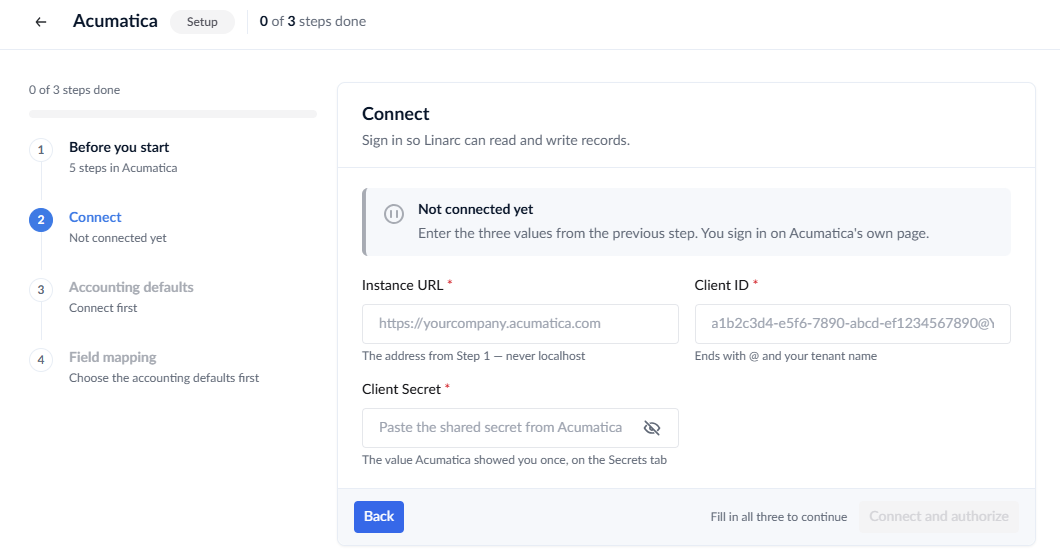
- Enter the 'Instance URL', 'Client ID' and 'Client Secret'.
Tip: If you no longer have the Client Secret, add a new shared secret to the Linarc connected application in Acumatica, and then enter the new secret in Linarc. See Register Linarc in Acumatica and Connect Acumatica with Linarc for more details.
- Click 'Connect and authorize'. Linarc takes you to the Acumatica sign-in page.
- Sign in to the same Acumatica tenant that you connected before.
- On the consent screen, leave every check box as it is and click 'Yes, Allow'.
Acumatica returns you to Linarc, and the integration is active again. After you reconnect, review your configuration before the next sync:
- Account Configuration: Update the Payroll Expense Account, Payroll Liability Account, Sub Account, or Default Country if they have changed.
- Data Mapping: Review the source of truth and the 'Auto Create' and 'Auto Update' settings for each record type.
Was this article helpful?
That’s Great!
Thank you for your feedback
Sorry! We couldn't be helpful
Thank you for your feedback
Feedback sent
We appreciate your effort and will try to fix the article