After you connect Linarc to Acumatica, three configurations make the sync-
- Cost Code Preparation: Widen the cost code segment in Acumatica so that Linarc cost codes are not truncated.
- Account Mapping: Set the payroll accounts, sub account, and default country that Linarc uses when it posts to Acumatica.
- Data Mapping: Choose which record types sync between Linarc and Acumatica, and set a source of truth for each.
Note: Acumatica must already contain the accounts and the sub account that you select. Verify your selections with your accounting team before you save.
Configuring the integration involves the following steps:
- Step 1 - Prepare Cost Codes in Acumatica
- Step 2 - Configure Accounts in Linarc
- Step 3 - Select and Set Up Source Data Mapping
Step 1 - Prepare Cost Codes in Acumatica
Important: Do this step before you sync cost codes. Linarc cost codes are longer than the Acumatica default allows. You have to widen the segment in Acumatica in order to sync cost codes from Linarc.
To turn on the Cost Codes feature
- Search for 'Cost Codes' in the search box at the top of Acumatica.
- If nothing is found, the feature is off. Search for 'Enable/Disable Features' (screen ID CS100000) and open it.
- Select the 'Cost Codes' check box.
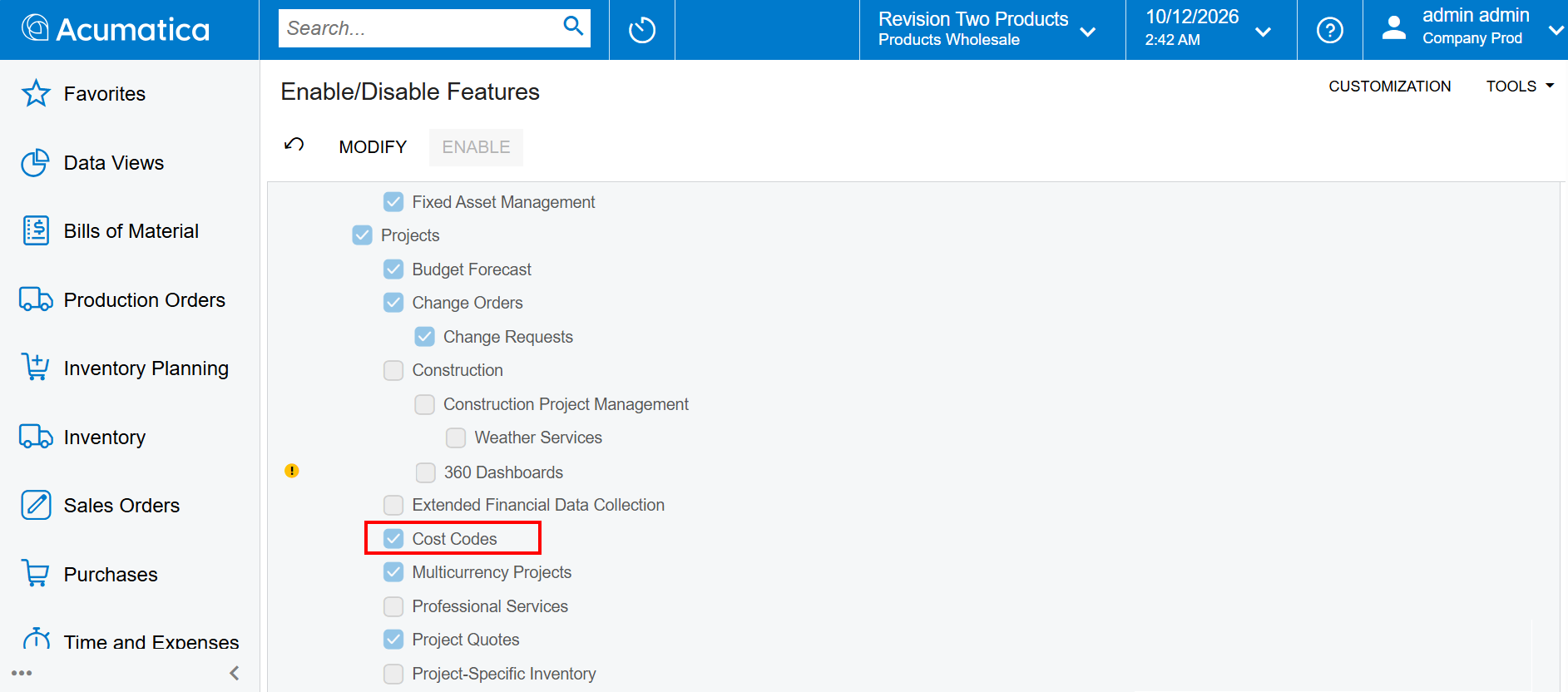
To widen the cost code segment
- Search for 'Segmented Keys' (screen ID CS202000) and open it.
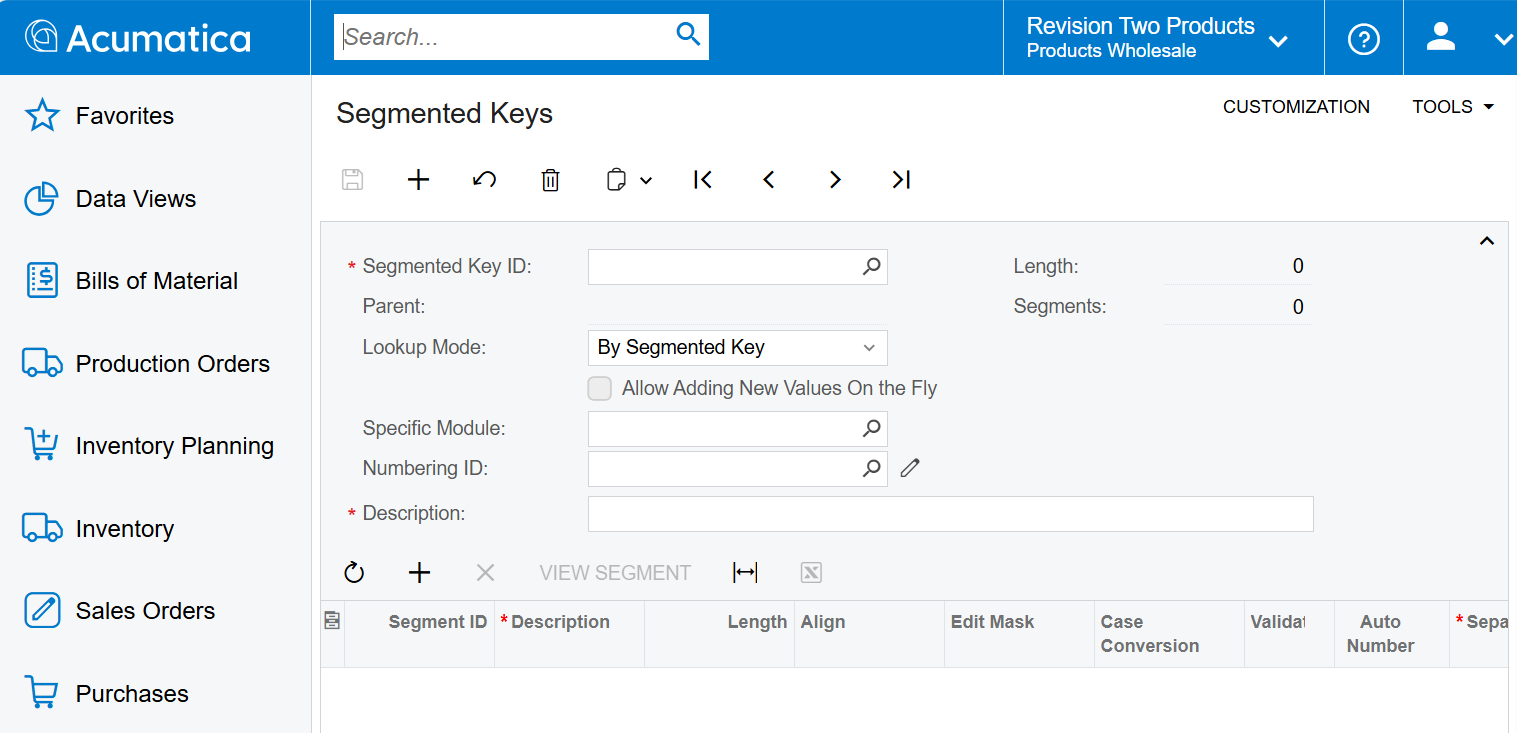
- Click the magnifier icon in the 'Segmented Key ID' field, type 'COST', and select 'COSTCODE'.
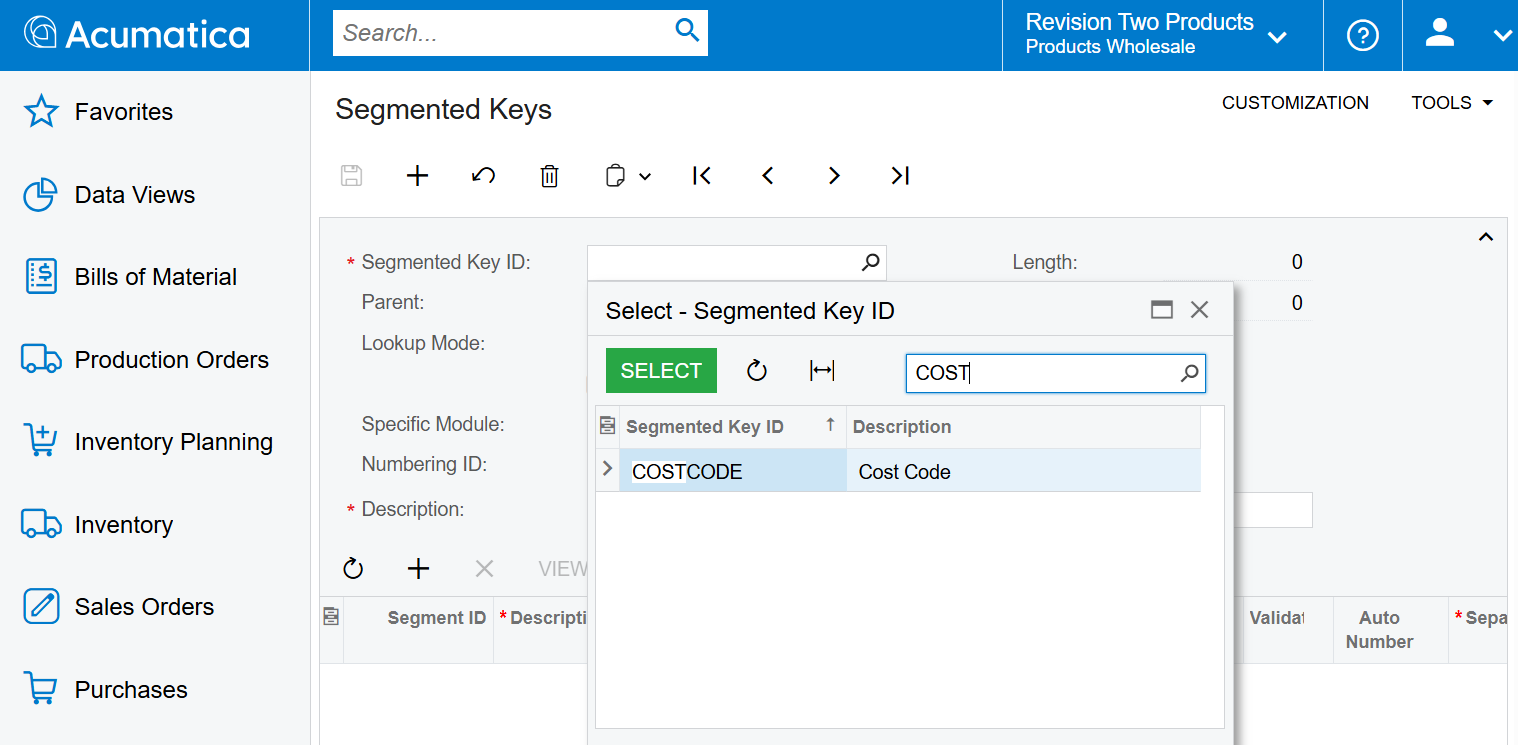
- In the segments list, find segment 1 (Division) and change its 'Length' to 10.
- Leave segment 2 (Activity) as it is. Its length stays at 3.
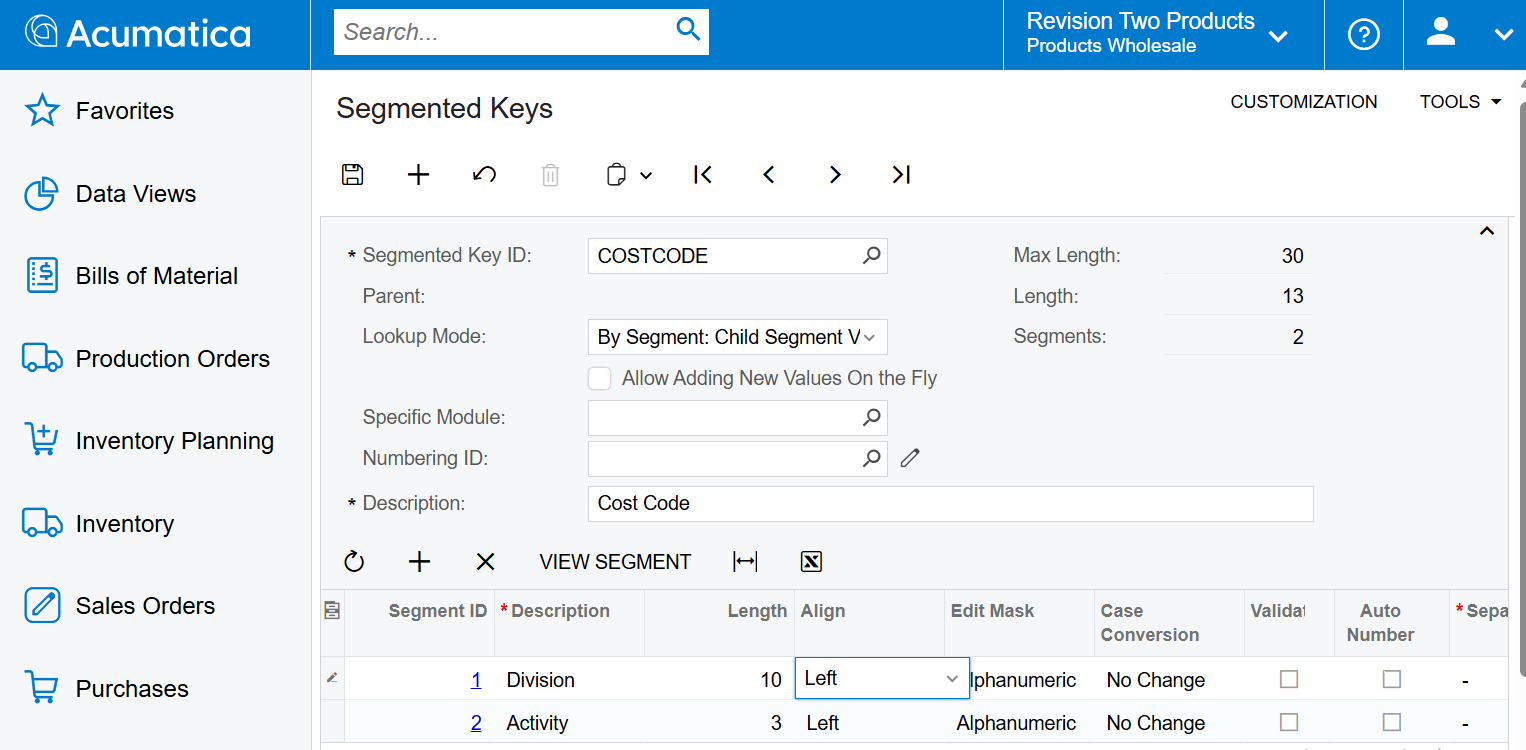
- Save your changes.
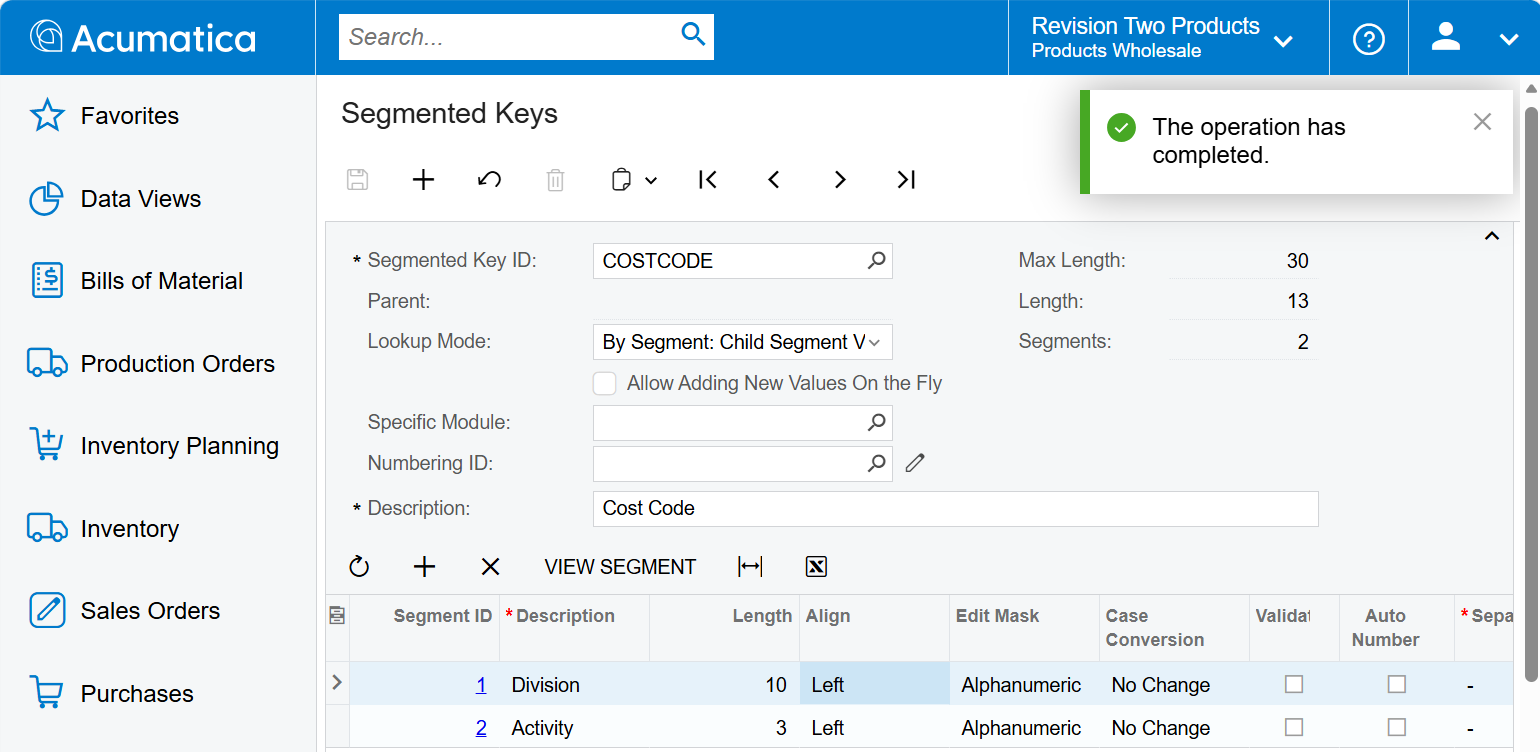
The 'Length' value at the top of the form now shows 13, which is 10 plus 3. If it still shows 5, the change was not saved.
Step 2 - Configure Accounts in Linarc
- In the Linarc Admin Portal, click 'Integrations' at the top and select 'ERP' on the left.
- Click 'Manage' under the Acumatica card. You will be taken to the 'Accounting defaults' screen automatically if you have connected with Acumatica and haven't completed the account configuration step yet.
- Set up the account configuration:
- Payroll Expense Account: The Acumatica account where Linarc posts payroll expenses.
- Payroll Liability Account: The Acumatica account where Linarc posts payroll liabilities, such as payroll taxes.
- Sub Account: The Acumatica sub account that Linarc uses when it posts to these accounts.
- Default Country: The country that Linarc assigns by default to records it creates in Acumatica.
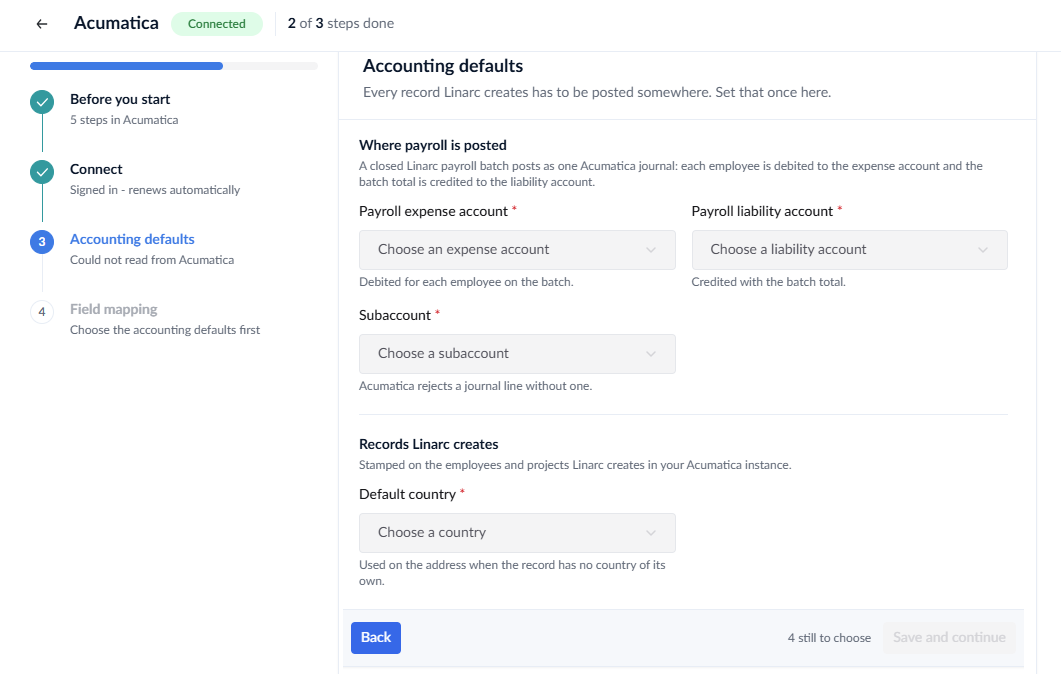
- Click 'Save and continue' to save the account configuration.
Step 3 - Select and Set Up Source Data Mapping
For each record type, you choose the source of truth, which is the system that owns the record. Records sync from the source to the other system. You can change the source at any time.
- Employees: Choose Linarc or Acumatica as the source. Select the system where your HR team maintains personnel data. All enrolled employees sync progressively to the other system.
- All other record types: Select Linarc as the source for Vendors, Cost Codes, Projects, Costs, Contractor Budgets, Recurring expenss, and Payroll. Set a record type to 'Skip' if you manage it directly in Acumatica and do not want to sync it.
Note:
Employees imported from Acumatica appear in Linarc as drafts. An administrator must invite them to activate their accounts.
If you set the source for Employees to Acumatica, you must also set up the employee webhook. Without it, changes made in Acumatica do not flow back to Linarc. See Set Up Automated Employee Sync from Acumatica.
To map a record type
- Select a record type from the list of objects.
- Review how the Linarc fields map to the Acumatica fields.
- Open the 'Source' drop-down and select your source of truth.
- Turn on 'Auto Create' to create missing records in the other system automatically.
- Turn on 'Auto Update' to push edits from the source to the other system automatically.
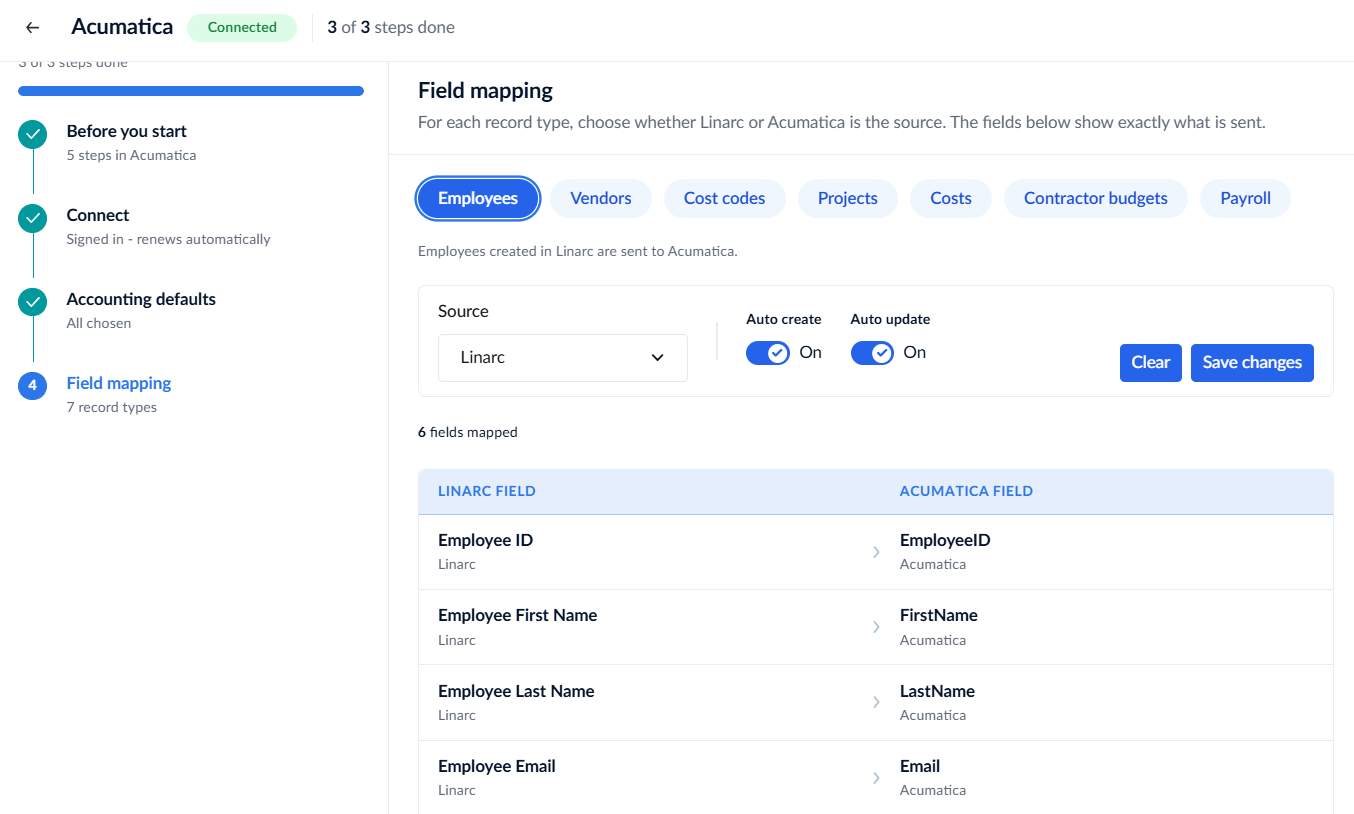
- Click 'Save Changes' to finalize the mapping for that record type.
- Repeat for every record type in the list.
After you save, Linarc syncs each record type from its source of truth based on your settings.
Was this article helpful?
That’s Great!
Thank you for your feedback
Sorry! We couldn't be helpful
Thank you for your feedback
Feedback sent
We appreciate your effort and will try to fix the article