Connect your Sage Intacct account with Linarc to seamlessly align your operations with your finance team's accounting system. You can manage project financials—like budgets, and recurring expenses—directly within Linarc while automatically mirroring those ledgers in Sage Intacct for your finance team. This real-time integration eliminates the need for manual data entry, allowing you to:
- Keep your employee directories, vendor networks, and cost codes perfectly aligned across both platforms with real-time synchronization.
- Push approved project estimates and budgets directly into your accounting software to establish an accurate financial baseline.
- Save your team from manual data entry by automatically syncing predictable, repeating project expenses.
- Send field labor hours and associated costs directly to accounting for precise job-costing and wage distribution.
Sage Intacct Setup Prerequisites
Before connecting Linarc with Sage Intacct, Company Administrators must configure a few key settings in Sage Intacct to ensure the two systems communicate seamlessly.
- Linarc ERP Tenant: Ensure that you have an activated ERP tenant for your Linarc account.
- Active Sage Intacct Account: Ensure you have an active Sage Intacct account set up with your basic customers and General Ledger (GL) accounts.
- Sage Web Service User: You will need a Sage Web Service User account with full admin privileges to authorize the connection. You can use an existing one, or you can quickly create a new dedicated Web Services user in Sage Intacct before starting.
- Sage Intacct Company ID: Have your Sage Intacct Company ID ready to complete the connection form.
- Linarc Client ID: You will need the Linarc Client ID to authorize the connection within your Sage Intacct security settings.
Tip: You can quickly copy the Client ID directly from "Step 1" on the integration screen in Linarc.
Integrate Your Sage Intacct Account to Linarc
The first step is to connect Sage Intacct to your Linarc account by exchanging unique identifiers between both platforms. To establish a secure connection, you will need a Web Service user within your Sage Intacct environment. If you already have an existing Web Service user configured, you can use that user ID. However, if you prefer to have a dedicated user specifically to handle Linarc-related data within Sage Intacct, you can create a new Web Services user ID.
To create a new Web Services user:
- Log in to Sage Intacct as an administrator.
- Navigate to Application → Company → Admin → Web Services User, and click Create.
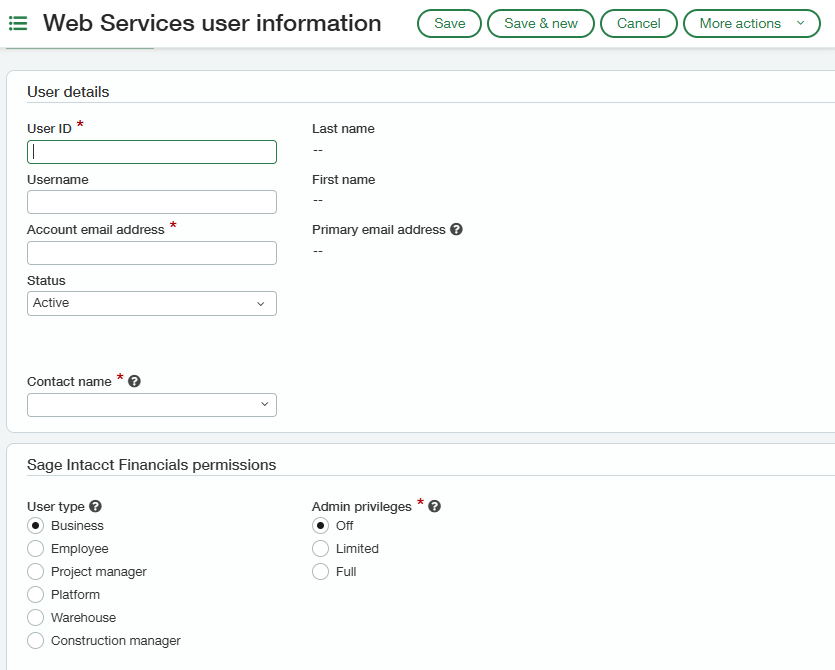
- Enter the User details as required
- Ensure you assign the user full admin privileges, and save your changes.
- Be sure to note this exact username, as you will need it for the final connection step. See here for more details on Web Service users in Sage.
Records Mapping
The integration supports synchronizing the following record types between the Linarc and Sage Intacct platforms.
- Employees
- Vendors
- Cost Codes
- Projects
- Contractor Budgets
- Recurring expenses
- Payrolls
For each of the record types you can set its primary source, or choose to skip synchronization entirely. At any point you change the source. For example, if you choose Linarc as the source, any changes made there will automatically push to Sage Intacct. You can also turn on auto-synchronization granularly. Please note that for certain record types, you can only set Linarc as the source and cannot set auto-update. However, you can manually push the records and updates manually through the staging platform.
Note: When syncing employees from the Sage Intacct Employee List to the Linarc Employee Directory, all imported records will appear in the Employees > Drafts section. You can review, select the required employees, and send them invitations to join Linarc.
See the following links foe more details:
Was this article helpful?
That’s Great!
Thank you for your feedback
Sorry! We couldn't be helpful
Thank you for your feedback
Feedback sent
We appreciate your effort and will try to fix the article