Company Administrators can disconnect the Sage Intacct integration from Linarc at any time. This function is useful if you need to perform extensive accounting maintenance, migrate to a new Sage Intacct account, or temporarily pause data synchronization. You can easily reconnect the integration whenever you are ready to resume.
- Data Preservation: Project data created in Linarc during the disconnected period—such as budgets, recurring costs, and payroll—remains safely stored in the platform.
- Sync Suspension: All automatic and manual synchronization between Linarc and Sage Intacct is paused while the integration is disconnected. A reminder banner will appear on the integration dashboard until the connection is restored.
- Post-Reconnection Sync: Records created while the integration was disconnected are automatically synced upon reconnecting if the 'Auto Create' and 'Auto Update' options were enabled during configuration. If these options are disabled, users must import the records into the staging platform and sync them manually.
Note:
- All previously configured integration settings are retained when disconnecting and reconnecting your Sage Intacct account.
- You can review and update the existing object configurations at any time before resuming synchronization.
Disconnect Sage Intacct
- Ensure you are in the Linarc admin console.
- Click 'Integrations' at the top of your screen and select 'ERP' from the left menu.
- Locate the Sage Intacct card and click 'Manage'.
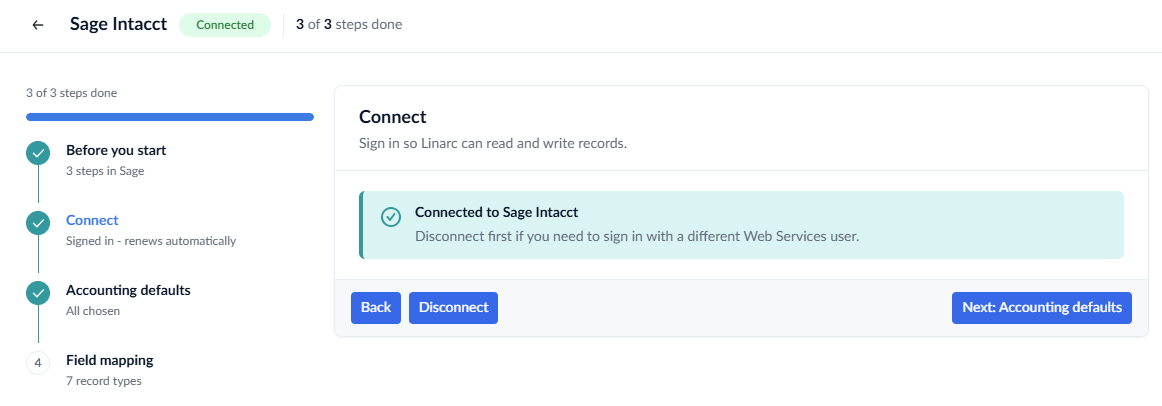
- Click 'Disconnect' within the Sage Intacct settings.
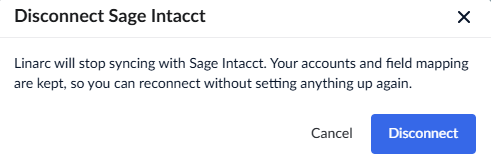
- Click the confirmation button to finalize your action.
See Reconnect Sage Intacct with Linarc for instructions on restoring the connection.
Was this article helpful?
That’s Great!
Thank you for your feedback
Sorry! We couldn't be helpful
Thank you for your feedback
Feedback sent
We appreciate your effort and will try to fix the article