Your Sage Intacct integration requires two main configurations to ensure your financial data flows correctly:
- Account Mapping: Link Linarc to specific dimensions, payroll accounts, and cost accounts in your Sage Intacct environment so journal entries are logged accurately and posted to the correct entities.
- Data Mapping: Choose which data types (like your Employee Directory, Projects, Budgets, and Payroll) to synchronize between Linarc and Sage Intacct. For each data type, you will set a Source of Truth to determine which platform pushes updates to the other.
- Auto-Synchronization: For most data types, changes made in the source platform will automatically push to the destination.
- Manual Synchronization (Staging): Some data types require manual synchronization through a dedicated staging platform, allowing you to review and verify the data before it transfers.
To configure account mapping and data mapping
Ensure your Sage Intacct account is successfully linked with Linarc before beginning this process.
- Click 'Integrations' on the top of your admin console and select 'ERP' from the left menu.
- Click 'Configure' in the 'Sage Intacct' card.
- Click 'Set Up' to open the configuration page.
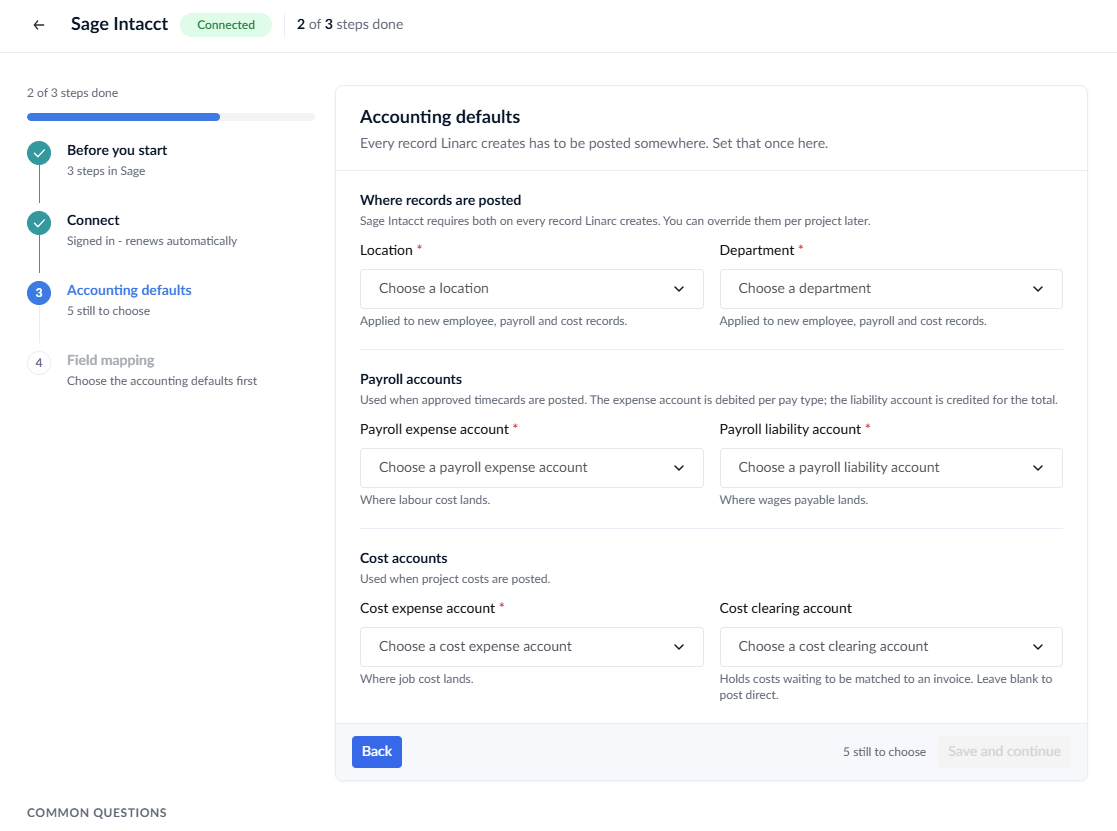
Step 1: Configure Accounts
Prerequisite: Ensure your Sage Intacct setup already includes the necessary locations, departments, and General Ledger (GL) accounts to support data syncing from Linarc. Setting up and mapping these accounts is a one-time process. Please verify your selections with your accounting team before proceeding.
These selections are applied to all employee, payroll, and cost records synced to Sage Intacct.
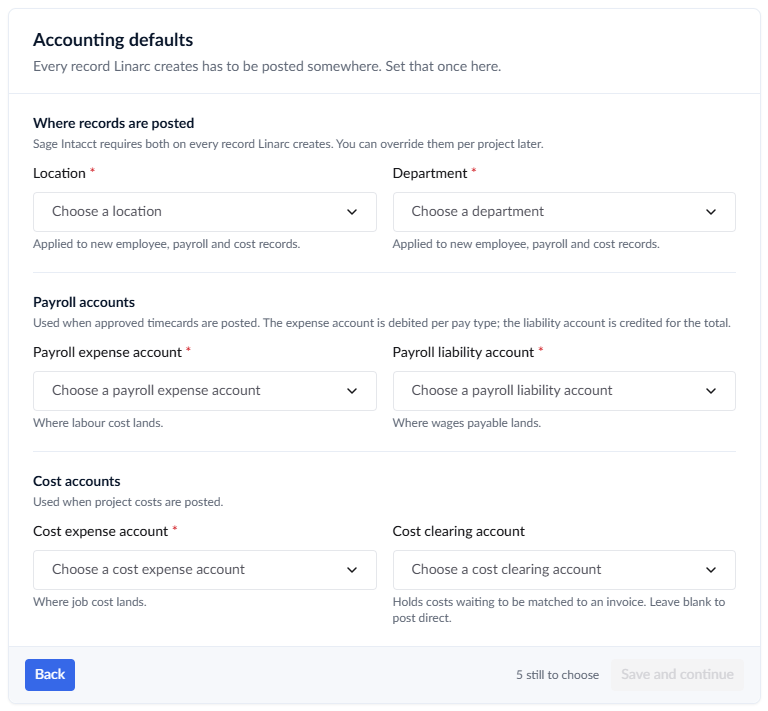
Default Dimensions
Default Location: The primary office, region, or business entity where Linarc-generated records should be categorized.
Default Department: The specific business unit (e.g., Construction or Operations) assigned to incoming operational data.
Payroll Accounts
Designate the specific Sage Intacct GL accounts for your payroll journal entries:
Expense Account: Tracks gross wages, salaries, and direct labor costs from your team's logged field hours.
Liability Account: Holds owed payroll expenses (such as taxes, benefits, or unremitted wages) until they are officially paid out.
Cost Accounts
Designate the Sage Intacct GL accounts for your project-related operational costs:
Expense Account: Records general project expenses, such as materials, equipment, and subcontractor costs.
Clearing Account: A temporary account used to hold and reconcile cost transactions before they are finalized and moved to their permanent accounts.
Click 'Save' at the bottom right of the configuration window to proceed.
Step 2: Select and Set Up Source Data Mapping
Use the lower pane to configure your data mapping by selecting the exact entities you want to synchronize between Linarc and Sage Intacct.
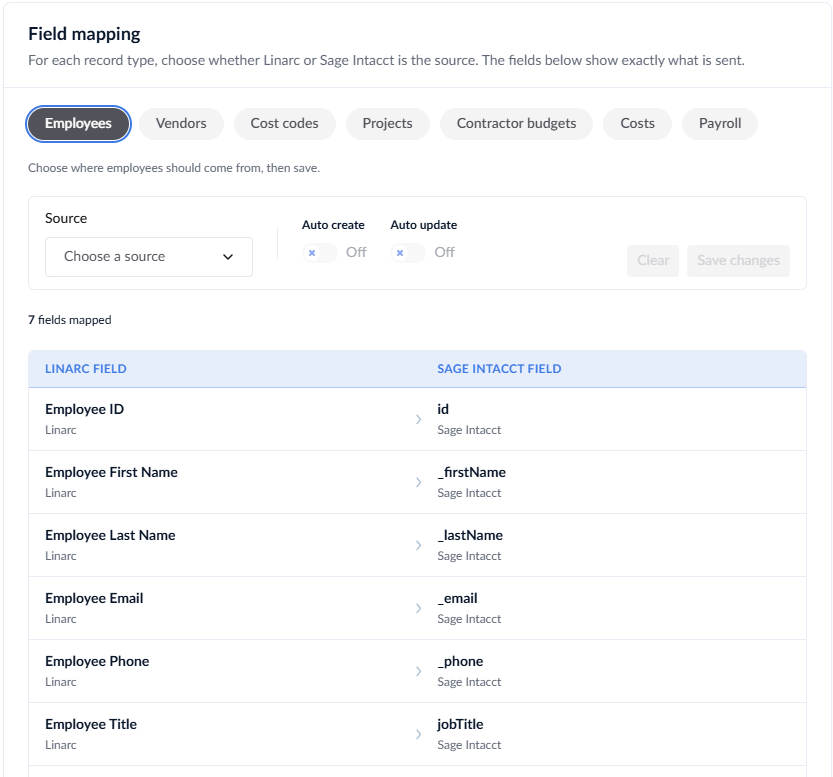
For each record type, you can set the primary Source of Truth, enable automatic synchronization, or choose to skip the sync entirely. You can update the source at any time. For example, if you choose Linarc as the source for a specific data type, any changes made in Linarc will automatically push to Sage Intacct.
Note: For certain objects, Linarc must remain the primary source, and auto-sync options may be restricted. However, you can still manually push these records and updates through the staging platform.
Available Sync Objects:
- Employees: You can choose either Linarc or Sage Intacct as the source. We recommend choosing the system where your HR team natively maintains personnel data. All employees enrolled in the source system will progressively sync to the destination.
Note on Sage Intacct as Employee Source: If you select Sage Intacct as the source, the imported personnel list will initially appear in Linarc in a "draft" state. An administrator must manually invite these users to fully activate their Linarc accounts.
- Vendors, Project, and Financial Records: For items like Company Cost Codes, Projects, Vendors, Contractor Budgets, Recurring Expenses, and Payroll, you must select Linarc as the source to push operations data to Sage Intacct. If you prefer to manage these items manually within Sage Intacct without syncing, simply set the source to 'Skip'.
To map objects:
- Select an object from the left pane.
- The right pane illustrates how the fields in these records map to their respective attributes in Sage Intacct.
- Click the 'Source' dropdown at the top-right and select your desired Source of Truth based on the rules outlined above.
- Toggle the 'Auto Create' switch to 'On' if you want the integration to automatically generate missing records in the destination system.
- Toggle the 'Auto Update' switch to 'On' if you want edits in the source system to automatically reflect in the destination system.
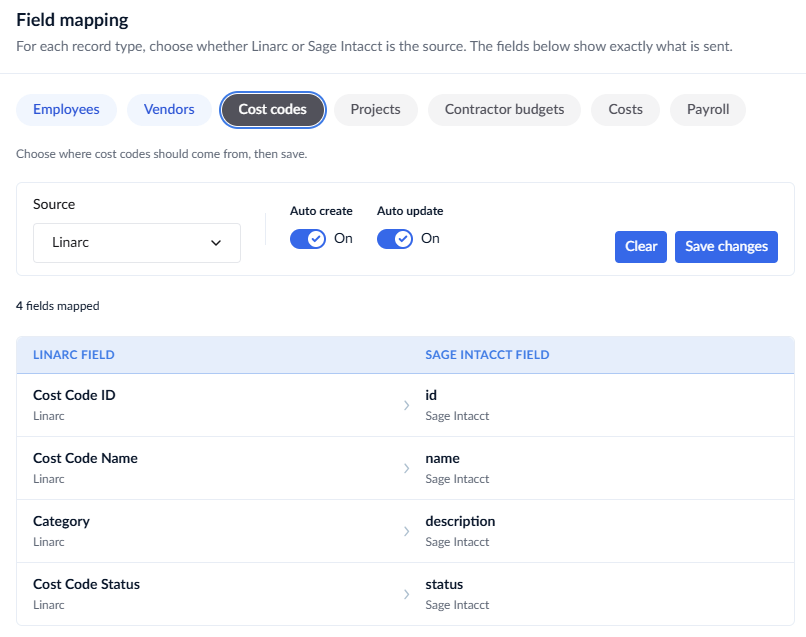
- Click the 'Save' button at the top-right to finalize the mapping for that specific object.
- Repeat these steps for every object in the left panel.
Once object mapping is complete, your employee, vendor, and cost code data will automatically sync between Linarc and Sage Intacct. Other data, including projects and their financial records, should be synced manually through the staging platform as required by the project manager.
Was this article helpful?
That’s Great!
Thank you for your feedback
Sorry! We couldn't be helpful
Thank you for your feedback
Feedback sent
We appreciate your effort and will try to fix the article