Establish a secure connection between your Sage Intacct account and Linarc to enable a seamless, ongoing data synchronization. To keep your data secure, Sage Intacct connects using dedicated system credentials rather than a standard login screen to create a highly secure, continuous data connection with Linarc.
Pre-requisite:
- Linarc ERP Tenant: Ensure that you have an activated ERP tenant for your Linarc account.
- Active Sage Intacct Account: Ensure you have an active Sage Intacct account set up with your basic customers and General Ledger (GL) accounts.
- Sage Web Service User: You will need a Sage Web Service User account with full admin privileges to authorize the connection. You can use an existing one, or you can quickly create a new dedicated Web Services user in Sage Intacct before starting.
- Sage Intacct Company ID: Have your Sage Intacct Company ID ready to complete the connection form.
- Authorize Linarc in Sage Intacct: You must have already authorized Linarc as a client application within your Sage Intacct security settings. This involves copying the Client ID from your Linarc console and adding it to your authorized applications in Sage. See here for more details.
To link Sage Intacct with your Linarc account
- Open your company admin console
- Click 'Integrations' at the top and 'ERP' on the left
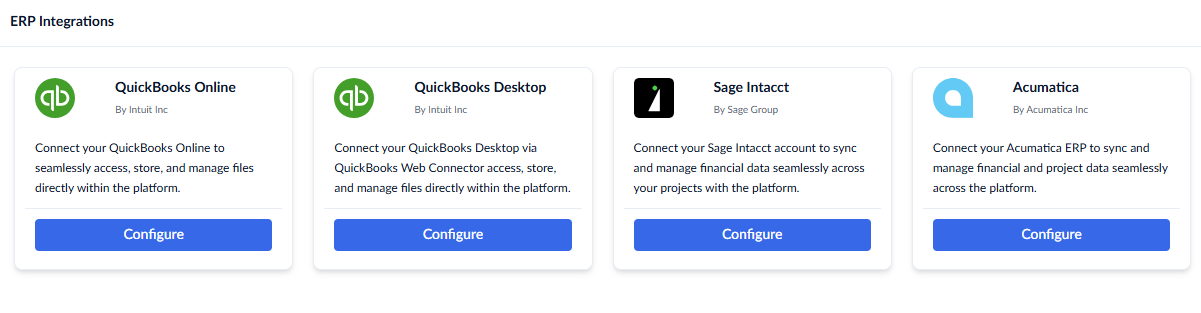
- Click the 'Configure' button under 'Sage Intacct'
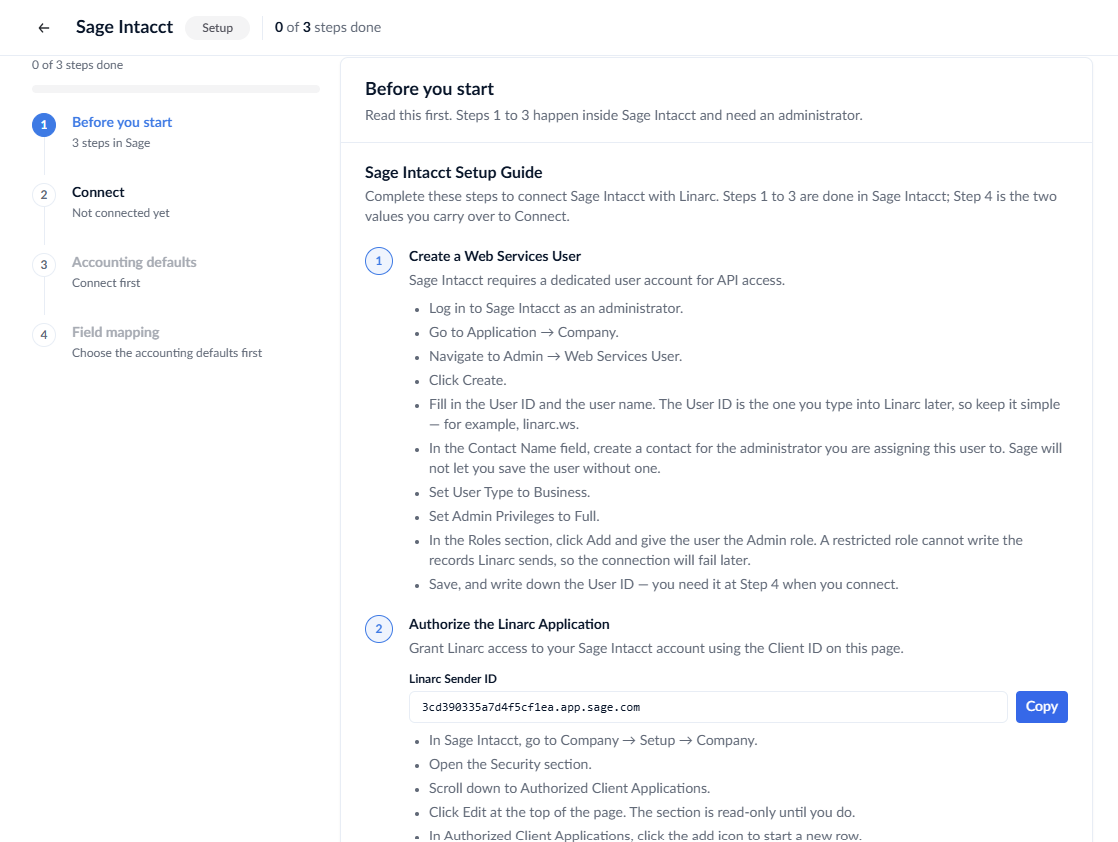
Step 1 - Setup Web services in Sage Intacct
- Click the 'Copy' button on the integration screen to copy your unique Linarc Client ID.
- Open a new browser tab and log in to your Sage Intacct account as an administrator.
- Navigate to Company Information
- Open the Security tab and click 'Edit'
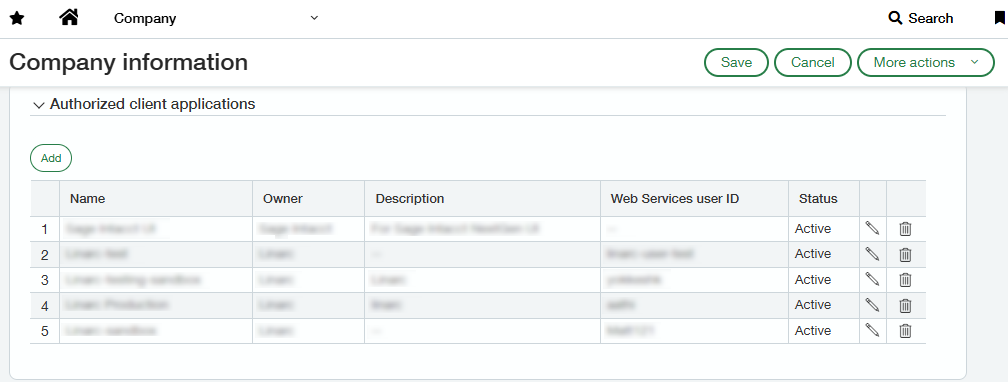
- Scroll down to locate the "Authorized Client Applications" section and click 'Add'
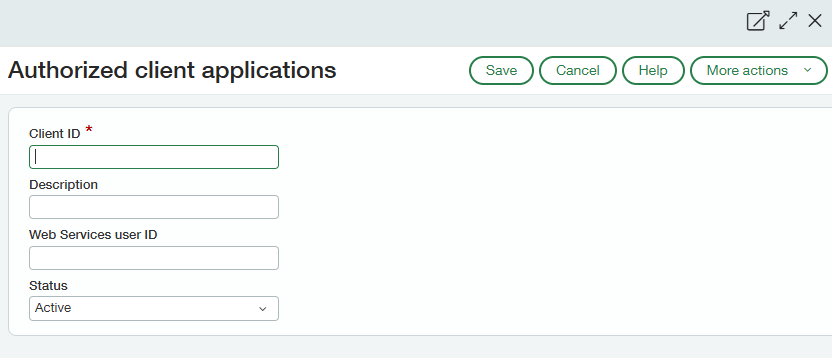
- Paste the copied Linarc Client ID into the Client ID field, enter your dedicated Web Service User ID, and click save to finalize the authorization. See here for more details.
Step 2 - Connect Linarc to Sage Intacct
- Input your Web Service User and your Company ID into the respective fields.
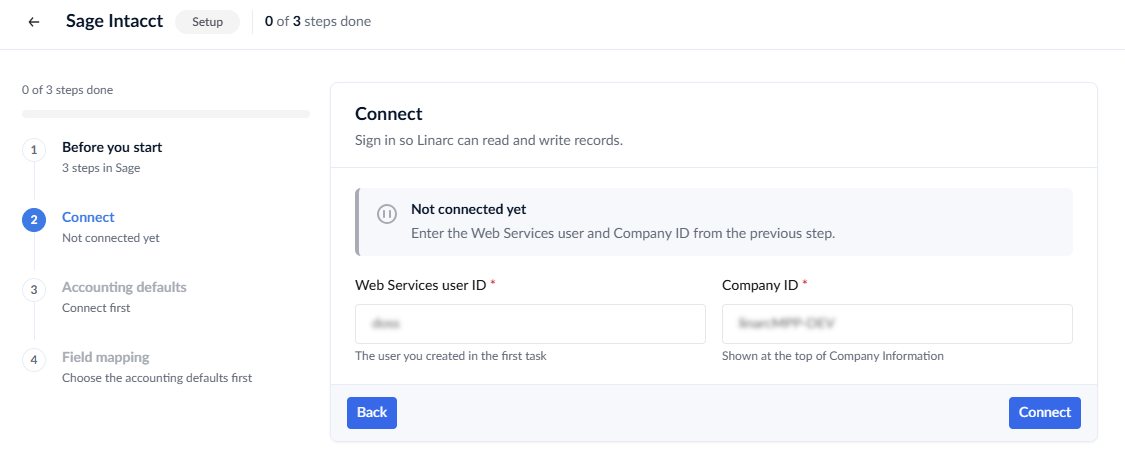
- Click the 'Connect' button.
Upon successful authentication, a secure token is established to seamlessly exchange data between the platforms, and a 'Verified' badge will appear. Your Sage Intacct account is now connected to Linarc!
Next Steps:
- Account Configuration: Specify the income, expense, and liability accounts in your Sage Intacct setup that Linarc should use for accurate journal entries and financial mapping.
- Data Mapping: Specify the objects and entities (such as Employees, Vendors, Cost Codes, and Projects) you want to synchronize between Linarc and Sage Intacct, and set your preferred synchronization directions.
Was this article helpful?
That’s Great!
Thank you for your feedback
Sorry! We couldn't be helpful
Thank you for your feedback
Feedback sent
We appreciate your effort and will try to fix the article