The "Projects" screen provides an overview of all the projects with which you are affiliated. These include:
- Projects that you handle as the project manager.
- Projects where you are listed as an associate or team member, assigned by the project manager.
The table presents a concise summary of key project details, enabling you to quickly view essential information. This interface serves as your gateway to the individual project management consoles, where you can manage each project's specific activities and tasks.
- To return to the "Projects" screen from any other part of the platform:
- Click the main menu at the top-left and click 'Project'
- Click 'My projects'> 'Project List' on the left
By default, the projects assigned to you open in a side-by-side Table and Gantt chart view.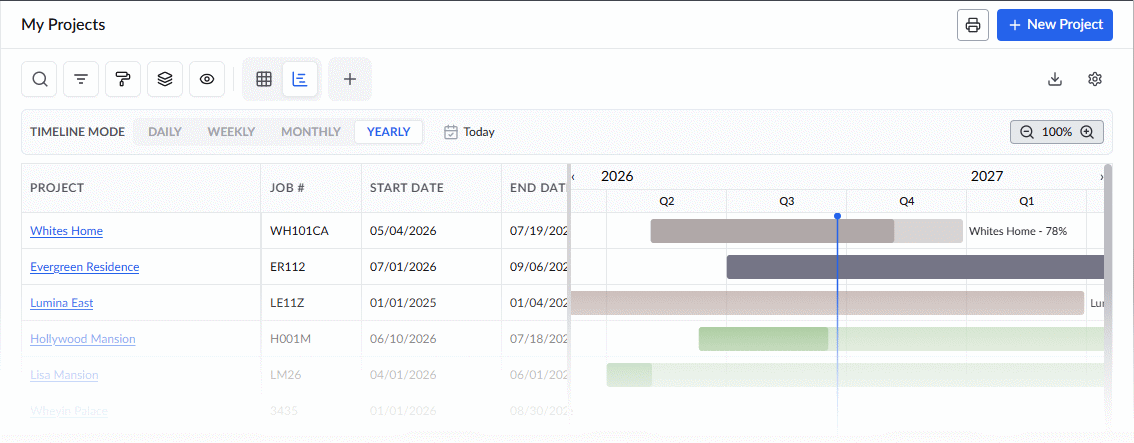
Use the view selector at the top to choose the view:
 | - | Grid + Gantt View |
 | - | Grid View |
Grid View
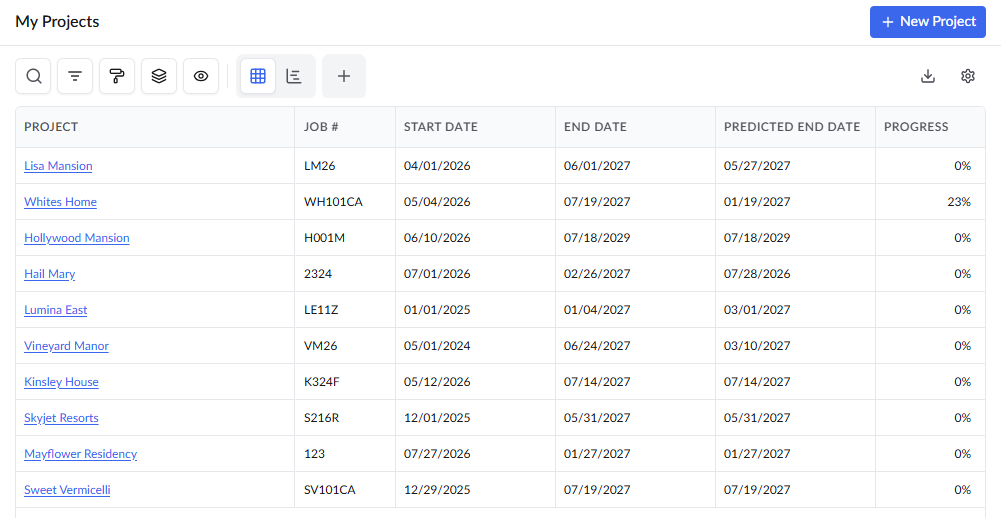
The 'Grid View' shows all the standard columns. However, you have the flexibility to customize the table by removing unwanted columns and re-arranging the columns in the order you want to view. Additionally, you can save your customizations as a personalized view to quickly access your preferred table layout in the future. See Customize Columns in List Views for more details. Following is the list of all possible columns:
- Project- The name of the project.
- Click on the name of a project to open its project management console in the same browser tab
- See The Project Management Console – Main interface for more details on this interface.
- Job Id - The unique alpha-numeric identifier for the project.
- Start Date - The commencement date of the project.
- End Date - The officially scheduled completion date of the project.
- Predicted End Date - The forecasted completion date of the project, calculated based on the current progress, schedule adjustments, and remaining tasks.
- Progress - The current completion status of the project
- Planned Hours - The total number of labor hours originally estimated to complete the project.
- Actual Hours - The total number of labor hours that have been worked on the project to date.
- Hours Delta - The variance between the Planned Hours and Actual Hours, indicating whether the project is under or over the estimated labor time.
- Planned Labor Cost - The total amount allocated for labor expenses on the project.
- Actual Labor Cost - The total amount that has been spent on labor for the project to date.
- Labor Cost Delta - The variance between the Planned Labor Cost and Actual Labor Cost, indicating whether labor spending is under or over budget
- Planned Material Cost - The total amount allocated for purchasing materials required for the project.
- Actual Material Cost - The total amount that has been spent on materials for the project to date.
- Material Cost Delta - The variance between the Planned Material Cost and Actual Material Cost, indicating whether material spending is under or over budget.
- Total Cost -The aggregate of all actual expenses incurred on the project to date.
- % Spent - The percentage of the total budget that has been utilized to date, calculated by dividing the total actual cost by the budget.
- Delta/ Margin - The financial difference between the project's total budget (or contract value) and the actual costs incurred, representing the current variance or profitability.
- Budget - The total approved financial plan or estimated cost allocated for your trade in the project
- Crew Onsite - The total number of active workers or team members currently present and working at the project site.
Grid+Gantt View
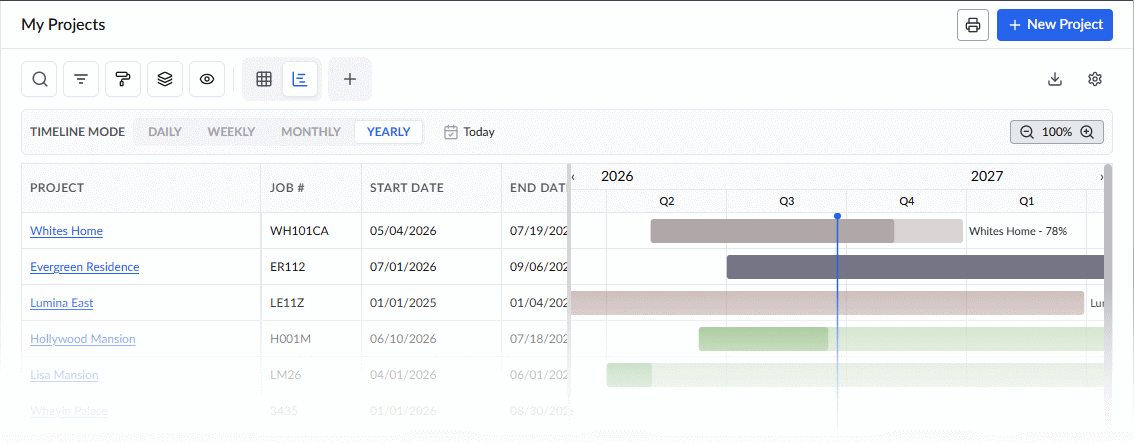
This view displays each project's planned timeline and progress as Gantt bars alongside the table.
- Use the toolbar at the top to adjust the time scale (daily, weekly, monthly, or yearly).
Click  at the top right to create a new project. See Create a project for more details.
See the following pages for more details:
- Create a Project
- Request Access to New Projects
- Manage Project Access Requests
- Accept Invitations to Collaborate
Search, Filter, and Sorting Options
- Click the magnifier icon and use the 'Search' box located at the top left to find an entry using any value from the table as search criteria
- Click any column header to sort the rows in ascending or descending order based on that column's data.
- Click the cog wheel icon at the top right to adjust the display density and customize the display and order of the columns. See Customize Columns in List Views.
- The options at the top left allow you to filter the entries, create nested groups of entries, highlight cells and manage personalized and customized views of the table. Use the links below to learn more:
Was this article helpful?
That’s Great!
Thank you for your feedback
Sorry! We couldn't be helpful
Thank you for your feedback
Feedback sent
We appreciate your effort and will try to fix the article