The Project Discovery feature empowers off-site employees with the appropriate project management roles to discover and request access to active company projects they aren’t yet part of.
Browse Active Projects – View a list of ongoing projects where your organization is a stakeholder.
Request Access – Submit a request to join a specific project of interest.
Start Contributing – Once approved by your company’s designated approver, gain full access and begin managing your responsibilities immediately.
Whether you’re looking to get involved in a new initiative or support a project that aligns with your expertise, Project Discovery ensures you’re always connected to the work that matters.
Note: Project access requests are intended for junior team members or employees with limited permissions who do not have approval rights. If you're a senior employee or project director with the necessary approval privileges, you can directly join new projects without submitting a request. Refer to Join a New Project for detailed instructions,
To view projects you don’t yet have access to
- Ensure that you are on the 'Discover Projects' screen in the portfolio console, If not:
- Click the main menu at the top-left
- Click 'Project' in the menu drop-down.
- Click 'Discover Projects' on the left.
The list shows all active projects where your company is a stakeholder—but you are not yet a project team member. The table displays key details for each project, helping you identify the ones you may need to join.
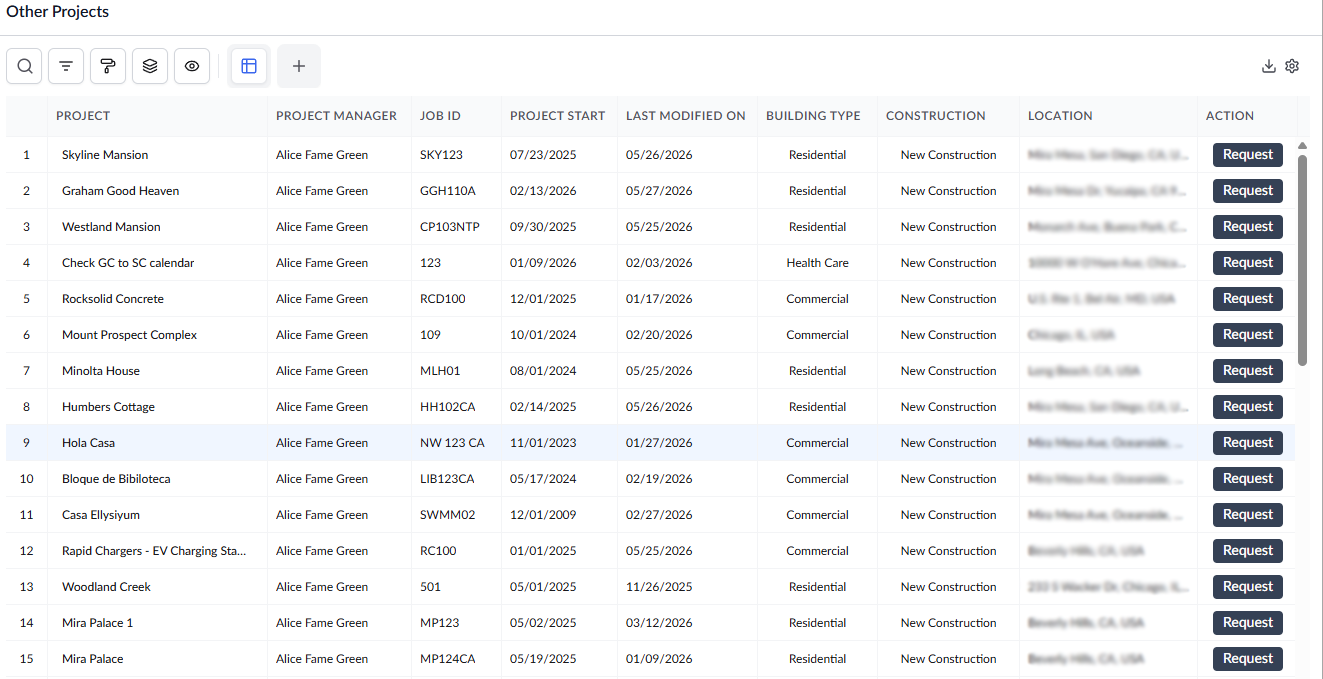
The 'Default View' shows all the standard columns. However, you can customize the table by removing the columns you don't want to see, by right-clicking on the column header and deselecting the columns, and re-arranging the columns in the order you want to view. See Customize Columns in List Views for more details. Following is the list of all possible columns:
Standard Columns
- Project - The name of the project.
- Project Manager - The principal project manager of the project from the organization that manages the project on Linarc. In the usual case, this is the PM from the general contractor. In cases where the project was created by other stakeholders and they have invited a general contractor, then the PM of the company that created the project is the principal PM.
- Job ID - The unique alpha-numeric identifier for the project. The Job ID is useful in specifying the project when you are doing bulk actions, like uploading job cost data combined for several projects at once.
- Project Start - The commencement date of the project.
- Building Type - The classification of the building, depending on its occupancy and use, whether it is residential, commercial, educational, etc.
- Construction - Nature of the work, whether the building is newly constructed, renovated, remodeled, etc.
- Location - The address of the construction site.
- Action - Provides an option to request access to a project. The 'Request' button is visible only to junior employees who do not have approval permissions. If you are a senior employee with approval authority, an 'Add' button appears instead—allowing you to join the project directly and add other members from the same screen.
Tip: Use the 'Search' box at the top left to find projects using any table value. For details on filtering, sorting, and downloads, see the sections below.
- Click 'Request' in the row of the project you want access to
Your request will be submitted instantly to the approval authority. Once they authorize, you can access the project from you 'Portfolio' > 'My Projects' > 'Project List' screen.
Search, Filter, and Sorting Options
- Click the magnifier icon and use the 'Search' box located at the top left to find an entry using any value from the table as search criteria
- Click any column header to sort the rows in ascending or descending order based on that column's data.
- Click the cog wheel icon at the top right to adjust the display density and customize the display and order of the columns. See Customize Columns in List Views.
- The options at the top left allow you to filter the entries, create nested groups of entries, highlight cells and manage personalized and customized views of the table. Use the links below to learn more:
Was this article helpful?
That’s Great!
Thank you for your feedback
Sorry! We couldn't be helpful
Thank you for your feedback
Feedback sent
We appreciate your effort and will try to fix the article