When a subcontractor finalizes their commitment budget and groups their line items for billing, they must submit their customized Schedule of Values (SOV) to you for approval. As the General Contractor, reviewing these submissions ensures that the subcontractor's planned billing schedule aligns perfectly with your overarching project structure and expectations.
Subcontractors cannot generate Payment Applications (Pay Apps) against their contract until their SOV layout has been officially approved by you.
When a subcontractor submits an SOV for review, you will typically receive a system notification.
To access the submitted subcontract SOVs
- Click the main menu icon at the top-left of your screen.
- Select Subcontracts under the Finance & Controls section in the drop-down menu.
Tip: Press and hold the Cmd (Mac) or Ctrl (Windows) key on your keyboard while clicking to open the module in a new browser tab.
- Click 'SC SOV' on the left navigation menu.
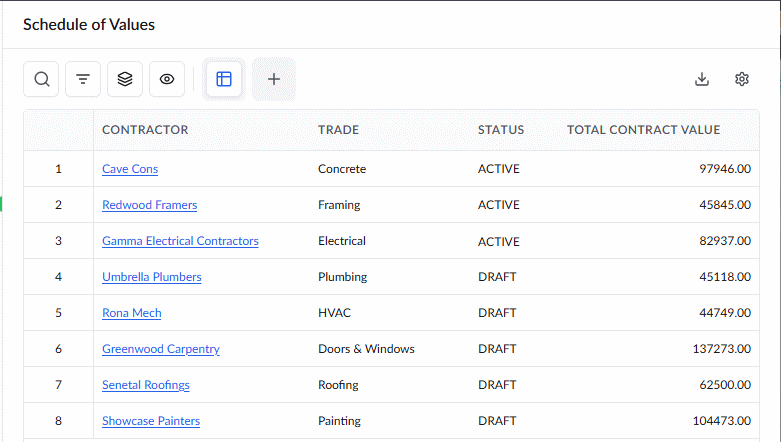
The screen shows the list of subcontractors and their contract values.
Column Descriptions:
Contractor - The name of the subcontractor company. Click teh name to open the SOV submitted by them.
Trade - The division of work assigned to the subcontractor
Status: Indicates the current workflow stage of the subcontractor's Schedule of Values (SOV). The possible states are:
- Draft: The subcontractor is currently building the SOV and has not yet submitted it.
- Active: The subcontractor has submitted the SOV, and it is awaiting your review.
- Revision: You have rejected the SOV and sent it back to the subcontractor for corrections.
- Revised: The subcontractor has updated the SOV based on your feedback and resubmitted it for review.
- Locked: You have approved the SOV, locking it in as the official financial baseline for the subcontract.
Total Contract Value - The total amount of teh commitment contract pertaining to the subcontractor
To review the SOV Details
- Select the specific subcontractor agreement that requires review.
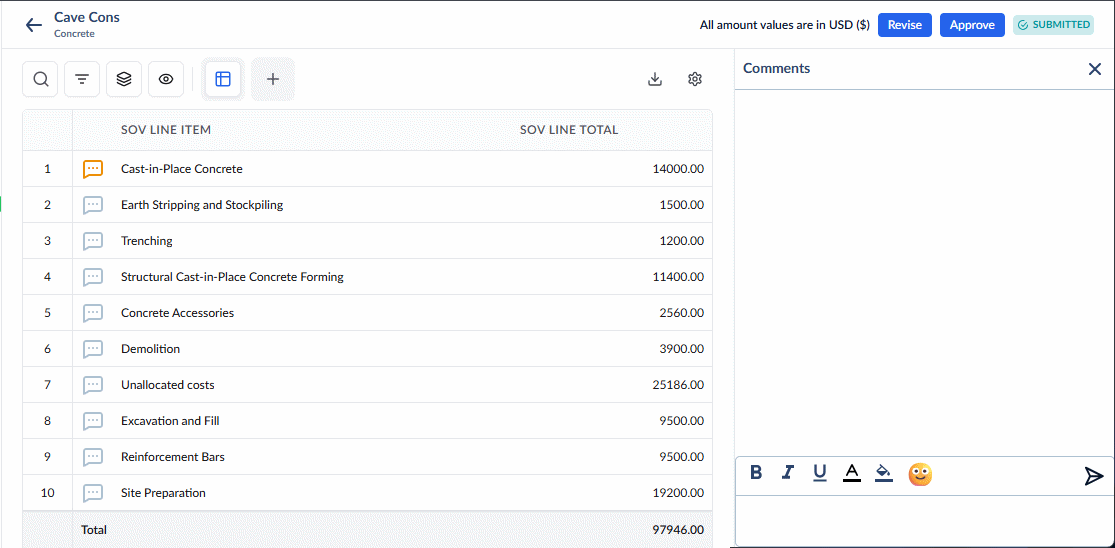
The SOV screen provides a detailed breakdown of how the subcontractor intends to bill for their assigned scope of work.
Approve or Request Revision
Once you have reviewed the subcontractor's SOV items, you must action the document using the buttons at the top right of the screen.
To Approve the SOV
- Click the 'Approve' button at the top right.
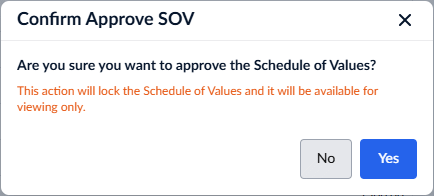
- Click 'Yes' in the confirmation prompt.
The SOV is locked in as the official financial baseline for this subcontract. The subcontractor is now authorized to generate and submit Pay Apps based on these line items.
To Reject / Request Revisions
- Enter detailed comments explaining exactly what needs to be changed so the subcontractor knows how to correct it in the 'Comments' pane.
- Click the 'Revise' button at the top right.
The status of the SOV changes to 'Revision' and the respective contractor is notified to revise and resubmit the SOV.
Next Steps:
Once a subcontractor's SOV is approved, it serves as the definitive billing baseline. The total value of their SOV is frozen and must match the commitment contract value. Any future changes to their overall contract amount—such as adding new scope or adjusting the total price—must be handled through an approved Change Order.
Was this article helpful?
That’s Great!
Thank you for your feedback
Sorry! We couldn't be helpful
Thank you for your feedback
Feedback sent
We appreciate your effort and will try to fix the article