When a General Contractor proposes adjustments to the project timeline, you will receive a notification to evaluate the updates. Linarc’s dedicated preview screen allows you to clearly visualize exactly how these modifications impact your assigned tasks before the new master schedule becomes official.
During your review window, you can:
- Assess: Quickly compare your original dates against the newly proposed timeline.
- Accept: Instantly approve the changes to lock in your upcoming work.
- Negotiate: Contact the GC to request adjustments before the schedule becomes official.
If you take no action before the review window closes, the General Contractor reserves the right to publish the schedule changes without your approval, or to discard the proposal entirely.
You will know a timeline update is pending when the  icon in your 'Schedule' interface displays an active arrow animation. This visual cue serves as your direct notification that a reschedule proposal is in progress and is actively waiting for your team's approval or the General Contractor's finalization.
To review and respond to schedule updates
- Ensure that you are in the 'Schedule' module of the project management console. If not,
- Open the management console for the project
- Click the
 icon from the toolbar at the top
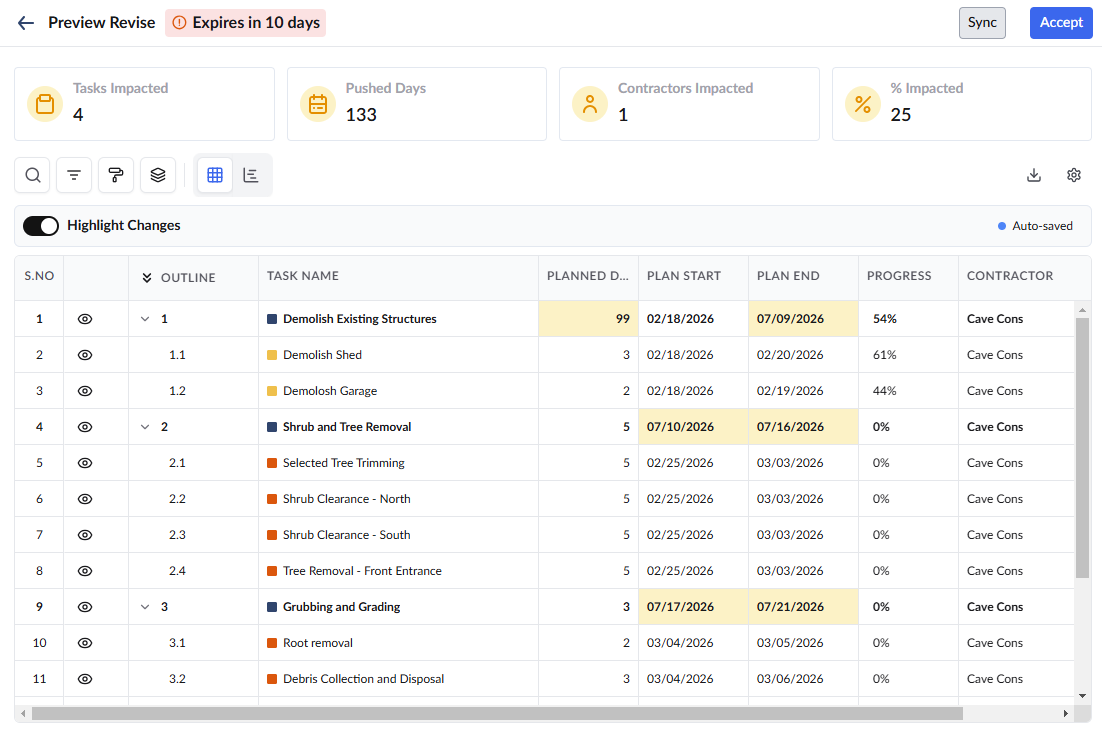
- Click the
 button to synchronize the latest schedule data with the 'Preview Reschedule' screen
 - Enable the 'Highlight Changes' toggle at the top to easily view the changed items in the grid view
Keep an eye on the remaining days in your review window (shown at the top left of your screen) and take action:
- Assess the Impact: Examine the altered start and end dates for your assigned tasks.
- Approve the Changes: Click 'Accept' at the top right of the screen if the proposed adjustments work for your team.
- Request Revisions: If you need modifications, contact the GC directly or use Linarc's built-in email tool to negotiate. The GC can alter the draft multiple times based on your feedback. For help with in-app communication, see Exchange Emails with Collaborators.
- GC Finalization Rights: The General Contractor reserves the right to finalize the schedule at any time during the review window, which may include publishing changes without your consent or overriding your proposed adjustments.
Was this article helpful?
That’s Great!
Thank you for your feedback
Sorry! We couldn't be helpful
Thank you for your feedback
Feedback sent
We appreciate your effort and will try to fix the article