Once you initiate a Reschedule, the secure preview screen imports your active master schedule so you can safely draft changes before making them official.
- Freely modify your proposed timeline at any time during your review window.
- Dynamic impact widgets at the top show updated statistics instantly as you work, showing impacted tasks, extended durations, and affected contractors.
To start a Reschedule process
- Ensure that you are in the 'Schedule' module of the project management console. If not,
- Click the main menu on the top-left
- Click 'Schedule' under 'Scheduler'
- Click the
 icon from the toolbar at the top
By default, the 'Reschedule' screen opens in 'Grid' view. To switch views, click the  icon at the top to open in 'Grid+ Gantt view'
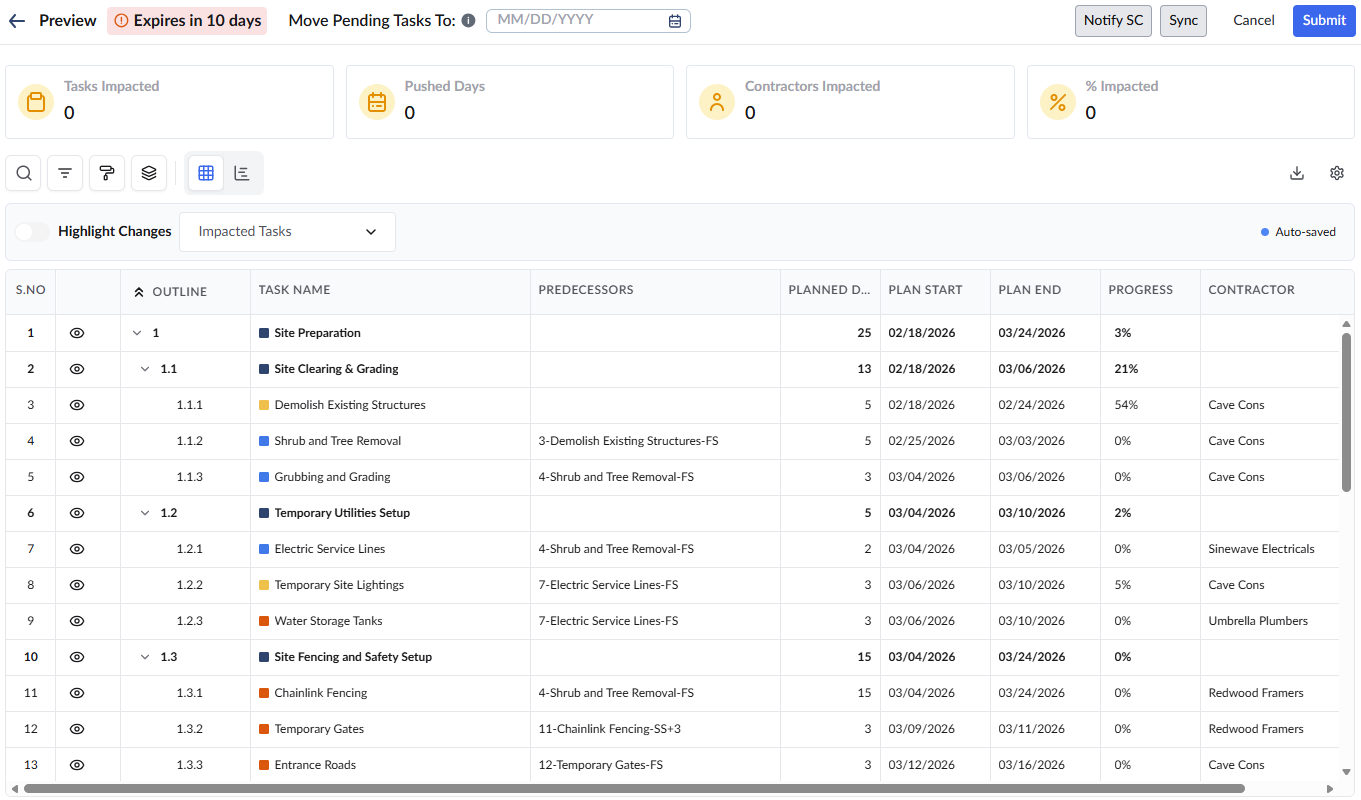
The interface is divided into three main sections: the Top Bar, the Impact Summary Cards, and the Schedule Editor Pane.
Top Bar Actions
The top bar provides essential context and primary actions for managing your reschedule proposal:
- Expiration Warning: Displays the time remaining in your review window (Default = 10 days). You can modify the reschedule draft as many times as needed within this timeframe. If not submitted before the timer lapses, the draft will expire.
- Move Pending Tasks To: Allows you to set a new start date to resume all pending tasks after a project pause. Once applied, the timelines for all un started tasks, in-progress work, and dependent schedules will automatically realign to match the new date.
- Notify SC: Automatically pushes the proposed schedule updates to the Subcontractors (SC) impacted by these changes.
- Sync: Pulls the latest updates from the master schedule (such as newly recorded field progress) directly into your reschedule preview screen.
- Cancel: Discards the current reschedule draft, allowing you to start a fresh proposal if needed.
- Submit: Publishes the draft so it takes effect on the master schedule. Simultaneously, it updates the respective contractors' schedules, ensuring everyone is aligned and ready to execute the upcoming work.
Impact Summary Cards
The widgets at the top provide immediate visibility into how your proposed changes affect the overall project:
- Tasks Impacted: The total number of shifted work items. This includes tasks you manually adjusted as well as those automatically rescheduled due to dependent relationships.
- Pushed Days: The cumulative number of days the schedule has been delayed or extended.
- Contractors Impacted: The total count of subcontractor companies affected by changes to their assigned task timelines.
- % Impacted: The percentage of the total project schedule that has been altered.
Schedule Editor Pane
The lower pane displays the project schedule imported from your master plan. You can freely adjust the timelines of specific tasks by editing the Planned Days, Planned Start Date, and Planned End Date fields.
- Use the ‘Highlight Changes’ toggle to view the tasks and their timelines affected by the reschedule
Next:
Was this article helpful?
That’s Great!
Thank you for your feedback
Sorry! We couldn't be helpful
Thank you for your feedback
Feedback sent
We appreciate your effort and will try to fix the article