Push the entire project timeline to resume all pending work after site-wide shutdowns or extended pauses. Setting a new global start date automatically realigns all unstarted tasks, in-progress work, and dependent activities across your Master Schedule based on established relationships.
Note: You can select only the current date or a date in future while setting up a new date for or planned start or planned end for a task.
Independent Tasks: Tasks without any preceding dependencies will automatically adopt the newly selected date as their scheduled start date. You can manually adjust these dates as required.
Dependent Tasks: Tasks linked to other activities will maintain their dependencies and shift proportionally based on the new start dates of their predecessors
- Progressed Tasks: If a task is already in progress its end date is recalculated based on its original planned days and the current completion percentage.
- Manual Overrides: After applying an entire reschedule, you can still manually edit the start date, end date, or planned days for any task—whether it is dependent or independent—if further adjustments are necessary.
Best Practice: Create a schedule baseline before initiating a reschedule. This enables easy comparison and to track how the reschedule impacted the overall project schedule.
To modify the entire project schedule
- Ensure that you are in the 'Schedule' module of the project management console. If not,
- Click the main menu on the top-left
- Click 'Schedule' under 'Scheduler'
- Click the
 icon from the toolbar at the top
- Click the
 button to fetch the latest schedule data to the 'Preview' screen
 - Click inside the date field beside 'Entire Reschedule' at the top.
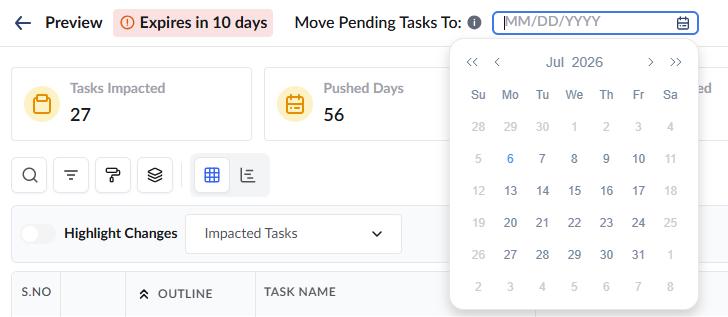
- Select the new target start date for the project using the calendar tool.
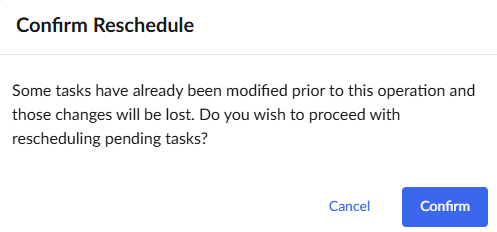
- Click 'Confirm' to proceed with your selection
- Use the 'Highlight Changes' toggle at the top to easily view the changed items in the grid view
- Once applied, the planned start for all independent, unstarted tasks will automatically align with your chosen day.
- For tasks already in progress, the system recalculates their new planned end based on their original durations and current completion percentages.
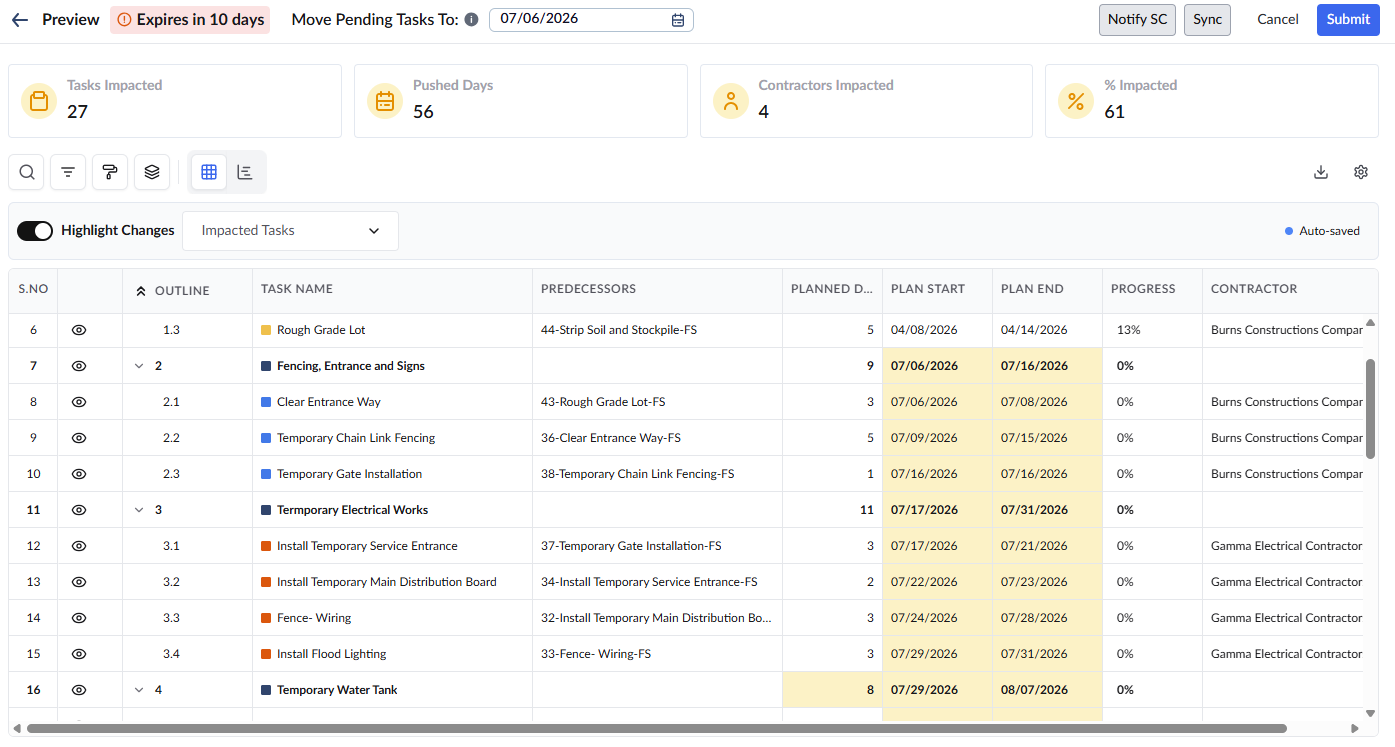
- All dependent task timelines will automatically adjust to match their predecessors' new schedules.
- Manually edit any specific task dates and manage dependencies in the grid if you need to override the automated shift. See Reschedule Specific Tasks for more details..
- Review the Impact Summary Cards at the top of the screen to verify the number of tasks, days, and contractors impacted by this shift.
- Click the 'Notify SC' button to alert the impacted subcontractors about the proposed schedule changes. See Notify Contractors for Acceptance for more details.
Was this article helpful?
That’s Great!
Thank you for your feedback
Sorry! We couldn't be helpful
Thank you for your feedback
Feedback sent
We appreciate your effort and will try to fix the article