Precisely adjust the timelines of individual tasks delayed by weather, material shortages, or other unexpected factors. You can directly alter the start date, end date, or planned duration of the lowest-level tasks within the WBS hierarchy of your Master Schedule. Modifying a task's timeline automatically updates the duration of its parent tasks and recalculates the dates of any dependent activities based on established relationships.
Note: You can select only the current date or a date in future while setting up a new date for or planned start or planned end for a task.
- Adjusting Durations: Changing a task's 'Planned Days' automatically recalculates its 'End Date' (and vice versa), provided the new end date is today or later.
- In-Progress Tasks: Once a task has commenced, its start date is locked; you can only update its end date.
- Managing Dependencies: Rescheduling a task automatically shifts all dependent tasks, though you retain full control to manually override these calculated dates or remove the dependencies entirely.
Best Practice: Create a schedule baseline before initiating a reschedule. This enables easy comparison and to track how the reschedule impacted the overall project schedule.
To reschedule specific tasks
- Ensure that you are in the 'Schedule' module of the project management console. If not,
- Open the management console for the project
- Click the app launcher
 and select 'Schedule'
 - Click 'Planner' at the top and 'Grid' on the left
- Click the
 icon from the toolbar at the top
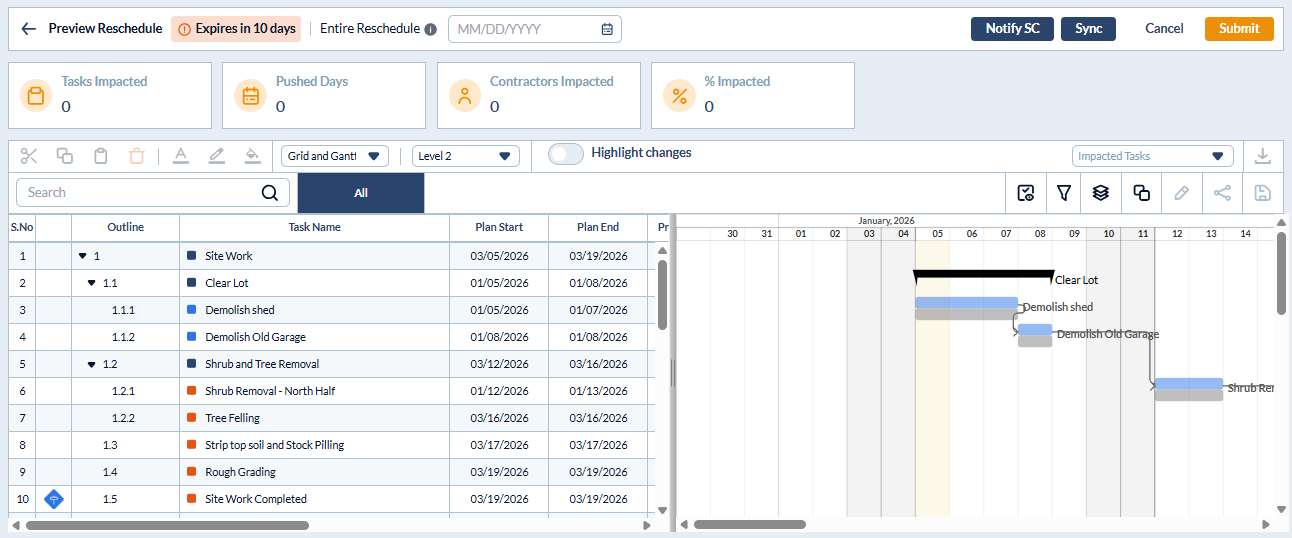 By default, the 'Preview' screen opens in 'Grid+ Gantt' view. To switch views, use the dropdown menu located above the table.
You can reschedule task dates using either the tabular grid view or the visual Gantt chart.
- Enable the 'Highlight Changes' toggle at the top to easily view the changed items in the grid view
- Click the
 button to fetch the latest schedule data to the 'Preview' screen
Use the links below to jump to the task you need help with:
Reschedule from Grid View
- Locate the row containing the task you need to reschedule within the WBS hierarchy
- Change Planned Start and Planned End - Double-click inside the Plan Start or Plan End cell and select the new date from the date picker
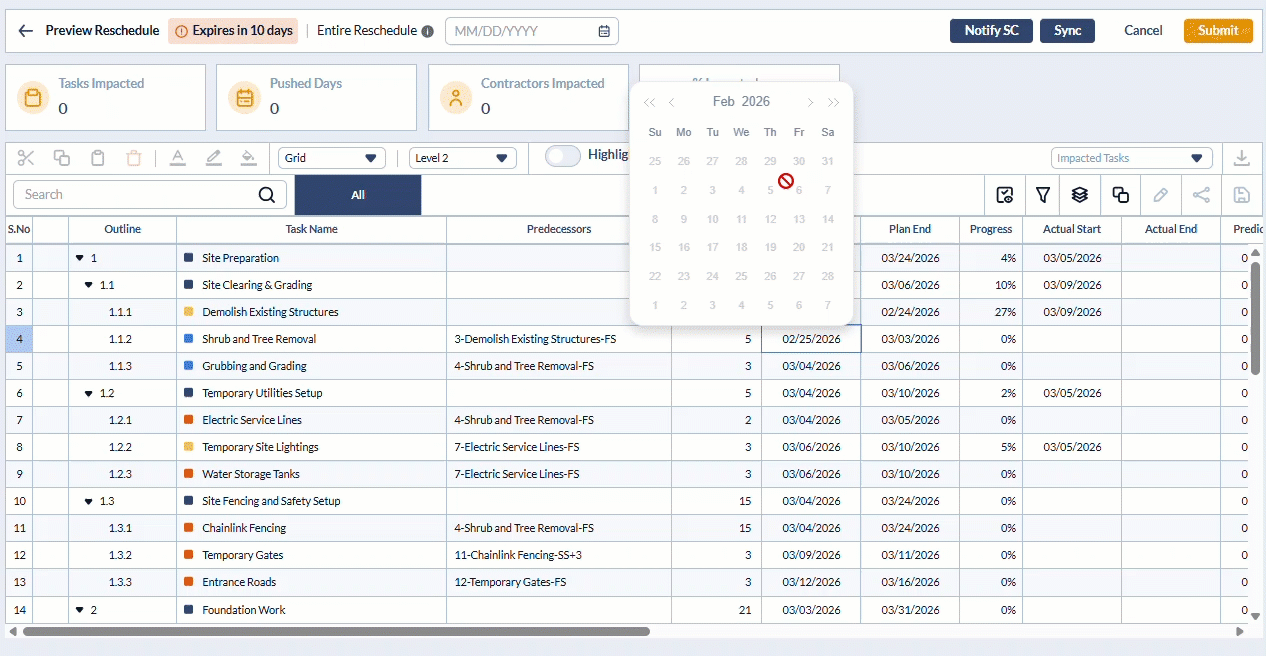
- Change Planned Days - Double-click inside 'Planned Days' field and enter the new duration planned days. The system will auto-calculate the 'Plan End' and shift the timelines of the dependent tasks if any
Reminder: For the tasks that have already started and recorded some progress percentage, you can adjust only the planned end or the planned days. While adjusting the planned days, ensure that the end date falls on the current date or a date in future.
Re-schedule from Gantt View
Use the drop-down at the top to open the schedule editor pane in 'Grid + Gantt' or 'Gantt' view
Locate the horizontal Gantt bar representing the desired task
To shift the entire time line
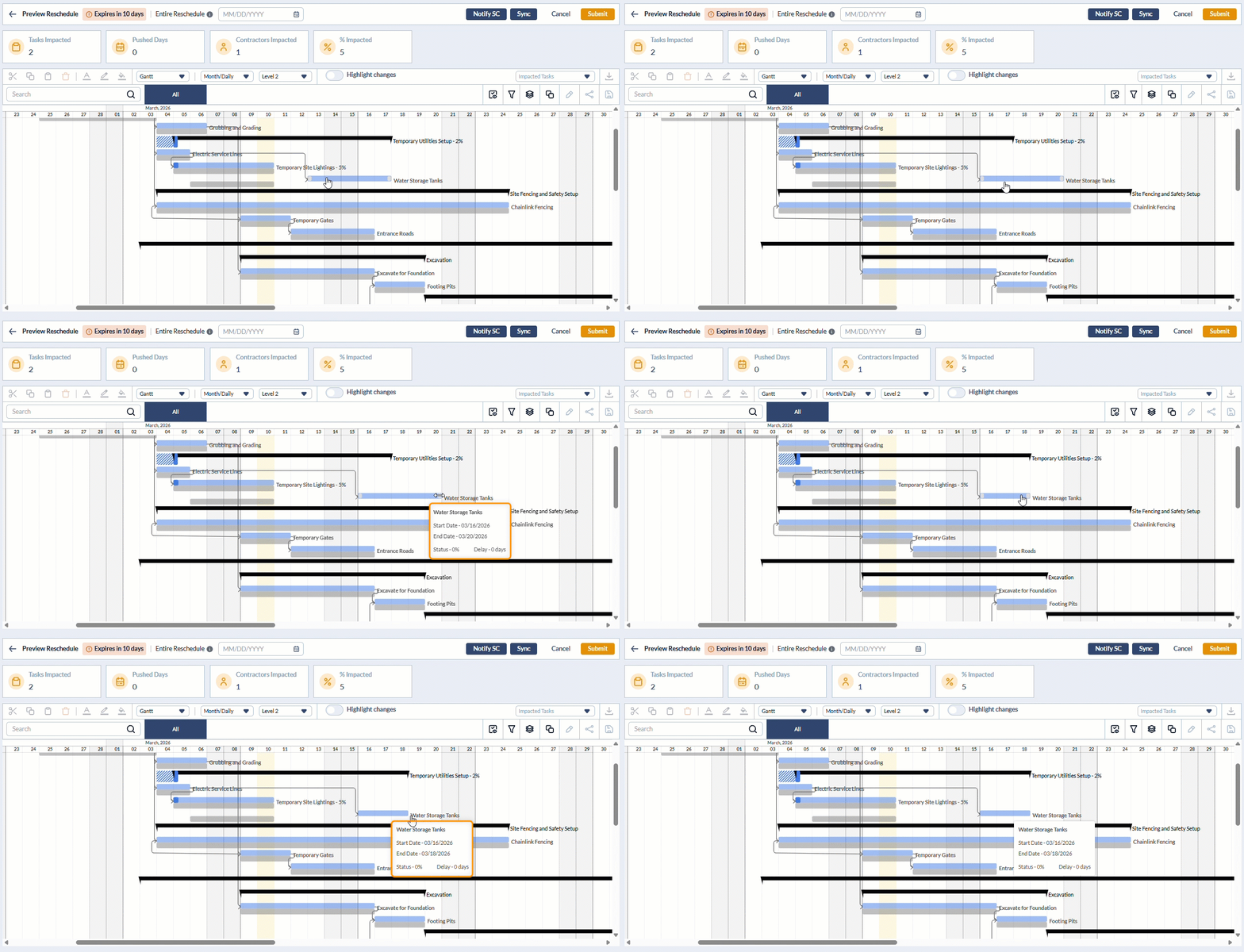
- Hover your mouse over the center of the colored bar until the move icon appears.
- Click and drag the entire bar horizontally along the timeline
To adjust the start or end date
- Hover your mouse over the left or right edge of the bar until the resize arrow appears
- Click and drag the edge to the desired date, then release the mouse to save the changes.
Remove Dependency of a Task
Grid View:
- Double-click inside the 'Predecessors' column of the task for which you want to remove a dependency
All predecessor tasks and their dependency relationships are shown as a list:
- Click the trashcan icon in the row of a dependency to remove it
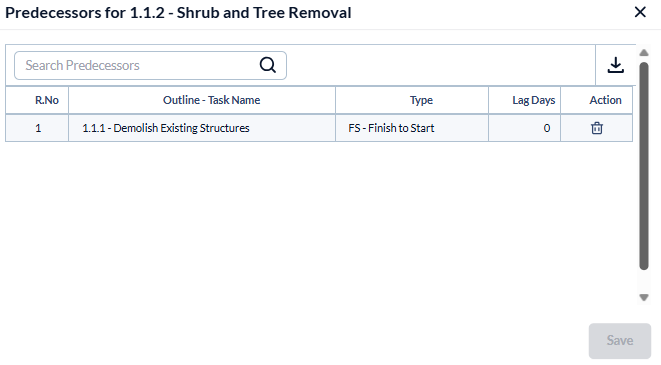
- Click 'Save' for your changes to take effect
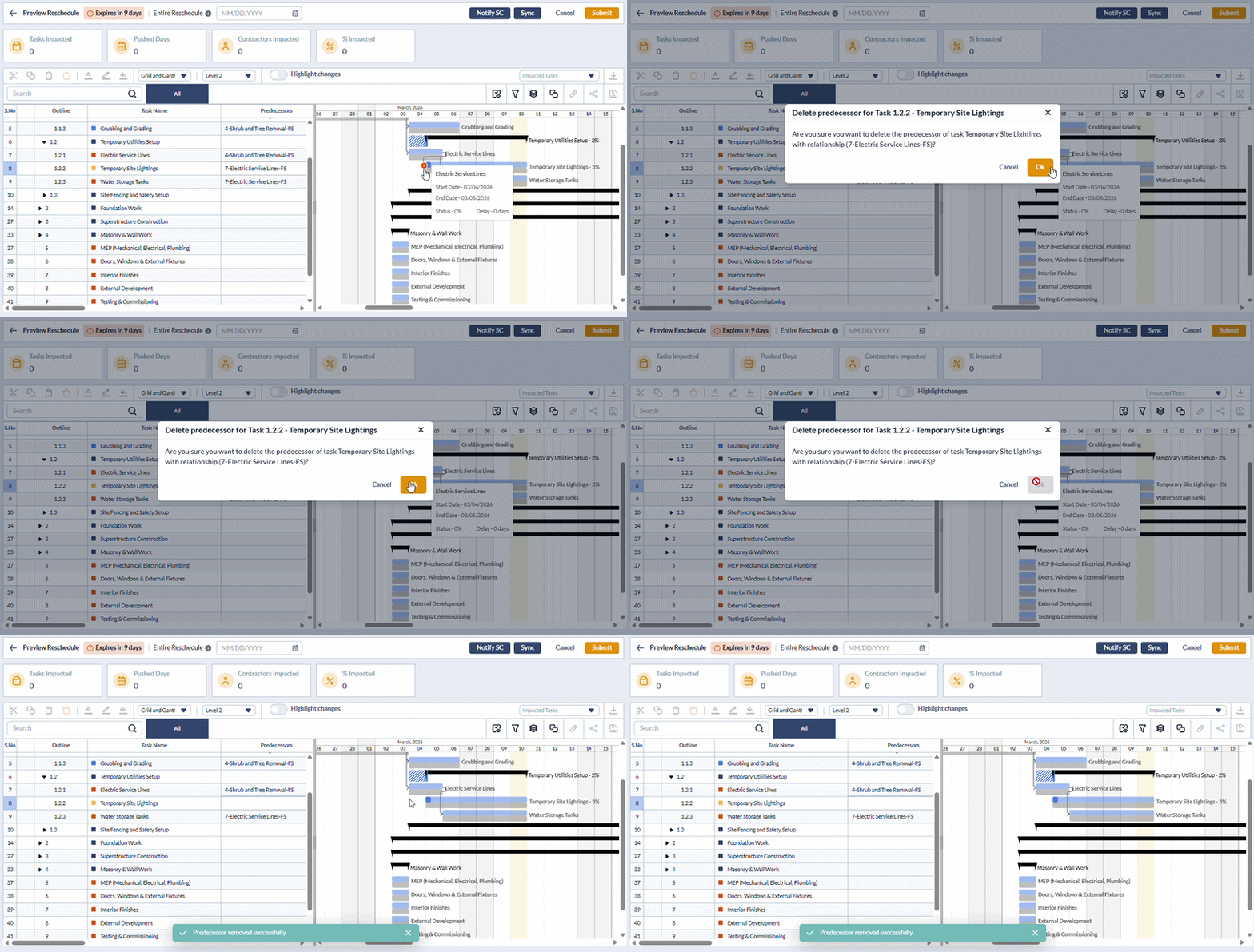
Gantt View:
- Hover your mouse over the dependency line to remove
- Click on the red dot
- Confirm deletion by clicking OK in the confirmation dialog
Was this article helpful?
That’s Great!
Thank you for your feedback
Sorry! We couldn't be helpful
Thank you for your feedback
Feedback sent
We appreciate your effort and will try to fix the article