The General Contractor holds the ultimate authority to finalize and apply schedule modifications to the Master Schedule. Within the designated review window, you have the flexibility to implement subcontractor feedback or override their requests to keep the project moving forward.
Once you finalize and publish the draft:
- The Master Schedule is Overwritten: The new timelines will instantly replace the existing dates for all affected tasks.
- Schedules Auto-Sync: The system automatically adjusts all dependent tasks and updates the respective Contractor Schedules, ensuring your entire team is aligned.
Important: Be sure to submit your changes within the review period. If the period lapses, the proposal expires and the only available action is to discard the draft. You can initiate a new reschedule draft whenever needed.
To publish the finalized schdule changes
- Ensure that you are in the 'Schedule' module of the project management console. If not,
- Click the main menu at the top and select 'Schedule' under 'Scheduler'
- Click the
 icon from the toolbar at the top
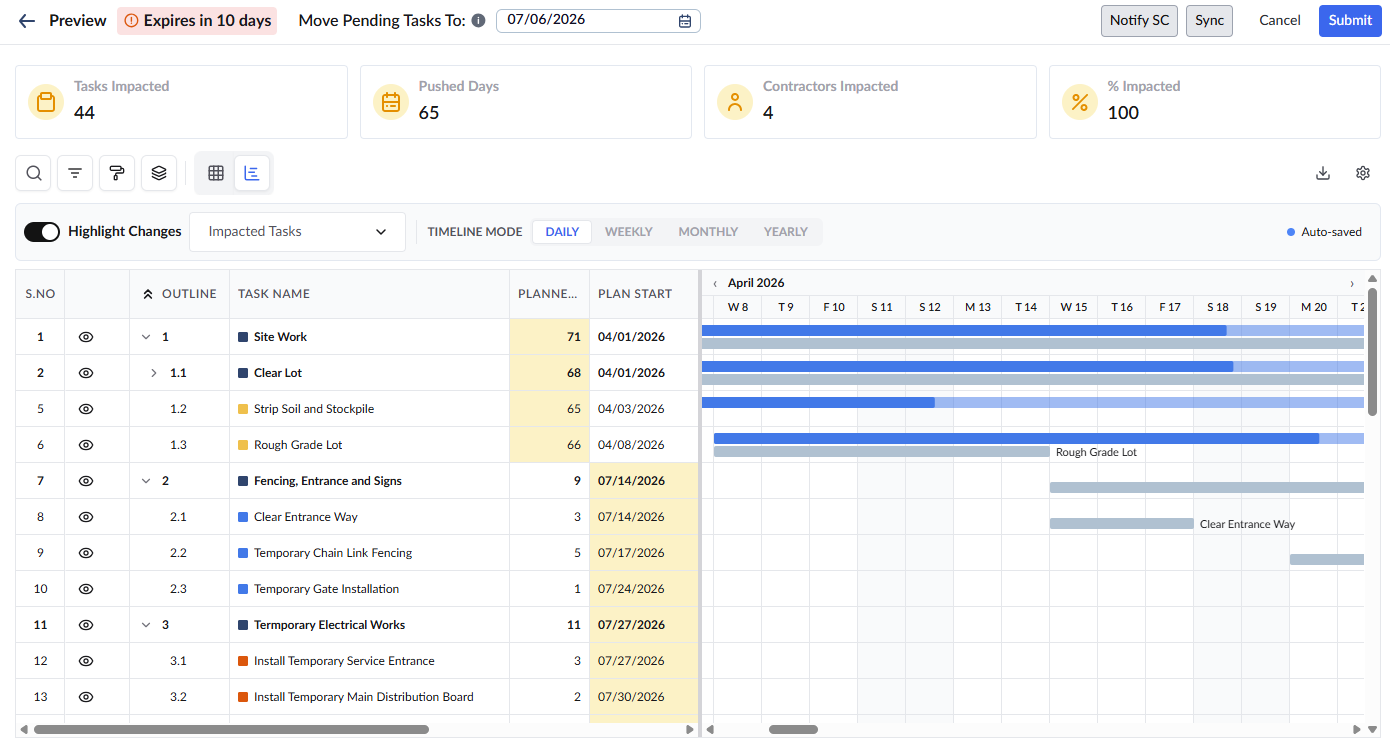
- Click the
 button to synchronize the latest schedule data with the 'Preview Reschedule' screen
 - Review the impact summary cards at the top of the screen to confirm the total number of tasks, days, and contractors affected by the final change.
- Click the
 button on the top right to finalize the proposed changes
The system synchronizes the data and applies the new timeline to the master schedule and across all dependent contractor schedules.
Was this article helpful?
That’s Great!
Thank you for your feedback
Sorry! We couldn't be helpful
Thank you for your feedback
Feedback sent
We appreciate your effort and will try to fix the article