When the General Contractor (GC) composes the Look Ahead schedule, they send it for your review. This schedule outlines the list of tasks that should be executed, the planned quantity for each tasks, road blocks and other safety warnings associated with the task. Once the GC sends it for your review, you are automatically notified by the system to assess the details.
Upon reviewing the look ahead schedule, you have two options to proceed:
- Accept the schedule for a task - You agree to the proposed planned and end date of the tasks and the planned quantity of work to completed (if any) as presented
- Propose a revised date - You require adjustments to the planned or end date
Note: The General Contractor retains final schedule approval and can either accept proposed date revisions or publish the original look ahead plan to maintain project alignment.
Use the following links to jump to the sections you need help with:
Review a Task
Before committing to a timeline or proposing new dates, it is critical to evaluate the task details, expected production rates, and any active roadblocks.
- Click the main menu at the top-left
- Select 'Schedule' under the 'Scheduler' section
- Select 'Look Ahead' on the left menu
The current active look ahead schedule (if any) look ahead opens by default. To view other Look Aheads that are in review status, open the date range drop-down at the top left and select the desired period with the 'In review' tag
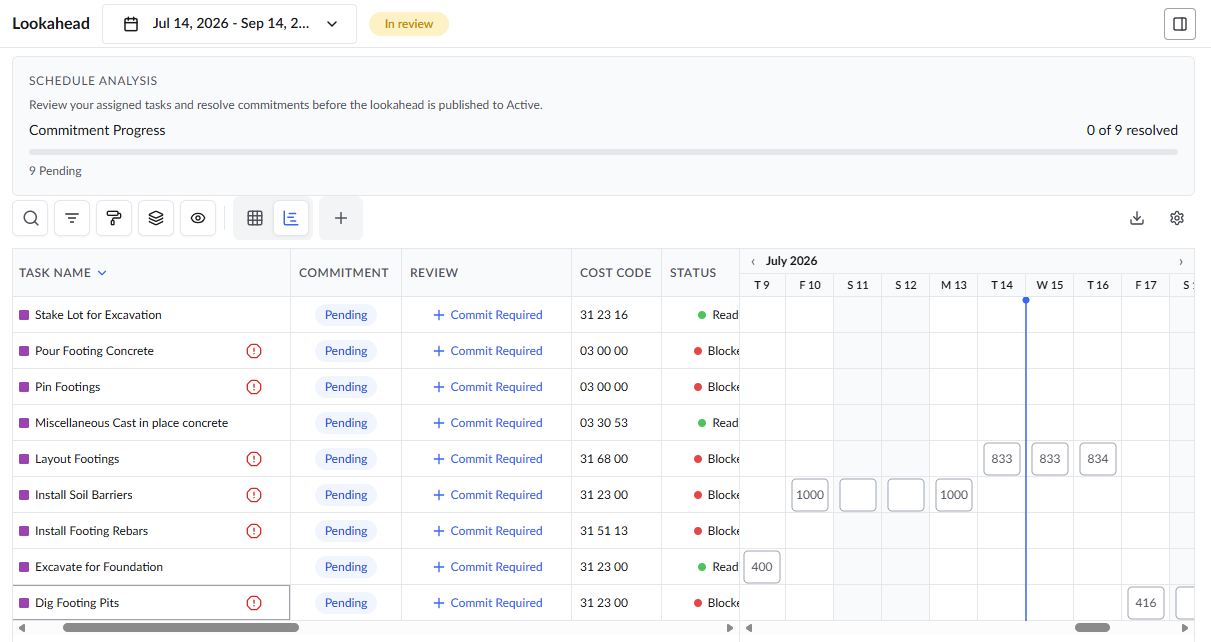
- Click the
 icon on the left of the task. The task details slider opens on the right
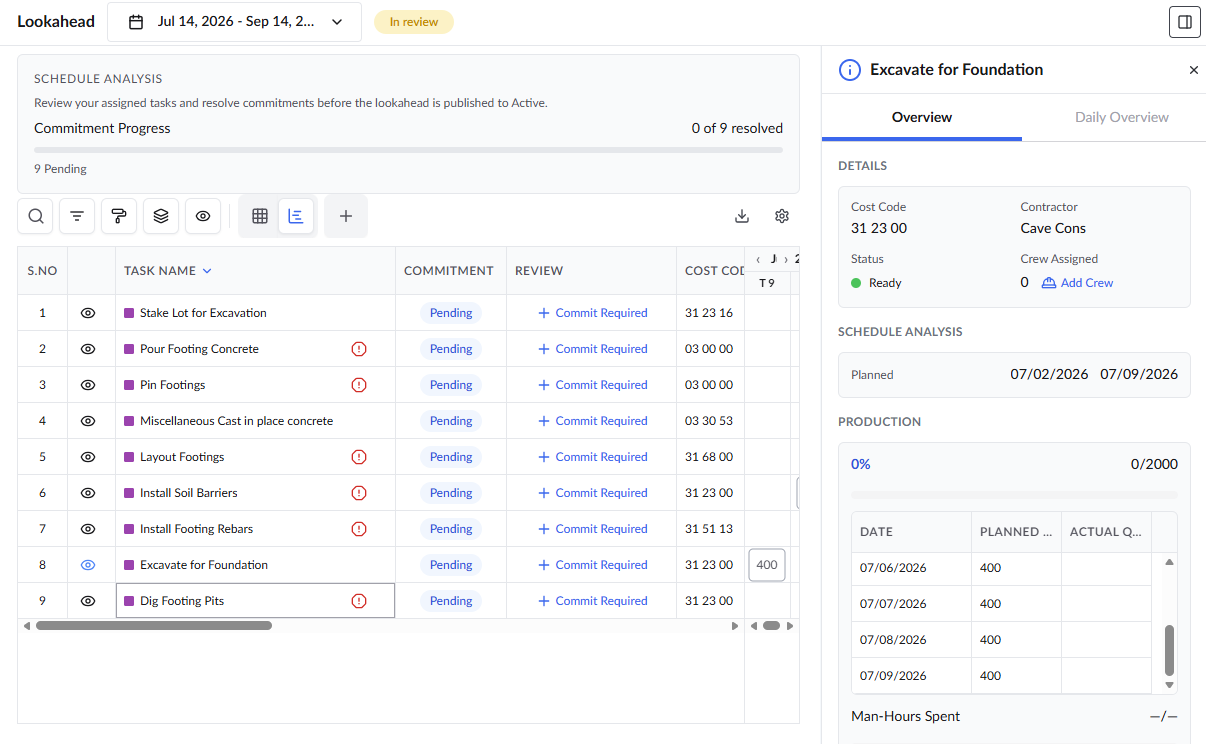
- Review the task schedule, planned quantity of work to be accomplished, schedule dependency, or roadblocks if any.
Commit to a Task
If the proposed schedule is achievable and aligns with available resources, you can accept the timeline.
- Click the '+Commit Required' button for the task. The commit tab opens by default
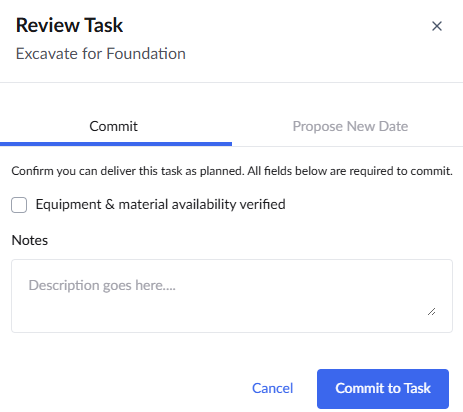
- Check the Equipment & material availability verified box to confirm that the necessary resources are ready for execution.
- Enter any relevant details, confirmations, or context in the 'Notes' text box.
- Click the 'Commit to Task' button at the bottom of the window.
Once confirmed, the task's Commitment status in the grid will automatically update from Pending to Committed. This notifies the GC that the timeline is accepted and locked in.
Propose New Date to a Task
If the scheduled dates are unachievable due to resource constraints or other conflicts, alternative dates must be suggested for the GC to review and approve.
- Click the '+Commit Required' button for the task. The commit tab opens by default
- Click 'Propose New Date' tab
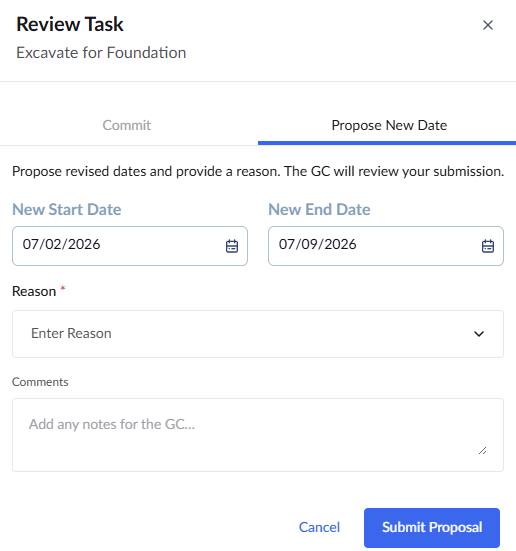
- Use the calendar icons to select the 'New Start Date' and/or 'New End Date'.
- Select an appropriate justification from the 'Reason' drop-down menu
- Add any additional context or explanations for the GC in the 'Comments' text box.
- Click the 'Submit Proposal' button at the bottom of the window.
Once submitted, the task's Commitment status in the grid will automatically update to 'Proposed', notifying the GC to review the requested change.
Flag a Task Constraint
If a potential issue is identified during the review phase—such as a missing submittal, pending RFI, or material delay—it must be flagged immediately so the construction team is aware of the risk before executing the task
- Open the task overview pane on the right as mentioned above
- Scroll to the Constraints section.
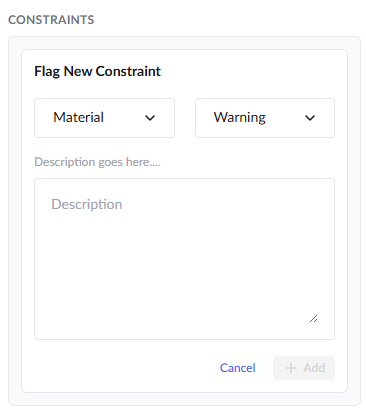
- Select the constraint category from the first drop-down menu (e.g., 'Material,' 'RFI,' 'Permit').
Select the severity from the second drop-down menu:
Warning: Flags a potential issue but does not stop work (changes task status to 'At Risk').
Blocking: Strictly halts execution (changes task status to 'Blocked').
- Enter a detailed explanation of the roadblock in the description text box.
- Click the '+ Add' button to attach the constraint to the task.
See the following pages for more details:
Was this article helpful?
That’s Great!
Thank you for your feedback
Sorry! We couldn't be helpful
Thank you for your feedback
Feedback sent
We appreciate your effort and will try to fix the article