To streamline your project planning, Linarc includes an optional feature that automatically transforms your budget line items into an initial draft of scheduled tasks and deliverables. While you are completely free to build your project schedule from scratch if you prefer, this tool is designed to provide added convenience. It gives you a solid head start, ensuring that your planned activities remain securely anchored to funded budget items and your approved scope.
Note: This auto-generated draft schedule can only be imported from the locked budget if the project's billing method is set to 'Schedule Progress-Based,' in accordance with your governing contract. If a different billing method applies to your project, budget-to-schedule generation will not be available, as those billing workflows operate independently of the project schedule
Using this auto-generated draft as your foundation, you can easily develop a comprehensive project timeline by:
- Adding new work items: Capture every operational detail by inserting additional tasks or milestones.
- Breaking down deliverables: Subdivide high-level items into granular sub-tasks and daily activities to match your project's Work Breakdown Structure (WBS).
- Setting exact schedules: Define precise start and end dates for each item on your timeline.
- Establishing dependencies: Create logical links between tasks (such as finish-to-start relationships) to build a realistic and actionable workflow.
Prerequisite: A foundational budget must be set up and locked as the project baseline.
To import the project schedule from the budget
- Click the main menu icon at the top-left of your screen.
- Select 'Contract' under the 'Finance & Controls' section in the drop-down menu.
Tip: Press and hold the 'Cmd' (Mac) or 'Ctrl' (Windows) key on your keyboard while clicking to open the module in a new browser tab.
- Select 'Budget' on the left
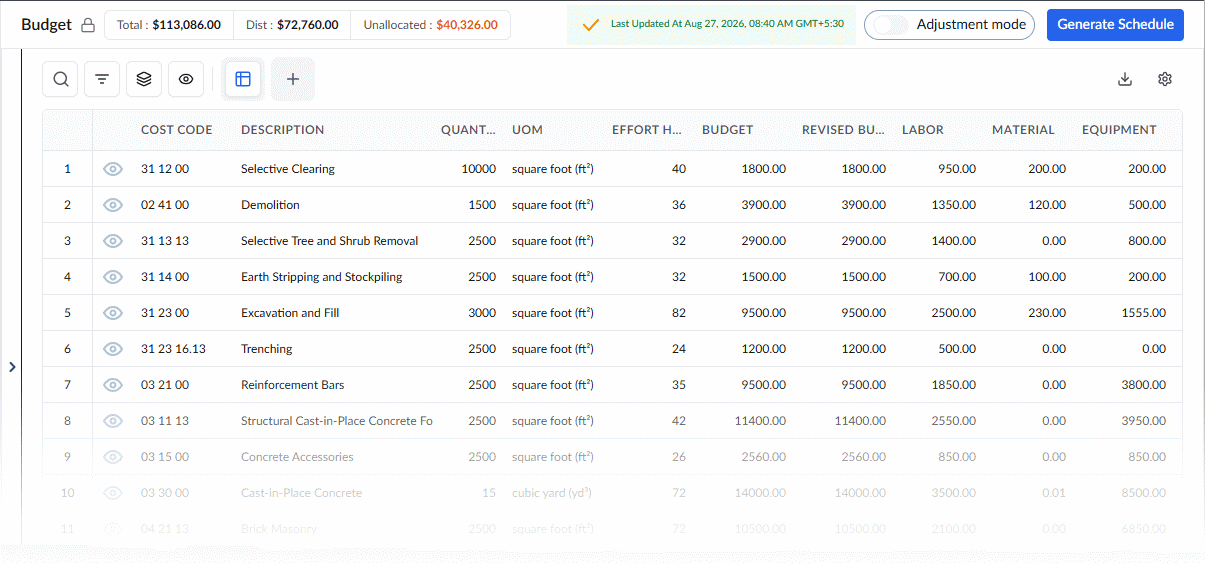
- Click 'Generate Schedule' on the top-right
Reminder - The 'Generate Schedule' feature becomes visible only after the project budget has been locked.
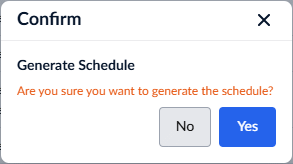
- Confirm your choice by clicking 'Yes.'
The draft schedule is created instantly.
To access the auto-generated schedule
- Click the main menu icon at the top-left of your screen.
- Select 'Schedule' under the 'Scheduler' section in the drop-down menu.
The scheduler opens in the grid view by default.
- Click 'Schedule' at the top and select 'Grid' on the left if you are on a different screen in the 'Scheduler' module.
The scheduler grid shows all budget line items as auto-populated schedule line items :
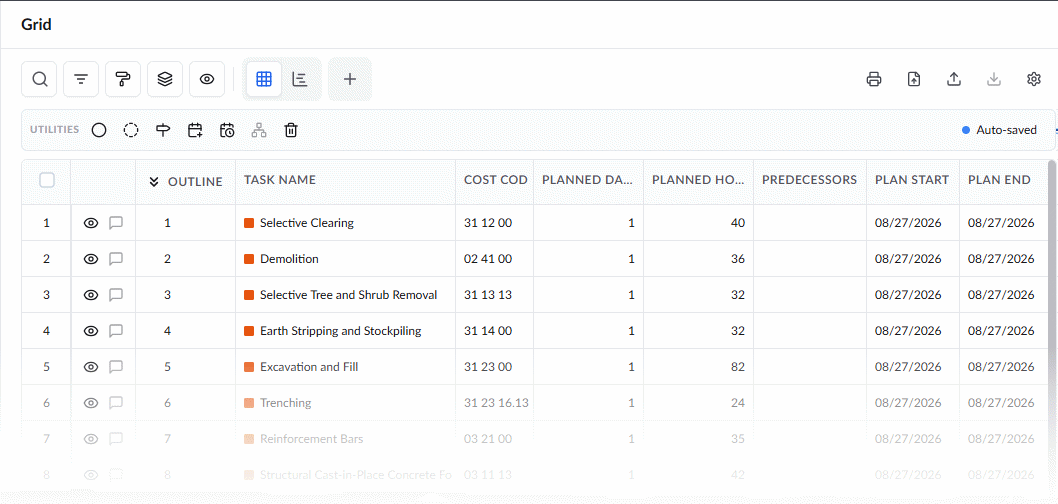
From this screen, you can:
Add subtasks
Right-click on a task item, then choose 'Add' > 'Subtask' to insert a child task under it.
Repeat this process to build out successive levels of the WBS hierarchy. See Add subtasks for more details.
Define details for lowest-level items
For work packages or deliverables at the lowest level, specify:
- Task dependencies and relationships
- Duration (planned days)
- Labor or manhours
- Planned quantity of work
- Planned start date
Once dependencies and predecessors are set, the start dates of dependent tasks are auto-populated. You can override them manually if required.
- The end date is auto-calculated.
- See Add WBS Elements and Task Items for more details.
Parent-level task roll-up - Duration, manhours, and start/end dates of parent tasks are automatically calculated from their child items.
Critical path - The scheduler dynamically recalculates the critical path as you add tasks and define dependencies.
Add events
- To insert a milestone, inspection, or checkpoint event, right-click on the relevant item, hover over Add, and select the desired event type.
Once you you have added the schedule items, publish the leaf level items in the WBS hierarchy, to push them as field tasks.
See the following sections to know more:
- Specify Constraints For Scheduled Tasks
- Apply Formatting to Rows and Cells
- Apply Gantt Chart Color
- Add subtasks
- Add a checkpoint
- Add an inspection event
- Add a milestone
- Add dependencies
- Remove a task
- Publish a task
- Update task progress
To read about the schedule management in Linarc, see the 'Scheduler' section of this knowledge base.
Was this article helpful?
That’s Great!
Thank you for your feedback
Sorry! We couldn't be helpful
Thank you for your feedback
Feedback sent
We appreciate your effort and will try to fix the article