Linarc streamlines the creation of your Schedule of Values (SOV) by tying it directly to your commitment financials. As you build your commitment budget—whether by manually adding line items or importing an Excel spreadsheet—the system automatically generates a draft SOV, mapped one-to-one with your budget.
To align your billing with your Work Breakdown Structure (WBS), you can easily reorganize this draft SOV:
- Group Budget Lines: Sort items by custom categories, such as location, floor, or project phase.
- Consolidate for Billing: Set each group as a single SOV line with a custom label to simplify your payment applications (Pay Apps) to the General Contractor/Owner.
Because your SOV is built directly from your budget, any ongoing budget adjustments (like shifting surplus or reserve funds) will automatically impact it:
- Automatic Updates: Moving funds between budget items tied to different SOV lines instantly updates their respective SOV totals.
- Pay App Syncing: These updated SOV totals will automatically reflect on your next generated Pay App.
- New Budget Lines: Adding a completely new budget row automatically unlocks your SOV, allowing you to map the new item to an existing or entirely new SOV line.
Background: What is a Budget Adjustment?
As your project evolves, you may need to rebalance your finances to cover unexpected costs. The Budget Adjustment feature allows you to seamlessly shift surplus funds, draw from your unallocated reserves, or even create new budget lines—all without altering your overall contract amount.
See Modify Locked Budget to learn more.
Select a link below to jump directly to the relevant section:
- Set Up Your Project SOV
- Lock the SOV Layout
- View Fund Allotments to Scheduled Tasks
- Update a Locked SOV with New Budget Items
Set Up Your Project SOV
The 'SOV' screen displays an initial draft automatically generated from your current budget (whether in progress or locked) to give you a solid foundation. By default, each auto-created SOV line corresponds directly to a single budget line item. From here, you can select multiple budget items, merge them into logical groups under a new SOV line with a custom label, and create as many groups as your project requires.
To access your auto-created SOV
- Click the main menu icon at the top-left of your screen.
- Select 'Contract' under the 'Finance & Controls' section in the drop-down menu.
Tip: Press and hold the 'Cmd' (Mac) or 'Ctrl' (Windows) key on your keyboard while clicking to open the module in a new browser tab.
- Select 'SOV' on the left
The following example shows an SOV from a locked budget. You can also construct your SOV from a draft budget.
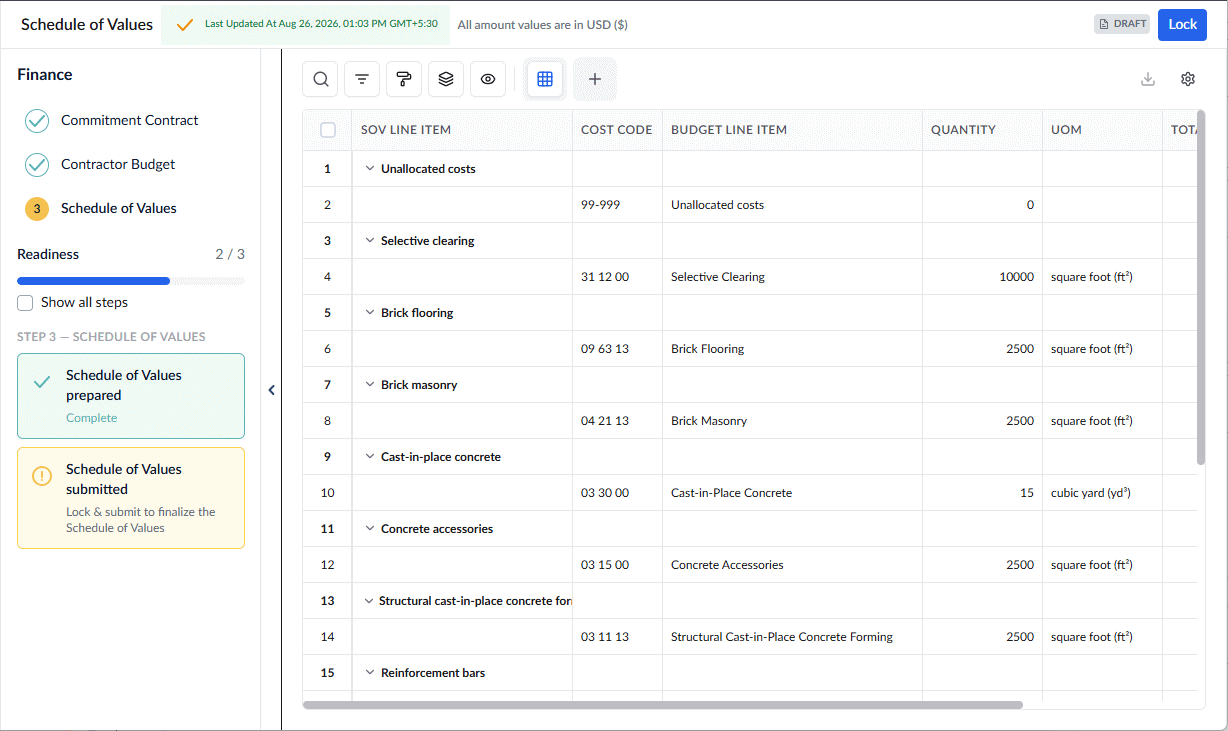
The self-updating checklist in the left slider panel displays your SOV setup progress within the overall project financial workflow.
Column Descriptions:
- SOV Line Item: The label that appears on your payment applications and invoices. This is initially auto-populated with the budget item name until you create a custom group.
- Cost Code - The standard alphanumeric code for the task or deliverable, pulled directly from your company's master list.
- Budget Line Item: The specific cost item derived from your project budget that is mapped to this SOV line.
- Quantity: The total amount of work planned for that specific budget line item.
- UOM (Unit of Measure): The unit by which the work is quantified.
- Total Budget: The total monetary value assigned to the line item, representing the sum of labor, materials, and equipment.
- Location: The specific area of the project where the cost and work are allocated,if specified in the budget.
To create custom SOV lines with budget groups:
- Select the budget line items you want to group together by clicking their serial numbers.
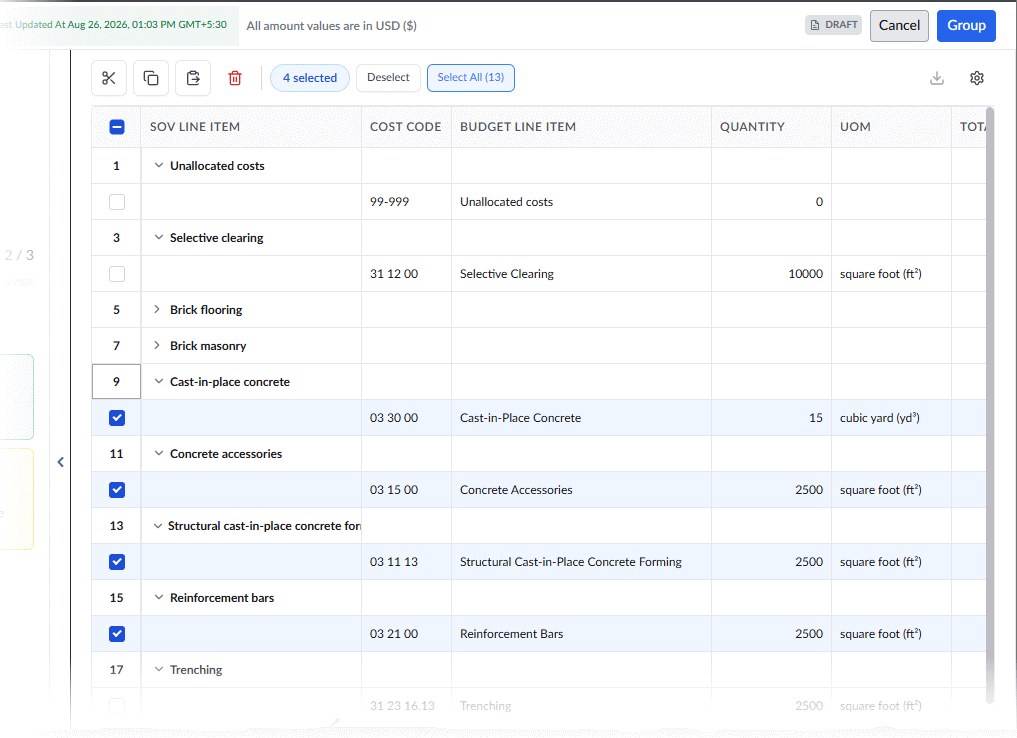
- Click the 'Group' button to bundle them under a custom SOV label.
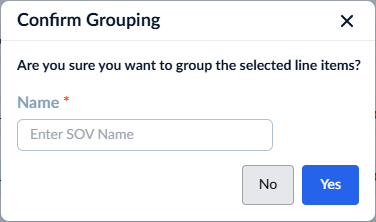
- Enter your new SOV label in the text box and click 'Yes' to continue.
- Repeat this process to sort your remaining budget lines into custom SOV line items.
Lock the SOV Layout
Note: You can rearrange line items under any group as often as needed forllowing the same procedure explained above. However, once the SOV layout is locked, your groups and layout settings can no longer be edited.
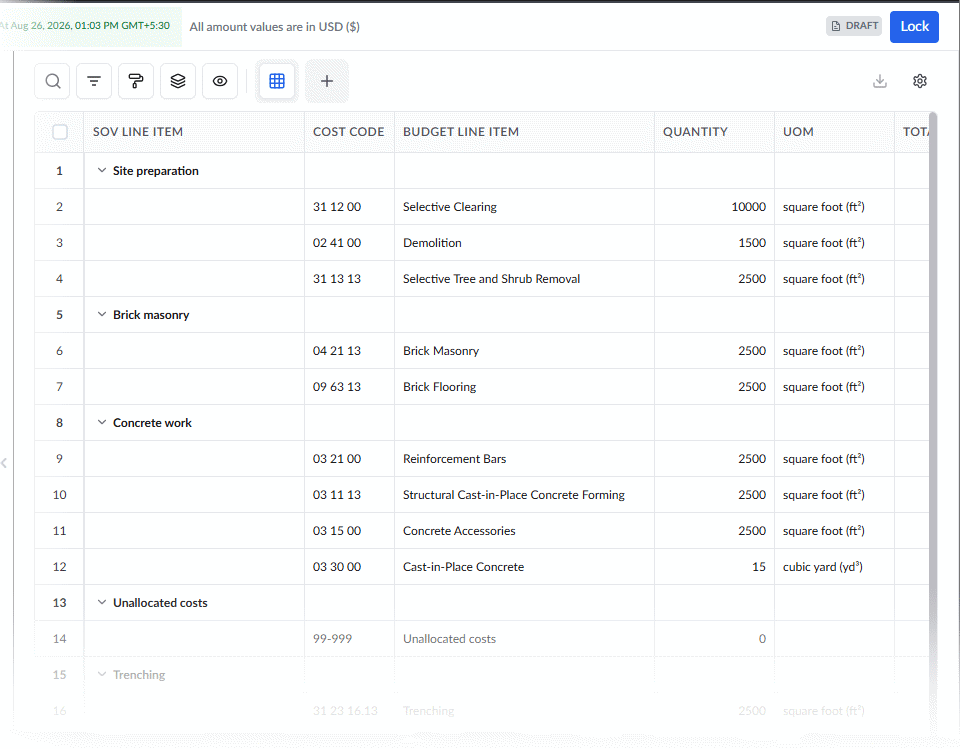
- When you are ready to finalize your layout and generate the planned billing schedule, click the
 button at the top right of the screen.
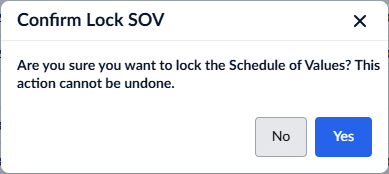
- Click 'Yes' to confirm your action and continue
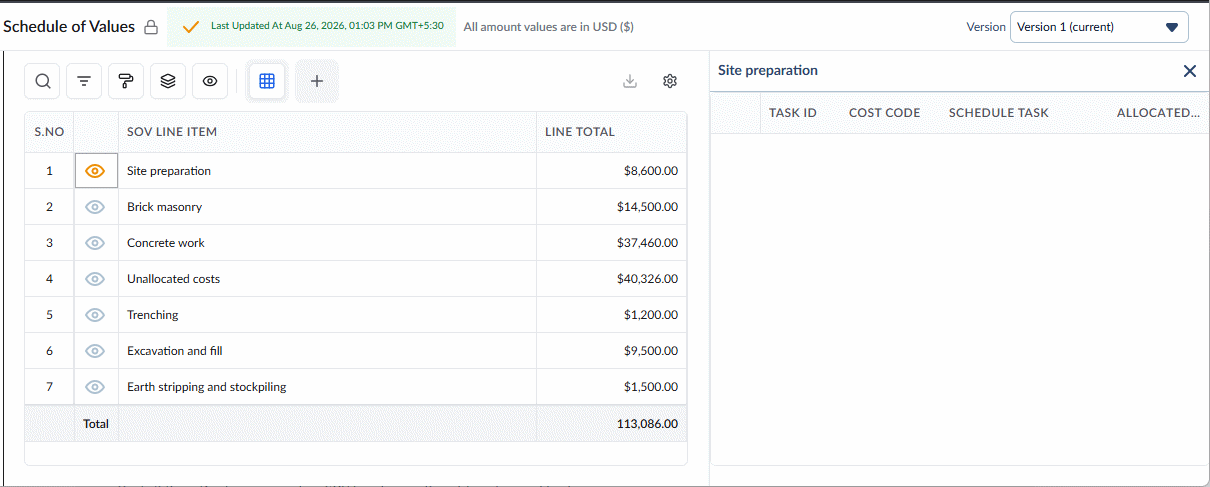
View Fund Allotments to Scheduled Tasks
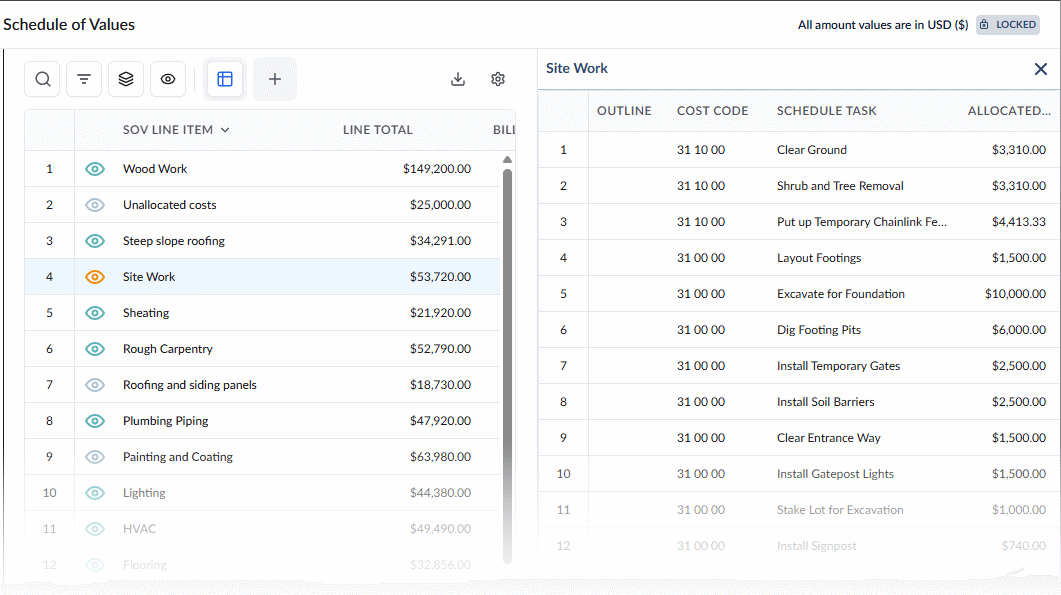
Once locked, your screen is divided into two helpful dynamic panes. These panes provide realtime metrics on progress and billing of the selected SOV items:
The Left Pane: Displays your custom SOV line items with real-time financial tracking:
- SOV Line Item: The custom label assigned to your grouped items (this appears on all planned billing and pay apps).
- Line Total: The combined monetary value of all budget line items within this group.
- Billed %: The percentage of the Line Total currently billed (this populates once pay apps are generated).
- Approved %: The percentage of the Line Total officially approved from your pay apps.
- Paid %: The percentage of the Line Total successfully invoiced and paid
The Right Pane: When you click the 'eye' icon in any SOV line item on the left, the right pane instantly updates to display all the scheduled tasks and deliverables funded by the budget line items in that specific group.
Update a Locked SOV with New Budget Items
Whenever budget adjustments introduce new cost line items, your Schedule of Values (SOV) must be updated so these items can be billed in future pay applications and invoices. To allow for these changes without disrupting historical records, the system automatically unlocks your finalized SOV, creates a new version, and allows you to map or organize the new budget items.
- Automatic Unlocking & Versioning: Adding new budget items automatically unlocks the finalized SOV and generates a new SOV version. The current version displays by default, but you can view previous versions as 'Read-Only' at any time using the dropdown at the top-right.
- Flexible Item Mapping: You can map new budget lines to an existing SOV item (which automatically updates that item's total value) or establish them as standalone SOV line items.
- Custom Grouping: New items can be grouped into custom SOV categories to ensure clear structure on upcoming billing applications.
- Change Orders: Approved change orders are automatically added as new SOV line items, complete with a detailed breakdown of their underlying estimate items.
To Group New Budget Items:
- Open the project SOV
- Navigate to 'Finance' > 'Contract' > 'SOV'.
- Scroll to the bottom of the screen to locate your newly added budget items.
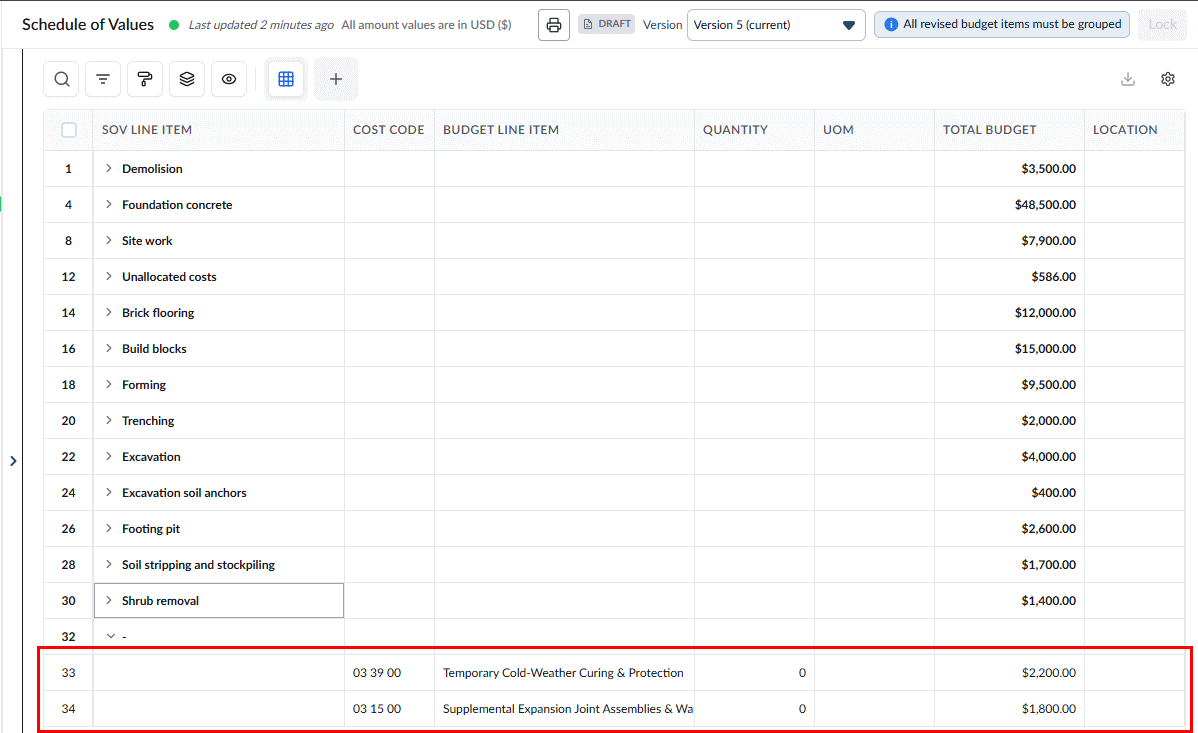
- Select the new budget line(s) you wish to assign, then click 'Group'.
- Choose one of the following routing options:
- Create New: Select this to create a brand-new SOV line. Enter a custom label for the new item and click 'Yes'.
- Add to Existing: Select this to move the new budget line into a group you already created. Choose the appropriate SOV item from the dropdown menu and click 'Yes'.
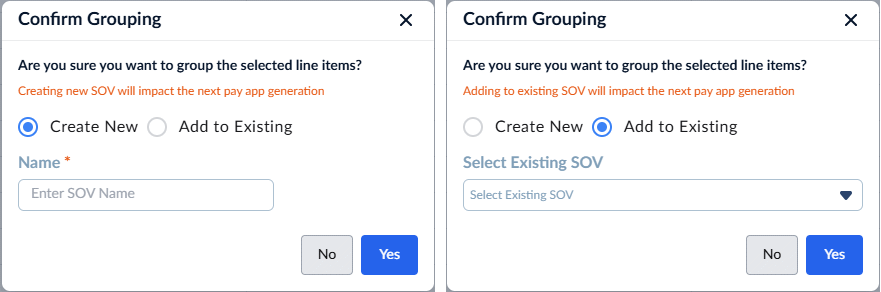
- Repeat this process until all new budget lines are successfully mapped to an SOV item.
- Lock the updated SOV to save it as the current version and for the changes to take effect
The monetary values of your SOV items will update instantly, and these changes will be included from your very next pay app onward.
Note: Because the SOV is temporarily unlocked to accommodate your new lines, you also have the flexibility to reorganize your existing budget lines (moving them from one group to another)—provided the first pay app for the project has not yet been generated.
Was this article helpful?
That’s Great!
Thank you for your feedback
Sorry! We couldn't be helpful
Thank you for your feedback
Feedback sent
We appreciate your effort and will try to fix the article