In the lifecycle of a construction project, financial predictability is just as critical as the physical build. The Planned Billing Schedule in Linarc acts as your financial roadmap, transforming project data into a precise, automated forecast of how funds will flow over the project’s duration.
This feature is standard across all workspaces, providing a unified financial tool regardless of your role on the project:
- General Contractors (GCs): Plan your monthly invoicing to the Project Owner for the overall project scope and milestones.
- Subcontractors (SCs): Forecast your billing to the GC for your specific trade tasks and completed scopes of work.
- Stand-alone Contractors: Project your direct billing to the Client for your specialized services and deliverables.
By mapping your budget directly to the start and finish dates of these scheduled tasks, you gain a clear view of your anticipated monthly invoicing, spanning the entire project timeline. This granular level of insight is designed to help you:
- Master Cash Flow Planning: View monthly billing projections in advance, allowing you to anticipate funding requirements and manage capital more effectively for every period.
- Maintain Dynamic Accuracy: The system-calculated Planned Billing updates in real-time as you allocate funds to tasks. Whether you are adjusting internal budgets or incorporating approved change orders, the projection automatically refreshes to ensure your billing records always reflect the most current project scope.
With the Planned Billing Schedule, you move from reactive accounting to proactive financial management—ensuring that your cash flow aligns perfectly with your work in the field.
Generate the Planned Billing
- Click the main menu icon at the top-left of your screen.
- Click 'Analytics' under the 'Finance & Controls' section in the drop-down menu.
Tip: Press and hold the 'Cmd' (Mac) or 'Ctrl' (Windows) key on your keyboard while clicking to open the module in a new browser tab.
- Select 'Planned Billing' on the left
Linarc automatically generates and shows the Planned SOV for the project. It displays the cumulative projected completion percentages of the work items linked to each budget line item categorized, along with their corresponding monetary values for each month.
- Click the
 button to fetch the latest billing projections for the budget line items
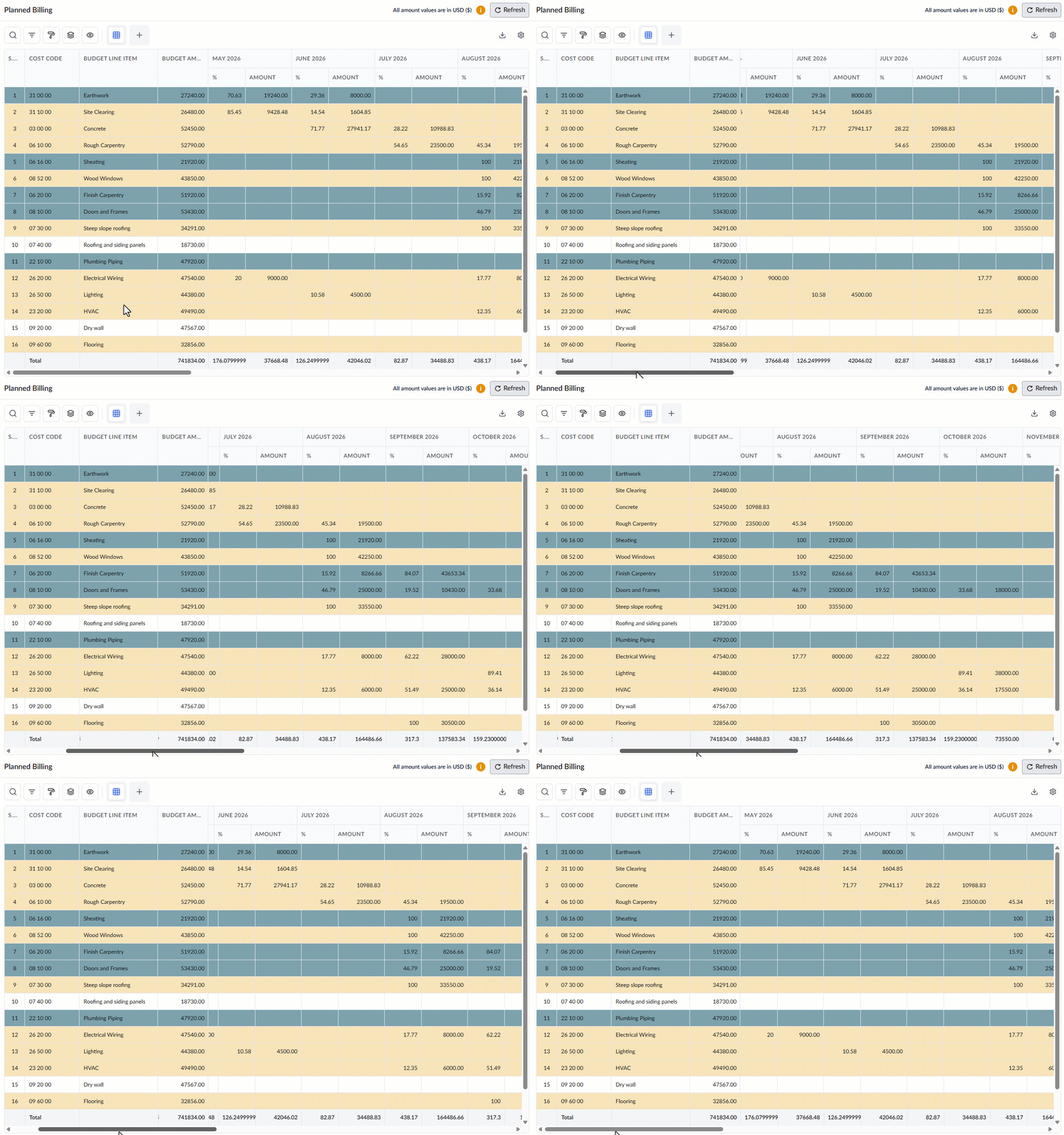
The screen displays the cumulative projected completion percentages of the work items linked to each budget line, along with their corresponding monetary values for each month.
Allocation Status Color Codes
The rows are color-coded to give you a quick visual indicator of each budget line's allocation status:
- Green (Fully Allocated): The full amount has been exhausted from the budget line and allocated across relevant task items in the schedule.
- Yellow (Partially Allocated): The amount has been partially allocated to relevant tasks, and the remaining amount is available for further allocation.
- White (Unallocated): No allocations have been made from the budget line item. The full amount is available to allocate to pertinent tasks.
Tip: Click the 'i' icon at the top-right of the screen to view this color legend at any time while working.
Column Descriptions:
- Cost Code: The standard alphanumeric code for the task or deliverable, pulled directly from your company's master list.
- Budget Line Item: The specific label that will appear on the planned billing and payment applications.
- Budget Amount: The overall budget value allotted for the task item.
Monthly Values:
- Percentage: The fraction anticipated as billable for the month. This is system-calculated from the aggregated planned completion percentages of the tasks linked to the budget line item.
- Value: The corresponding monetary amount of the expected payment for the month, based on the applied percentage.
Search, Filter, and Sorting Options
- Click the magnifier icon and use the 'Search' box located at the top left to find an entry using any value from the table as search criteria
- Click any column header to sort the rows in ascending or descending order based on that column's data.
- Click the cog wheel icon at the top right to adjust the display density and customize the display and order of the columns
- The options at the top left allow you to filter the entries, create nested groups of entries, highlight cells and manage personalized and customized views of the table. Use the links below to learn more:
Was this article helpful?
That’s Great!
Thank you for your feedback
Sorry! We couldn't be helpful
Thank you for your feedback
Feedback sent
We appreciate your effort and will try to fix the article