The Punch List Dashboard gives you a clear, consolidated view of punch list activities across all active projects, highlighting item volume, status trends, resolution progress, and timelines. Visual charts display punch items by status, due dates, responsible contractors, affected areas, average resolution time, and more.
You can filter data by status, contractor, priority, or schedule impact to focus on what matters most. With cross-filtering, any selection you make in one chart updates all others instantly—making it easy to drill down, spot patterns, and identify areas that need attention. See Cross Filtering Options to learn more.
To view the portfolio-level punchlist reports
- Ensure you are in the portfolio console. If not,
- Click the app launcher icon
 in the top-right and select 'Portfolio.'
- Click the app launcher icon
- Click 'Analytics' on the top and 'Punshlist Dashboard' on the left
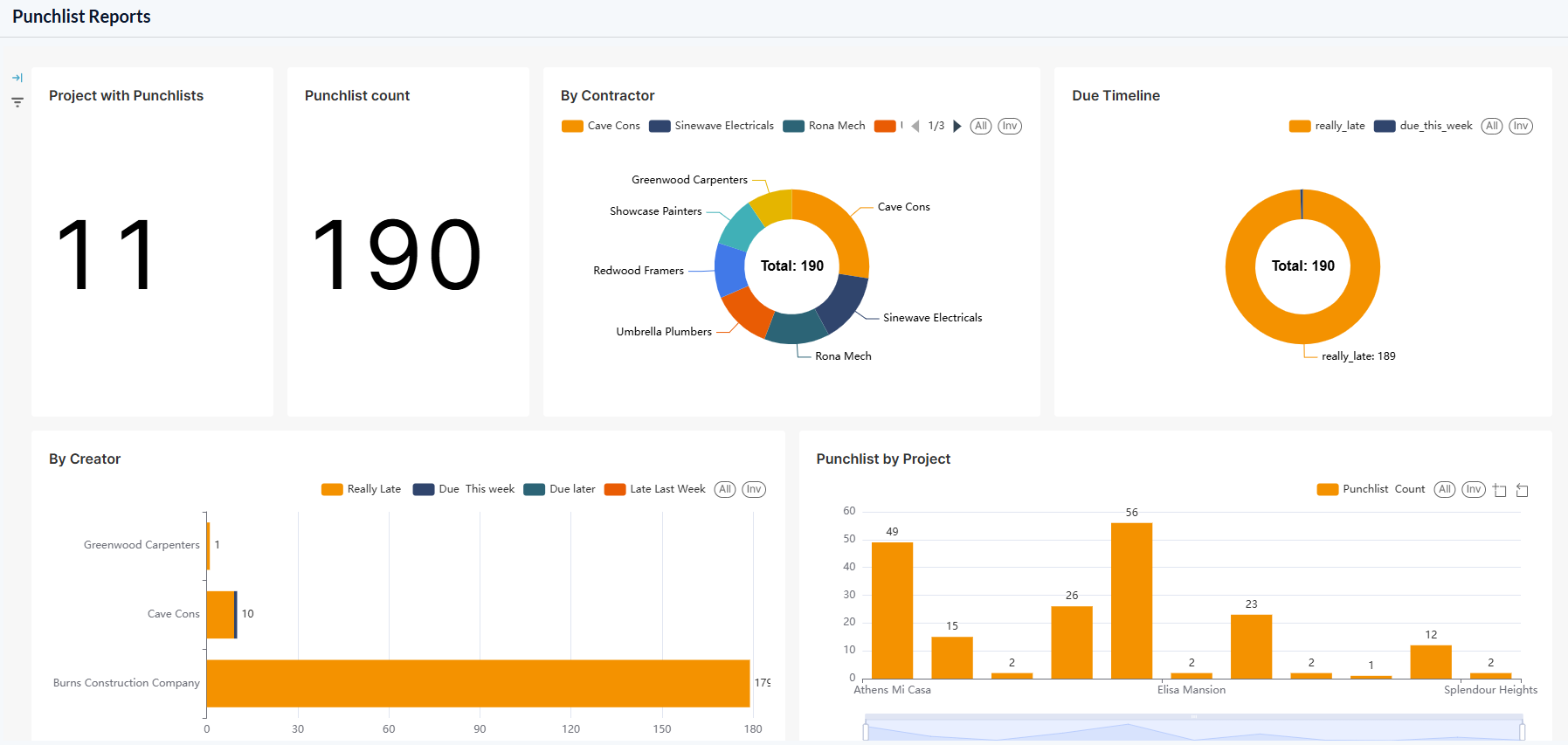
The dashboard shows the following cards and charts:
- Project Count- Total number of projects that have at least one punchlist item, regardless of their status.
- Punchlist Count- Total number of punchlist items across all projects.
- Contractor Distribution
- Resolution Summary
- PLI Distribution by Created Contractor
- Punchlist Count by Project
- Punchlist status by project
- Punchlist by Due Status
- Punchlist by Status
- Punchlist by Trade
Contractor Distribution
The donut chart shows the breakdown of punch list items by contractor, including items they created as well as those assigned to them by the general contractor or other contractors.
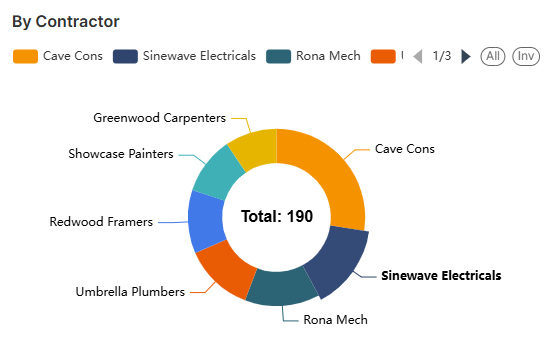
The legends are shown at the top.
- Use the left and right arrows to scroll the legend strip
- Hover your mouse over a sector to view the number of punchlist items in that category, along with their percentage share of the total.
- Click on a sector to set that status as a filter and apply that as filter criteria to other charts. See Cross Filtering Options to learn more about this.
Resolution Summary
The donut chart shows the breakdown of punch list items by due date, including those due this week, those that became overdue in the past week, and those that are overdue by more than one week.
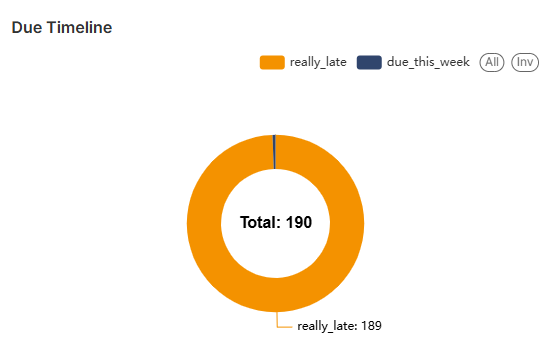
The legends are shown at the top.
- Use the left and right arrows to scroll the legend strip
- Hover your mouse over a sector to view the number of punchlist items in that category, along with their percentage share of the total.
- Click on a sector to set that status as a filter and apply that as filter criteria to other charts. See Cross Filtering Options to learn more about this.
PLI Distribution by Created Contractor
The bar chart shows the number of punch list items grouped by the contractors who created them, further broken down by their due dates.
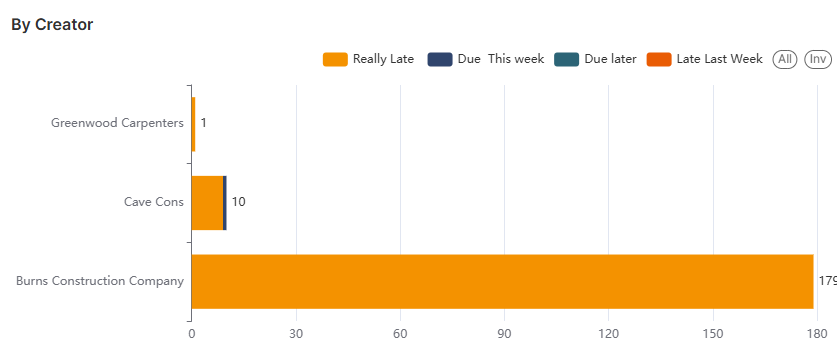
- Place your mouse on the chart to view more details.
- See Zoom and Filtering Options to focus on particular data on the chart.
Punchlist Count by Project
The bar chart shows the total number of punch list items associated with each project.
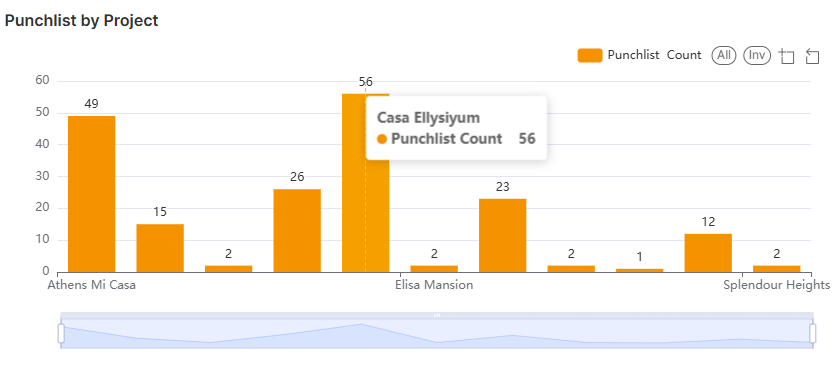
- Place your mouse on the chart to view more details.
- See Zoom and Filtering Options to focus on particular data on the chart.
Punchlist status by project
The bar chart shows the total number of punch list items associated with each project, further broken down by their statuses.
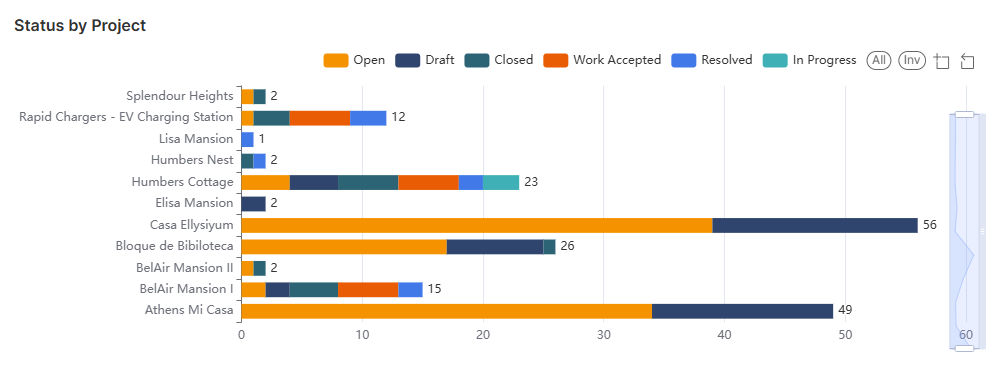
- Place your mouse on the chart to view more details.
- See Zoom and Filtering Options to focus on particular data on the chart.
Punchlist by Due Status
The bar chart shows the total number of punch list items associated with each project, further broken down by their due dates.
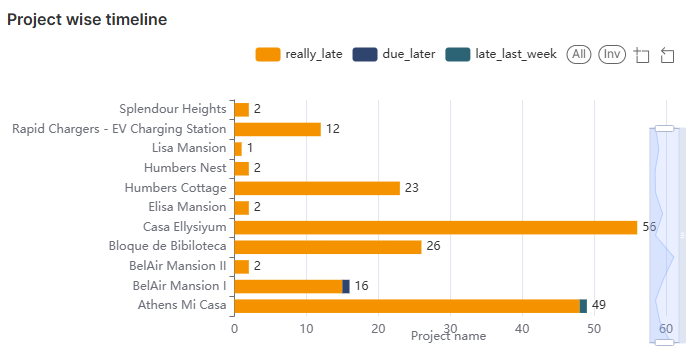
- Place your mouse on the chart to view more details.
- See Zoom and Filtering Options to focus on particular data on the chart.
Punchlist by Status
The pie chart displays the total number of punch list items across all your projects, categorized by their current statuses for quick, high-level insight.
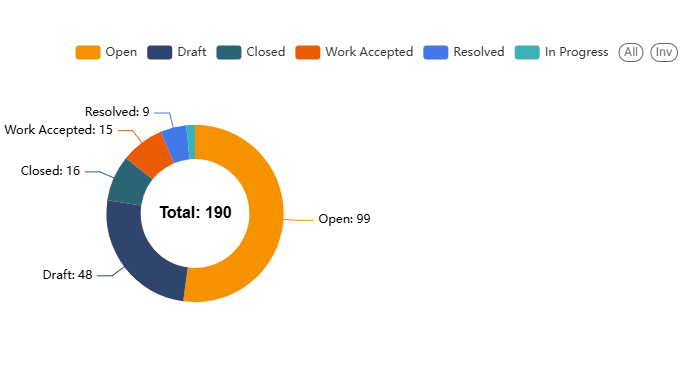
The legends are shown at the top.
- Use the left and right arrows to scroll the legend strip
- Hover your mouse over a sector to view the number of punchlist items in that category, along with their percentage share of the total.
- Click on a sector to set that status as a filter and apply that as filter criteria to other charts. See Cross Filtering Options to learn more about this.
Punchlist by Trade
The pie chart displays the total number of punch list items across all your projects, grouped by their respective divisions of work for quick category-level insight.
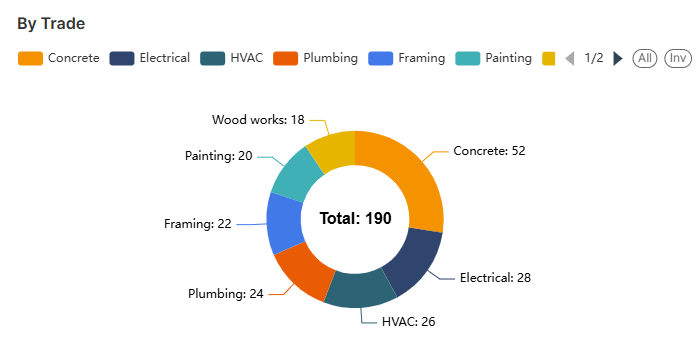
The legends are shown at the top.
- Use the left and right arrows to scroll the legend strip
- Hover your mouse over a sector to view the number of punchlist items in that category, along with their percentage share of the total.
- Click on a sector to set that status as a filter and apply that as filter criteria to other charts. See Cross Filtering Options to learn more about this.
Cross Filtering Options
The cross-filtering feature enables you to choose a category on one chart and instantly apply that category as a filter across all visualizations. This action refines the data displayed in the other charts, showing only the statistics related to the selected category of PLIs. Additionally, you can layer multiple filters by selecting different sectors across the charts, allowing for deeper, more specific analysis of the filtered results.
Note: You can add custom filtering options only from the donut/pie charts and the tables in the dashboard.
- Click on any sector within the donut charts to filter other charts with that category as filter criteria
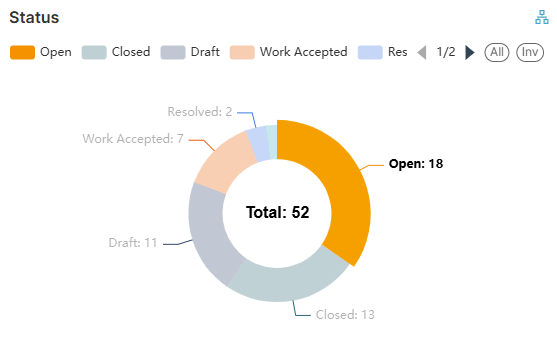
- Repeat the process on the other charts successively to drill down the results
The Filters pane on the left shows the successively applied filters
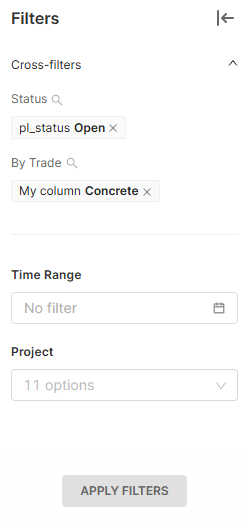
- Click the 'X' mark beside a filter to remove it.
Filter by Time Range
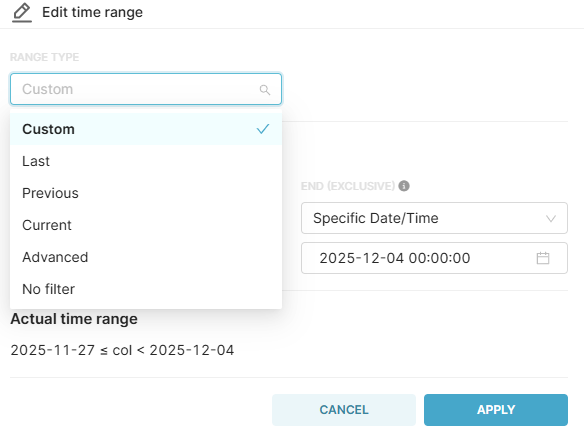
- Click the 'Time Range' filter
- Select the range type from the drop-down menu and choose the desired time range
You can also set a custom time range with a specific date and time
- Click the'Apply' button to set the filter for the selected time range
Illustration
For example, if you want to view statistics of PLIs that are in 'Open' status, under the concrete trade type, you can cascade these two filters from the respective charts:
- Click 'Open' sector in the 'Status' chart
All charts are filtered to show only the statistics of PLIs that are in progress.
- Then click 'Concrete' in the 'Trade' chart
The charts now show only the PLIs that are in progress and have both cost and schedule impact.
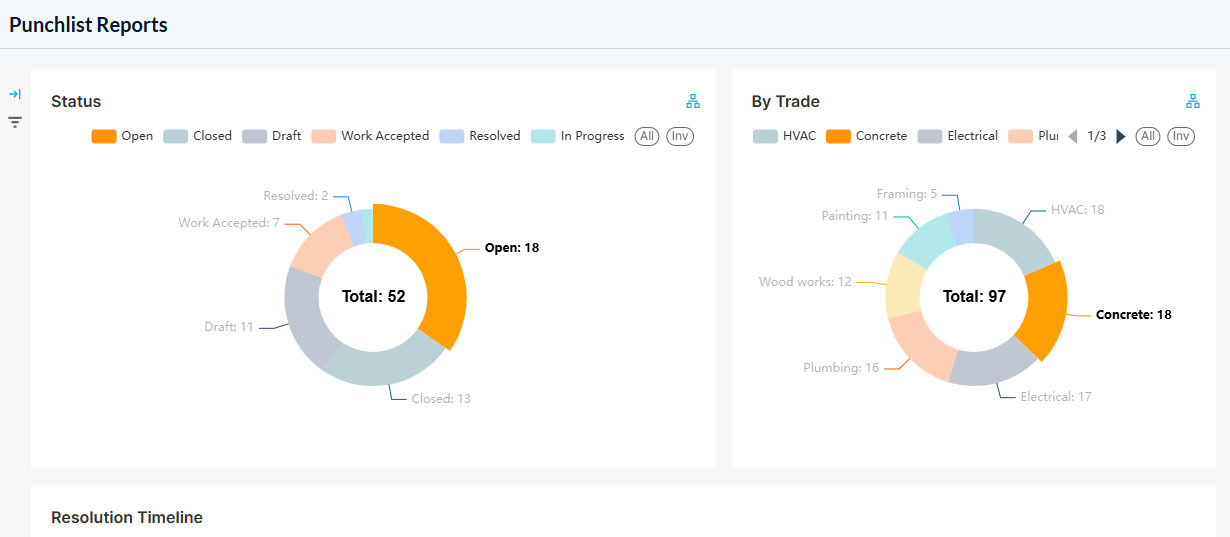
The 'Filters' pane on the left shows the filters applied in order.
- Click the 'X' button beside a filter to remove it
Zoom and Filtering Options
Zoom option:
This function is applicable to all bar charts to get a precise view of a particular area.
- Use the sliders at the bottom or sides to zoom the chart to a required timeline

- Click
 , drag, and select an area to zoom in to view data on that particular area
 - Click
 to reset the zoom
Filtering options:
Filtering options are available for both pie charts and bar charts.
- Click on the legends at the top of the particular chart to hide/show those categories in the chart. This filter option is applied only to that particular chart.
- Click 'All' to clear all filters and show all categories
- Click 'Inv' to invert your selection of categories
Was this article helpful?
That’s Great!
Thank you for your feedback
Sorry! We couldn't be helpful
Thank you for your feedback
Feedback sent
We appreciate your effort and will try to fix the article