Accurate measurements are the foundation of reliable takeoffs. Linarc's AI is highly accurate at automatically detecting and applying the correct scale for your plan sheets. However, in very rare instances—such as when a single sheet contains multiple drawings or the drawing format is unconventional—the scale could not be detected or auto-detected scale may need an adjustment. This article explains how to manually recalibrate your drawing scale to guarantee absolute precision.
Manually calibrating your sheet ensures you can:
- Override automated settings: Easily correct the scale if a complex sheet layout or multiple drawings prevent the AI from detecting the primary scale.
- Guarantee takeoff accuracy: Ensure that all line and area markups pull exact, true-to-life dimensions.
- Standardize your measurements: Establish a definitive manual scale so every subsequent markup you create on that sheet remains perfectly aligned.
To calibrate the drawing scale for a sheet
- Ensure that you are on the desired plan sheet. If not,
- Click the top-left main menu, select 'Plan Sheets' under 'Documentation' to open the plan sheets screen
- Click the thumbnail of the sheet you want to open.
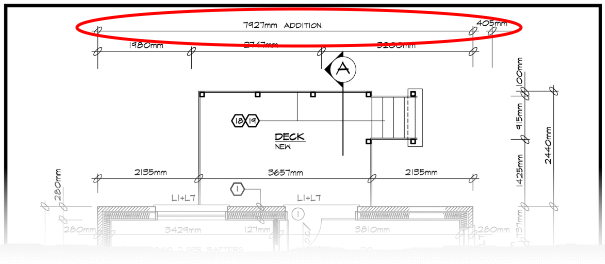
- Locate a section on the drawing that displays a known dimension, such as a labeled length marking between two points. (See the example below)
- Click 'Recalibrate Scale' within the layer editor on the left.
- If the layer editor is not already open, click the
 icon in the top left to open it
- If the layer editor is not already open, click the
- Click the starting point of the known measurement on your drawing, and drag your cursor to draw a line to the end point.
- Use the handles at the ends of your drawn line to adjust it, ensuring it covers the exact distance of the known dimension perfectly.
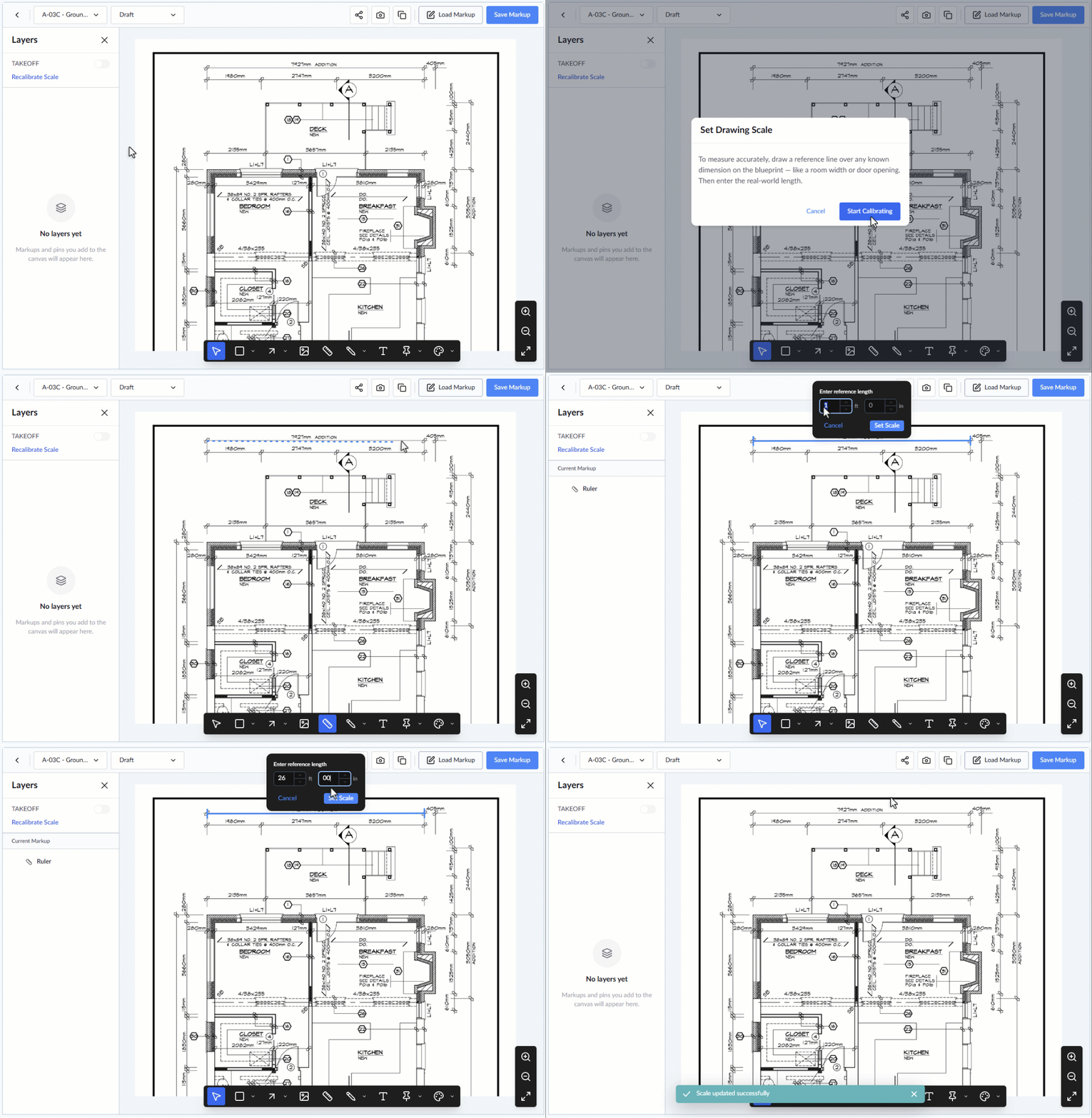
- Type the known dimension into the pop-up box in feet and inches (e.g., 26'00").
- Click 'Set Scale' to save your new calibration.
The new scale is saved specifically for this individual sheet.
- The change applies retrospectively, automatically updating the dimensions of any previously created markups based on the new scale.
- All new markups created from this point forward will accurately follow the calibrated scale.
Was this article helpful?
That’s Great!
Thank you for your feedback
Sorry! We couldn't be helpful
Thank you for your feedback
Feedback sent
We appreciate your effort and will try to fix the article