Linarc features a built-in master cost code library aligned with the industry-standard Construction Specifications Institute (CSI) 50-Division MasterFormat.
The library is organized in a hierarchical tree structure to help you build your company's custom cost code list. Instead of manually entering codes, you can expand the divisions and select the specific categories and task items you need to add them directly to your company profile.
To import cost codes from CSI MasterFormat
- Open the 'Cost Code' screen
- Click the ‘+Add from CSI code’ button on the top right
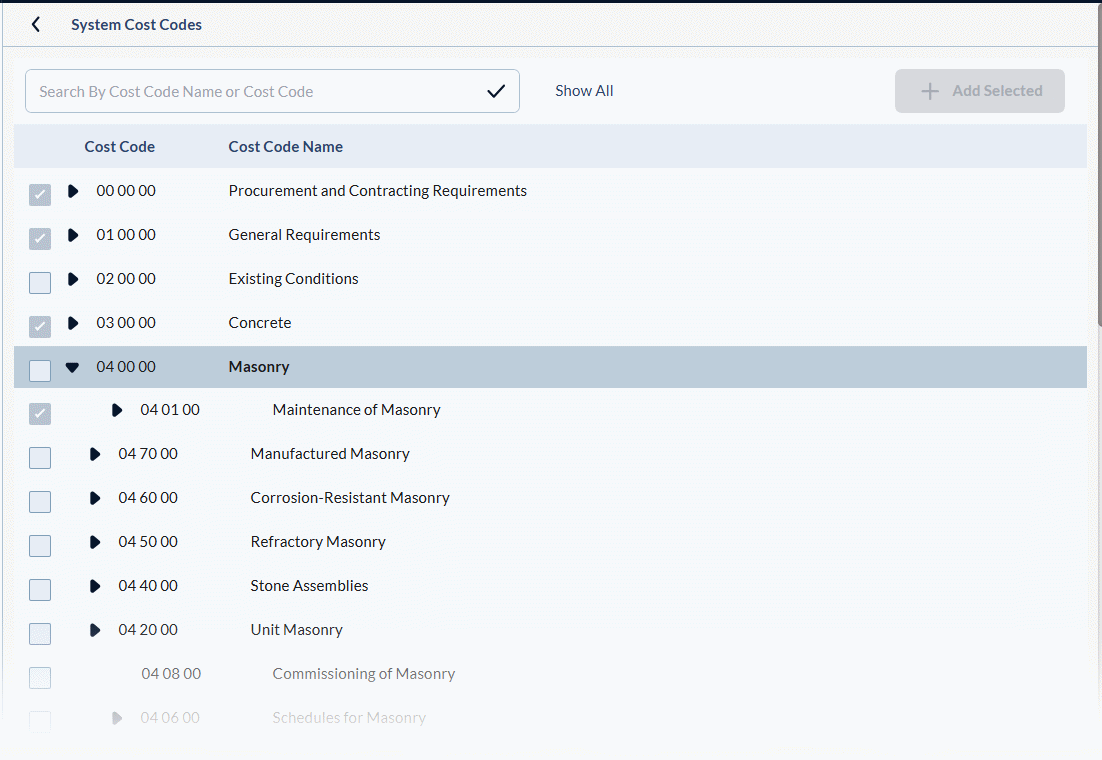
The master cost code library is displayed as an expandable and collapsible list:
Tip:
Use the 'Search' box at the top to search for items using their names or codes.
- Click the right arrow beside a category code to view the list of items in that category.
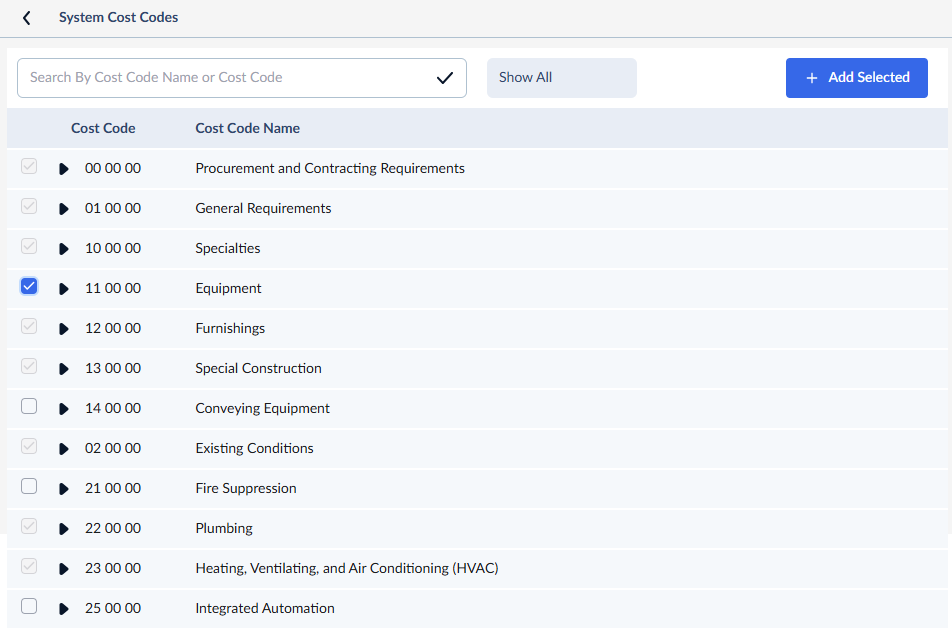
- Select the items you want to add to your company cost codes.
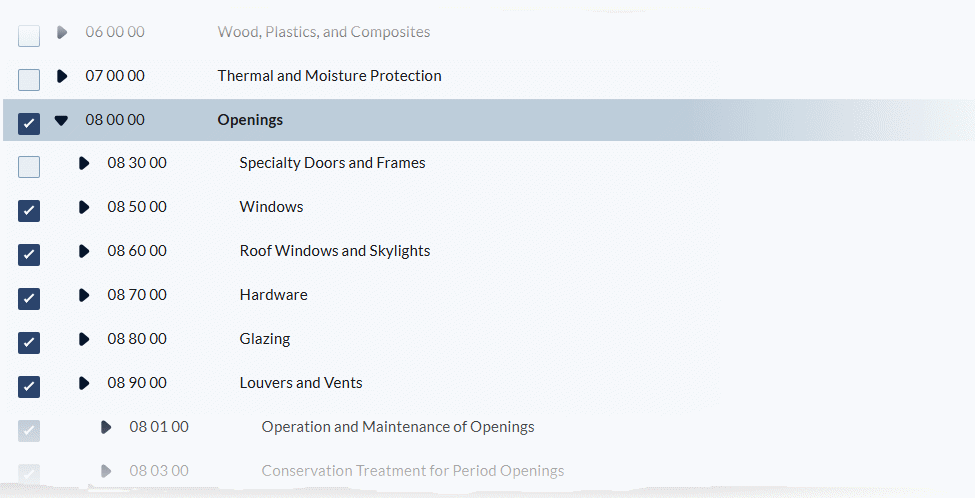
- Click ‘Add Selected.’
The items are included in your company cost code list and are auto-added with color codes. You can change these color codes as required.
- Edit the task type, cost type, cost attribution and other parameters for the imported items as required. Modifying the entries is similar to adding new items manually. See Add Cost Codes Manually for more guidance.
- Repeat the process to add more cost codes from the CSI MasterFormat.
Change the Color Code of a Cost Item
You can reassign a color to a cost code for easy identification of tasks and deliverables corresponding to that code.
- Click the color dot at the left in the row of the line item to open the color picker.

There are two ways in which you can specify a color code:
1. Color picker
- Drag the slider in the color spectrum bar to select the hue
- Drag the circle in the color field to select the shade
- Drag the slider in the opacity bar to set the color transparency level
- The color coordinates of the chosen color are auto-populated in the text box at the bottom
2. Color coordinates
- Click the arrows at the bottom right repeatedly to switch between HEX, RGBA, and HSLA input modes
- Enter the HEX, RGBA, or HSLA value of the color you want to assign to the item
Search, filter, and sorting options
The Cost Codes screen provides several tools to help you find and organize your data:
- Sort: Hover over any column header and click the sort icon
 to organize rows in ascending or descending order.
 - Search: Use the search box at the top left to quickly find specific codes using any value from the table.
- Customize Columns: Right-click a column header to change the display and order of the columns.
- Advanced Views: Use the options at the top right to filter entries, create nested groups, and manage custom views.
Download the Cost Code list
- Click the
 button at the top right of the screen to save a local copy of the list in Excel format. This is useful for offline sharing and record-keeping. See Download List Views and Logs in Excel Format for more details
Was this article helpful?
That’s Great!
Thank you for your feedback
Sorry! We couldn't be helpful
Thank you for your feedback
Feedback sent
We appreciate your effort and will try to fix the article